

How to Fix Server DNS Address Could Not Be Found on Chrome
We regularly see “Server DNS Address Could Not Be Found” DNS DNS_PROBE_FINISHED_NXDOMAIN error while browsing on Chrome. This error usually comes when your Chrome when the DNS server stops responding. Here are the possible fixes for the “Server DNS Address Could Not Be Found” error on Chrome. Restart The DNS Client Service Like we restarted the PC…

How to Fix Server DNS Address Could Not Be Found on Chrome
We regularly see “Server DNS Address Could Not Be Found” DNS DNS_PROBE_FINISHED_NXDOMAIN error while browsing on Chrome.
This error usually comes when your Chrome when the DNS server stops responding. Here are the possible fixes for the “Server DNS Address Could Not Be Found” error on Chrome.
Restart The DNS Client Service
Like we restarted the PC when it freezes or not responding, we can do same for DNS client too. You can restart the DNS client in simple steps.
- First, open run command by clicking on Windows logo key and R key together on your keyboard.
- In the run command box, type services.msc and click on enter key.
- This action will open the Service Manager Window on your PC, now select DNS Client service on the right side.
- Now restart the service.
Change DNS Server Settings
- Open Control Panel. (You can launch control panel by Launch the run command box by pressing Windows logo and R key together and then type Control Panel)
- In the Control Panel, go to Network and Sharing.
- Now, choose Change adapter settings from the left menu.
- Here, right click on the network connection icon. It may be Local area connection/Ethernet or WiFi and click on Properties.
- Now, Double click on Internet Protocol version 4 (TCP/IPv4).
- Here, If “obtain DNS server address automatically” option is not selected.
Select Obtain DNS server address automatically option and press OK and exit.
If this step not worked and still the problem raises, now do the steps below.
If “Obtain DNS server address automatically” option is selected already.
-
- Just select “Use the following DNS server addresses” option.
- Now, add the following Google Public DNS server addresses in the field.
- Preferred DNS server: 8.8.8.8
- Alternate DNS server: 8.8.4.4
- Press Ok and exit.
Clear Chrome Host Cache
If Chrome’s host cache is corrupt or full, then the Google Chrome may feel hiccups while loading websites. This is a very common cause of the DNS Server issue problem,
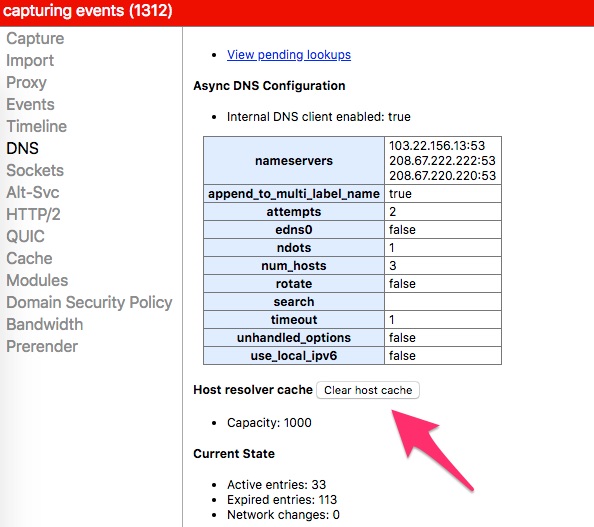
Open Chrome and type chrome://net-internals/#dns in the address bar, press Enter on your keyboard, then click the Clear host cache button.
Clear DNS Cache or Flush DNS
Every system store DNS Cache (DNS Cache is a system file that includes the hostnames and IP addresses of the websites you have visited.)
If you are using Windows for browsing, there is a chance of DNS failure on your system which causes the “Server DNS Address Could Not Be Found” error on Chrome. Luckily, you can clear the DNS Cache or Flush DNS in easy steps to resolve the error.
- Launch command prompt by using administrator privileges.
- In Command Prompt, paste the command “ipconfig /flushdns” and press Enter.
- This action will flush the DNS cache and you will get a message saying “Successfully flushed the DNS Resolver Cache“ in the command prompt.
Alternative Methods to Flush DNS
You can use the below commands in the command prompt to flush the DNS.
- ipconfig /displaydns: Check the DNS record under Windows IP configuration.
- ipconfig /release: Release your current IP address settings.
- ipconfig /renew: Reset your IP address settings.
That’s all for now. I hope you successfully solved “Server DNS Address Could Not Be Found” error on Chrome using above steps.
Please do share your views in the comment box below.
You might also like
How to fix the “We can’t reach this page” error on Microsoft Edge
There are Windows users out there who have been using Microsoft Edge browser. If you are unaware, Microsoft Edge is a refreshed version of the Internet Explorer by Microsoft. The Internet Explorer is a standalone browser developed by Microsoft and bundled along with Windows 10. For users who have privacy concerns, Google Chrome is not…
How to Fix DNS Error- DNS_Probe_Finished_no_Internet in your PC
We have all known that Windows is the preferred Operating System around the World when it comes to OS of choice. Now, some of you may argue that MacOS is better than Windows. However, we will reserve that debate for some other day. If you are an avid Windows user, you might have known that there…
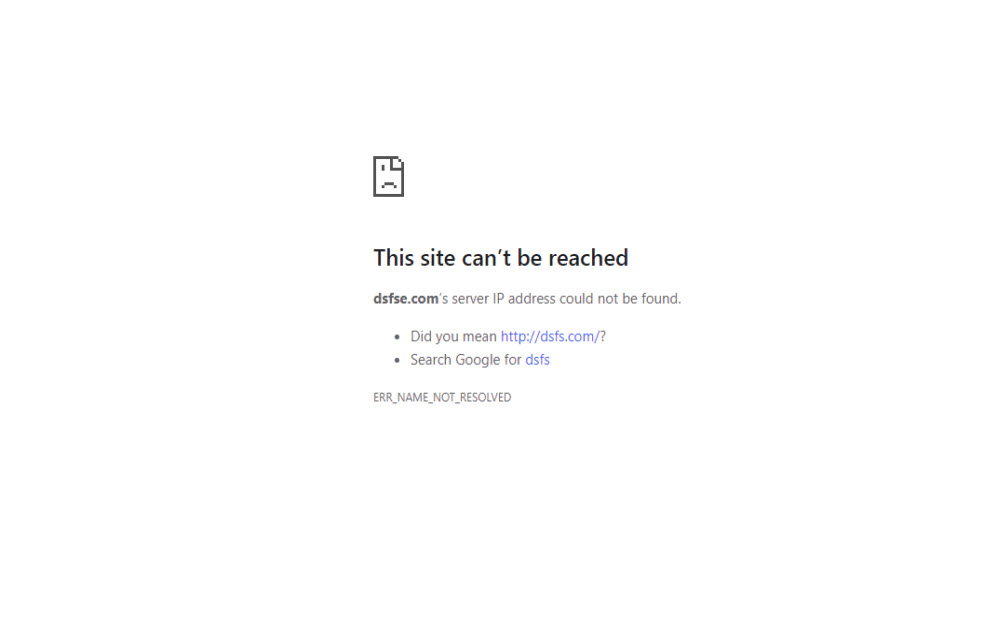
How to fix “This Site Can’t Be Reached” Chrome Error
This Site Can’t Be Reached is the common error in the Google Chrome browser. The error is caused by many reasons when your trying to open a website address in Google Chrome. If you are currently facing the error and trying to fix the issue, then you are in the right place. We are here…
The week in tech, minus the noise.
New reviews, fixes and the stories that matter — once a week, straight to your inbox.
We only use your email to send the newsletter. Unsubscribe any time. See our privacy policy.
Comments