

How to Fix “Windows 10 Doesn’t Have a Network Profile for this Device” Error
Currently, some Windows 10 users are plagued with an error saying that there is no network profile on this device. The network profile is used by many devices such as printers, scanners etc to remain in the same network as the PC. Now, the network error means that there is no connection between the devices…

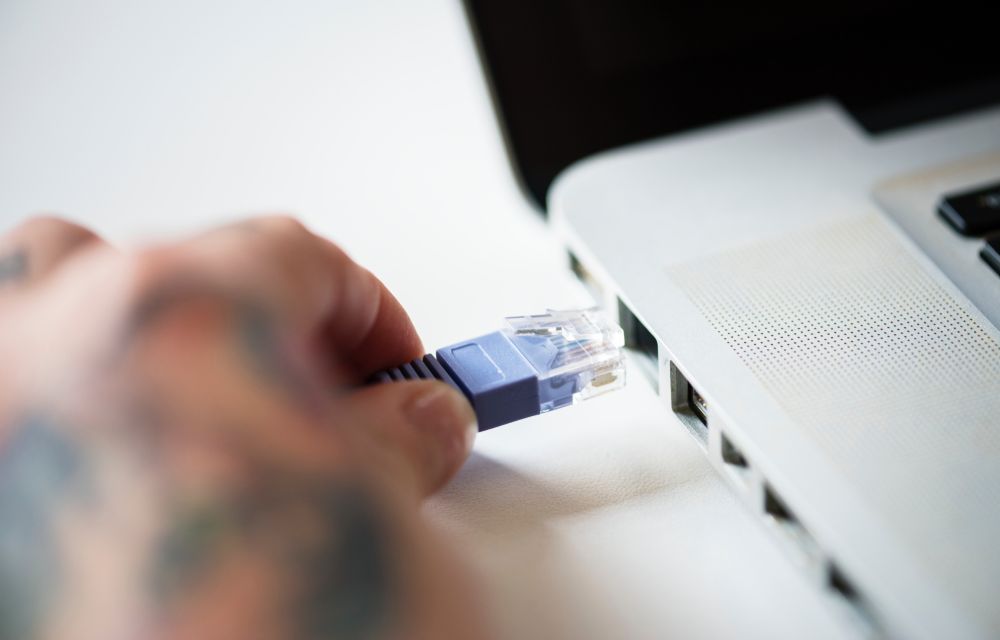
Currently, some Windows 10 users are plagued with an error saying that there is no network profile on this device. The network profile is used by many devices such as printers, scanners etc to remain in the same network as the PC. Now, the network error means that there is no connection between the devices which is an issue. Therefore, we are here to tell you how to solve this error if you are facing the same.
Fix Windows 10 doesn’t have a network profile for this device error
Solution 1 – Update Windows
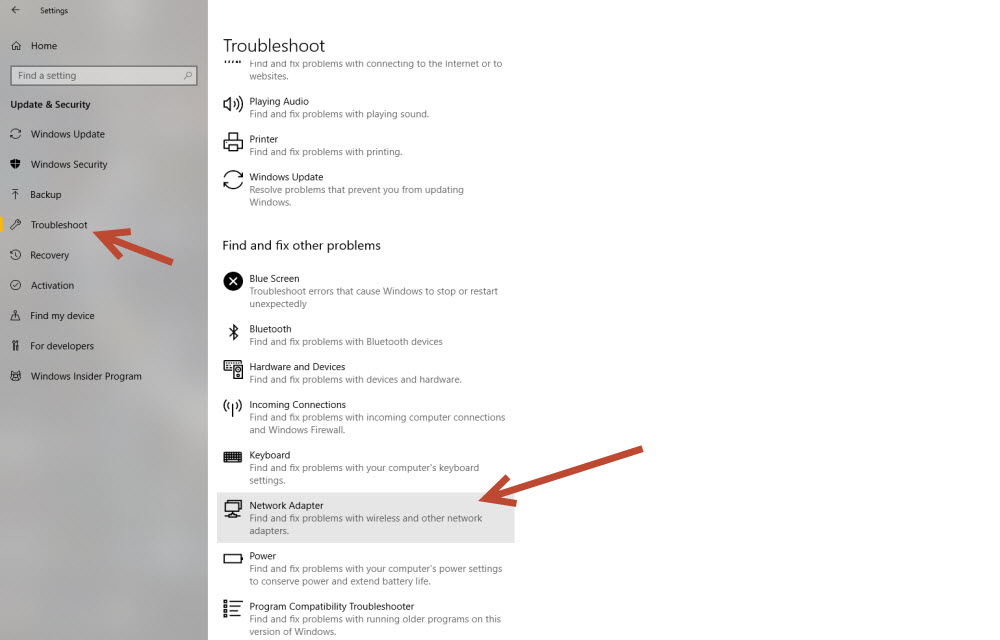
- First step is to check whether you are up-to-date with the latest version of Windows 10 or not. Because there are fixes to issues in latest Windows updates which we may be unaware about.
- If the Windows is up-to-date then go to Settings > Updates and Security > Troubleshoot. After that, click on Network adapter and see if the problem gets fixed by the system itself.
Solution 2 – Allow your PC to be discoverable
- Open the Start menu on Windows 10 and go to the Settings.
- Go to Network and Internet > WiFi
- Click on the current network that you are connected to. For example, it could be a WiFi network as well
- Click on it and change its network profile to Private instead of Public.
- Apply this changes on your PC and close the Settings.
- Restart the PC and you will notice that the issue has now been solved.
- You will no longer get this error on your Windows 10 PC after following this procedure so make sure to do this at the earliest.
This issue occurs only when we connect an external device such as a printer, scanner but there is no issue if we are connecting any keyboard or mouse. Therefore, this issue will arise on very few Windows devices out there but it is still good to know that there is a solution to this and it is also easy to apply.
More in Windows
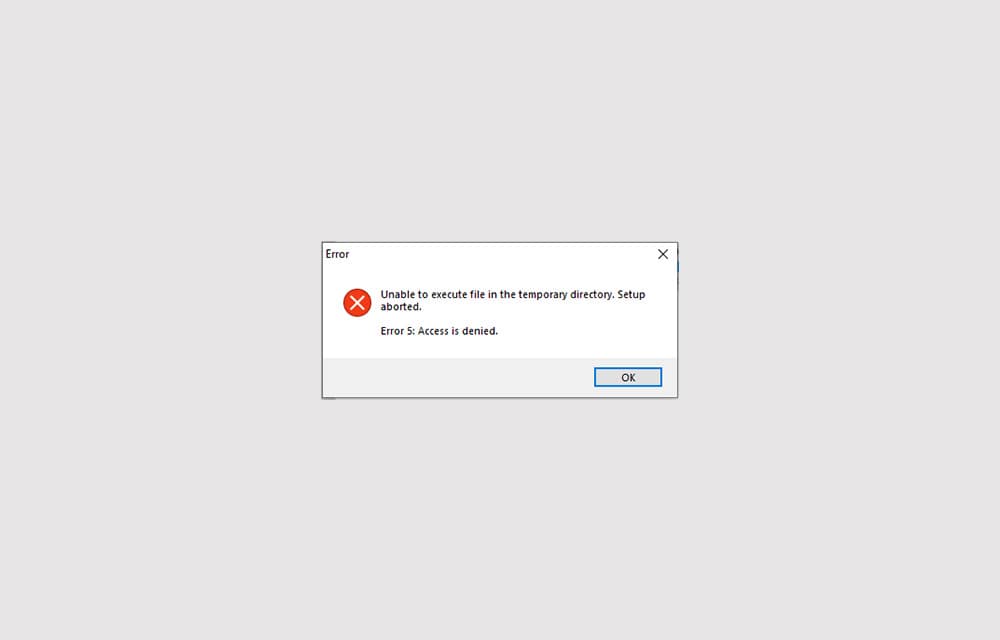
How to Fix ‘Error 5: Access is denied’ in Windows 10
Error 5: Access is denied is an error that shows up when Windows doesn’t have enough permission to perform the operation. Usually, the error is related to the Windows directory permissions and can be fixed by setting the correct permissions or giving access to the user to perform the action. In some other cases, the…

How to Fix Remote Desktop Stuck on “Please Wait” in Windows 11
Is your Remote Desktop session stuck on “Please wait” or “Please wait for the Remote Desktop Configuration” in Windows 11? In most cases, the remote PC is hanging during sign-in, usually because of RDP’s network detection, a UDP transport problem, a stuck old session, or a user profile that won’t load. The quickest fixes are…
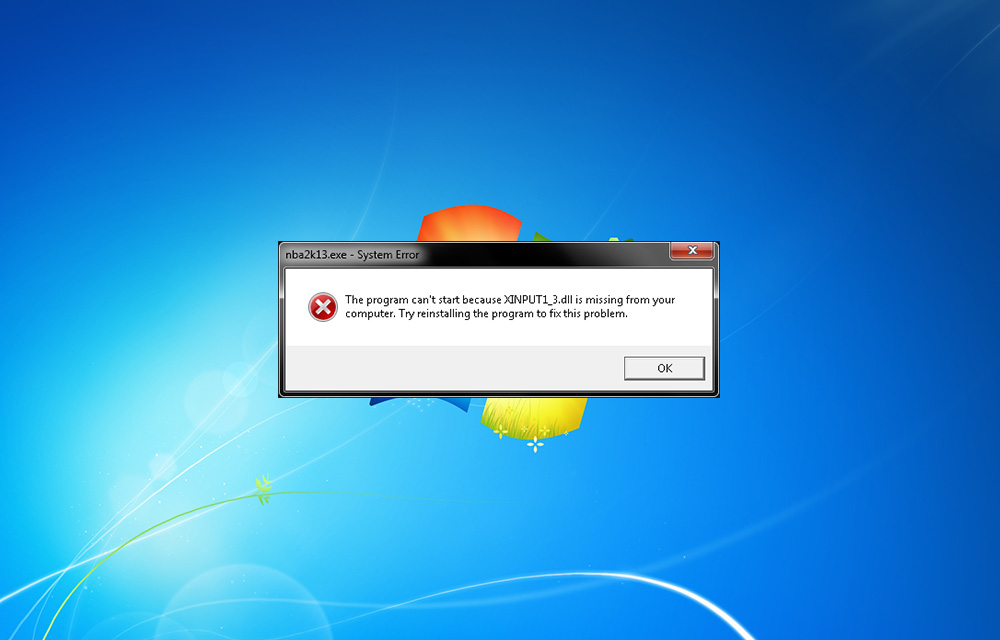
How To Fix Xinput1_3.dll is Missing Error On Windows
You may be faced Xinput1_3.dll is missing error while playing games. It is a common error comes during game play. Many of us just click on “OK” to exit the pop-up and continue the game. Unfortunately, this error doesn’t end by tapping ok. The reason of this error is the missing DirectX 9, which is…
The week in tech, minus the noise.
New reviews, fixes and the stories that matter — once a week, straight to your inbox.
We only use your email to send the newsletter. Unsubscribe any time. See our privacy policy.
Comments