

How to block suspicious contacts on Google Pay
How to block suspicious contacts on Google Pay: One of the best things that have happened to the Indian payments system, in general, is the rise of digital payments app such as Google Pay as well as others. Now, we know that Google Pay, formerly known as Tez, is trusted by millions in India due…


How to block suspicious contacts on Google Pay
How to block suspicious contacts on Google Pay: One of the best things that have happened to the Indian payments system, in general, is the rise of digital payments app such as Google Pay as well as others.
Now, we know that Google Pay, formerly known as Tez, is trusted by millions in India due to the company behind it. Also, we have seen that the app, as well as its service, works great in India and there are hardly any complaints regarding them.
However, that does not mean that we have no complaints regarding Google Pay at all. Yes, there have been complaints on Google Pay that users are being caught up in money fraud and they are losing money due to users taking money from their bank account instead of sending them money.
Also, there are users who have been doing this scam but Google Pay does not block them. Now, one way to make Google Pay team aware of this scam accounts is with the help of blocking and reporting those accounts.
Basically, if you report an account then the team will get to know that there is something suspicious. If they find enough evidence, they will ban the account from their platform and the scammers can be found out.
Before that, we will also tell you how you can avoid being part of this fraud with the help of blocking suspected contacts from your Google Pay app.
For this, you will have to download the Google Pay app and install it on your device.
How to block suspicious contacts on Google Pay?
However, since you are reading this tutorial so we believe that you might already have it installed and are even using the app right now.
- If that’s the case, make sure that your Google Pay app is open and go to any contact that you find suspicious and need it to be blocked.
- Note that blocking a contact means that you can’t send any money or messages to that account and that account can’t do the same to you as well.
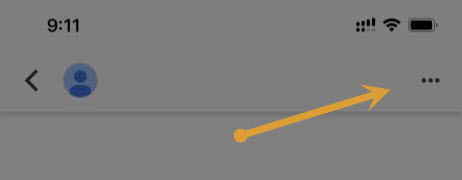
- Now, you will see a three-dot menu on the right side of the Google Pay account screen. Tap on it and you will see a list of options.
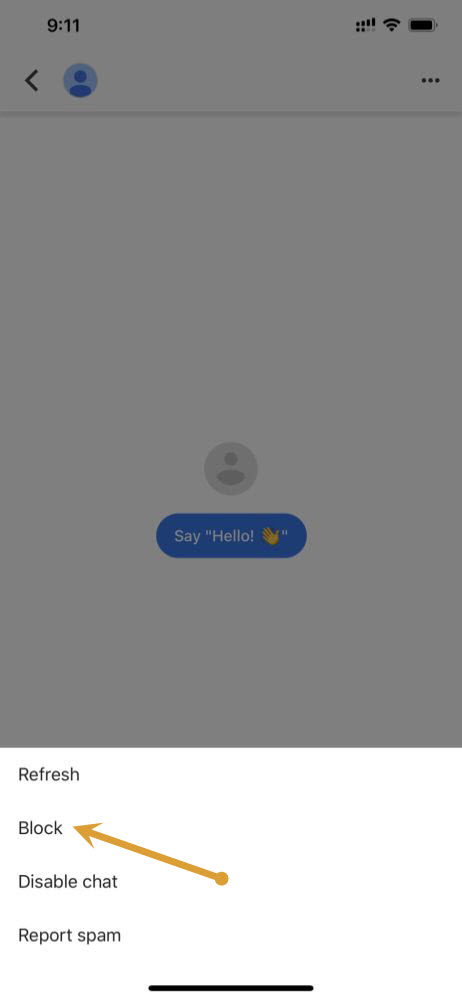
- From this list of options, the first one you will see is “Block” which is exactly what you need to tap on.
- Once you have clicked on “Block”, you will be notified that the account has been blocked.
Also, Google Pay does give you the option to block a contact if it is new and not in your contact list.
So if you are getting spam messages from an account or unknown money collection requests then it is also a good time to block that contact and you can even report it as spam.
Google Pay team is likely to block any contacts which have a certain amount of spam reports which give them a clear hint that the contact might be a fishing account to fraud people.
Also, Google gives you a clue that the number might be fraud based on its record of previous spam reports. This is also where you need to be alert and block that user from your app.
More in How-to

How To Keep Your Mobile Number Private With Easy Tricks
After marketing efforts of businesses cross the limits and entered into the privacy of public, we, the public must wake up and defend to protect our privacy at the best. One such marketing attack comes in the way of phone calls and one of the easiest way to irritate us to the extreme. Also, it…

How to Use Google for a Reverse Phone Lookup
To do a reverse phone lookup with Google, type the full phone number (with the area code) into the Google search box, in quotes, like “888-999-1212”. If the number belongs to a business, a public listing or a known scam, it usually shows up in the first few results. Google does not have a dedicated…
How to Customize Gmail for More Productivity
How to Customize Gmail for more productivity: Gmail is the best Email provider around. You can customize Gmail for more productivity. You can tweak Gmail very easily with simple steps. Follow these steps to grab more from Gmail. Want to set up a signature to your Gmail? hmm line up with your name, website, company,…
The week in tech, minus the noise.
New reviews, fixes and the stories that matter — once a week, straight to your inbox.
We only use your email to send the newsletter. Unsubscribe any time. See our privacy policy.
Comments