

Adios Lets Your PC To Shut Down, Restart, At A Specific Time
Shutting down, restarting a PC are manual things until now. Meet Adios, this program lets you schedule restart, shutdown, sleep with a timer. It is a pretty good thing for clearing unwanted temporary files and freeing up the memory. The automatic shut down feature is the most awaited feature for me. I regularly put large…

Adios Lets Your PC To Shut Down, Restart, At A Specific Time
Shutting down, restarting a PC are manual things until now. Meet Adios, this program lets you schedule restart, shutdown, sleep with a timer. It is a pretty good thing for clearing unwanted temporary files and freeing up the memory.
The automatic shut down feature is the most awaited feature for me. I regularly put large files downloading process on PC at the night time. They usually finish at 3:00 AM around and the computer will stay on until I woke up. The remaining time until I woke up is a waste of power consumption. This is one of a good example of how we badly need this automatic scheduling feature.
Adios – Shutdown timer is a freeware tool that lets you schedule your computer to shut down, restart, hibernate, sleep, lock, or log off automatically as per your scheduled time.
The user-interface of the program is pretty easy to understand. In the first glance, it shows a big-timer with hours, minutes and seconds. The left-side of the user-interface contains options like shutdown, restart, lock, logoff, hibernate and sleep options. The special tab is useful to set timer after finishing the tasks like time limit, wait for process, wait for downloader, startup-folder options for advanced shutdown actions.
By using these options, you can schedule the shutdown, restart timer on your PC. If you spend some time on these settings, you will know more tricks and ideas of the scheduler.
The automatic turn off and restart options are ideal in many cases like we discussed above. So let’s get started to schedule the timer on Windows.
How to use Adios turn off scheduler?
- Download and install Adios from the website.
- Open the program and click the “Shutdown” tab.
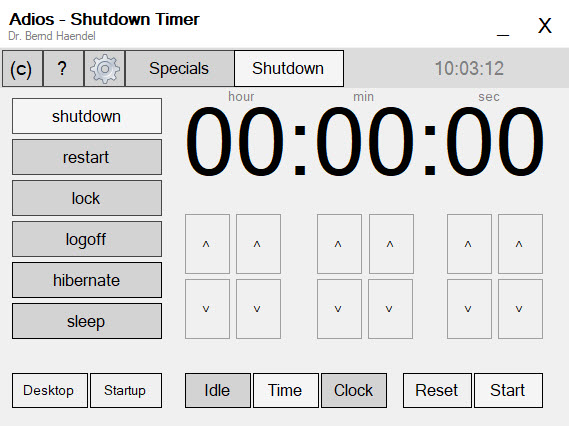
- Select an option to enable—shut down, restart, logoff, sleep, hibernate, etc, from the options on the left side, and then use the arrow buttons to set your timer.
- You can set the timers to trigger after a specific amount of time, or when the PC has been idling for a certain amount of time.
- Your PC will automatically shut down or enter the selected mode at the specified time.
That’s it. Now you successfully set the shutdown, or restart timer on your PC with the help of Adios. Let us know your feedback about the Adios in the comment section below.
More in Windows

How to Fix Windows 10 Won’t Shut Down, Restarts Instead
When you try to shut down Windows and it seems to be too slow, it can be something temporary or due to some system overload or Windows has a lot of programs to close before shutting down the computer. But, if it restarts instead? What do you do? Fret not, we have you covered if…
Shutdown or Restart Windows 10 Using Cortana with your Voice
Shutting down your computer is as simple as pressing a switch or using the traditional way of using your mouse for it. Wanna take it to the next level? What if you can just interact with your computer and even tell it to shut down itself or restart? Cortana makes it possible if you are…
How to Update Windows 10
Windows 10 updates are very important to keep your system secure and up-to-date with the latest features. If you got a good enough internet connection, you should always keep Windows 10 up-to-date as soon as a security/feature update is released. Unlike the previous versions of the OS, Windows 10 notifies users as soon as an…

The week in tech, minus the noise.
New reviews, fixes and the stories that matter — once a week, straight to your inbox.
We only use your email to send the newsletter. Unsubscribe any time. See our privacy policy.
Comments