

How To Capture Live Photos In FaceTime On macOS
Live photo is a feature introduced on the iPhone to capture realistic image instead of a steady image. It brings an alive moment in a still photo with the help of 3 seconds moving image. The technology behind the live photo is, the camera captures image 1.5 seconds before and after you take a pic…

How To Capture Live Photos In FaceTime On macOS
Live photo is a feature introduced on the iPhone to capture realistic image instead of a steady image. It brings an alive moment in a still photo with the help of 3 seconds moving image.
The technology behind the live photo is, the camera captures image 1.5 seconds before and after you take a pic and combining them to create an alive pic and available to view in the Apple’s Photos app.
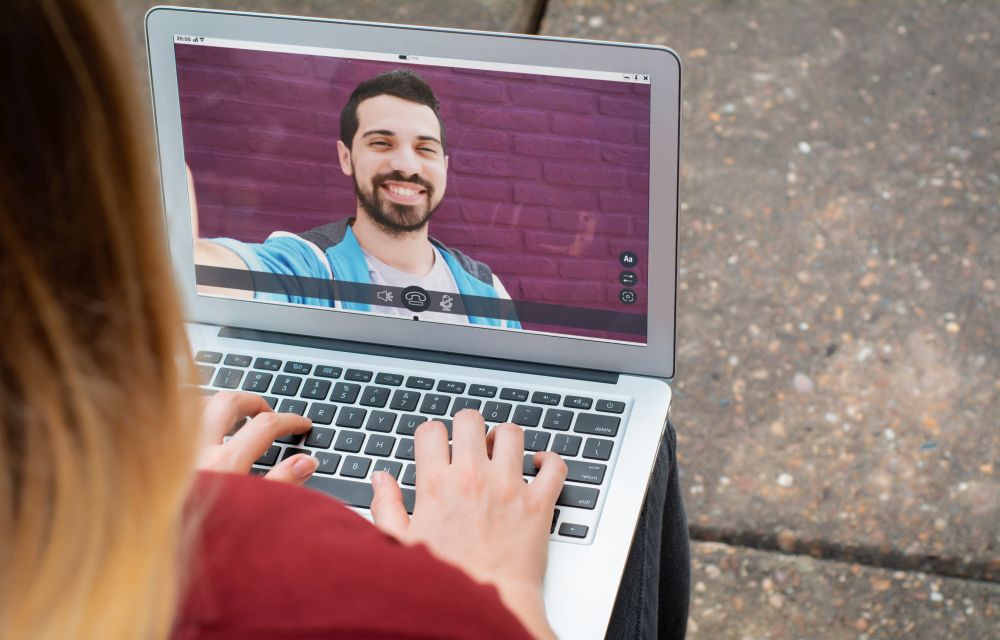
Apart from iPhone, you can take the live photos on macOS with the help of FaceTime. You can capture the live photo of the caller with a simple click.
In iOS 11 and macOS High Sierra, there’s a new camera shutter button on the screen when you’re in a FaceTime call which lets you capture the caller’s image.
How to capture Live Photos in FaceTime on macOS
The process of capturing live photos in FaceTime on macOS is a pretty simple process. Just follow the below steps on your macOS.
- Open FaceTime and go to the app’s preferences.
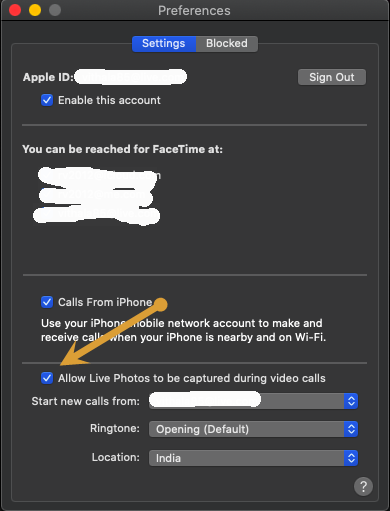
- Here, enable the ‘Allow Live Photos to be captured during video calls’ option.
- After enabling the live photos option, you can start a call.
- Once the call is active, click on the shutter button when you want to capture a live photo of the caller.
- Once you capture an image, you will see an alert on FaceTime telling you that a live photo has been captured.
- To access the live photos, open the Photos app and select ‘Recent’ from the column on the right.
- Photos app has a good feature which shows the live tag beside every photo. It will help you to find the live photos you captured in the list of images you saved on your macOS.
That’s all for now. Please leave your feedback in the comment section below.
More in How-to

How To Record Audio From A Google Chrome Tab
It is known that there are ways in which you can record audio on platforms such as Windows, macOS, Android as well as iOS. However, it might happen that we are browsing on the internet and there is a need to record audio and since we are in Chrome, we want to record audio there…

How to Colorize Black and White Photos
Ever wanted to see your grandparent’s photos in colors? At a time, where the colored photos are even not invented, it was absolute foolishness to expect real-life like looking colored photographs. So, they managed to capture valuable moments in their life with the latest technology available at that time, the black and white photography. But…

Best Possible and Easiest Ways To Take A Selfie
Selfie the term originated from self-portrait art is now widely using from smartphone image capturing. Nowadays selfie is a trend and very popular among the youth. People are very crazy over capturing best selfies and some lost their lives too. If you are a selfie maniac and looking for best possible and easiest ways to…
The week in tech, minus the noise.
New reviews, fixes and the stories that matter — once a week, straight to your inbox.
We only use your email to send the newsletter. Unsubscribe any time. See our privacy policy.
Comments