

Windows 11 Bluetooth File Transfer: What’s Really Going Away and What Still Works
Headlines say Microsoft is killing Bluetooth file transfers on Windows 11. That’s not quite what Microsoft wrote. Its list of deprecated Windows features, updated in November 2026, names MTP over Bluetooth, a lesser-known way for Windows to browse files on a paired device. The regular Send or receive files via Bluetooth tool isn’t on the…
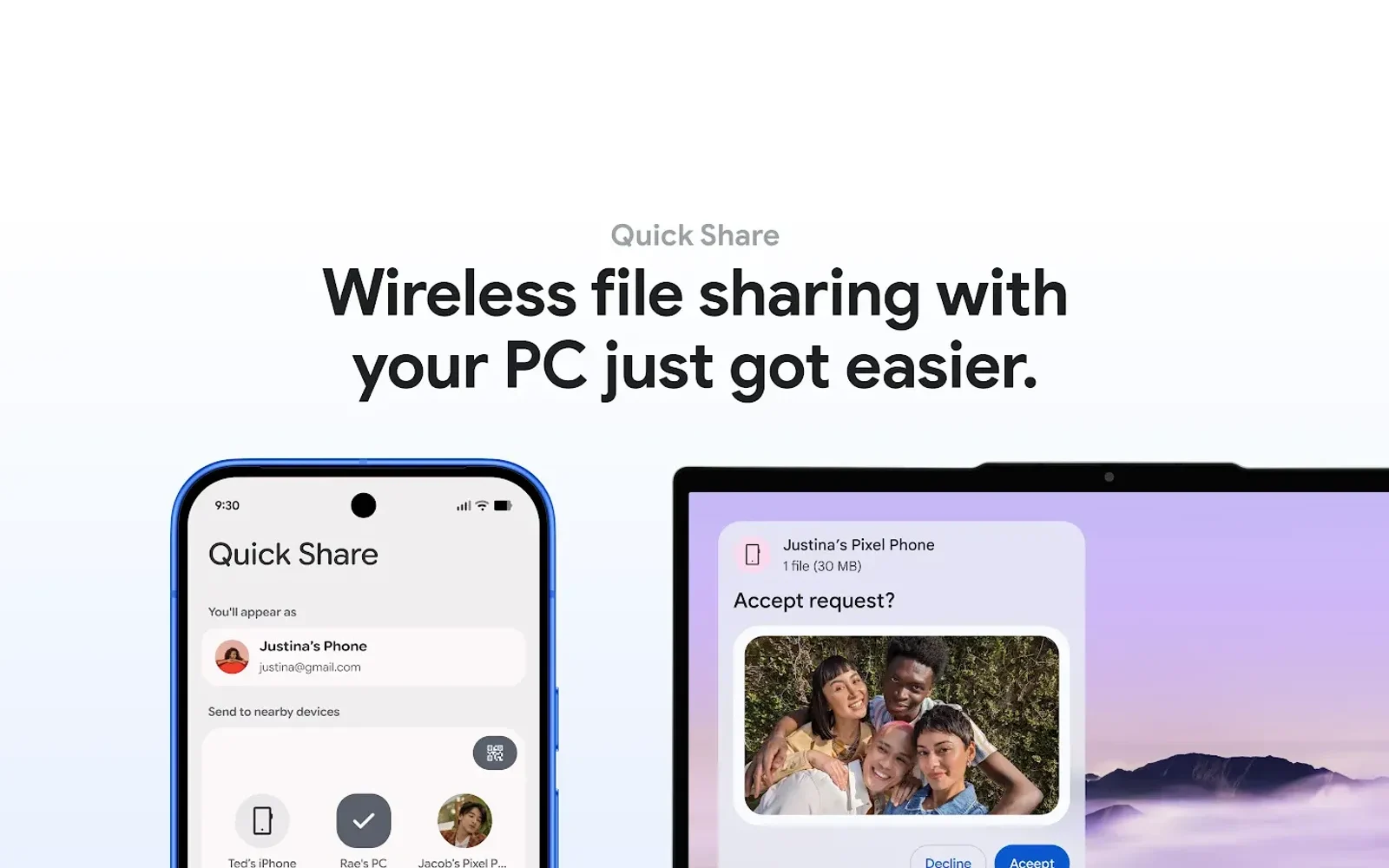
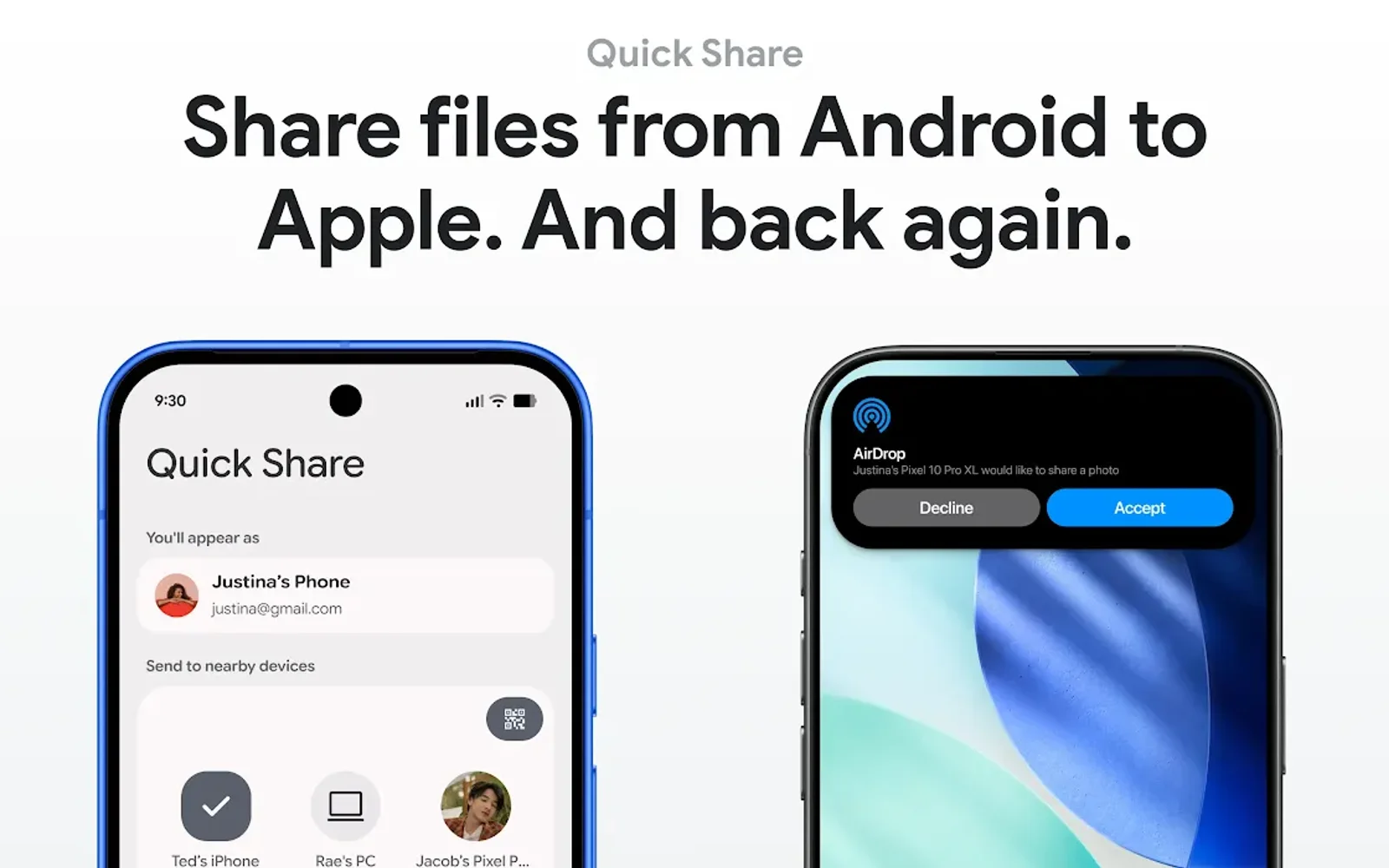
Image: Google
Headlines say Microsoft is killing Bluetooth file transfers on Windows 11. That’s not quite what Microsoft wrote. Its list of deprecated Windows features, updated in November 2026, names MTP over Bluetooth, a lesser-known way for Windows to browse files on a paired device. The regular Send or receive files via Bluetooth tool isn’t on the list. A second entry, the preinstalled Family Safety app, matters more to parents. This guide explains what’s going away, what still works today, and the faster ways to move files.
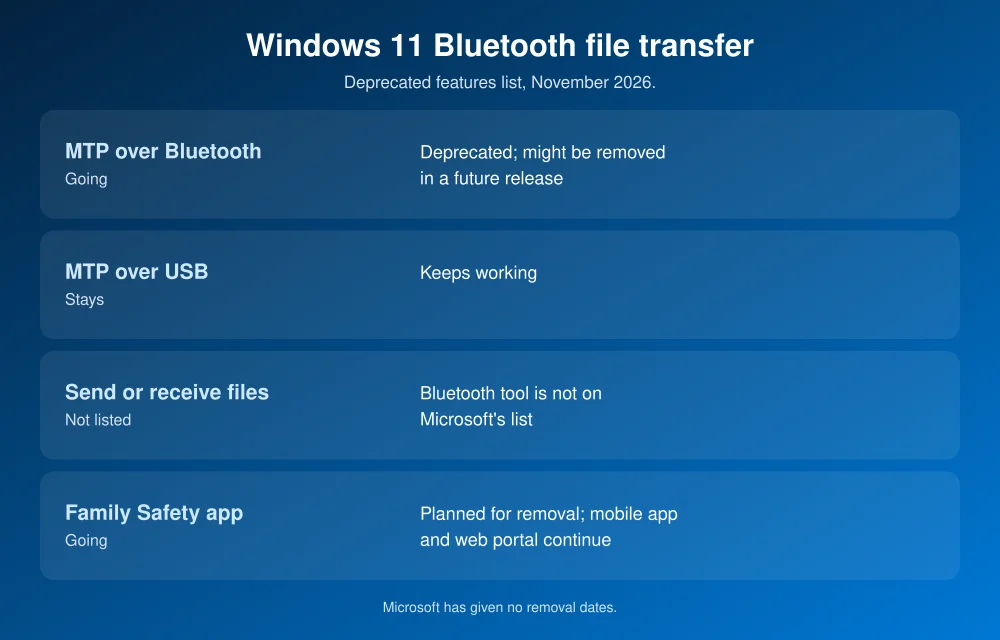
Quick answer: Microsoft has deprecated MTP over Bluetooth, which “might be removed in a future release of Windows.” MTP over USB keeps working. Microsoft’s list does not mention the normal Bluetooth send and receive tool at Settings > Bluetooth & devices > Devices > Send or receive files via Bluetooth. No removal date is given. The Family Safety app for Windows is also planned for removal, but its mobile app and website continue. For faster transfers, use Quick Share, Phone Link, Nearby sharing or a USB cable.
What Microsoft is deprecating
| Feature | Status | What to use |
|---|---|---|
| MTP over Bluetooth | Deprecated, might be removed | MTP over USB |
| Family Safety app for Windows | Deprecated, planned for removal | Mobile app or web portal |
| Send or receive files via Bluetooth | Not on Microsoft’s list | Works as before |
| MTP over USB | Continues | No change |
“Deprecated” means Microsoft has stopped developing a feature and may remove it later. It doesn’t mean it stops working today.
MTP over Bluetooth vs Bluetooth file transfer
MTP stands for Media Transfer Protocol. It’s what lets File Explorer show your phone’s photos when you plug in a cable. It can also run over Bluetooth, which makes a paired device’s storage visible to Windows apps. Bluetooth was added in Windows 7, and it’s slow.
The Bluetooth File Transfer Wizard is a separate tool that sends one or more files between two paired devices. Microsoft’s documentation describes it on its own. Because it isn’t on the deprecated list, we read the change as not affecting it. Microsoft hasn’t said so in as many words.
Neither entry mentions Bluetooth headphones, mice, keyboards or controllers.
How to send files by Bluetooth on Windows 11
From Microsoft’s Bluetooth guide:
- Pair the two devices first.
- Go to Start > Settings > Bluetooth & devices > Devices.
- Under Related settings, select Send or receive files via Bluetooth.
- To send, choose Send files, pick the device, select Next, browse to your file and select Next.
- To receive, choose Receive files, start sending from the other device, then choose where to save and select Finish.
The receiving device has to be ready before you send. If the option is missing, your PC may lack a Bluetooth adapter or driver.
Faster ways to move files
| Method | Best for | How |
|---|---|---|
| Quick Share for Windows | Android phone and PC | Install the app, drag in files, choose the device |
| Phone Link | Android 10 or later and Windows 11 | Right-click a file, then Share > Phone Link |
| Nearby sharing | Two Windows PCs | Settings > System > Nearby sharing on both |
| USB cable | Large files | On the phone, choose File Transfer |
| OneDrive | Any device | Upload and share a link |
Quick Share
Get Quick Share for Windows from Google. It needs a 64-bit PC on Windows 10 or later with Wi-Fi and Bluetooth on. Google’s page lists Windows 11 on ARM but also has a footnote saying ARM isn’t supported, so check before you rely on it. On an iPhone and a Samsung phone, see how AirDrop works with Quick Share.
Phone Link
Files you send from the PC land in Downloads > Sent from your PC on the phone. From the phone, use Share > Link to Windows > Send to PC, and files arrive in Downloads\Phone Link. It works with locally saved files only.
Nearby sharing
Choose My devices only if you can. Microsoft notes that Everyone nearby exposes your PC’s name and Bluetooth address.
USB cable
Unlock the phone, plug it in, tap Charging this device via USB, then choose File Transfer. If the PC doesn’t see it, try our fixes for an external device not showing up.
What parents should do about Family Safety
Your family settings aren’t disappearing. Microsoft says you can keep managing Family Safety in the mobile app or the web portal at account.microsoft.com/family.
- Install Microsoft Family Safety on your phone.
- Sign in with the same Microsoft account you use now.
- Check that each child, screen time limit and filter appears.
- Bookmark the web portal as a backup.
Comparing options? See our best parental control apps. For other Windows changes, see how to pause Windows 11 26H2.
FAQs
Is Microsoft removing Bluetooth file transfer from Windows 11?
Microsoft’s list names only MTP over Bluetooth. It doesn’t list the Send or receive files via Bluetooth tool.
When will MTP over Bluetooth be removed?
Microsoft hasn’t given a date or Windows version. It says the feature might be removed in a future release.
Will I still be able to copy files from my phone by USB?
Yes. Microsoft says you can keep using MTP over USB to manage files on connected devices.
Is Microsoft Family Safety shutting down?
No. Only the preinstalled Windows app is planned for removal. The mobile app and web portal continue.
Featured image: Google.
Disclosure: TheTechHacker has no paid relationship with Microsoft, Google or any company mentioned here.
More in Guides
How To Enable USB Storage On Android Devices
Android devices are well known for their features. The popularity of Android has surged over the past few years, and its dead simple interface makes every task quite user-friendly. Android phones come with all the latest sharing technologies like Bluetooth, Wi-Fi and NFC. Along with these, you can also connect your Android device to a…
How to Back Up Android Photos to a Windows PC Automatically with Quick Share
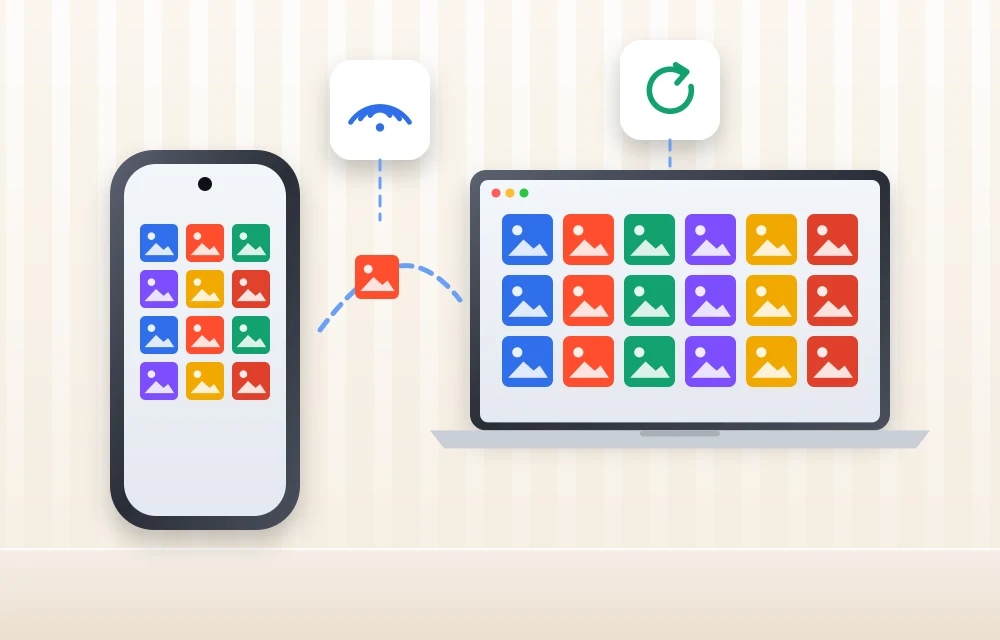
Google’s November 2026 system update adds automatic photo and video backup from Android to Windows through Quick Share. Here’s what’s confirmed, what you need, how setup reportedly works, and what to use until it reaches you.
How to AirDrop Between a Samsung Galaxy and an iPhone with Quick Share (Galaxy A Included)
Samsung Galaxy phones can now share files directly with iPhones over AirDrop, using Quick Share. Samsung started with the Galaxy S26 in March 2026, saying the feature is “provided by Google.” Since then it has spread to more Galaxy S and Z phones, and with One UI 9.0 owners report it working on cheaper Galaxy…
The week in tech, minus the noise.
New reviews, fixes and the stories that matter — once a week, straight to your inbox.
We only use your email to send the newsletter. Unsubscribe any time. See our privacy policy.
Comments