

Best GTA 6 Settings for PS5, PS5 Pro and Your TV: Get the Best Picture Quality
Grand Theft Auto VI is one of the best-looking games ever made, but only if your PS5 and TV are set up to show it. A wrong HDR setting can wash out Leonida’s sunsets, and the wrong TV mode can add lag that makes driving feel sluggish. The good news is that most of the…
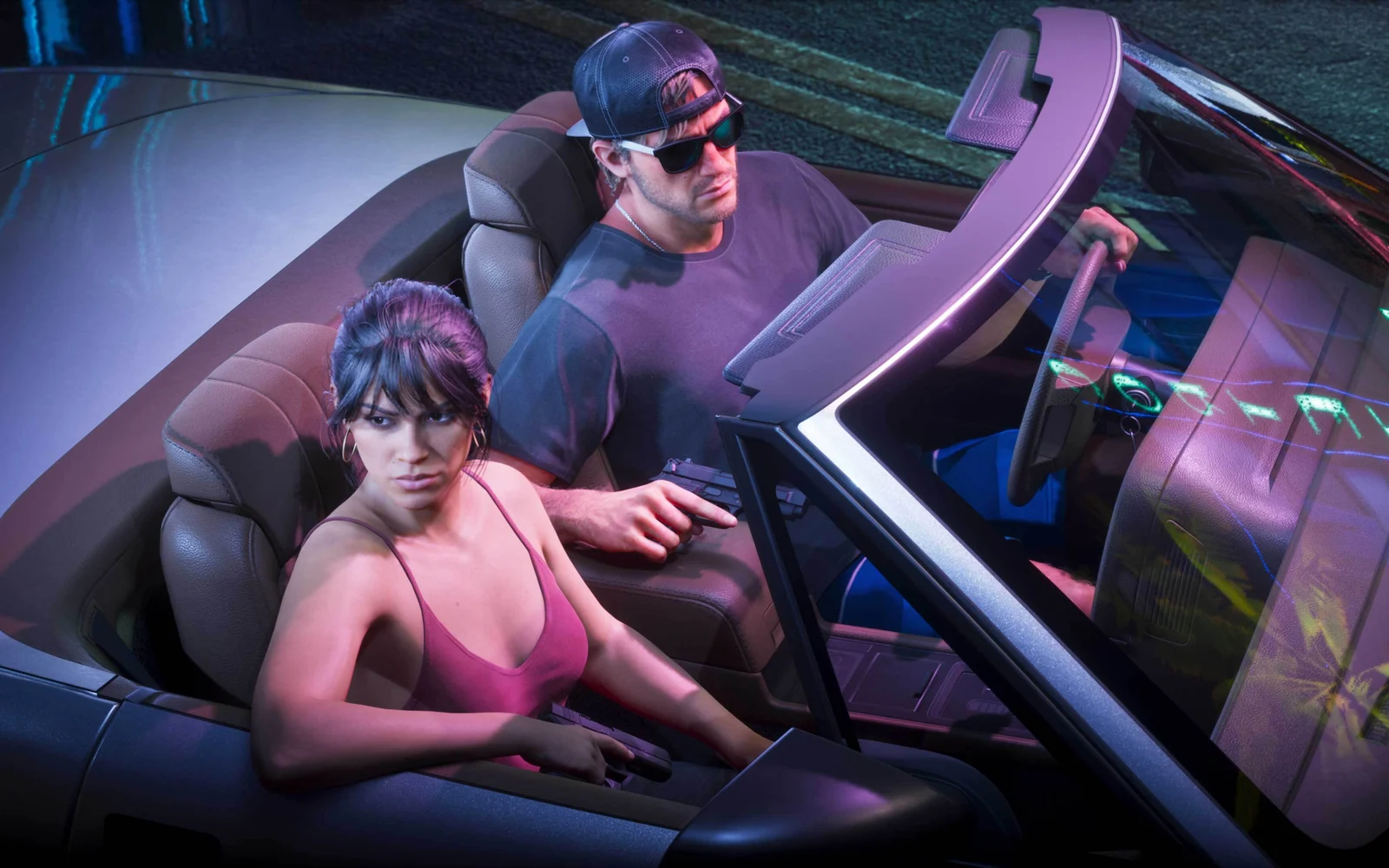
Image: Rockstar Games
Grand Theft Auto VI is one of the best-looking games ever made, but only if your PS5 and TV are set up to show it. A wrong HDR setting can wash out Leonida’s sunsets, and the wrong TV mode can add lag that makes driving feel sluggish. The good news is that most of the fixes take a few minutes. These are the best settings for GTA 6 on PS5, PS5 Pro and your TV, using Rockstar’s and PlayStation’s own guidance.
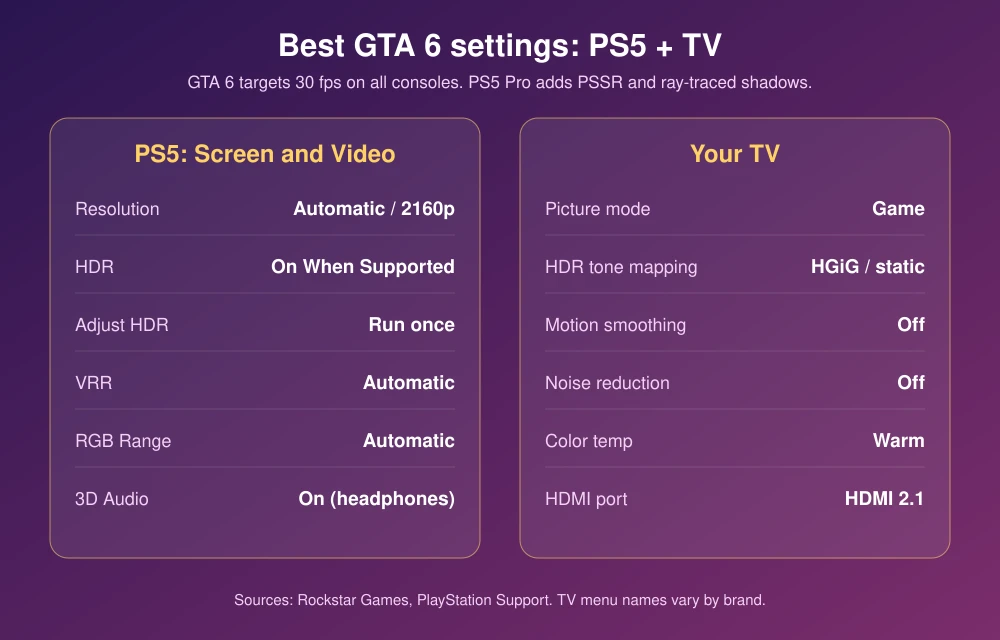
Quick answer: On your PS5, go to Settings, then Screen and Video, then Video Output. Set Resolution to Automatic (or 2160p on a 4K TV), HDR to On When Supported, and run Adjust HDR. On your TV, turn on Game Mode and, if it has one, HGiG or a “static” HDR tone mapping option, and turn off motion smoothing and noise reduction. GTA 6 targets 30 frames per second on every console, including PS5 Pro, so there is no 60 fps mode to switch on. On PS5 Pro, the game adds PSSR upscaling and ray-traced shadows automatically.
First, what GTA 6 actually runs at
Rockstar’s launch announcement says the game targets 30 frames per second “while pushing both platforms to their absolute limits.” There is no performance mode to unlock, so don’t waste time hunting for one.
- PS5 and PS5 Slim: 30 fps target.
- PS5 Pro: 30 fps target, plus “improved clarity through PlayStation Spectral Super Resolution (PSSR) and ray-traced shadows only available on PlayStation 5 Pro,” according to Rockstar. These turn on automatically.
- All PS5 models: haptic feedback on DualSense, adjustable in the game’s accessibility settings, and audio built for Tempest 3D Audio.
Since the frame rate is fixed, your settings should focus on image quality, HDR and keeping input lag low.
Step 1: Install the latest updates
Before changing anything, make sure your PS5 system software and GTA 6 are fully updated. A PS5 system update is required to play. Follow our guide to updating your PS5 for GTA 6, then highlight GTA 6, press Options and choose Check for Update.
Step 2: Best PS5 video settings for GTA 6
Go to Settings, then Screen and Video, then Video Output. PlayStation’s resolution and video output guide covers each option.
| Setting | Best choice | Why |
|---|---|---|
| Resolution | Automatic, or 2160p on a 4K TV | Sends a full 4K signal so the TV doesn’t upscale |
| HDR | On When Supported | GTA 6 gets HDR; non-HDR apps stay in SDR instead of being converted |
| Adjust HDR | Run it once | Matches the console to your TV’s real brightness |
| VRR | Automatic | Doesn’t hurt, and helps other games that support it |
| 4K Video Transfer Rate | Automatic | Only lower it to -1 or -2 if the picture flickers |
| RGB Range | Automatic | Avoids crushed blacks or washed-out greys |
How to run Adjust HDR properly
- Turn on your TV’s Game Mode first (see Step 3), because HDR calibration should match the mode you’ll play in.
- Go to Settings, Screen and Video, Video Output, Adjust HDR.
- On each of the three screens, press the buttons until the symbol in the middle is just barely invisible, then go one step back so it’s faintly visible.
- Do it in the lighting you usually play in.
If GTA 6 offers its own brightness or HDR screen when you start the game, set it after the PS5 calibration, following the on-screen instructions.
Step 3: Best TV settings for GTA 6
Menu names vary by brand, but these are the settings that matter most:
- Game Mode: On. This cuts input lag, which makes a big difference when driving and aiming at 30 fps. Most recent TVs switch to it automatically when they detect a PS5 (ALLM), but check it’s on.
- HDR tone mapping: HGiG or static. LG calls it HGiG; other TVs offer an option to turn off dynamic tone mapping. This lets the PS5’s HDR calibration control brightness instead of the TV adjusting it again.
- Motion smoothing: Off. Settings like TruMotion, Motion Xcelerator or MotionFlow make 30 fps look smoother but add lag and artifacts. Game Mode usually turns them off.
- Noise reduction and sharpening: Off or low. GTA 6 already has a clean, detailed image; extra sharpening adds halos.
- Color temperature: Warm (or Warm 2). It’s the most accurate preset on most TVs, even if it looks yellowish at first.
- HDMI port: use the HDMI 2.1 port with the cable that came with your PS5, and turn on your TV’s enhanced HDMI signal (it may be called Input Signal Plus, HDMI Ultra HD Deep Colour or Enhanced Format).
Step 4: Sound and controller settings
- 3D audio: With headphones, go to Settings, Sound, Audio Output and turn on Enable 3D Audio for Headphones. Rockstar says GTA 6 is built to take full advantage of Tempest 3D Audio.
- Haptics: If the DualSense vibration feels too strong on long drives, Rockstar says haptic feedback can be adjusted in GTA 6’s accessibility settings. You can also lower Vibration Intensity under Settings, Accessories, Controllers.
Best settings at a glance
| Where | Setting | Use |
|---|---|---|
| PS5 | Resolution | Automatic / 2160p |
| PS5 | HDR | On When Supported + Adjust HDR |
| PS5 | VRR, RGB Range, Transfer Rate | Automatic |
| TV | Picture mode | Game |
| TV | HDR tone mapping | HGiG / static (dynamic off) |
| TV | Motion smoothing, noise reduction | Off |
| Audio | 3D Audio for headphones | On |
Still having problems?
If the game freezes or your PS5 shuts off, see our guide to fixing GTA 6 crashing on PS5. If it won't start because PSN is down, see how to play GTA 6 offline. And if you’re wondering what critics think of those visuals, read our roundup of GTA 6 review scores.
FAQs
Does GTA 6 have a performance mode on PS5?
No. Rockstar says GTA 6 targets 30 frames per second on all consoles, including PS5 Pro, and there is no 60 fps or performance mode.
What does PS5 Pro add to GTA 6?
Rockstar says PS5 Pro adds improved clarity through PSSR upscaling and ray-traced shadows that are only available on PS5 Pro. The frame rate target stays at 30 fps.
Should I use HDR for GTA 6?
Yes, if your TV supports it. Set HDR to On When Supported on your PS5, run Adjust HDR, and use your TV’s Game Mode with HGiG or static tone mapping.
What TV picture mode is best for GTA 6?
Game Mode. It lowers input lag, which matters more at 30 fps. Turn off motion smoothing and extra sharpening.
Featured image: Rockstar Games.
Disclosure: TheTechHacker has no paid relationship with Rockstar Games, Sony or any company mentioned here.
More in Guides
How to Fix GTA 6 Crashing or Your PS5 Turning Off
Some players say Grand Theft Auto VI crashes or their PS5 shuts off seconds after launching it, while other games run fine. Sony hasn’t announced a known issue, but its official troubleshooting steps cover both problems. Here is what to try, in order, from quickest to most drastic. Quick answer: If GTA 6 crashes, install…
How to Fix GTA 6 Locked or Not Starting on PS5 on Launch Day
GTA 6 is four days away, and if you pre-loaded it on PS5 you’ve probably already noticed the little padlock on the game tile. That’s normal before launch. What isn’t normal is still seeing that padlock after midnight on November 19, or getting an error when you hit Play. With millions of people trying to…
How to Update PS5 for GTA 6: Install the Required System Update
If GTA 6 won’t start on your PS5, the most likely reason is the console itself. PlayStation says Sony released a PS5 system software update that is required before you can play Grand Theft Auto VI, and the game unlocks at midnight on November 19. This guide shows the three official ways to install it,…
The week in tech, minus the noise.
New reviews, fixes and the stories that matter — once a week, straight to your inbox.
We only use your email to send the newsletter. Unsubscribe any time. See our privacy policy.
Comments