

How to Update PS5 for GTA 6: Install the Required System Update
If GTA 6 won’t start on your PS5, the most likely reason is the console itself. PlayStation says Sony released a PS5 system software update that is required before you can play Grand Theft Auto VI, and the game unlocks at midnight on November 19. This guide shows the three official ways to install it,…

If GTA 6 won’t start on your PS5, the most likely reason is the console itself. PlayStation says Sony released a PS5 system software update that is required before you can play Grand Theft Auto VI, and the game unlocks at midnight on November 19. This guide shows the three official ways to install it, plus what to do if the download gets stuck.
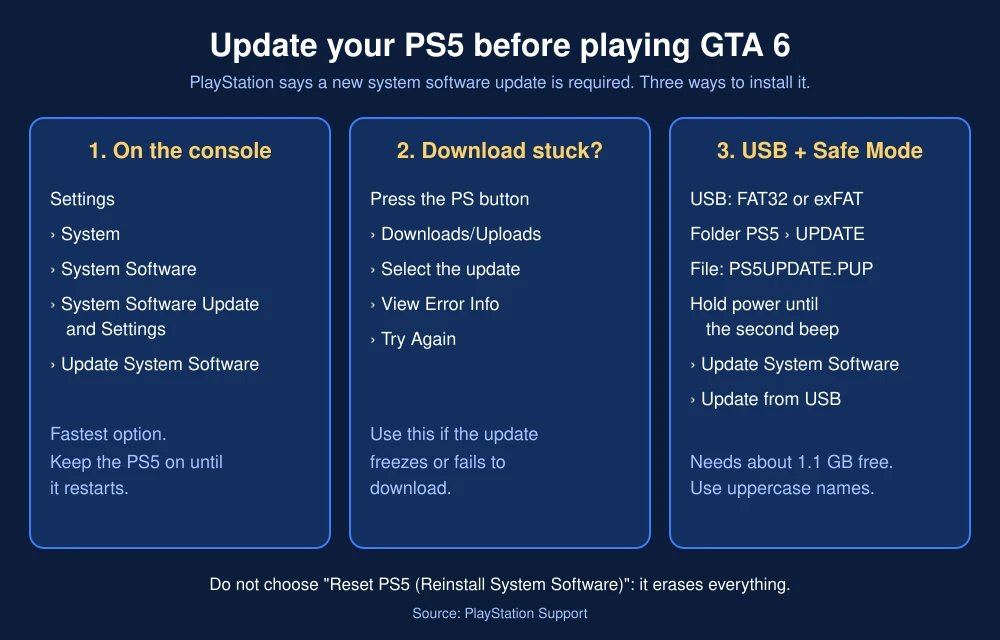
Quick answer: On your PS5, go to Settings, then System, then System Software, then System Software Update and Settings, and select Update System Software. Let the console restart, then launch GTA 6. If the download fails, press the PS button, open Downloads/Uploads, select the update and choose View Error Info, then Try Again. As a last resort, put the update file on a USB drive and install it from Safe Mode.
Why GTA 6 needs a PS5 update
On November 17, PlayStation Support US posted that “Sony Interactive has issued a PS5 system software update that is required before playing Grand Theft Auto VI,” and told players to download it before midnight on November 19. If your console is on older software, the game won’t boot.
Sony’s post doesn’t name a version number. Reports have cited both 14.22 and 14.23, and earlier reports said older builds would be blocked to stop jailbroken consoles, which Sony has not confirmed. The simple fix is the same either way: install the latest system software.
Method 1: Update from the PS5 Settings menu
These are the steps from PlayStation’s PS5 system software support page:
- Go to Settings on the PS5 home screen, then System.
- Select System Software, then System Software Update and Settings.
- If a newer version exists, you’ll see Update Available.
- Select Update System Software and confirm.
- Wait for the download and install. The console restarts on its own. Don’t turn it off.
To avoid this next time, turn on automatic updates in the same System Software Update and Settings menu.
Method 2: Fix a stuck or failed update
Launch night means heavy traffic on PlayStation servers, so downloads can stall. PlayStation’s fix:
- Press the PS button on your controller to open the control center.
- Select Downloads/Uploads.
- Highlight the system software update and select View Error Info, then Try Again.
If it still fails, check whether PlayStation Network or GTA 6 servers are down, restart your router, or use a wired Ethernet connection.
Method 3: Update from a USB drive in Safe Mode
If repeated downloads fail, PlayStation says you can install the update with a PC or Mac:
- Turn off your PS5.
- On a PC or Mac, format a USB drive as FAT32 or exFAT.
- Create a folder named PS5, and inside it a folder named UPDATE. Use capital letters.
- Download the PS5 console update file from PlayStation’s support page and save it in the UPDATE folder as PS5UPDATE.PUP. You need about 1.1 GB of free space.
- Plug the USB drive into the PS5.
- Start the PS5 in Safe Mode: press and hold the power button and release it after the second beep.
- Select Update System Software, then Update from USB Storage Device, then OK.
Warning: Do not choose “Reset PS5 (Reinstall System Software)” in Safe Mode, and do not use the separate reinstallation file. PlayStation says reinstalling deletes all data on the console. Only download update files from PlayStation’s official site.
After the update: get GTA 6 ready
- Check the game update too. Rockstar has reportedly pushed a GTA 6 patch of about 1 GB (version 1.002). Highlight the game, press Options, and choose Check for Update.
- Confirm the pre-load finished. Open your Game Library and make sure GTA 6 doesn’t show a download in progress.
- Free up storage. Sony recommends clearing space ahead of launch.
- Know the unlock time. See GTA 6 unlock times for every US time zone.
For everything else happening tonight, read our GTA 6 launch day roundup, and once you’ve finished the story, our list of GTA 6 cheat codes shows how to unlock them. Rockstar’s pre-load announcement covers PS5 and PS5 Pro features.
FAQs
Why won’t GTA 6 start on my PS5?
PlayStation says a new PS5 system software update is required to play GTA 6. Go to Settings, System, System Software, System Software Update and Settings, and select Update System Software.
What PS5 firmware do I need for GTA 6?
Sony hasn’t named the version in its announcement. Reports cite 14.22 or 14.23. Installing the latest system software covers the requirement.
How do I update my PS5 if the download keeps failing?
Open Downloads/Uploads from the control center, choose View Error Info, then Try Again. If that fails, install the update from a USB drive in Safe Mode using the official PS5UPDATE.PUP file.
Will updating my PS5 delete my games?
No. A normal system update keeps your games and saves. Only “Reset PS5 (Reinstall System Software)” deletes data, so don’t choose that option.
Featured image: Rockstar Games.
Disclosure: TheTechHacker has no paid relationship with Sony, Rockstar Games or any company mentioned here.
More in How-to
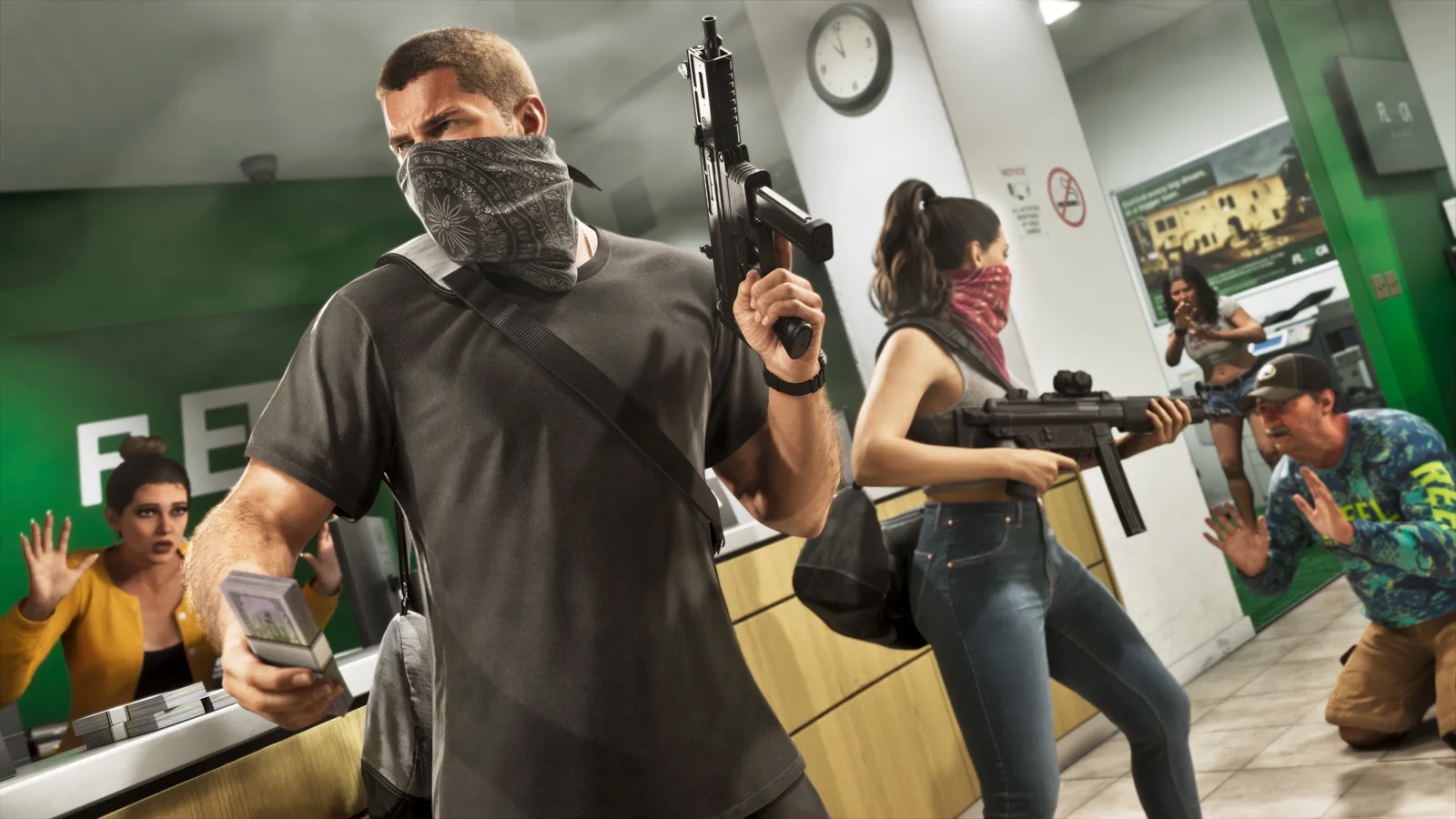
How to Fix GTA 6 Pre-Load Not Downloading on Xbox Series X|S
GTA 6 is four days away, and on Xbox the pre-load has been open since Monday evening, November 9, in the US. If your Series X or Series S hasn’t started the download, or it’s been sitting at the same percentage for hours, you’re not alone. With a download of up to 212 GB, a…
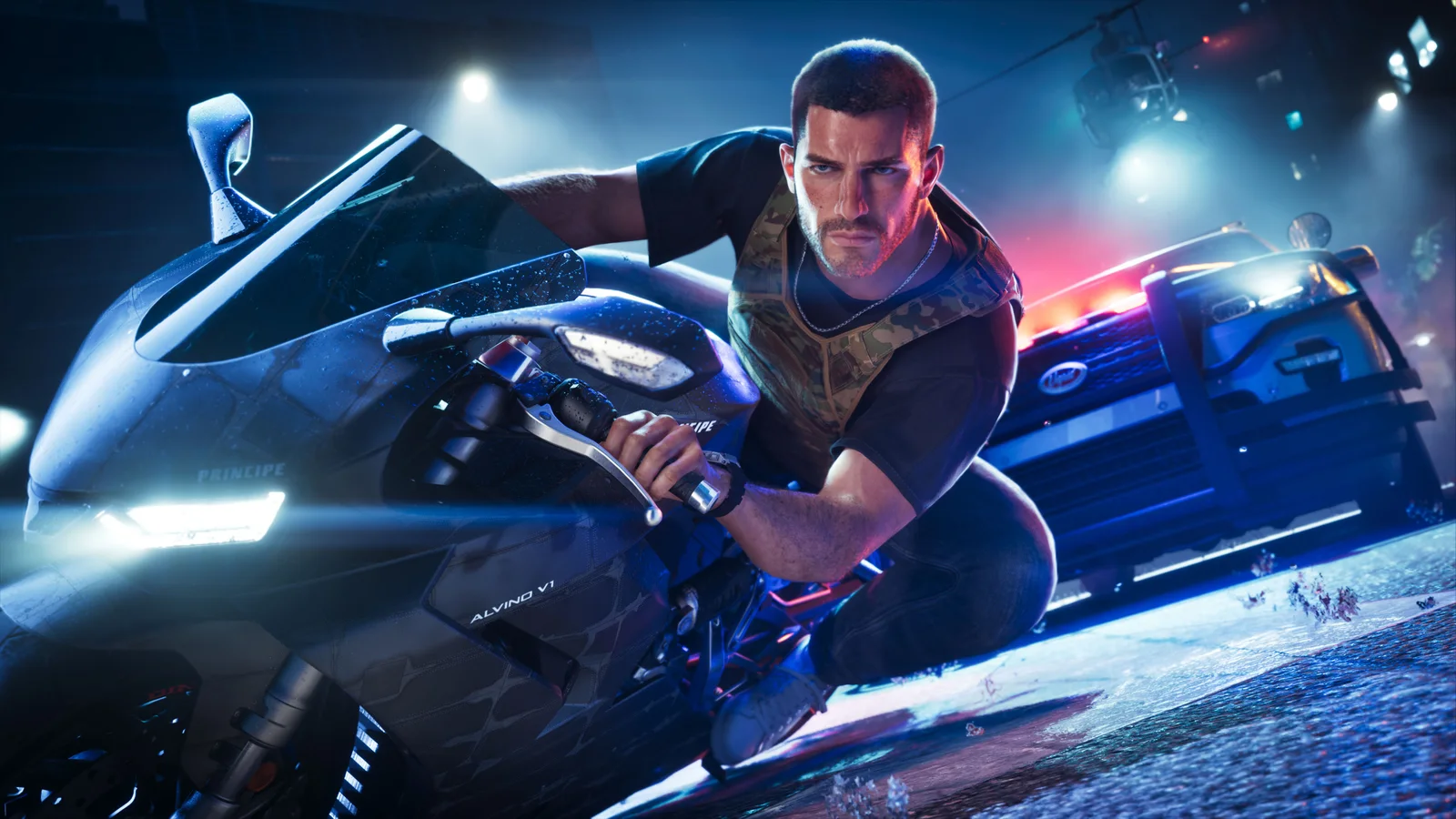
How to Fix GTA 6 Locked or Not Starting on PS5 on Launch Day
GTA 6 is four days away, and if you pre-loaded it on PS5 you’ve probably already noticed the little padlock on the game tile. That’s normal before launch. What isn’t normal is still seeing that padlock after midnight on November 19, or getting an error when you hit Play. With millions of people trying to…
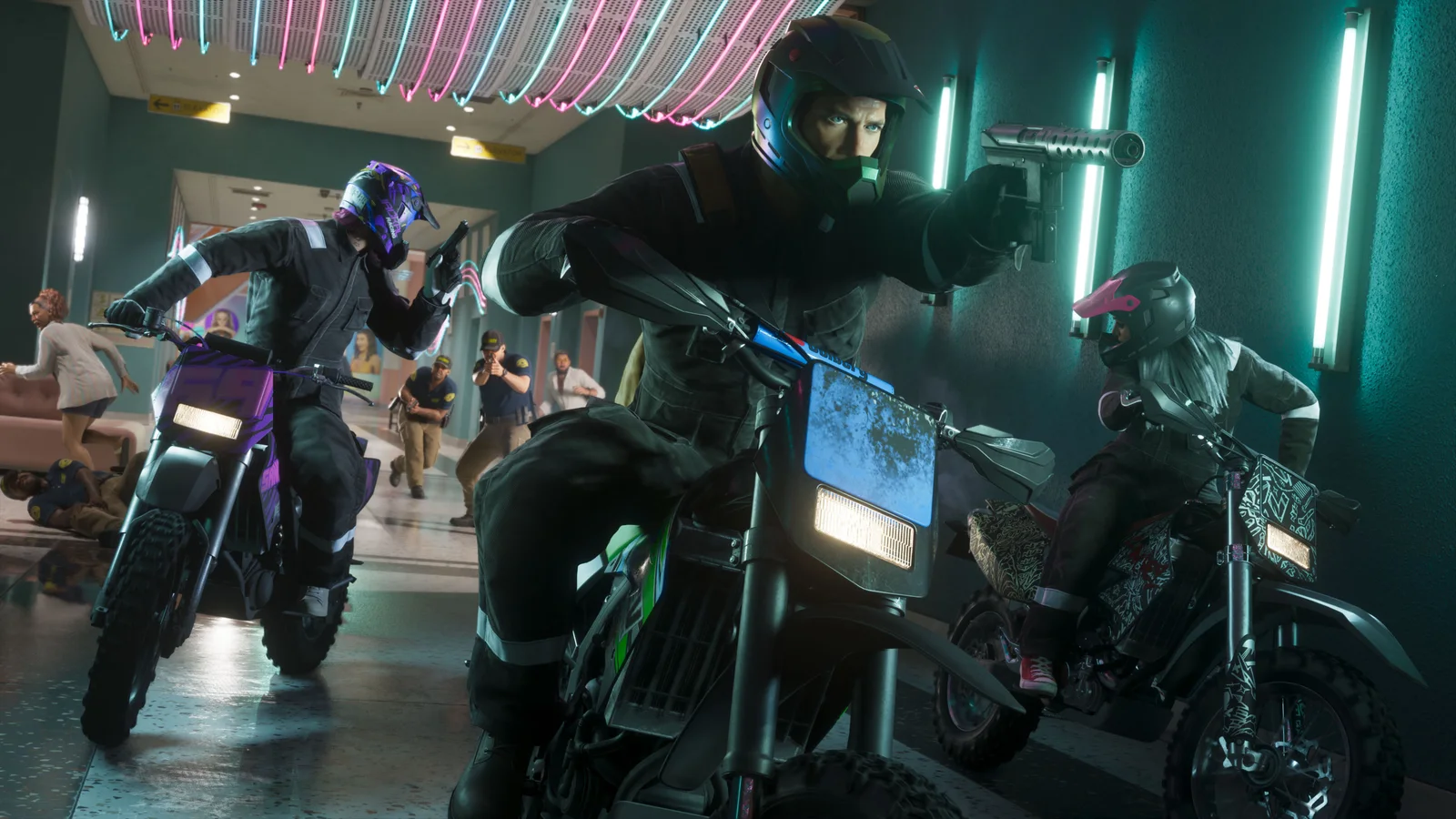
How to Fix GTA 6 Preload Not Showing or Not Starting on PS5 and Xbox Series X|S
Can’t find the GTA 6 preload button, or is the download stuck at 0%? Here’s how to track down the preload on PS5 and Xbox Series X|S and get it moving before the November 19 launch.
The week in tech, minus the noise.
New reviews, fixes and the stories that matter — once a week, straight to your inbox.
We only use your email to send the newsletter. Unsubscribe any time. See our privacy policy.
Comments