

How to Fix GTA 6 Crashing or Your PS5 Turning Off
Some players say Grand Theft Auto VI crashes or their PS5 shuts off seconds after launching it, while other games run fine. Sony hasn’t announced a known issue, but its official troubleshooting steps cover both problems. Here is what to try, in order, from quickest to most drastic. Quick answer: If GTA 6 crashes, install…

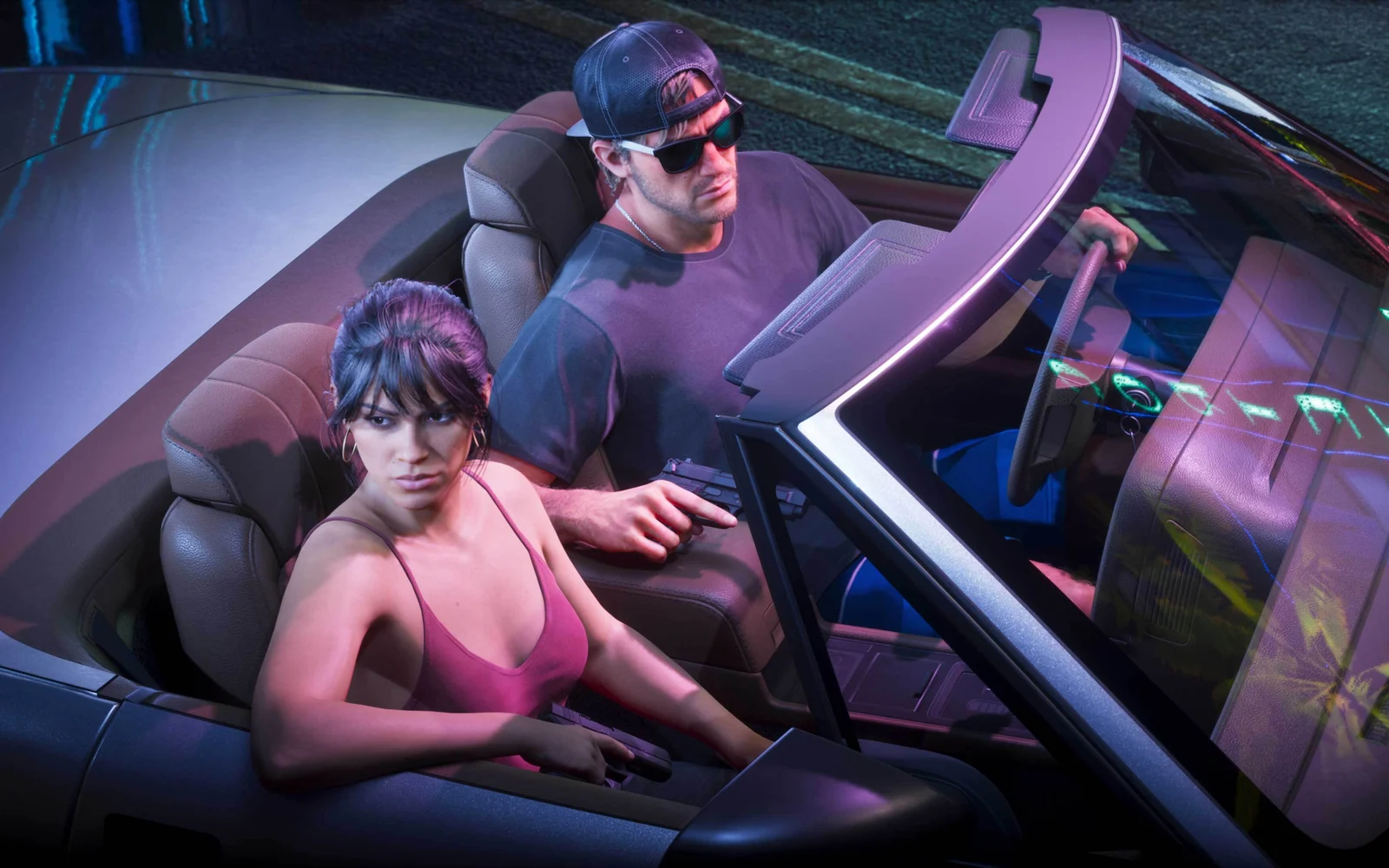
Image: Rockstar Games
Some players say Grand Theft Auto VI crashes or their PS5 shuts off seconds after launching it, while other games run fine. Sony hasn’t announced a known issue, but its official troubleshooting steps cover both problems. Here is what to try, in order, from quickest to most drastic.
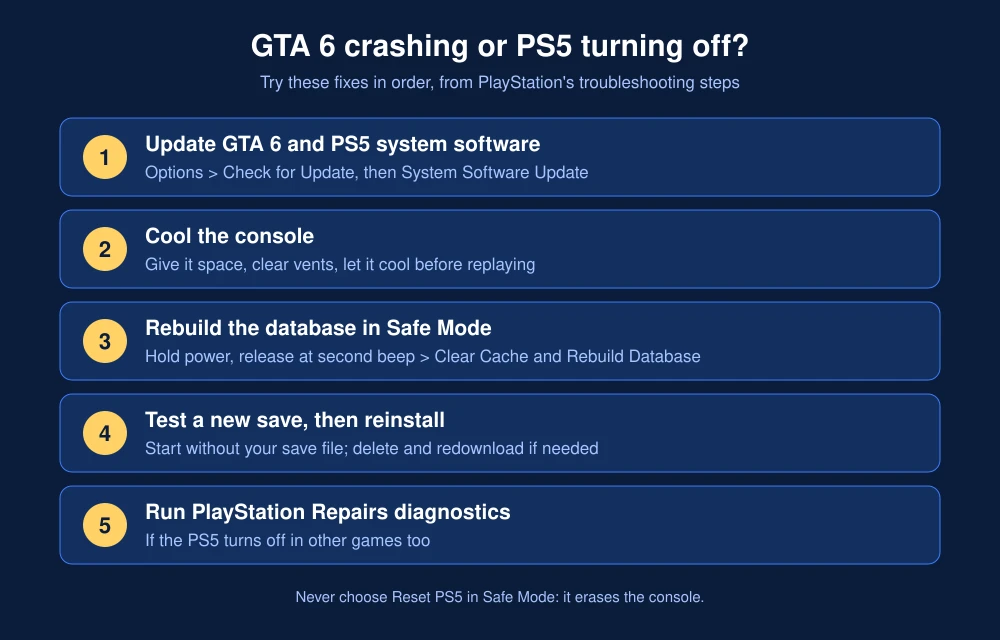
Quick answer: If GTA 6 crashes, install the latest GTA 6 patch (highlight the game, press Options, Check for Update) and the required PS5 system update, then restart the console. If the PS5 itself turns off, it is often heat: give the console space on all sides, clear dust from the vents and let it cool before trying again. Next, start the PS5 in Safe Mode and choose Clear Cache and Rebuild Database. If shutdowns continue in more than one game, use PlayStation’s Repairs diagnostic tool.
What players are reporting
Reports since the game unlocked in New Zealand describe two separate problems: GTA 6 freezing or closing to the home screen, and the whole PS5 powering off seconds after the game starts. Neither Sony nor Rockstar has confirmed a widespread bug, so treat these as individual reports for now. GTA 6 pushes the PS5 hard; Rockstar says it targets 30 frames per second while pushing both consoles “to their absolute limits,” which means more heat and power draw than most games.
Fix 1: Update GTA 6 and your PS5
- Highlight GTA 6 on the home screen, press the Options button and select Check for Update.
- Go to Settings, System, System Software, System Software Update and Settings, and install any update. PlayStation says a system update is required to play GTA 6. Our guide shows how to update your PS5 for GTA 6.
- Confirm the game fully installed: highlight GTA 6, press Options, then Information, then Download Status.
Fix 2: Stop the PS5 from overheating
If the console powers off instead of just closing the game, heat is the first suspect. PlayStation’s guidance for heat-related shutdowns is to turn the console off, let it cool and make sure the vents aren’t blocked.
- Leave at least a few inches of open space around the console. Don’t play with it inside a closed cabinet.
- Clear dust from the intake and exhaust vents with a soft brush or low-pressure air.
- Stand the console on a hard, flat surface, not carpet or bedding.
- Check the light bar after it shuts down. PlayStation’s power indicator guide explains what each color and blink pattern means.
Fix 3: Rebuild the database in Safe Mode
Sony’s GTA VI troubleshooting page recommends this for launch problems:
- Turn off the PS5 completely.
- Press and hold the power button, and release it after the second beep.
- Connect your controller with a USB cable and press the PS button.
- Choose Clear Cache and Rebuild Database, then Rebuild Database.
This keeps your games and saves. Do not choose Reset PS5 in this menu, which erases the console.
Fix 4: Test your save and reinstall
PlayStation’s game crash guide suggests starting the game without an existing save to check whether the save file is corrupted. If crashes continue, delete GTA 6 and download it again from your Game Library. It’s a large download, so do this only after the steps above.
Fix 5: Check for a hardware problem
If your PS5 turns off in other games too, or shuts down even after cooling, the problem is likely the console. PlayStation’s power issues page sends players to its PlayStation Repairs diagnostic tool for “PS5 console turns off while playing,” which also checks whether your console qualifies for an in-warranty repair.
If the game says it can’t start at all, that’s usually a license or account issue, not a crash. See how to play GTA 6 when PSN is down and our GTA 6 server errors guide.
FAQs
Why does GTA 6 keep crashing on PS5?
Common causes are a missing game or system update, an incomplete install, a corrupted save or a corrupted database. Update both, check the download status, then rebuild the database in Safe Mode.
Why does my PS5 turn off when I play GTA 6?
The most common cause is overheating, since GTA 6 is demanding. Give the console space, clean the vents and let it cool. If it happens in other games too, use PlayStation’s Repairs diagnostic tool.
Does rebuilding the PS5 database delete GTA 6?
No. Rebuild Database reorganizes your storage and keeps games and saves. Only Reset PS5 erases data.
Is there a GTA 6 patch for crashes?
Rockstar has reportedly released a day-one update. Highlight GTA 6, press Options and choose Check for Update to make sure you have the latest version.
Featured image: Rockstar Games.
Disclosure: TheTechHacker has no paid relationship with Sony, Rockstar Games or any company mentioned here.
More in How-to
How to Fix GTA 6 Locked or Not Starting on PS5 on Launch Day
GTA 6 is four days away, and if you pre-loaded it on PS5 you’ve probably already noticed the little padlock on the game tile. That’s normal before launch. What isn’t normal is still seeing that padlock after midnight on November 19, or getting an error when you hit Play. With millions of people trying to…
How to Play GTA 6 When PSN Is Down: Turn On Console Sharing and Offline Play
PlayStation Network went down for thousands of players hours before Grand Theft Auto VI unlocked, and that matters because a digital copy of GTA 6 checks your license with PSN when you launch it. If PSN is unreachable and your PS5 isn’t set up for offline play, the game may refuse to start. One PS5…
How to Update PS5 for GTA 6: Install the Required System Update
If GTA 6 won’t start on your PS5, the most likely reason is the console itself. PlayStation says Sony released a PS5 system software update that is required before you can play Grand Theft Auto VI, and the game unlocks at midnight on November 19. This guide shows the three official ways to install it,…
The week in tech, minus the noise.
New reviews, fixes and the stories that matter — once a week, straight to your inbox.
We only use your email to send the newsletter. Unsubscribe any time. See our privacy policy.
Comments