

How to Transfer Your Playlists to Tidal for Free
Switching to Tidal doesn’t mean rebuilding your music library by hand. Tidal’s own help center points you to a free transfer tool that copies your playlists, liked songs, albums and artists from Spotify, Apple Music, YouTube Music, Amazon Music and other services. The free version has limits, though, so this guide shows exactly how to…


Image: TIDAL
Switching to Tidal doesn’t mean rebuilding your music library by hand. Tidal’s own help center points you to a free transfer tool that copies your playlists, liked songs, albums and artists from Spotify, Apple Music, YouTube Music, Amazon Music and other services. The free version has limits, though, so this guide shows exactly how to move everything without paying, even if you have big playlists.
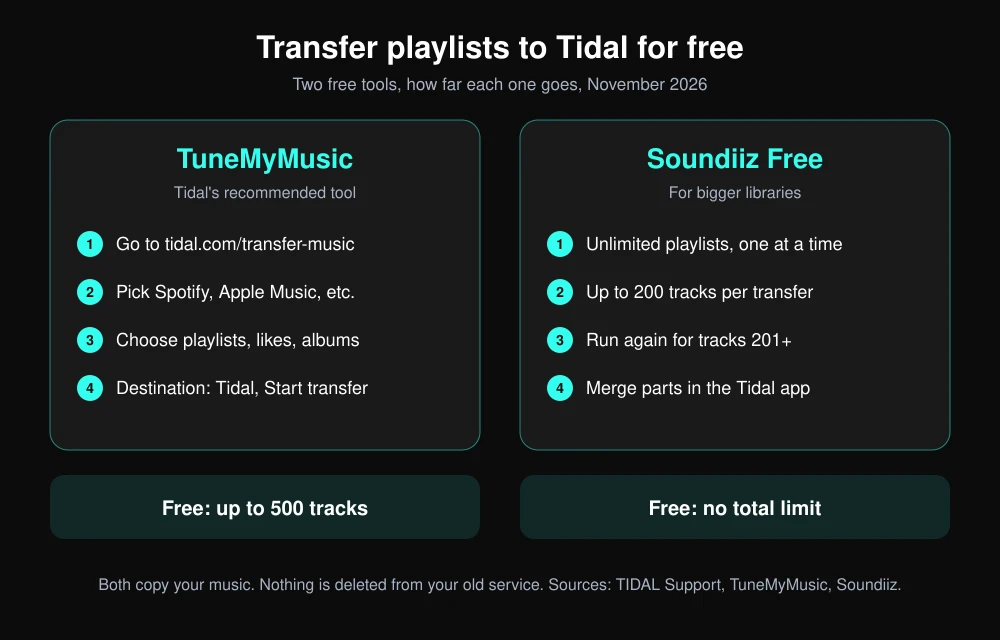
Quick answer: Go to tidal.com/transfer-music, which opens TuneMyMusic, Tidal’s recommended transfer tool. Pick your current service (for example Spotify), sign in, choose the playlists you want, select Tidal as the destination, sign in to Tidal and click Start transfer. TuneMyMusic moves up to 500 tracks free. For more than that, use Soundiiz’s free plan, which moves unlimited playlists one at a time with up to 200 tracks per transfer. Your original playlists are copied, not deleted.
What you need before you start
- A Tidal account you can sign in to. The transfer tool needs permission to add playlists to your Tidal library.
- Access to your old service, such as your Spotify, Apple Music, YouTube Music, Amazon Music or Deezer login.
- A computer browser is easiest, though both tools also work on a phone.
- A rough track count. If your playlists add up to more than 500 songs, plan to use more than one free method below.
Method 1: Transfer playlists with TuneMyMusic (Tidal’s official option)
Tidal’s Import playlists help page sends you to TuneMyMusic through tidal.com/transfer-music. Here are the steps:
- Open tidal.com/transfer-music in your browser. It takes you to TuneMyMusic.
- Under Select source, click the service where your music is now, such as Spotify or Apple Music.
- Sign in to that service and allow TuneMyMusic to read your library.
- Click Load from [service] account. You’ll see your playlists, Favorite Songs, Favorite Albums and Favorite Artists.
- Tick the playlists you want. You can also open a playlist and pick individual tracks, or use the search bar to find one.
- Click Select destination, choose Tidal, sign in to Tidal and allow access.
- Review your selection and click Start transfer. TuneMyMusic tells you when it’s finished.
Open the Tidal app, go to My Collection, then Playlists. New playlists can take a few minutes to appear; if they don’t, pull down to refresh or sign out and back in.
How much is free?
Tidal’s help page says you can transfer up to 500 tracks free with TuneMyMusic, and that more needs a Premium subscription. TuneMyMusic’s FAQ says the free plan covers up to 500 tracks between music services, while Premium costs $4.50 a month or $24 a year and allows unlimited transfers. If you only need one big move, TuneMyMusic says you can pay for one month and cancel, keeping Premium until the month ends.
Method 2: Use Soundiiz free for large libraries
If you have more than 500 songs and don’t want to pay, Soundiiz is the better free option. Its pricing page says the free plan has no total track allowance and doesn’t expire: you can transfer as many playlists as you want, one at a time, with up to 200 tracks selected from each playlist.
- Go to soundiiz.com, create a free account and click Transfer.
- Connect your old service and Tidal when asked.
- Choose Playlists, pick one playlist and click Confirm.
- Check the track list. Soundiiz selects the first 200 tracks by default.
- Choose Tidal as the destination and start the transfer.
- Repeat for each playlist.
Moving a playlist with more than 200 songs
On the free plan, transfer the first 200 tracks, then run the same playlist again and select the next 200 tracks before you start. Each run creates a separate playlist in Tidal. In the Tidal app, open the second playlist, select all the tracks and use Add to playlist to add them to the first one, then delete the extra playlist.
Method 3: Combine both tools to move everything free
For a big library, the most efficient free plan is:
- Use TuneMyMusic’s free 500 tracks for your favorite or most-played playlists.
- Use Soundiiz free, one playlist at a time, for everything else.
- Move your liked songs last. On Soundiiz free, only playlists are covered, so make a playlist of your liked songs on your old service first (in Spotify, open Liked Songs, select all and add them to a new playlist), then transfer it like any other playlist.
Check for missing songs
No tool matches every track. Songs can be missing because they aren’t on Tidal in your country, because they’re local files you uploaded to your old service, or because they matched a different version of the song.
- When a transfer finishes, look for the tracks that didn't match. TuneMyMusic lists them at the end of the transfer, so save or screenshot that list.
- Search Tidal for each missing song by title and artist, and add it by hand.
- Check a few tracks in each playlist to make sure Tidal picked the right version, not a live or remastered one you didn’t want.
After the transfer
- Your old playlists stay put. TuneMyMusic and Soundiiz copy music; they don’t delete anything from your old service.
- Remove access when you’re done. Tidal says to open TuneMyMusic’s Account Settings, go to Connections and click disconnect next to Tidal and your old service. Soundiiz has the same option in its settings.
- Get the most out of Tidal’s audio. If you moved for sound quality, see our guide to the best hi-res music players and our Astell&Kern PD5 review.
- Coming from Apple Music? If Apple’s sign-in fails during the transfer, check our guide to fixing Apple services that aren’t working.
FAQs
Can I transfer my Spotify playlists to Tidal for free?
Yes. TuneMyMusic, which Tidal recommends, moves up to 500 tracks free. Soundiiz’s free plan moves unlimited playlists one at a time, with up to 200 tracks per transfer.
Does Tidal have a built-in playlist import?
Tidal’s help center sends you to tidal.com/transfer-music, which uses TuneMyMusic to import playlists, favorite songs, albums and artists from other services.
Will transferring delete my playlists from Spotify or Apple Music?
No. Both TuneMyMusic and Soundiiz copy your music to Tidal and leave your original playlists unchanged.
Why are some songs missing after the transfer?
The song may not be on Tidal in your region, it may be a local file, or the tool may not have found a match. Check the list of failed tracks and add them in Tidal by hand.
Featured image: TIDAL.
Disclosure: TheTechHacker has no paid relationship with TIDAL, TuneMyMusic, Soundiiz or any company mentioned here.
More in How-to

How to save a playlist in VLC player on Windows 10
VLC Player is one of the best players used for music and video playback by millions of Windows users. Therefore, it is obvious that a lot of people would want to know how to do certain things inside the player which they are not aware of. Among these things is the ability to save playlists…

How To Download Music Straight To Your iPhone
Downloading or transferring a song to iPhone is restricted with the iTunes library. Almost all the Apple users face this unwanted restriction when they want to add songs to iPhone. Though there are some options, like adding songs to iTunes app in PC and then synchronizing it to iPhone. It is an irritating process for…

How to Download Music from Spotify in Desktop, iPhone, iPad or Android
Spotify is an evergreen music source with a wide collection of all kind of user’s favorites. The offline mode of the service allows users to download music from Spotify easily. So, in this article, we are going to help you to download songs from Spotify in any of the platforms including Desktop, iPhone, iPad, and…
The week in tech, minus the noise.
New reviews, fixes and the stories that matter — once a week, straight to your inbox.
We only use your email to send the newsletter. Unsubscribe any time. See our privacy policy.
Comments