

How to Find Your AI Searches in Google Search’s New Sidebar
Google’s desktop homepage now has a sidebar that keeps your recent AI searches one click away. Robby Stein, Google’s VP of product for Search, announced on X that it’s “new on the Google desktop homepage globally,” calling it “a collapsible sidebar to easily find & jump back into your recent AI searches.” Search Engine Roundtable…


Image: Google
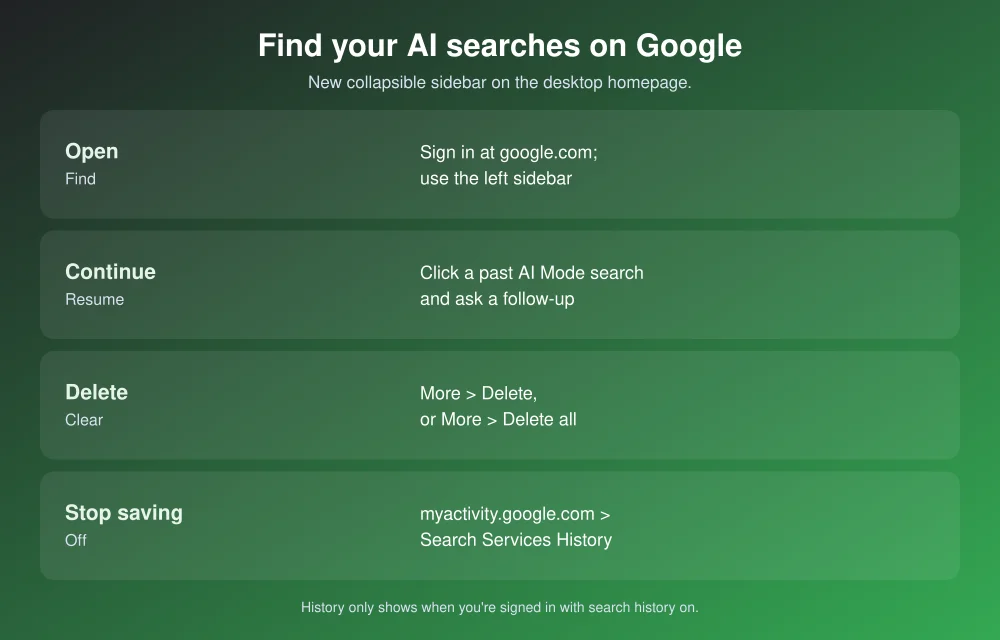
Google’s desktop homepage now has a sidebar that keeps your recent AI searches one click away. Robby Stein, Google’s VP of product for Search, announced on X that it’s “new on the Google desktop homepage globally,” calling it “a collapsible sidebar to easily find & jump back into your recent AI searches.” Search Engine Roundtable reported the rollout on November 19 after Google tested it in October. If you use AI Mode to research gifts, trips or Black Friday deals, you can pick up an old thread instead of starting over. This guide shows how to find your AI searches, continue them, delete them, and stop Google saving them.
Quick answer: Sign in to your Google Account and go to google.com on a computer. Open the sidebar or the AI Mode history icon on the left to see your recent AI Mode searches, then click one to continue it. To delete one, select it, click More > Delete. To clear everything, use More > Delete all. To stop saving AI searches, go to myactivity.google.com and turn off Search Services History. History only appears if you’re signed in with search history turned on.
What the new Google sidebar does
- Lists recent AI searches: your past AI Mode conversations appear in a panel on the left of the homepage.
- Lets you continue a thread: click a past search to reopen it with the full conversation and ask follow-up questions.
- Collapses: hide it when you just want the classic search box.
- Desktop only for now: Stein’s announcement covers the desktop homepage globally. Google hasn’t said whether it’s coming to mobile.
How to find and continue your AI searches
From Google’s AI Mode help page:
- On a computer, go to google.com and make sure you’re signed in.
- Open the sidebar on the left, or the AI Mode history icon inside AI Mode.
- Click a past search to open it.
- Type a follow-up question to keep going.
Don’t see your searches? Google says you can only return to earlier AI searches when you’re signed in and have search history and personalized results turned on. You can use AI Mode without history, but those searches won’t be saved. Personalization is limited to users 18 and older.
How to delete your AI search history
- One search: select it in AI Mode history, then click More > Delete.
- Everything: at the top of AI Mode history, click More > Delete all.
- From search history: click the close icon next to an entry.
Google notes that deleted searches can still appear in My Activity for up to 24 hours. If you clicked into AI Mode from an AI Overview, Google saves two entries, so delete both.
How to stop Google saving your AI searches
From Google’s Search Services History help page:
- Go to myactivity.google.com.
- Select Search Services History.
- Click Turn off, or Turn off and delete activity to clear what’s saved.
AI Mode answers are stored as part of Search Services History, so turning it off stops the sidebar from filling up. It also makes your results less personalized. If your account still shows the older setting, look for Web & App Activity instead.
Using Google’s AI tools more? See how to use Gemini Tasks for free and Gemini 4 Neon explained. If Google won’t load at all, try our fix for Chrome’s “server IP address could not be found” error.
FAQs
Where is my AI Mode history in Google?
On desktop, it’s in the sidebar on the left of the Google homepage and behind the AI Mode history icon. You need to be signed in with search history on.
Can I delete AI Mode searches?
Yes. Select a search and click More > Delete, or use More > Delete all to remove everything. You can also turn off Search Services History at myactivity.google.com.
Is the Google AI sidebar on mobile?
Google has announced it only for the desktop homepage so far.
Can I hide the sidebar?
Yes. The sidebar is collapsible, so you can close it and use the regular search box.
Featured image: Google.
Disclosure: TheTechHacker has no paid relationship with Google or any company mentioned here.
More in How-to

How to get back the Google Search Bar on Android screen?
Google Search bar on the home screen allows you to search for queries on the go. This feature is available on the almost all Android smartphones whether it is a OnePlus or Samsung smartphone. It is a pretty useful search widget whoever use Google for finding information on the Internet. There are plenty of reasons…

How to do Reverse Image Search on Smartphone
Reverse image search is a google image search feature that can help you to do a search with an image file. You can find the details of the image as well as the related results. All you wanted is to go to the google image search and click on the camera icon on the right side…
How To Make Google Default Search Engine In Google Chrome
Are you searching for “How To Make Google Default Search Engine In Google Chrome” keyword in an unknown search engine? When it comes to search a term in online, we all rely on Google first. Google search engine makes it standards very height provide better search results in any keyword. Google is very accurate and…

The week in tech, minus the noise.
New reviews, fixes and the stories that matter — once a week, straight to your inbox.
We only use your email to send the newsletter. Unsubscribe any time. See our privacy policy.
Comments