

Is Your GPU Driver Wearing Out Your SSD? How to Check and Fix It
Your graphics driver might be writing gigabytes to your SSD while your PC sits idle. Windows Latest reported on November 20 that NVIDIA GeForce drivers 621.14 and 621.24 constantly rewrite a log file on some PCs, adding roughly 3 to 30GB of writes an hour based on user reports. Tom’s Hardware estimates that could add…


Image: Samsung
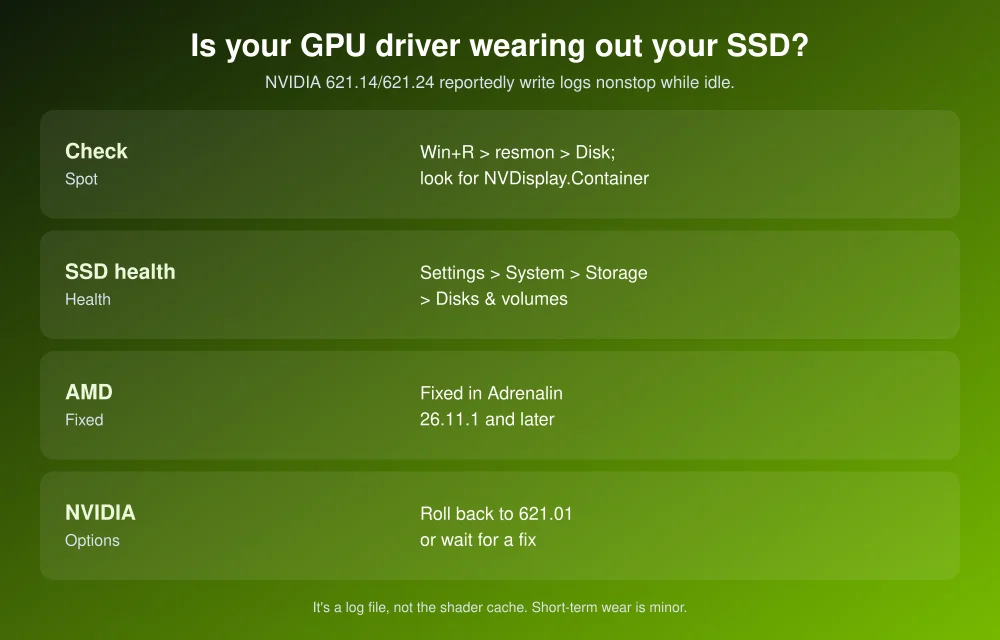
Your graphics driver might be writing gigabytes to your SSD while your PC sits idle. Windows Latest reported on November 20 that NVIDIA GeForce drivers 621.14 and 621.24 constantly rewrite a log file on some PCs, adding roughly 3 to 30GB of writes an hour based on user reports. Tom’s Hardware estimates that could add up to about 28TB a year, around 5% of the rated lifespan of a typical 1TB SSD. AMD drivers had a similar bug, which AMD has fixed. NVIDIA hasn’t acknowledged the issue. This guide shows how to check whether your PC is affected, how to check your SSD’s health in Windows 11, and what to do about it.
Quick answer: Press Win+R, type resmon, open the Disk tab, and sort by Write (B/sec). If NVDisplay.Container.exe keeps writing to nvlog.nvlgstg while you’re idle, you’re affected. Check your SSD in Settings > System > Storage > Advanced storage settings > Disks & volumes > Properties for Estimated remaining life. AMD users should update to Adrenalin 26.11.1 or later. NVIDIA users can roll back to 621.01 or wait for a fixed driver. A few days of extra writes won’t hurt a modern SSD.
What’s happening
All of this is reported by Windows Latest, Tom’s Hardware and Wccftech:
- NVIDIA: on drivers 621.14 and 621.24, the NVIDIA Display Container service (NVDisplay.Container.exe) keeps rewriting C:\ProgramData\NVIDIA Corporation\nvtopps\nct\nvlog.nvlgstg. One test logged 515MB in 5 minutes on 621.14, against under 2MB on 621.01. Wccftech measured about 1.43MB per second on an idle RTX 4090. Not every PC on these drivers is affected.
- AMD: the AMD External Events process (atieclxx.exe) in Adrenalin 26.10.1 and 26.10.2 caused similar idle writes. AMD’s optional 26.11.1 driver fixed it for RX 7000 series and newer, and 26.11.2 reportedly extends the fix to RX 5000 and 6000.
- NVIDIA’s response: none yet. The 621.24 release notes don’t mention it. NVIDIA fixed a similar bug in driver 471.96 back in 2021.
This is a log file, not the shader cache. Changing your shader cache size won’t stop it.
How to check if your PC is affected
- Press Win+R, type resmon and press Enter to open Resource Monitor.
- Open the Disk tab and expand Disk Activity.
- Click the Write (B/sec) column to sort by it.
- Leave the PC idle for a few minutes and look for NVDisplay.Container.exe or atieclxx.exe writing constantly.
To check your driver version, open the NVIDIA App or AMD Software: Adrenalin Edition, or go to Device Manager > Display adapters > Properties > Driver.
How to check SSD health in Windows 11
From Microsoft’s storage health guide:
- Go to Start > Settings > System > Storage.
- Select Advanced storage settings > Disks & volumes.
- Select your SSD, then Properties.
- Check Estimated remaining life, Available spare and Temperature.
Windows only reports health for NVMe SSDs, not SATA SSDs or hard drives. For those, use your drive maker’s tool, such as Samsung Magician, WD Dashboard or Crucial Storage Executive. These tools also show total data written, which you can compare against the TBW rating on your drive’s spec sheet.
How to stop the extra writes
- AMD: update to Adrenalin 26.11.1 or later from AMD’s site or the Adrenalin app.
- NVIDIA, wait or roll back: a fix should come in a future driver. Rolling back to 621.01 stops the writes for some users, but Windows Latest notes that driver had black-screen and freeze bugs on RTX 50 cards. To roll back, go to Device Manager > Display adapters > your GPU > Properties > Driver > Roll Back Driver.
- Don’t disable the service: turning off the NVIDIA Display Container service removes the NVIDIA Control Panel and NVIDIA App. Users also report the log file grows back after deleting it.
Should you worry?
Not much in the short term. Modern 1TB SSDs are usually rated for hundreds of terabytes written. Tom’s Hardware’s estimate of about 5% a year assumes the PC is left on and idle all the time. It’s still worth fixing, especially on smaller or older drives, and keeping a backup is wise either way.
Protect your files: see the best backup software for PC and Mac and the best data recovery software. If a drive disappears, try our fix for an external drive not detected.
FAQs
Is the NVIDIA driver damaging my SSD?
Windows Latest reports that drivers 621.14 and 621.24 can write gigabytes per hour to a log file on some PCs. That speeds up SSD wear but won’t damage a modern drive quickly. NVIDIA hasn’t commented.
How do I check SSD health in Windows 11?
Go to Settings > System > Storage > Advanced storage settings > Disks & volumes, select your SSD, and choose Properties to see estimated remaining life.
Did AMD fix the SSD write bug?
Yes. AMD’s Adrenalin 26.11.1 driver fixed the idle writes on RX 7000 and newer GPUs, and 26.11.2 reportedly extends the fix to RX 5000 and RX 6000.
Will changing NVIDIA shader cache size help?
No. The writes come from a log file, not the shader cache.
Featured image: Samsung.
Disclosure: TheTechHacker has no paid relationship with NVIDIA, AMD, Samsung or any company mentioned here.
More in How-to
How To Resolve DirectStorage CPU Overload in Windows
Optimize your system’s performance by managing DirectStorage effectively and preventing 100% CPU usage.
Why Does My Laptop Screen Keep Dimming?
It is a very common problem among the laptop users. If your screen keeps dimming on its own, the problem is usually tied to a power setting, adaptive brightness, display driver behavior, or a device-specific sensor. The good news is that most of these issues are fixable with a few quick checks, and you do…
How To Fix NVIDIA ShadowPlay Not Recording Windows Games
I’ve noticed that some of you are having trouble getting ShadowPlay to record your gaming sessions. That’s no fun, so I’m here to help you out with some potential solutions to get ShadowPlay up and running smoothly again. First up, you may want to try reactivating the in-game overlay. Sometimes, this simple solution can do…
The week in tech, minus the noise.
New reviews, fixes and the stories that matter — once a week, straight to your inbox.
We only use your email to send the newsletter. Unsubscribe any time. See our privacy policy.
Comments