

How to Turn Off Auto-Correction and Predictive Text on iPhone in iOS 27
Every iPhone comes with auto-correction turned on. It fixes your spelling mistakes while you type, and most of the time it works well. But it also changes names, slang and words from other languages into something you never wanted to say. Predictive text is another feature that shows word suggestions while you type. Some people…

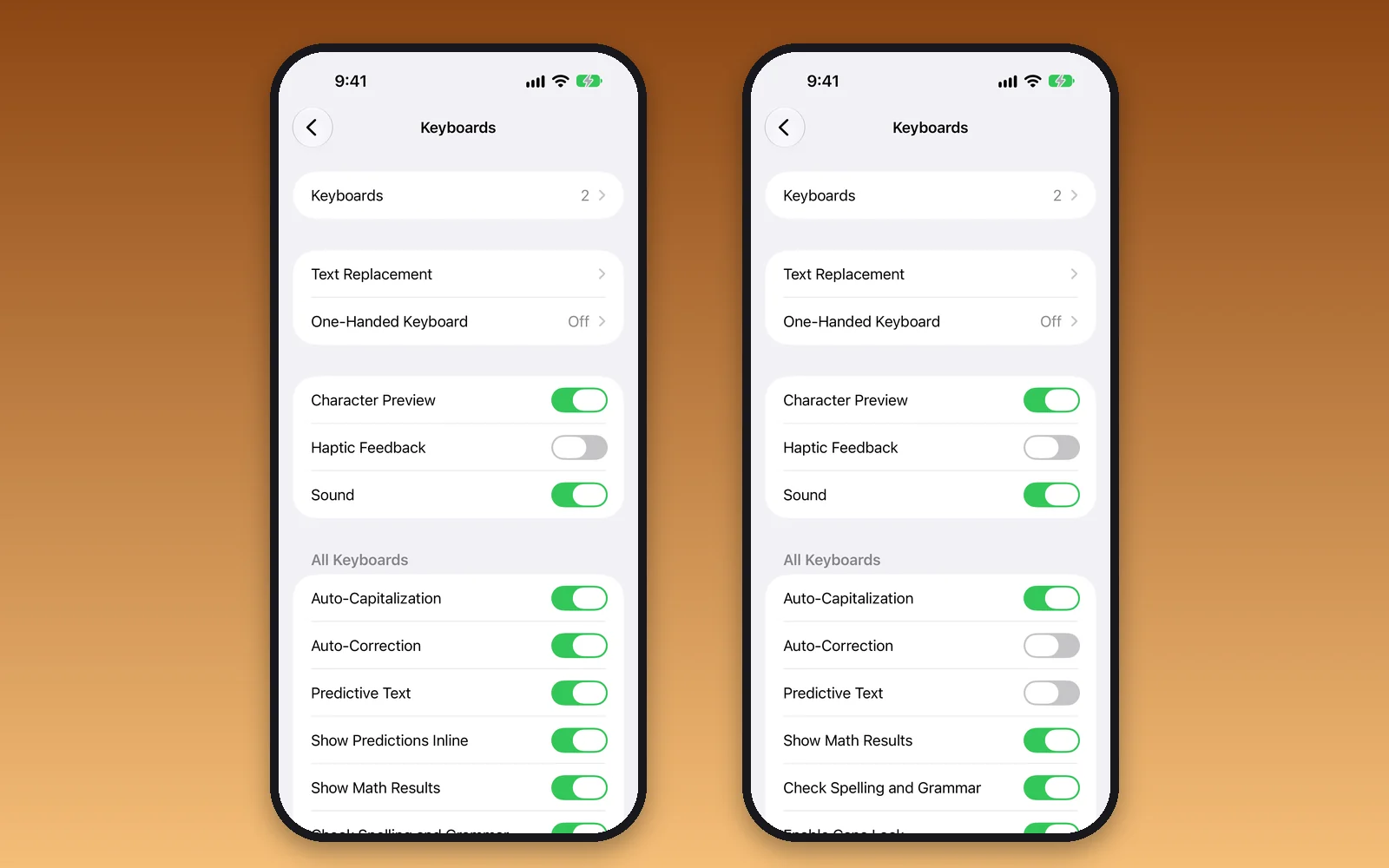
Screenshots: TheTechHacker
Every iPhone comes with auto-correction turned on. It fixes your spelling mistakes while you type, and most of the time it works well. But it also changes names, slang and words from other languages into something you never wanted to say. Predictive text is another feature that shows word suggestions while you type. Some people can’t type without it, and for some it’s only a distraction.
The iPhone lets you turn each one off separately. Now in this article, I will show how to do it in iOS 27, and which options to keep.
Quick answer: Go to Settings > General > Keyboard. Under All Keyboards, turn off Auto-Correction to stop the iPhone changing your words. Turn off Predictive Text to remove word suggestions. When you turn off Predictive Text, the Show Predictions Inline option goes away too. Turn them on again any time.
Getting Started
These steps are from iOS 27.2. The same keyboard screen also has caps lock, smart punctuation and other typing options.
How to Turn Off Auto-Correction on iPhone
- Open Settings and tap General.
- Tap Keyboard.
- Under All Keyboards, turn off Auto-Correction.
How to Turn Off Predictive Text
- On the same screen, turn off Predictive Text.
- The Show Predictions Inline switch disappears, because it depends on Predictive Text.
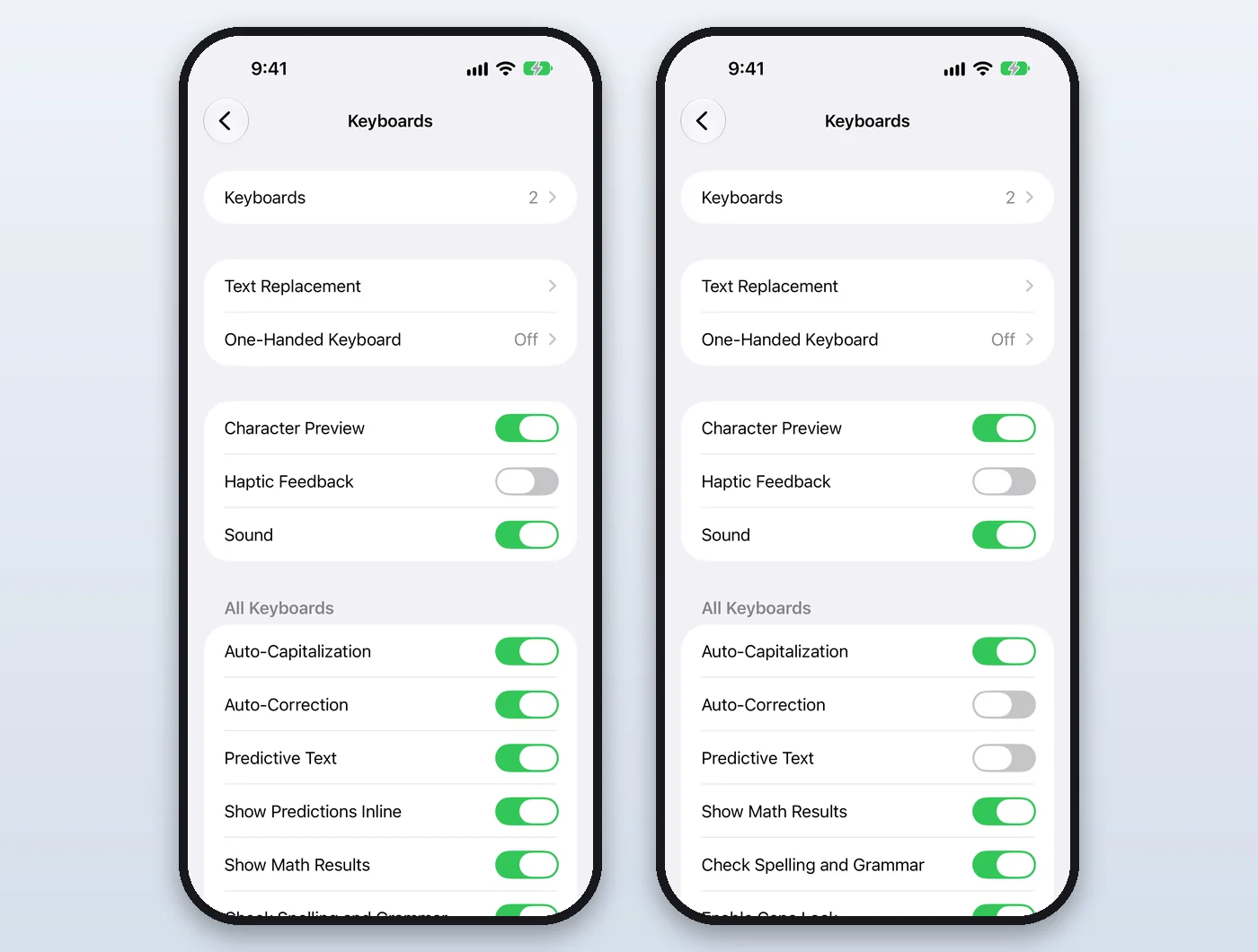
Want suggestions above the keyboard but not the gray text inside your sentence? Keep Predictive Text on and turn off only Show Predictions Inline.
What Each Keyboard Option Does
| Option | What it does |
|---|---|
| Auto-Capitalization | Capitalizes the first word of a sentence |
| Auto-Correction | Changes misspelled words as you type |
| Predictive Text | Suggests words while you type |
| Show Predictions Inline | Shows the suggestion inside your sentence |
| Check Spelling and Grammar | Marks mistakes without changing them |
| Smart Punctuation | Changes straight quotes to curly quotes and double hyphens to a dash |
| Slide to Type | Lets you type by sliding your finger |
| “.” Shortcut | Adds a period when you double-tap the space bar |
Keep Auto-Correction but Protect Your Words
If the iPhone keeps changing one word, you don’t have to turn everything off.
- Go to Settings > General > Keyboard > Text Replacement.
- Tap the + button.
- Type your word in Phrase, and leave Shortcut empty or type a short form.
- Tap Save.
One More Useful Option: One-Handed Keyboard
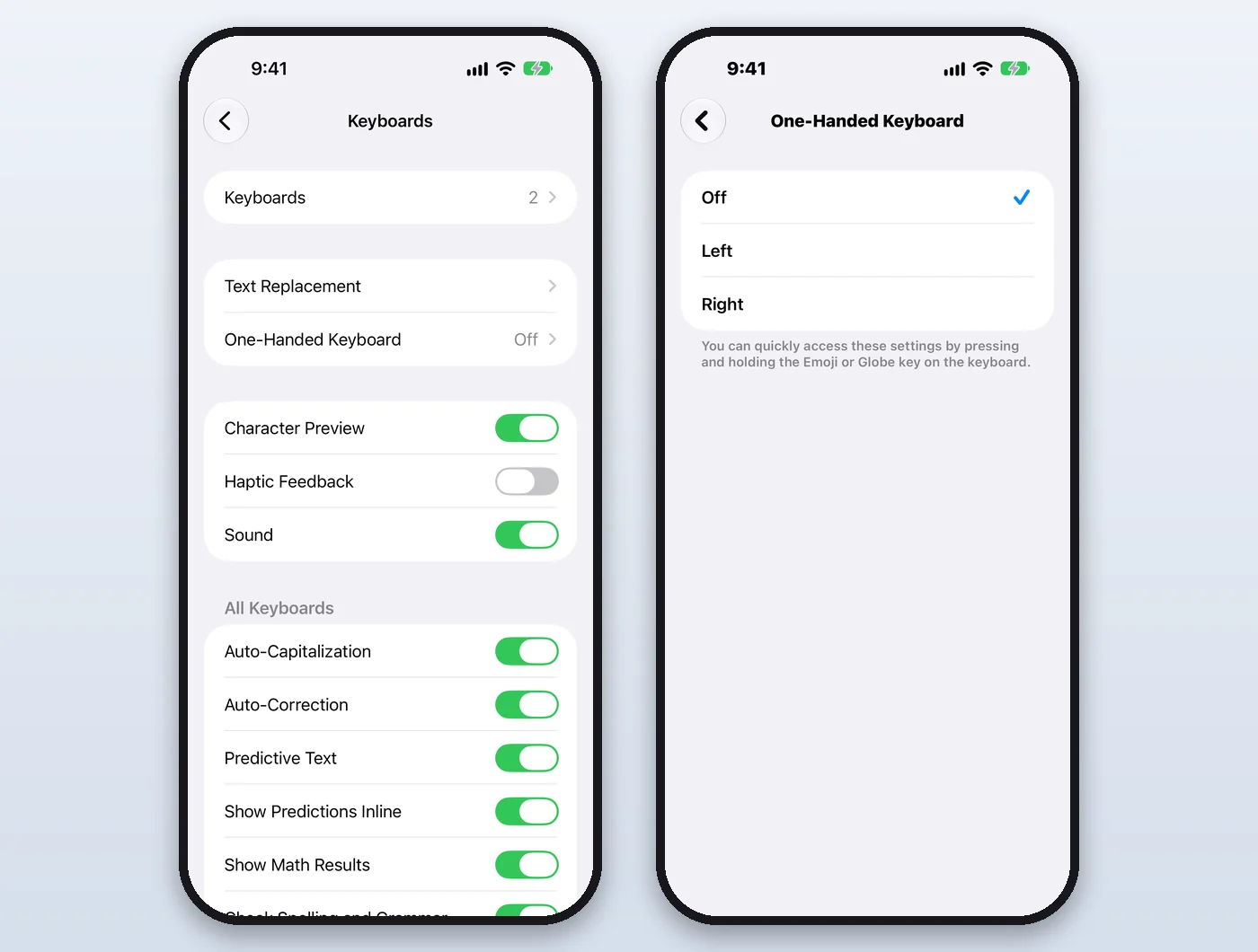
On the same screen, tap One-Handed Keyboard and choose Left or Right. It moves the keys to one side. You can also press and hold the Emoji or Globe key on the keyboard to change it.
Looking for a different keyboard? See how to install new keyboards on your iPhone. If emoji suggestions don’t show, read our fix for emoji search not working. Also check how to change the Messages audio button. Apple lists current versions on its releases page and new features on its iOS 27 page.
That’s all for now. Please do share your views and feedback in the comment box below.
FAQs
How do I turn off autocorrect on iPhone?
Go to Settings > General > Keyboard and turn off Auto-Correction.
Why is Show Predictions Inline missing?
It shows only when Predictive Text is on.
Does turning off Auto-Correction stop spell check?
No. Check Spelling and Grammar is a separate switch on the same screen.
Screenshots: captured by TheTechHacker in the iOS 27.2 simulator (iPhone 18 Pro).
Disclosure: TheTechHacker has no paid relationship with Apple or any company mentioned here.
More in How-to
How To Fix iPhone iOS 26 Night Shift Auto Turn-Off
Discover how to prevent your iPhone’s Night Shift from turning off prematurely after the iOS 26 update with these easy steps.
How to Fix VPN Not Connecting on iPhone: 11 Fixes to Try
Is your VPN spinning forever or showing connected with no internet? Here are the fixes I’d try, in order, from a quick restart to resetting network settings and reinstalling the VPN profile.
How to Turn Off or Change the Messages Audio Button in iOS 27
If you’ve ever sent an accidental voice message because your thumb hit the wrong spot, iOS 27 has a fix. You can now decide what the button at the end of the Messages text field does, or remove it. Pick Record Audio, Start Dictation or None. The option is buried in Settings, so it’s easy…
The week in tech, minus the noise.
New reviews, fixes and the stories that matter — once a week, straight to your inbox.
We only use your email to send the newsletter. Unsubscribe any time. See our privacy policy.
Comments