

How to Turn On Dark Mode Automatically on iPhone in iOS 27
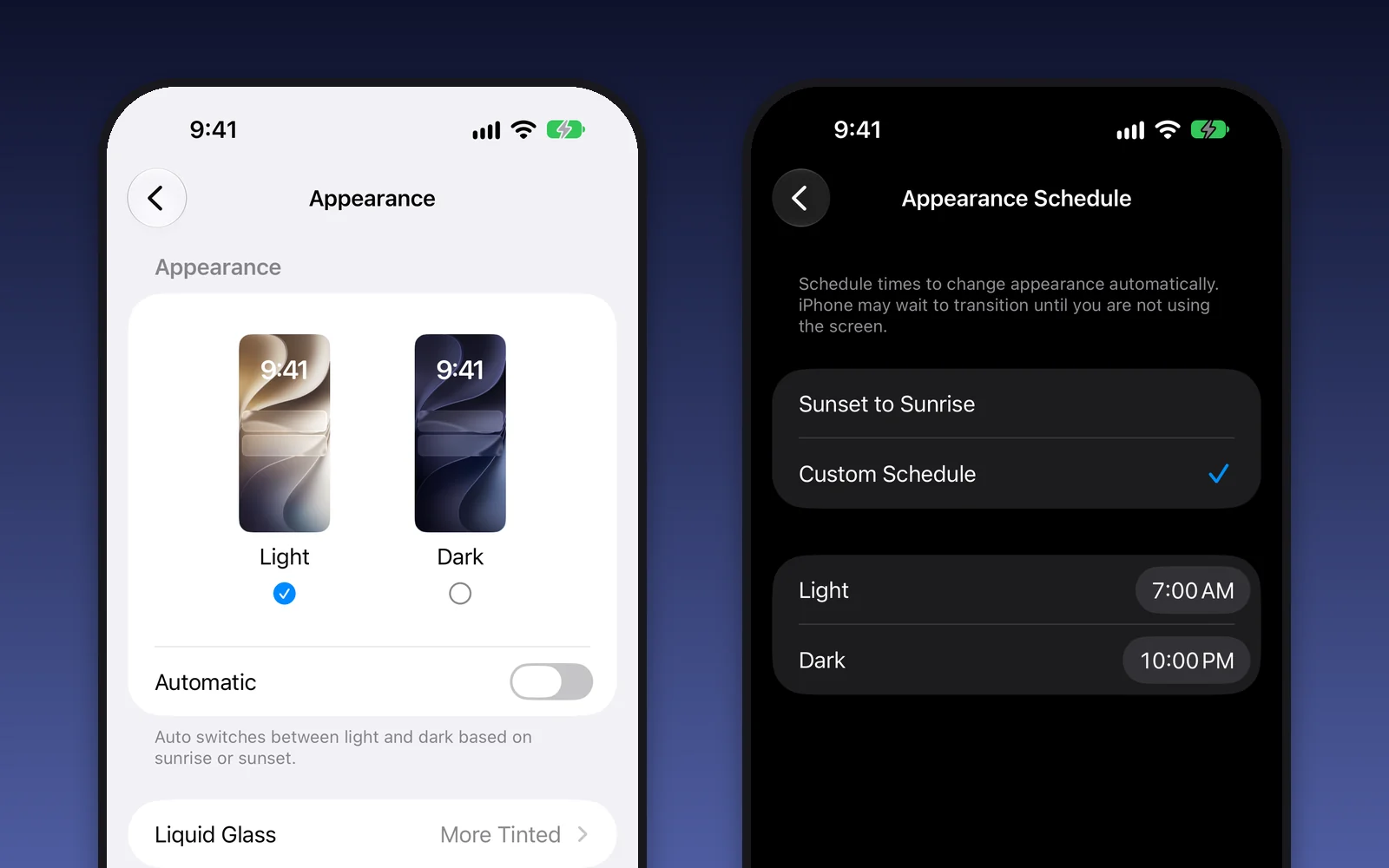
Dark mode is one of the most used features on the iPhone. It’s easy on the eyes at night, and it looks good too. But many people turn it on by hand every evening and forget to turn it off in the morning. Your iPhone can do this by itself. It can follow the sunset…

Screenshots: TheTechHacker
Dark mode is one of the most used features on the iPhone. It’s easy on the eyes at night, and it looks good too. But many people turn it on by hand every evening and forget to turn it off in the morning. Your iPhone can do this by itself. It can follow the sunset and sunrise, or the times you choose.
In iOS 27, the dark mode settings are in the new Appearance section. Now in this article, I will show how to set it up.
Quick answer: On iOS 27, go to Settings > Appearance and turn on Automatic. Your iPhone changes between light and dark based on sunrise and sunset. To use your own times, tap Options > Custom Schedule and set the Light and Dark times. Your iPhone may wait until you’re not using the screen before it changes.
Getting Started
These steps are from iOS 27.2. If you only want dark mode all the time, tap Dark on the Appearance screen and leave Automatic off.
How to Turn On Automatic Dark Mode
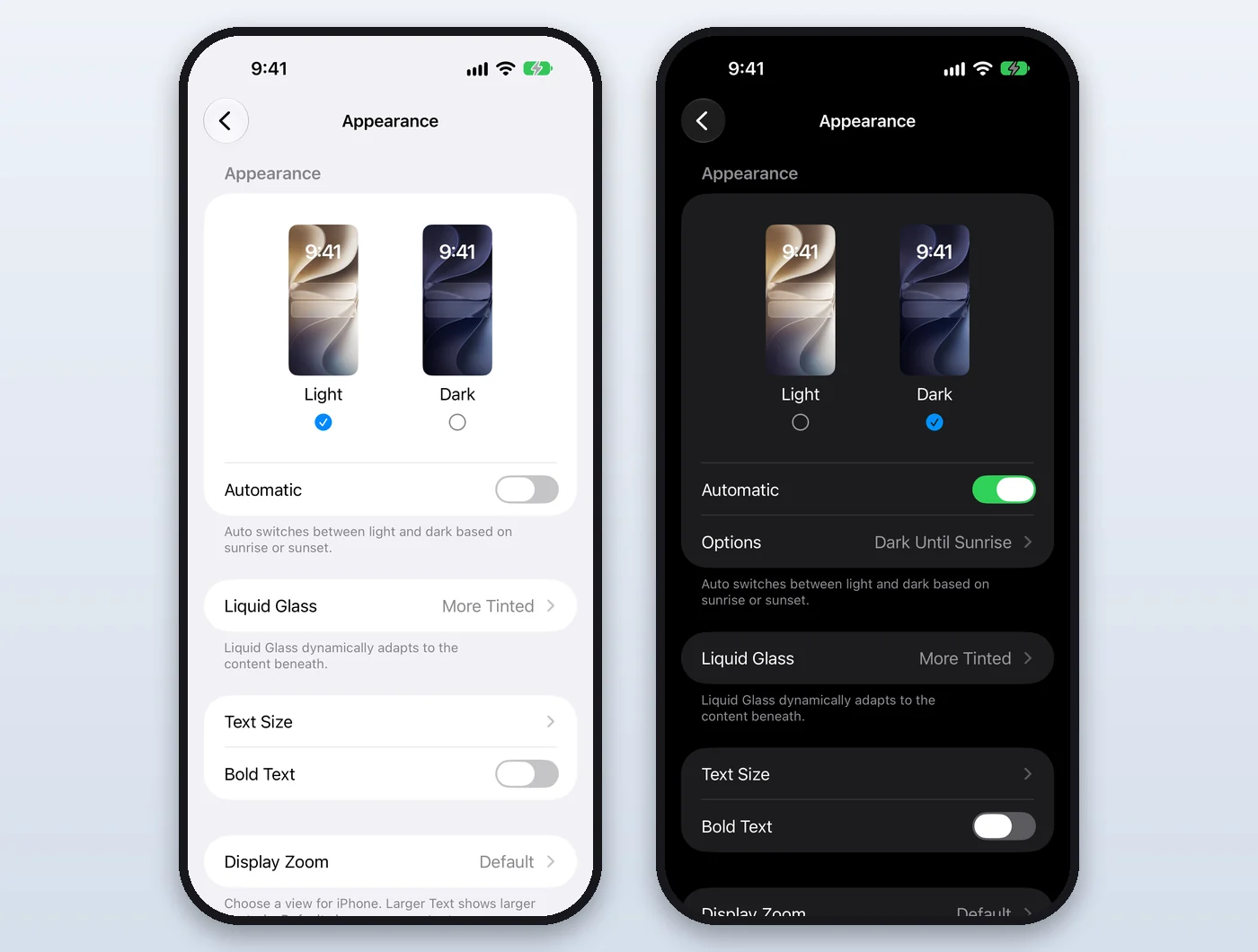
- Open Settings on your iPhone.
- Scroll down and tap Appearance.
- Turn on Automatic.
- A new row named Options appears. It shows the current status, such as Dark Until Sunrise.
How to Set a Custom Dark Mode Schedule
- On the Appearance screen, tap Options.
- Choose Custom Schedule.
- Tap the time next to Light and set when it should turn light.
- Tap the time next to Dark and set when it should turn dark.
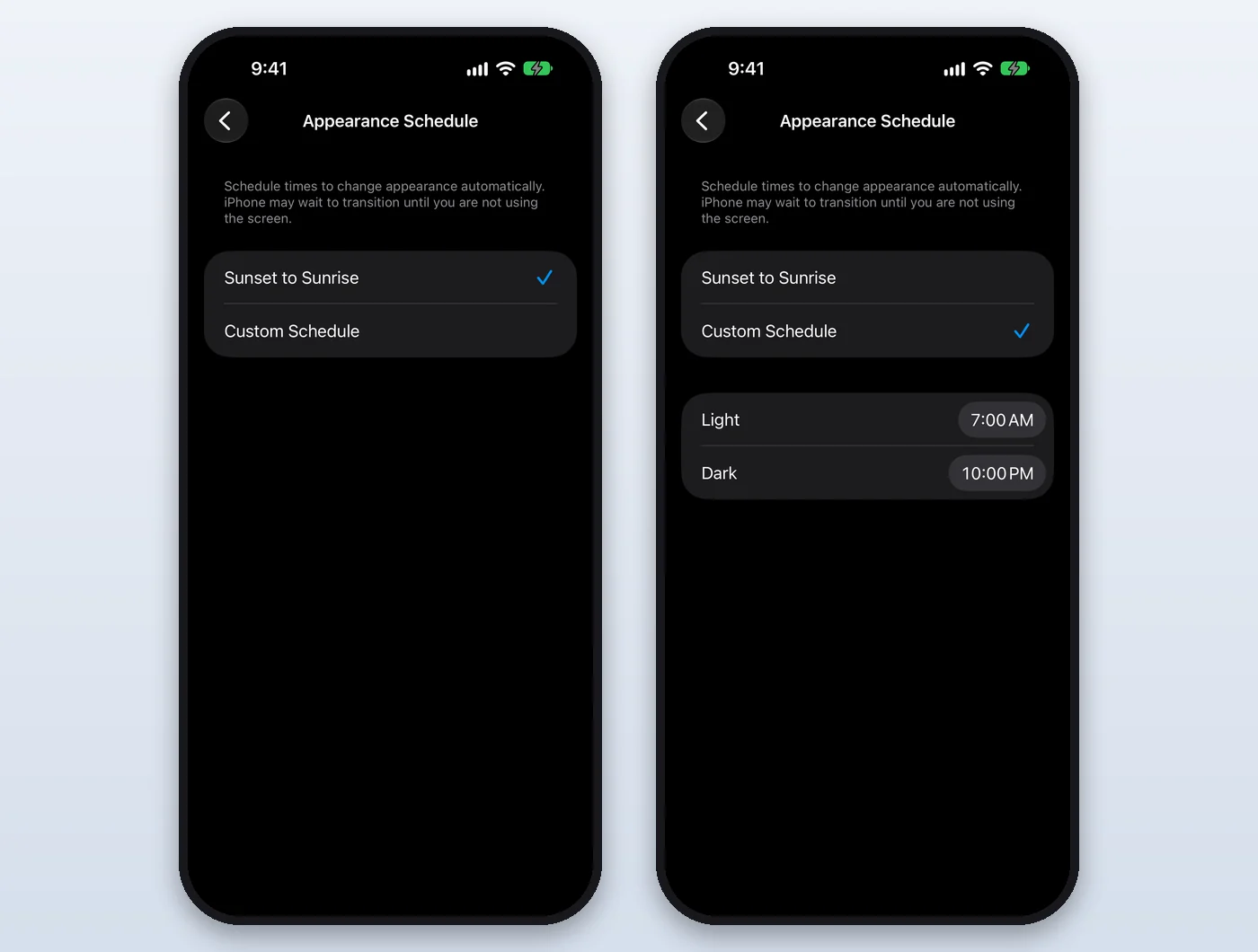
To go back to the sun-based schedule, choose Sunset to Sunrise on the same screen.
Sunset to Sunrise or Custom: Which to Choose?
- Sunset to Sunrise: good if you want it to follow the season. In winter it turns dark early in the evening.
- Custom Schedule: good if you want it only at bedtime, such as 10:00 PM to 7:00 AM.
Dark Mode Not Changing on Time?
- Lock your iPhone for a moment. Apple says on the schedule screen that the iPhone may wait to change until you are not using the screen.
- Check that Automatic is on. If it’s off, your iPhone stays on the one you chose.
- Check the times. Make sure the Light and Dark times aren’t mixed up.
- Some apps have their own theme. Look in the app’s settings if only one app doesn’t change.
On iOS 26
On iOS 26, these options are reported to be in Settings > Display & Brightness. Apple explains how apps should handle dark mode in its dark mode guidelines, and the new features are on its iOS 27 page.
If Night Shift turns off by itself, see our Night Shift fix. You can also save power with our iOS 27 battery drain fix, and set a separate alarm volume for the morning.
That’s all for now. Please do share your views and feedback in the comment box below.
FAQs
Where is dark mode in iOS 27?
It’s in Settings > Appearance. Tap Dark, or turn on Automatic.
Can I set dark mode for certain times on iPhone?
Yes. Turn on Automatic, tap Options, choose Custom Schedule and set the times.
Why didn’t dark mode turn on at the set time?
Your iPhone may wait until you’re not using the screen. Lock it for a moment and check again.
Screenshots: captured by TheTechHacker in the iOS 27.2 simulator (iPhone 18 Pro).
Disclosure: TheTechHacker has no paid relationship with Apple or any company mentioned here.
More in How-to
How to Enable or Disable Auto iOS Updates?
Like Google, Apple also releases frequent iOS updates to ensure that iOS is bug-free and new features are also released through iOS updates. In the recently commenced WWDC 2019, Apple released the 13th iteration of its iOS operating software. iOS 13 packs multiple useful features. Some of the noteworthy features of iOS 13 are Dark…
How to Fix iOS 27 Battery Drain on iPhone (Turn Off Connectivity Assist)
If your iPhone battery has been draining faster since iOS 27, one new setting is worth checking first: Connectivity Assist. It replaced Wi-Fi Assist in iOS 27, and Apple’s Connectivity Assist page says it “uses cellular data alongside Wi-Fi” when your Wi-Fi is slow. If you had Wi-Fi Assist on, it’s turned on automatically. iDrop…
How To Fix iPhone iOS 26 Night Shift Auto Turn-Off
Discover how to prevent your iPhone’s Night Shift from turning off prematurely after the iOS 26 update with these easy steps.
The week in tech, minus the noise.
New reviews, fixes and the stories that matter — once a week, straight to your inbox.
We only use your email to send the newsletter. Unsubscribe any time. See our privacy policy.
Comments