

ChatGPT’s New Mobile App Design: What Changed and How to Pin Your Favorites
ChatGPT's mobile app now has Home and Explore tabs and lets you pin Codex, Projects and Images. Who gets it, how to pin tools, find chats and switch back.


ChatGPT’s mobile app is getting a new layout with a tab bar at the bottom. According to OpenAI’s November 19, 2026 release notes, “your dot has its own tab, and you can pin favorites like Codex, Projects, and Images to the tab bar.” It’s starting with ChatGPT Pro users who are 18 or older, plus a small group of Plus users, on iPhone and Android in the US and other supported regions. If your app suddenly shows Home and Explore at the bottom, you have it. This guide covers what changed, how to pin and unpin tools, where to find your chats, and how to switch back.
Quick answer: The new ChatGPT mobile design adds a bottom tab bar with Home (chats), Explore (tools like Projects and Images) and a tab for your dot, ChatGPT’s always-on agent. To pin a tool, open Explore, touch and hold it, and choose Pin to tab bar. To unpin, touch and hold the icon and choose Unpin from tab bar. Your chat history is under Home > the menu icon. To switch back, go to Settings > New ChatGPT design and turn it off, if the toggle is shown. It’s rolling out to Pro and some Plus users first, not in the EEA, UK, Switzerland or Korea.
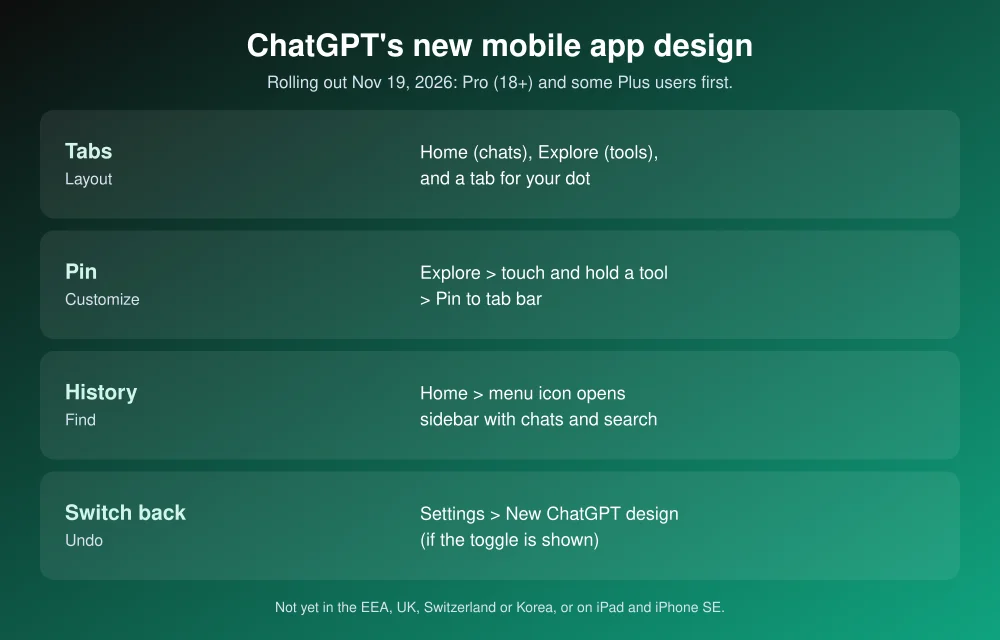
What changed in the ChatGPT app
From OpenAI’s help article on using the new mobile experience:
- Home (house icon): start a new chat or pick up a recent one.
- Explore (four-circle icon): tools such as Projects and Images live here.
- Your dot’s tab: if you have a dot, it gets its own tab.
- Pinned tools: add favorites like Codex, Projects or Images to the tab bar. If the bar is full, the app asks which shortcut to replace.
What is a “dot”?
OpenAI describes your dot as “an always-on agent in ChatGPT that can help you take a project from an idea to work you can use.” It keeps working between conversations using its own cloud computer and the apps you connect. You give it a name and pick a character. Dots are currently for Pro users and selected Plus users aged 18 and older, outside the EEA, Switzerland and the UK, and they don’t work on mobile web.
Who gets the new design
- First: ChatGPT Pro users aged 18 or older in regions where dots are available. Some get it by default.
- Also: “a small group of eligible Plus users.”
- Not yet: the EEA (including the EU), the UK, Switzerland and Korea, and not on iPhone SE, iPhone Duo or iPad.
- Free users: OpenAI hasn’t given a timeline.
Keep the app updated from the App Store or Google Play, as the rollout is gradual.
How to pin Codex, Projects or Images to the tab bar
- Tap Explore at the bottom of the app.
- Touch and hold the tool you want, such as Projects.
- Select Pin to tab bar. Projects, for example, shows up as a folder icon.
To unpin: touch and hold the pinned icon in the tab bar and select Unpin from tab bar. The tool stays in Explore.
Where to find your chats and other features
| Looking for | Where it is now |
|---|---|
| Chat history and search | Home > menu icon (two lines) opens the sidebar |
| Projects | Explore > Projects |
| Locked chats | Explore > Projects > Locked chats |
| Chat or Work mode | Tap the model name in the message box |
| Settings | Home > sidebar > profile icon > Settings |
| Delete a chat | ••• > Delete (can’t be restored) |
Archived chats still show up in search. Pages, slides, images and uploaded files now live in ChatGPT Space, which replaced Library and reached Plus users on November 20. See how to use ChatGPT Space.
How to switch back to the old ChatGPT design
- Tap Home, open the sidebar, and tap your profile icon.
- Go to Settings and turn off New ChatGPT design.
- On Android, tap Restart when asked.
If you don’t see the toggle, OpenAI says the option isn’t available on your device or account, and you can’t switch back in the app yet.
More on ChatGPT this month: GPT-6.2 Astra and Sol plans and pricing, what to do if GPT-6.2 isn’t showing, and ChatGPT Health on Android.
FAQs
Why does my ChatGPT app look different?
OpenAI is rolling out a new mobile design with Home and Explore tabs at the bottom, starting November 19, 2026 with Pro users aged 18 and older and a small group of Plus users.
How do I pin something to the ChatGPT tab bar?
Open Explore, touch and hold a tool like Projects, Codex or Images, and select Pin to tab bar. Touch and hold it again and choose Unpin from tab bar to remove it.
Where did my ChatGPT chat history go?
Tap Home, then the menu icon with two lines, to open the sidebar with your recent chats and search.
Can I go back to the old ChatGPT app design?
If New ChatGPT design appears in Settings, turn it off to return to the classic layout. If it doesn’t appear, you can’t switch back yet.
Featured image: OpenAI.
Disclosure: TheTechHacker has no paid relationship with OpenAI or any company mentioned here.
More in News

ChatGPT Wallet: How It Works, Who Can Use It and How to Set It Up
OpenAI wants ChatGPT to do more than recommend what to buy. On Friday, November 13, it launched ChatGPT Wallet, a way for its AI agents, called dots, to actually pay for things on your behalf. You ask your dot to find a sweater or book a hotel, review the order, approve it with Face ID…
What Is ChatGPT Space? How to Use It Now That It Replaced Library
If the Library button in ChatGPT has disappeared, you’ve probably got ChatGPT Space instead. OpenAI started rolling Space out to Plus subscribers on November 20, 2026. Space is where your pages, slides, images and uploaded files now live. It also lets ChatGPT build interactive pages and presentations you can edit and share. Pro, Business and…

How to Switch Carriers and Keep Your Phone Number (AT&T, Verizon, T-Mobile)
Thinking about leaving AT&T, Verizon or T-Mobile? Here’s how to switch carriers in the US without losing your phone number, from getting your transfer PIN to handling a port that fails.
The week in tech, minus the noise.
New reviews, fixes and the stories that matter — once a week, straight to your inbox.
We only use your email to send the newsletter. Unsubscribe any time. See our privacy policy.
Comments