

How to Fix GPT-6.2 Not Showing in ChatGPT (Astra and Sol Missing)
OpenAI released GPT-6.2 Astra and GPT-6.2 Sol on November 17, 2026, but many paying subscribers open ChatGPT and still see only the older models. In most cases nothing is broken: the new models live in a different part of ChatGPT than people expect, the rollout is gradual, or the app needs an update. Quick answer:…

OpenAI released GPT-6.2 Astra and GPT-6.2 Sol on November 17, 2026, but many paying subscribers open ChatGPT and still see only the older models. In most cases nothing is broken: the new models live in a different part of ChatGPT than people expect, the rollout is gradual, or the app needs an update.
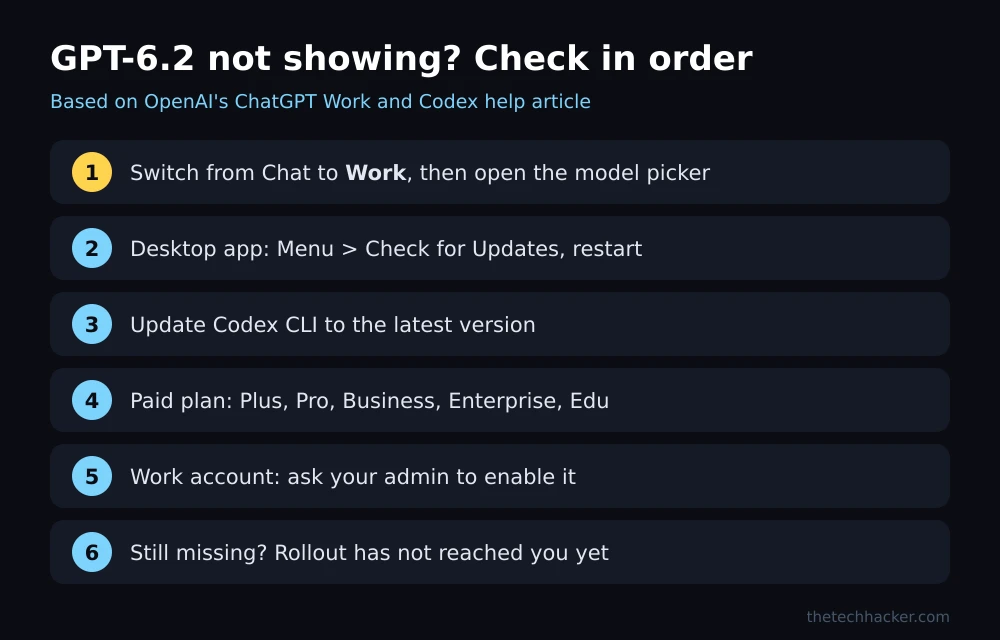
Quick answer: GPT-6.2 Astra and Sol are only in ChatGPT Work and Codex, not in regular Chat, according to OpenAI’s help center. Switch from Chat to Work, open the model picker, and look there. If they are still missing, update the ChatGPT desktop app (Menu, then Check for Updates) and restart it, update Codex CLI, confirm you are on Plus, Pro, Business, Enterprise or Edu, and ask your workspace admin to enable the models if you use a company account. If none of that works, the rollout may simply not have reached your account yet.
Why GPT-6.2 is not showing
OpenAI’s help article on ChatGPT Work and Codex lists the reasons:
- You are in Chat, not Work. The rollout “does not add either model to regular Chat,” OpenAI says. This is the most common cause.
- Your app is out of date. The desktop app and Codex CLI need the latest version.
- Your plan is not eligible. The rollout covers Plus, Pro, Business, Enterprise, Edu, ChatGPT for Healthcare and FedRAMP workspaces. Free users are not included.
- Your workspace has not enabled it. On Enterprise and Edu, an admin controls model access.
- The rollout has not reached you. OpenAI says availability depends on plan, workspace permissions and rollout progress.
How to Fix GPT-6.2 not showing in ChatGPT
1. Switch to Work and open the model picker
On the web or mobile app, select Work instead of Chat. In the desktop app, choose ChatGPT from the menu, then select Work from the toggle. Open the model picker and look for GPT-6.2 Astra or GPT-6.2 Sol. If you see a Default option, existing Work chats may show a prompt to switch to the new default, and new chats on Default may upgrade automatically.
2. Update the ChatGPT desktop app
Open the desktop app, go to Menu and choose Check for Updates, install the update, then quit and restart the app. On iPhone or Android, update ChatGPT from the App Store or Google Play.
3. Update Codex CLI
If you use Codex in the terminal, OpenAI says to update it to the latest version. If you installed it with npm, run npm install -g @openai/codex@latest, then start a new session. If npm throws errors after a recent Node.js upgrade, our guide to fixing Node.js errors after upgrading to Node 26 can help.
4. Check your plan
Go to Settings, then your account or plan, and confirm you are on an eligible paid plan. The free tier is not part of the GPT-6.2 rollout. Ultrafast mode has extra rules: Pro $500 can use it with both models, Pro $200 gets it for GPT-6.2 Sol in Codex, and it is not available on Plus, Pro $100 or Business.
5. Ask your workspace admin
On Enterprise or Edu, admins manage model access and defaults in Workspace settings, under Models and Permissions and roles. If Work itself is off for your role, you will see that it is unavailable and can request access.
6. Sign out, sign back in, and wait
Signing out and back in refreshes your account’s model list. If the models still do not appear after updating, OpenAI says they may not be available for your account yet, so check again later in the day.
Using GPT-6.2 through the API instead
Developers can call gpt-6.2-astra and gpt-6.2-sol directly in the OpenAI API, which is separate from ChatGPT’s rollout. Prices and plan details are in our report on the GPT-6.2 Astra and Sol launch, and OpenAI’s announcement has the full details. If you use other AI assistants and run into similar problems, see our guide to fixing Claude not working.
FAQs
Why can’t I see GPT-6.2 in ChatGPT?
GPT-6.2 Astra and Sol are only in ChatGPT Work and Codex, not regular Chat. Switch to Work, update your app, and confirm you are on an eligible paid plan.
Is GPT-6.2 available on the free plan?
No. OpenAI’s rollout covers Plus, Pro, Business, Enterprise, Edu, ChatGPT for Healthcare and FedRAMP workspaces.
How do I update ChatGPT to get GPT-6.2?
In the desktop app, open Menu and choose Check for Updates, then restart. Update Codex CLI to the latest version if you use it.
Why is GPT-6.2 missing on my work account?
On Enterprise and Edu, a workspace admin must enable access. Ask your admin to check model access and Work permissions in Workspace settings.
Featured image: OpenAI.
Disclosure: TheTechHacker has no paid relationship with OpenAI or any company mentioned here.
More in How-to
How to Fix iPhone Files App Not Showing Recent Downloads
Trying to fix the iPhone Files app issue where downloads are missing? It can be irritating when essential files don’t show up, but you can resolve this problem with a few simple tweaks. In our testing, these steps to fix iPhone Files app issues have proven effective for many users. Let’s dive into the solution.…

How To Fix Steam API DLL Missing Error In Windows 10
Steam API DLL missing error is a most commonly occurring error for Steam players. This error will come due to the missing file of Steam API in the DLL files library. This is a quite annoying error for serious Steam gamers online. This error appears when a user launches the Steam app and it will…

How to Fix Zelle Payment Delays After the Bank Outage
Monday’s banking mess left a lot of people staring at a Zelle payment that never showed up. Rent, a split dinner bill, money for family. When a payment you sent or expected goes missing, it is stressful, and the worst thing you can do is panic and send it again. The good news is that…
The week in tech, minus the noise.
New reviews, fixes and the stories that matter — once a week, straight to your inbox.
We only use your email to send the newsletter. Unsubscribe any time. See our privacy policy.
Comments