

Signal Now Blocks Screenshots by Default to Stop AI Agents: How It Works
Signal now blocks screenshots by default to keep AI agents like Siri AI and Gemini from reading chats. What changed on iPhone, Android, Windows and Mac.

Signal is now blocking screenshots by default to keep AI agents from reading your chats. In a November 20 blog post, president Meredith Whittaker explained that AI assistants built into phones and computers can now see and act on what’s on your screen, including private messages. On iPhone, Signal added a Block Siri AI setting. On Android, Signal’s Screen security now turns on automatically when it detects an AI assistant reading the screen. Reuters reports the protections are on by default. “Signal is the canary in the coal mine, but this affects the entire ecosystem,” Whittaker wrote. This article covers what changed on each platform and how to adjust it.
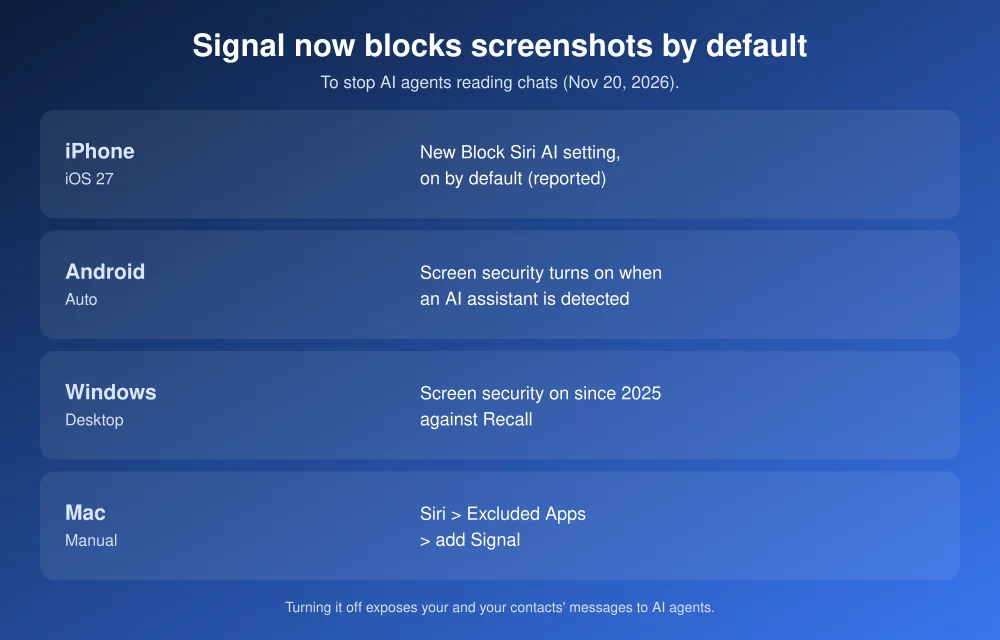
Quick answer: Signal now blocks screenshots by default to stop AI agents like Siri AI and Gemini from reading your messages. On iPhone (iOS 27), the new Block Siri AI setting is on. On Android, Screen security turns on when Signal detects an AI assistant. On Windows 11, screenshot blocking has been on since 2025 to stop Recall. On Mac, Signal can’t block it, so go to System Settings > Siri > Excluded Apps and add Signal. You can turn the protection off in Signal’s settings, but Signal warns that exposes your and your contacts’ messages.
Why Signal made the change
Phone and computer makers are building AI agents that can read the screen, tap buttons and act across apps. Signal says that breaks the promise of end-to-end encryption, since an agent can read a message after it’s decrypted on your device. Reuters reports Signal named Apple’s Siri AI and Google’s Gemini Intelligence as concerns, and called its own protections “incomplete.” Whittaker described the trend to Reuters as “an existential threat to Signal.” Signal is urging Apple, Google and Microsoft to give app developers a proper way to block AI agents.
Reuters had earlier reported that Meta’s Muse agent could read Signal chats on a Mac and on Android using accessibility and screenshot tools. Apple closed the Mac route in an update. Meta says Muse only uses permissions users grant.
What changed on each platform
| Platform | What Signal does |
|---|---|
| iPhone (iOS 27) | New Block Siri AI setting blocks screenshots in Signal; reported on by default |
| Android | Screen security turns on automatically when Signal detects an AI assistant reading the screen; detection may not work on every phone brand |
| Windows 11 | Screenshot blocking on by default since 2025, originally to stop Windows Recall |
| Mac | Signal says it can’t reliably block it; exclude Signal from Siri yourself |
How to check or change the setting
- iPhone: update Signal, then open Signal Settings and look for Block Siri AI. If you take a screenshot, Signal shows a pop-up that lets you turn the block off.
- Android: open Signal Settings > Privacy and find Screen security, as described on Signal’s support page.
- Windows: in Signal Desktop, go to Settings > Privacy > Screen security. Turning it off shows a warning.
- Mac: go to System Settings > Siri > Excluded Apps and add Signal. Our guide to stopping Siri AI from reading your apps shows the same option on iPhone.
What it doesn’t protect against
Signal’s blog says these settings only stop screen reading. They don’t stop an app or agent with deeper access, such as reading files already stored on your device. Someone can also still photograph your screen with another phone. If you turn the protection off, Signal warns that both your messages and your contacts’ messages become visible to AI agents.
Want more control over AI on your devices? See how to turn off Windows 11 AI agent telemetry. If you think an account was exposed, use our data breach checklist.
FAQs
Why can’t I take a screenshot in Signal?
Signal now blocks screenshots by default to stop AI agents from reading your chats. You can turn the block off in Signal’s settings, or from the pop-up that appears when you try.
What is Block Siri AI in Signal?
It’s a new Signal setting on iOS 27 that blocks screenshots so Siri AI and other AI agents can’t read your messages from the screen.
Does Signal block screenshots on Android?
Signal’s Screen security setting now turns on automatically when it detects an AI assistant reading the screen. You can also turn it on in Settings > Privacy.
How do I protect Signal on a Mac?
Signal can’t block screen reading on macOS, so go to System Settings > Siri > Excluded Apps and add Signal.
Featured image: Signal.
Disclosure: TheTechHacker has no paid relationship with Signal or any company mentioned here.
More in News
How to Stop Siri AI From Reading Your Apps With Excluded Apps in iOS 27.2
Siri AI in iOS 27 can read what’s on your screen, pull details out of your messages and act inside your apps. That’s useful until you remember it can also see your Signal chats, your banking app and your health notes. iOS 27.2 adds a simple fix: an Excluded Apps list that blocks Siri AI…

ChatGPT Wallet: How It Works, Who Can Use It and How to Set It Up
OpenAI wants ChatGPT to do more than recommend what to buy. On Friday, November 13, it launched ChatGPT Wallet, a way for its AI agents, called dots, to actually pay for things on your behalf. You ask your dot to find a sweater or book a hotel, review the order, approve it with Face ID…

Best Email Security Software for Small Businesses on Microsoft 365 and Google Workspace (2026)
A huge share of small business security incidents start in the same place: an inbox. Someone gets a convincing invoice from a “vendor” with new bank details, or a Microsoft sign-in page that looks right but isn’t, and by the time anyone notices, money or a password is gone. Microsoft 365 and Google Workspace both…
The week in tech, minus the noise.
New reviews, fixes and the stories that matter — once a week, straight to your inbox.
We only use your email to send the newsletter. Unsubscribe any time. See our privacy policy.
Comments