

How To Optimize Hard Disk For Best Performance
The hard drive is one of the essential part of Computer. The hard drive can be optimized for improved performance and longer life. There are many simple ways to improve the performance and reliability of the Hard drive. Follow these simple steps to optimize Hard drive. Related Articles How To Uninstall A Microsoft Windows OS…

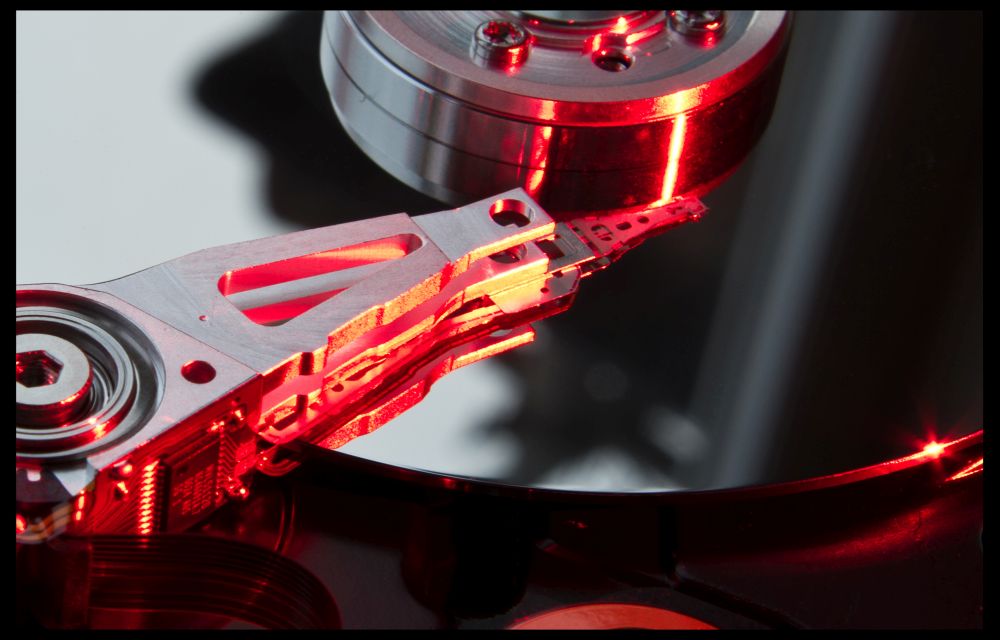
The hard drive is one of the essential part of Computer. The hard drive can be optimized for improved performance and longer life. There are many simple ways to improve the performance and reliability of the Hard drive. Follow these simple steps to optimize Hard drive.
Related Articles
- How To Uninstall A Microsoft Windows OS Update
- Top 5 Desktop Customization Tools For Windows
- How To Install Microsoft Windows 10 Preview In VirtualBox

1. Hard Disk Partitioning
Partitioning of Hard drive has many benefits, keeping OS files separate from normal data allowing a cleaner installation of OS(error free).If you install the OS without partitioning the drive, it may cause a lot of difficulties when receive a corrupted error from the system.When you try to re-install the OS all previous data will be removed.Better is to maintain a number of partitions depending on the size of Hard drive.
2. Regular Maintenance of Browser Cache
When you run a browsing session on your system lot of temporary and cached files are created and stored on your Hard drive.These files can consume a lot of space on your Hard drive and reside on an unknown location of the system. These files can be deleted by programs like CCleaner and kcleaner.
3. Create a Pagefile Partition
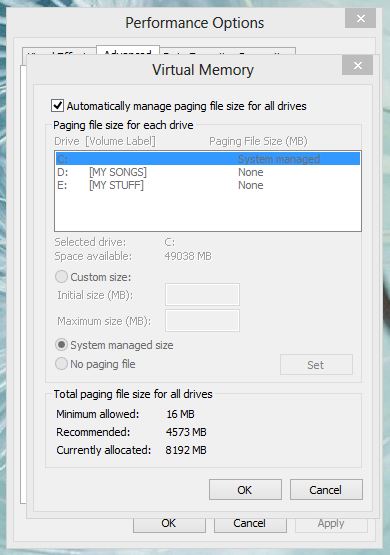
The pagefile partition is allowed a place where the opened programs can keep their temp files. Normally this process is done by RAM, by using this method you can free RAM.To create a pagefile partition go to Control Panel > System > Advanced System Settings > Advanced > Performance > Settings > Advanced > Virtual Memory > Change, and create a new partition(recommend size 1GB).
4. Empty Recycle Bin Regularly
When new delete a file Windows stores the file in the Recycle Bin.Regularly checking and emptying the Recycle Bin will allow you to save even more space. If you want to permanently delete a file in a single click you can skip “delete to Recycle Bin” feature by Shift+Clicking on the Delete option when deleting a file in Windows.
5. Disk Defragmentation
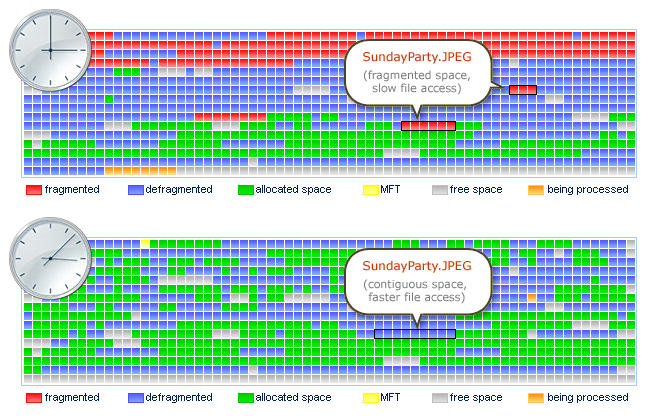
In Hard drives, your saved files are stored in blocks. Larger files consume number of blocks normally in irregular format.If you or your OS looking for a particular file, these irregular format of saving data can cause slowness of system speed. Disk Defragmentation solve this problem by arranging the blocks in a perfect manner. It organizes your data by alphabetical order of your files, documents in appropriate folders.
More in How-to
How To Find Out If Your Windows Has SSD or Hard Disk
The hard disk is an essential part of any computer which contains the Operating System as well as your important files present on it. Thanks to the technology, now we are using much faster data transferring Solid State Drives than the slower traditional hard disks. From the last couple of years, the SSD becomes much…
How To Fix Slow File Copy Speed In Windows 10
Copying, moving files, and folders on a computer is a regular task. Most of the copying and moving tasks are common between hard disk to another hard disk either internal to external. Recently my friend faced a slow file copying issue and he asked the best suggestion to improve the data transfer speed. He is…

How To Fix FPS Drop While Gaming In Windows 10
Gaming on Windows is a blissful experience. Windows 10 is a favourite operating system for millions of users around the world. It lets you play any kind of game without giving any troubles. However, sometimes the FPS rate will drop suddenly during the game. It is a small error, and we can easily fix in…
The week in tech, minus the noise.
New reviews, fixes and the stories that matter — once a week, straight to your inbox.
We only use your email to send the newsletter. Unsubscribe any time. See our privacy policy.
Comments