

How To Install OnePlus 2 USB Drivers On Windows
OnePlus 2 is officially announced, the company is following its traditional invite system to purchase the 2015 flagship device. The device has a very powerful hardware, it comes with 4GB RAM, 1.8GHz octa-core 64-bit processor, and 5.5inch IPS LCD display. In our earlier posts we have covered topics like entering into bootloader mode and unlocking…

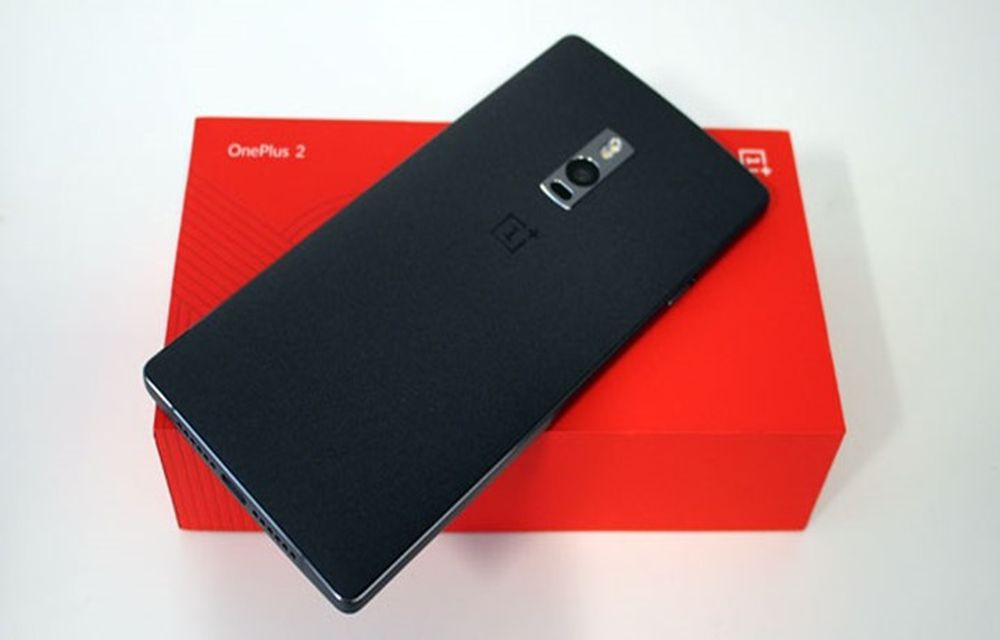
OnePlus 2 is officially announced, the company is following its traditional invite system to purchase the 2015 flagship device. The device has a very powerful hardware, it comes with 4GB RAM, 1.8GHz octa-core 64-bit processor, and 5.5inch IPS LCD display.
In our earlier posts we have covered topics like entering into bootloader mode and unlocking the bootloader on OnePlus 2, now this tutorial shows how to install OnePlus 2 USB drivers on Windows.
Before to start the tutorial, we want to give a brief use of installing USB drivers. For any Android device, the USB drivers are mandatory to make or establish a successful connection with PC. The driver helps the device to communicate with system hardware to make a connection.
Installing drivers for OnePlus 2 for Windows is pretty easy, simply follow the below steps.
How To Install OnePlus 2 USB Drivers On Windows Simple Guide
1.Download 15 seconds ADB Installer from XDA Developers website.

2. Now run the downloaded exe file, it opens a blue color command window.
3. Here in the window, you will set of handful commands to install drivers, unlock bootloader etc.

4. Here click “Y” after every option to install ADB driver on Windows.
5. To install drivers manually connect your OnePlus 2 to your PC and open the Device Manager by right-clicking on My Computer icon.
6. Here you will see ADB Interface under the Other Devices section.
7. Now right click on the option and select “Update Driver”.
8. Here a new window opens, now click on the “Browse my computer for driver software”.
9. Next, choose “Let me pick from a list of device drivers on my computer” and go to next.
10. Here select the “Android Device” or “Android Interface” option and click on Next.
11. Here you will see all the ADB drivers that are installed on your windows. Now select the “Android ADB Interface” and click on the Next button.
That’s it, now you have a successful installed OnePlus 2 drivers on your PC.
For confirmation, connect your device to the PC, and open a command prompt window by holding Shift + Right click mouse action in your fastboot/adb folder. Next, enter the following command to confirm drivers installation.
adb devices
If the drivers are successfully installed, it will show your device as attached. Or if the device is not present then follow the above steps from the starting.
That’s all for now. Please do share your valuable feedback in the comment box below.
More in Android

How To Enable USB Storage On Android Devices
Android devices are well known for their features. The popularity of Android has surged over the past few years, and its dead simple interface makes every task quite user-friendly. Android phones come with all the latest sharing technologies like Bluetooth, Wi-Fi and NFC. Along with these, you can also connect your Android device to a…

Best OTG Cable Tricks You Can Do On Android Devices
An OTG cable came into the limelight after launching Android OTG enabled smartphones. The OTG (USB on the go) is a pretty useful feature to connect your smartphone to various supported devices. The best part of the OTG is very cheap. You can buy a fully functional OTG on online for $3 below. What can…

How to Enable multi-window mode in Android 6.0 Marshmallow
Android 6.0 Marshmallow is the latest member in the android line up. Google has introduced so many features on the new OS but, some of them are hidden till now and the users are not aware of them. Multi-Window is such a feature which google was introduced in their latest OS. Without any doubt, multi windows…
The week in tech, minus the noise.
New reviews, fixes and the stories that matter — once a week, straight to your inbox.
We only use your email to send the newsletter. Unsubscribe any time. See our privacy policy.
Comments