

How To Use Google Allo On Desktop
Google Allo is an Instant messaging service developed by Google. Allo is available for Android and iOS for free. This app uses phone numbers and allows to make calls, notes, and chat. Google is giving a tough competition to WhatsApp, Skype with the launch of Allo. Further development of Allo supports the Desktop usage. Now…

How To Use Google Allo On Desktop
Google Allo is an Instant messaging service developed by Google. Allo is available for Android and iOS for free. This app uses phone numbers and allows to make calls, notes, and chat. Google is giving a tough competition to WhatsApp, Skype with the launch of Allo. Further development of Allo supports the Desktop usage. Now you can use Google Allo on a Desktop, Laptop or in a MacOSX based machine.
In this article, I will show you how to use Google Allo on Desktop.
Pre-requisites:
- Chrome browser: Allo for the web only works on Chrome.
- Allo for the web in mobile app: In your Allo mobile app’s menu, check that you see “Allo for web.”
- Allo app on your Android phone: Install the latest version of Allo on your device.
If you are new to Allo and trying to install, follow the below steps.
How To Activate Google Allo On Andriod
Google Allo is available in Google Play Store for free. Download the Google Allo and install on your device. The account setup on Allo is a pretty easy process. You just need an active Internet connection and working phone number. Once you enter your phone number the Allo uses a one time OTP for authentication.
How to Use Google Allo on Desktop With Chrome
To get started using Allo on Desktop, follow these below steps.
- First, open Google Allo on your Android device.
- Now open Goole Allo web page on your Chrome. (https://allo.google.com/web)
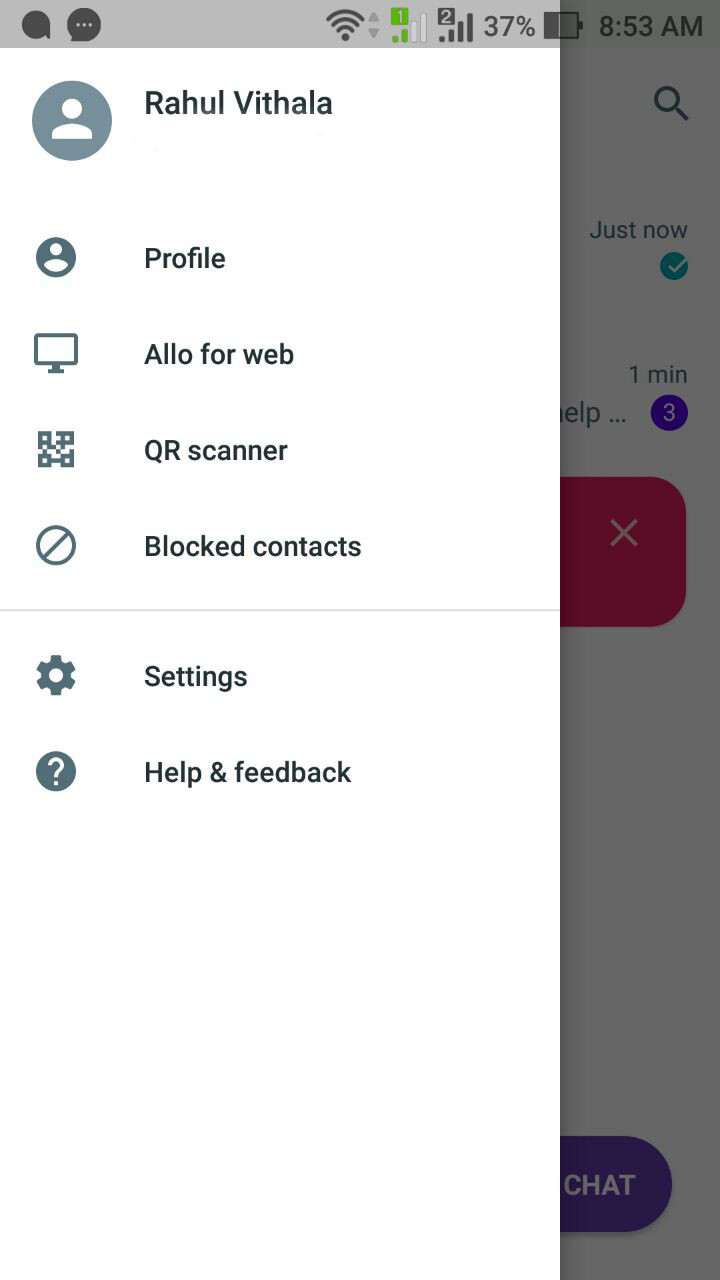
- Now go to Menu on your Allo app and select “Allo for Web” from the menu options.
- Here, this option will ask for Scan QR code on Desktop with your mobile camera.
- Now scan the code with your phone.
- That’s it, now you can use your Allo account on your Desktop.
This process is similar to WhatsApp for Web connection. If you are satisfied with the process please don’t forget to share this article.
More in Guides
How to add Google Calendar Integration on Linux
Google Calendar is one of the finest solutions to sync your daily activities across multiple devices. Its scheduling and reminder features and its cross-platform support are its biggest assets. Integrating Google Calendar is an easy task on platforms like Windows, Mac, Android and iOS. Usually, Google Calendar is easily accessible from its web interface, but…
How to Browse in Private Browsing or Incognito Mode on Any Web Browser
Private Mode is developed in browsers for security purpose. Every browser comes with normal mode and as well as Private Mode or Incognito mode. This mode allows you to surf the Internet without saving your browsing data like history and cookies.

Google Workspace vs Microsoft 365 for Small Business (2026): Prices, Storage, Email and Security Compared
Most small businesses end up choosing between Google Workspace and Microsoft 365 around the time they stop using personal Gmail addresses. The first suite you pick tends to stay for years. That’s because email, shared files, calendars and meeting links all pile up inside it, and moving out later takes a weekend nobody wants to…
The week in tech, minus the noise.
New reviews, fixes and the stories that matter — once a week, straight to your inbox.
We only use your email to send the newsletter. Unsubscribe any time. See our privacy policy.
Comments