Sometimes you will get printer is offline message on your Windows 10. Although both your PC and Printer are in the online state, due to some communication error, the printer will appear as it is still in the offline state. If you are faced printer offline problem in Windows and looking for a fix, this article is must read for you.
How to change printer status from offline to online? To fix printer offline problem in Windows 10, you need to adjust some settings in Control Panel. Follow the below steps to fix printer offline issue.
Method 1 To Fix Printer Offline Problem
- Open Control Panel by searching in the taskbar.
- Here, click on view devices and printers option.
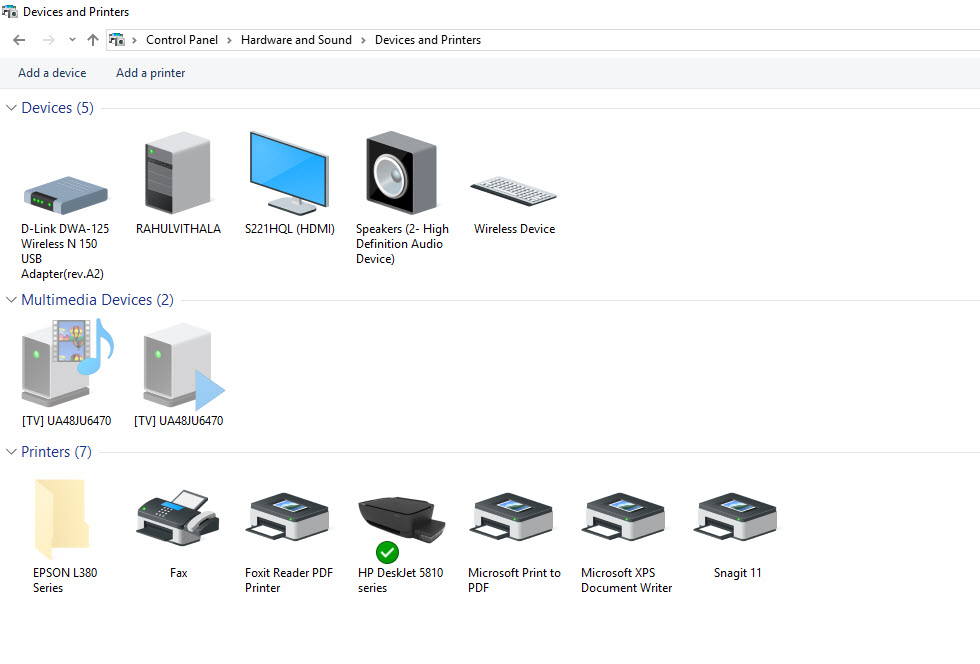
- Here, you will see a list of installed printers available on your PC.
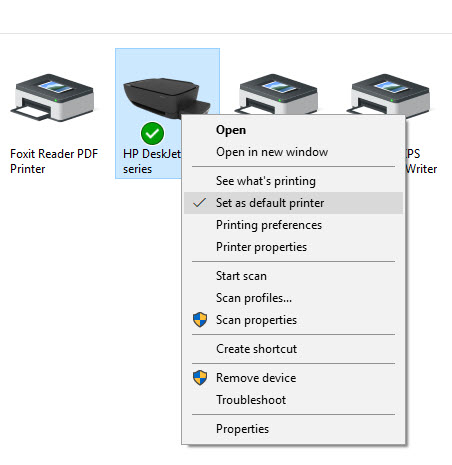
- Now, click on your printer icon and check the option set as default printer.
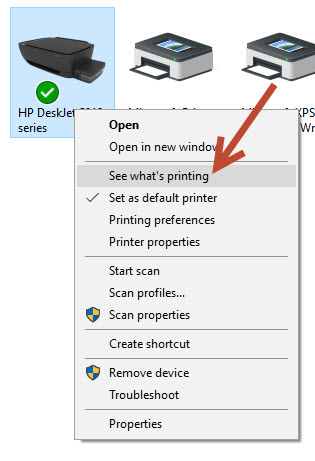
- Now, again right click on the printer to see What’s printing.
- Here, click on the Printer tab placed at the top left corner of the Window.
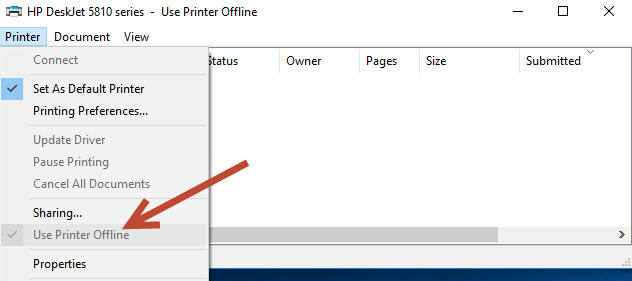
- Here, you will see “Use Printer Offline” enabled.
- All you have to do is, uncheck the option “use printer offline”.
Method 2 to Solve Offline Printer Issue
- In this method press windows key + R to open Run Command box.
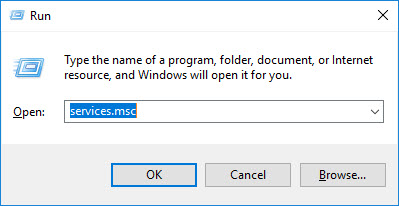
- Now, write services.msc in the text field and enter.
- Now, Find printer spooler service from the list.
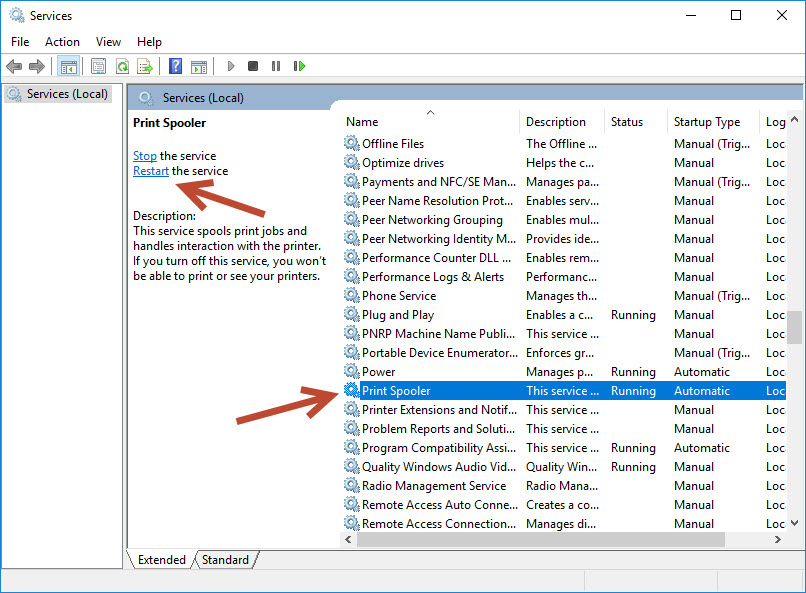
- Just click on it and select it. Now, look to the left near the top right. Click on start the service.
Alternatively, you can fix printer offline issue by installing Windows 10 update: KB3147458 (Windows 10 only). Microsoft released KB3147458 update exclusively for Windows 10 users only. This update helps improve the notification of printers when a device wakes up from sleep mode. This update prevents your printers from going offline, especially when you’re using wireless connections.
This will fix the issue, and now onwards you don’t get printer offline error on your Windows PC.
If you still get the Printer Offline message
If you still receive the printer offline message whenever your print an email or document, you have to investigate this further. In most of the cases, any of the above fixes will do the trick. If not, there are few more things that you should try.
- Check if the printer is properly connected: Make sure that your printer is properly connected to your PC. A bad connection can result in such errors while accessing the printer.
- Install any driver CDs of the printer: If you recently changed your Windows or forgot to install the driver CD with the printer, do that. Most of the modern-day printers need the drivers to be installed.
- Simply restart your computer: The next thing you can do is trying to fix printer problem by simply restarting your PC. If you have luck, it may solve the issue.
- Find any hardware problems: Inspect your printer or the port for any hardware problems. Also, try changing the ports to see if the problem is caused by the ports.
Thank you for such a precise description of the steps to take when your printer is offline.
I tried downloaded KB3147458 but it says it’s not applicable to my computer. I have Windows 10 so I don’t understand why I’m getting that error. I’m at a loss. My printer is showing offline but won’t print. The printer itself shows it has a strong signal to the wifi. I’ve removed and added the printer drive multiple times. I’ve restarted the printer spooler. I’m just at a loss.
Thank you! Method #2 worked. Why can’t more people write simple, direct, and effective articles like this one? I get so tired of reading their lengthy intro, like: “It’s really a bummer when your printer won’t blah, blah, blah… Luckily, I have found a solution that I want to share with you today. Never again will you have to worry about -”
I KNOW IT SUCKS! THAT’S WHY I’M HERE! CAN YOU TELL ME HOW TO FIX IT?! Damn.
So, thank you, Rahul.
-Heidi
Thank you and happy to hear that.
In Windows 10,
Windows + R
services.msc
#2 worked – thank you
Glad to hear that.
I have not been able to print for almost a month. I cannot tell you how much I appreciate your help, and how simply you walked me through each step. Thank you for your patience and expertise. God bless!
Is there a way to prevent this from happening? Everytime I reboot, which is nightly, my printer registers as offline until I go in and manually change it.
I tried all of these steps and it’s still saying offline? When I tried Method #1, it wouldn’t “uncheck” “Use Printer Offline” for some reason. When I try to, it says “Error processing command.” Then I did all the other methods and nothing’s worked. Short of taking this to a technician for a fix, do you have other recommendations? Thank you!
Oh my gosh! Thank you!!! I just heard the music of my printer working!!! (After several DAYS of not and my printing needs backlogging.) I went to so many sites and tried what seemed like a million things and then I dejectedly and somewhat skeptically tried your troubleshooting list and “the fix” was the spooler restart–after rebooting my computer. And, by the way, your instructions were the most clear of anyone else’s. So easy to follow! I don’t have to face this issue again tomorrow or resort to paying a technician. Whew. I feel so much lighter! Thanks again!!
Thank you so much, step 1 worked lol thought something was wrong with my printer or wifi
Hello, this is really informative blog! Thanks for sharing. Are you facing Printer issue? Simply connect our Printer Offline toll free number or visit our website. Highly experienced tech support team will assist you step by step.
Great ! Step 2 works.
Good to hear that.