

How to Move Chrome Address Bar to the Bottom of the Screen in Android
Operating a browser on a small screen is irritating. When it comes to 5.5-inch traditional size smartphones, accessing the browser address bar using one hand is a hefty job. If you are using a single hand for navigating the device, it is painful to access address bar by adjusting the phone in hand many times.…

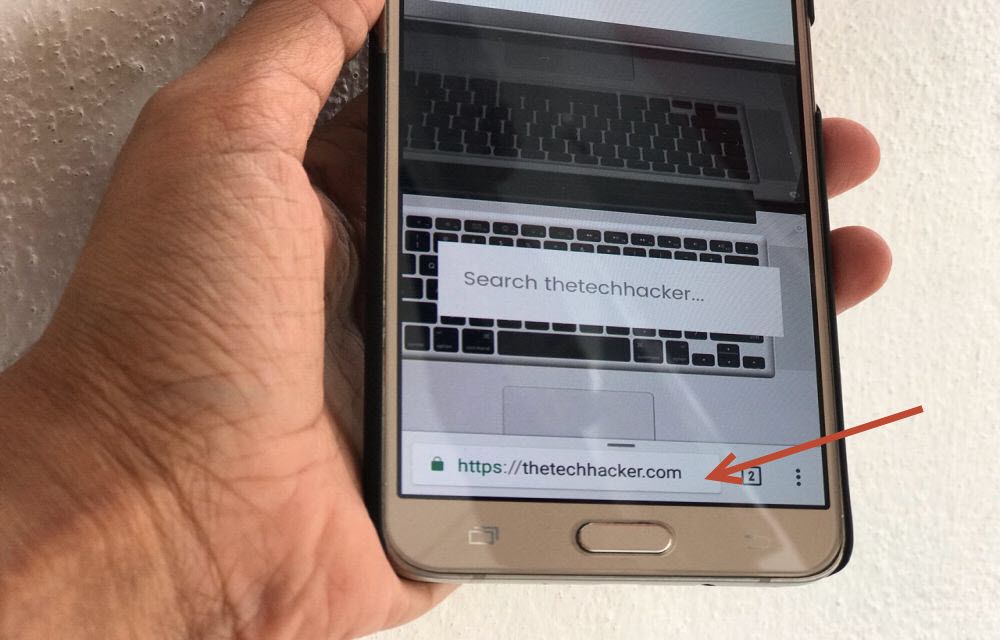
How To Move Chrome Address Bar To Bottom Of The Screen In Android
Operating a browser on a small screen is irritating. When it comes to 5.5-inch traditional size smartphones, accessing the browser address bar using one hand is a hefty job. If you are using a single hand for navigating the device, it is painful to access address bar by adjusting the phone in hand many times. If you are one of those, who is get frustrated while accessing address bar in Chrome single-handedly, this tweak is for you.
By understanding user problems, Google developed a set of hidden features called Flags in Chrome Browsers. These are hidden from normal consumers. In the consumer build of Google Chrome, you will not see any option called Flags. Flags are experimental tweaks which are recommended for developers and advanced users.
Coming to the matter, you could simply change the position of the Chrome address bar using the hidden flags. In this article, I am going to list the steps you should follow in order to get an easier access to the chrome address bar. So, you will never again have to hardly reach the address bar of your browser and struggle.
Steps to Move Chrome Address Bar to the Bottom of the Screen in Android
- Open Google Chrome Browser on your Android device.
- Now enter the following path in the Chrome address bar and press Enter.
chrome://flags
- This will open the Chrome Flags page on your device.

- To find a particular option, tap on the 3-dot menu button in the top-right corner and select “Find in page”. From here, search for “Chrome Home”.
- Here, you will find the “Chrome Home Android” option which is in Default mode. Now click on the Default drop-down menu and select “Enabled” option.
- Once you’ve done that, you’ll be prompted to relaunch the browser to changes take effect.
In most cases, relaunch is enough for changes taking place. If your Chrome fails to load the changes, in that case, force stop of Google Chrome will work.
- After the relaunch, you will notice the address bar is now at the bottom of the Chrome browser.
Final Thoughts
Operating Google Chrome is a painful task if you use it on a big screen Android devices. The newer devices like Samsung Galaxy Note 8 Plus, Edge, Xiaomi Mi Mix 2 are coming with great screen ratios, which makes accessing address bar at the top of the screen more inconvenient. So, this tweak might help you to easily use your device single handedly without any problems. The easier reach to the address bar means you can browse the internet while having food, drinking water, or whatever job you are doing with the other hand.
So, happy browsing time with the new Chrome address bar position.
More in Android

How to Scan QR Codes on Android
QR code is the new way to interact with the world of information, scan and gain access to information linked to that code such as a link to a website, etc. This obviates the need to remember and type it in a web browser. Its importance is not just providing comfort to the user, but…

How to get Mac Address in Android
If you are using the internet on daily basis, you’ve probably come across the term called MAC address. MAC stands for Media Access Control and this is a 12-character address that’s here to give you some info about the particular hardware you’re using. That being said, every hardware and every device has a UNIQUE MAC…
How to Set Video as Live Wallpaper in Android
Live wallpaper is a most loved feature in android devices. Those moving background are always better than the static ones which give a stable feel. Android has some built in live wallpapers installed. But, they are not that much catchy to use as a background of your lovely device. Though, you may be considering some outsources…
The week in tech, minus the noise.
New reviews, fixes and the stories that matter — once a week, straight to your inbox.
We only use your email to send the newsletter. Unsubscribe any time. See our privacy policy.
Comments