

How to Fix cannot format USB Flash drive in Windows 10
Sometimes unexpectedly USB driver corrupts. When we connect them to retrieve the data they won’t even show the disk. A corrupted disk erases all the data present on the disk and doesn’t allow it to format the disk. When you trying format the drive it displays a message like this: Windows was unable to complete…

How to Fix cannot format USB Flash drive in Windows 10
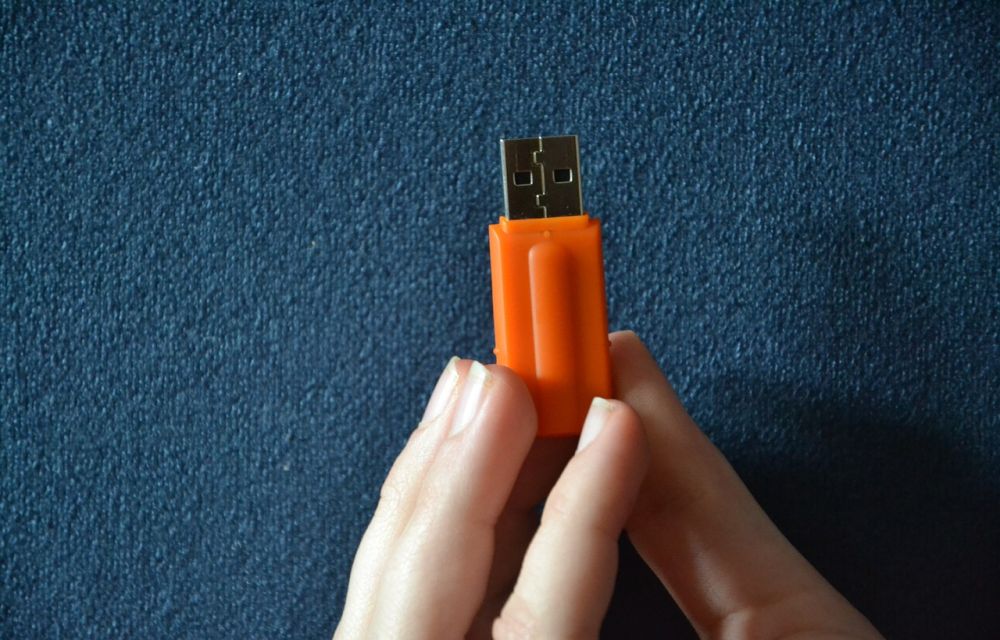
Sometimes unexpectedly USB driver corrupts. When we connect them to retrieve the data they won’t even show the disk. A corrupted disk erases all the data present on the disk and doesn’t allow it to format the disk. When you trying format the drive it displays a message like this: Windows was unable to complete the format. Luckily, you can fix cannot format USB Flash drive in Windows 10 using few tricks.
How to Fix cannot format USB Flash drive in Windows 10
How To Format USB Drive With cmd?
Using command prompt you can format USB flash drive in Windows 10.
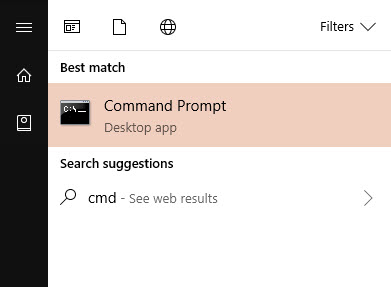
1. In the first step, open run command box by searching in Windows search box.
2. In the cmd box, type “diskpart” and hit enter.
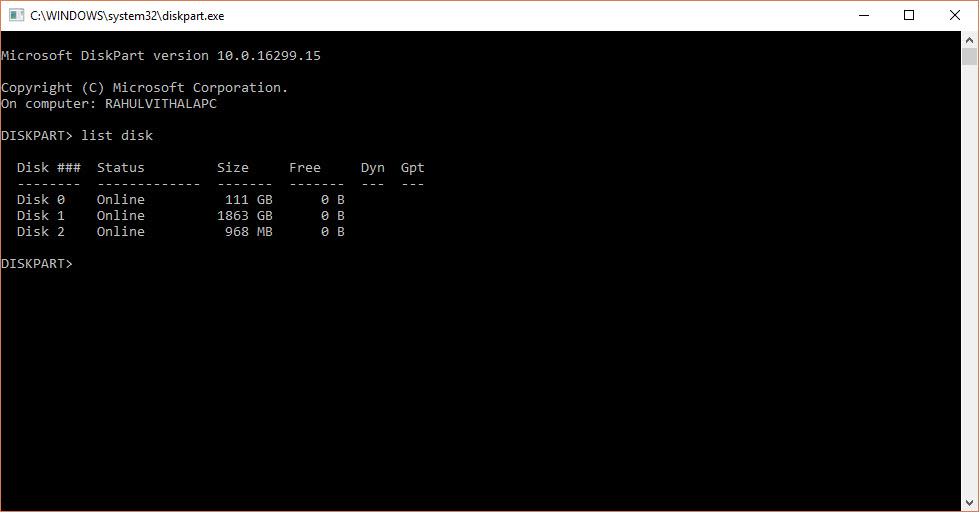
3. Once Disport is open, follow the given steps one by one.
list disk
4.Now, it will show the available disks connected to your PC. You can confirm the disk name by the corresponding size.
Select disk 1

clean

create partition primary

active

select partition 1

format fs=fat32
Now, it will show the available disks connected to your PC. You can confirm the disk name by the corresponding size.
Now it will take some time to format the corrupted disk. Do not close the window before its completed.
This is one of the methods to format the corrupted pen drive. If this procedure not suitable for you, then you can follow the second method below.
Method 2 to Format the Corrupted Pendrive
1. In the first step, open run command box by searching in Windows search box.
2. Now, type compmgmt.msc in it and Press OK.
Or you can directly launch Disk Management by right clicking on This PC icon and select Device Manager.
3. Now, this command opens the Disk Management. Here on the left side menu click on Storage -> Disk Management.
4. Now, right Click on your Removable Disk in the right side panel.
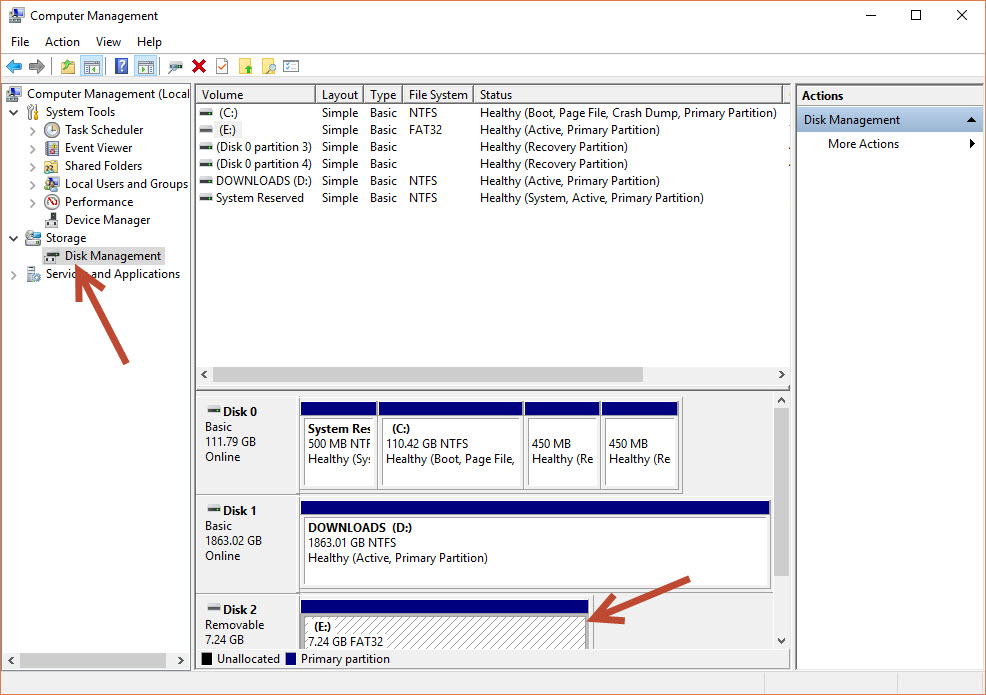
5. Here, click on New Simple Volume, it opens a new Simple Volume Wizard window.
6. Here choose either NTFS or Fat32 based on your choice and complete the steps.
7. It will take some time to format the problematic disk at the end.
That’s all for now. Please do share your views in the comment box below.
You might also like
How To Create A Bootable Windows 11 USB On Linux
WoeUSB is the most reliable and popular method for making a Linux-compatible USB flash drive that can boot Windows 11. WoeUSB handles the formatting, the flashing, and any other configuration settings that may be necessary. The WoeUSB application is not pre-loaded on any of the Linux distributions’ base operating systems by default. We can easily…
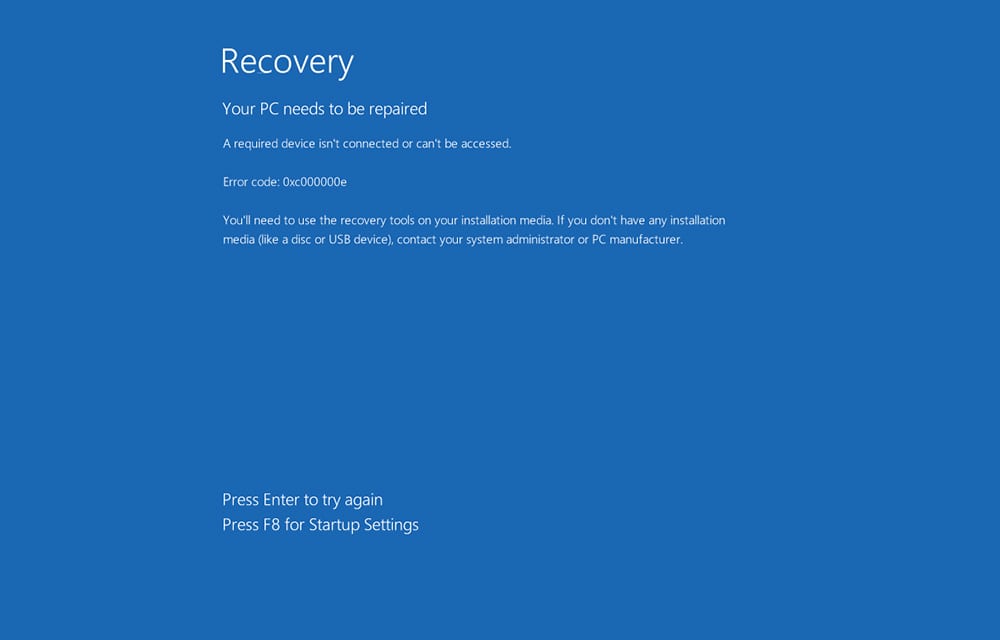
How to Fix Windows 10 Error Code 0xc00000e
The 0xc00000e is an error commonly found on Windows 10 systems faced by thousands just like yourself. In a plethora of errors, we have one more to resolve. Going behind the solutions may require hours no matter how much of a novice you are to the Microsoft OS. Trying out tens of solutions, still without…
How To Fix Slow File Copy Speed In Windows 10
Copying, moving files, and folders on a computer is a regular task. Most of the copying and moving tasks are common between hard disk to another hard disk either internal to external. Recently my friend faced a slow file copying issue and he asked the best suggestion to improve the data transfer speed. He is…
The week in tech, minus the noise.
New reviews, fixes and the stories that matter — once a week, straight to your inbox.
We only use your email to send the newsletter. Unsubscribe any time. See our privacy policy.
Comments