

How To Chat With Your Contacts In Mozilla Thunderbird?
When it comes to free email clients, Mozilla Thunderbird is considered as one of the best out there owing to its features and user-friendly interface. It allows users to integrate more than one mailboxes with SMTP or POP protocols. It is a lightweight email client known for one-click address book, attachment reminder, tabbed email, quick…


How To Chat With Your Contacts In Mozilla Thunderbird
When it comes to free email clients, Mozilla Thunderbird is considered as one of the best out there owing to its features and user-friendly interface. It allows users to integrate more than one mailboxes with SMTP or POP protocols.
It is a lightweight email client known for one-click address book, attachment reminder, tabbed email, quick filter toolbar and sever other features that contribute to the overall usability of the software. If you have used Mozilla Thunderbird, you must know that starting from Thunderbird 15, the email client also supports instant messaging.
For those who are unaware about how to chat with your contacts in Mozilla Thunderbird, here is a brief guide that you can refer to. We have explained in easy steps how you can use the free email client to chat with your contacts.
Mozilla Thunderbird currently supports chatting on IRC, Twitter, Google Talk, and XMPP. For chatting with your accounts, you need to create a new account or configure your existing account on the messaging platform of your choice. Setting up chat on Mozilla Thunderbird is a fairly simple process.
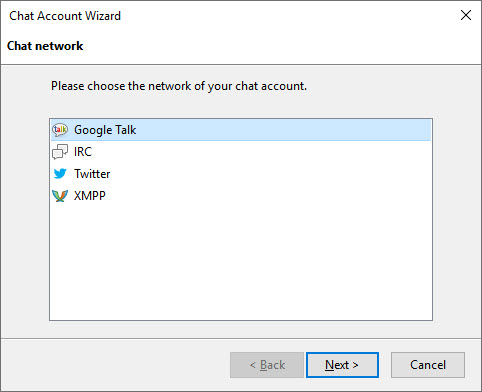
- Click on the hamburger menu on the Thunderbird Dashboard and then click on the “Chat Account” option.
- Click on “New Message” and on the next window, you need to choose the messaging platform from the four options available.
Here, we are listing the steps to set up your chat account on Twitter. Setting up a chat account on other services is similar.
How to chat with Your contacts on Twitter using Mozilla Thunderbird?
- Upon choosing Twitter as the chat platform, you will be asked to enter your Twitter account credentials.
- On the next screen, you need to authorize Thunderbird Chat to use your Twitter account. Now, you need to enter your Twitter account password.
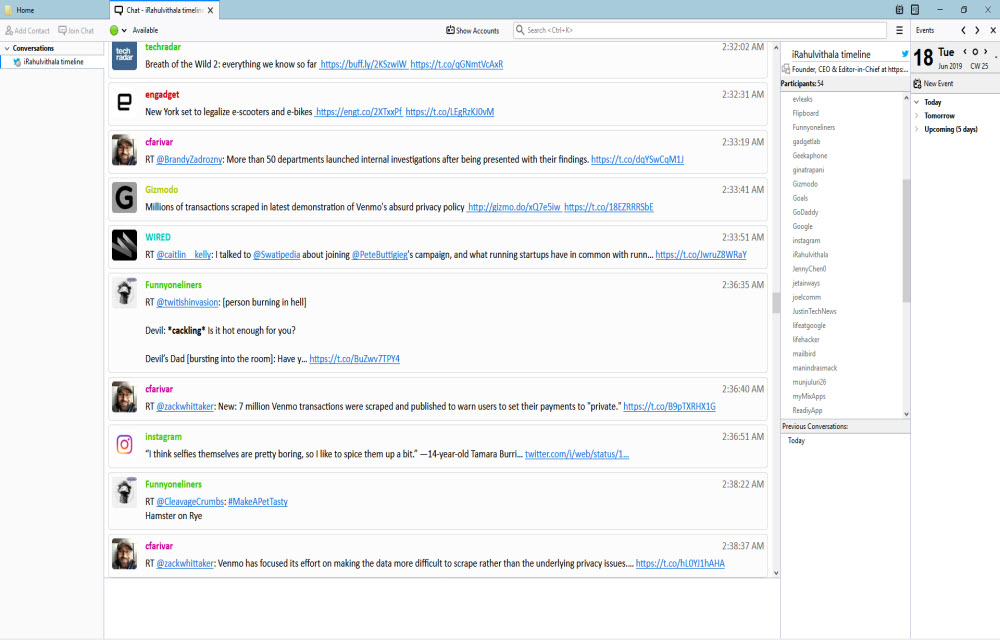
Twitter Chat box in Thunderbird - After entering the password, you will be able to view your Twitter timeline and you can send message to your followers and contact through the displayed interface.
You need to follow similar steps for Google Talk, XMPP and Internet Relay Chat (IRC) services. There are some additional steps that you might need to follow in other services.
To use the chat feature of Mozilla Thunderbird, click on Tools menu and select Chat Status and then choose Show Accounts. Next, you need to click on the Connect button adjacent to the chat service you want to use. Click on the chat tab which is available right next to the Write tab and enjoy chatting with your contacts on the platform you have chosen in the previous step.
Conclusion
Mozilla Thunderbird is a lightweight email client that comes packed with a lot of useful features. If you are someone who prefers chatting on PC rather using a smartphone for it then you can chat with your contacts on different chatting platforms on Mozilla Thunderbird.
Using the email client, you can chat instantaneously with your contacts. We hope that this guide must have helped you if you were looking forward to using the chatting feature of the email client.
More in How-to

How to Create a Group in Gmail?
How to create a group in Gmail: Gmail is a very popular email service from the house of Google. It has fantastic features in emailing as no one has in the competition. A user can send attachments, enable alerts, create folders, scheduling emails, labelling and sending group emails. In this article, we will learn how…

How To Convert MBOX To Outlook For Viable Consequences
Microsoft Outlook is an emailing client store its important data like emails, contacts, appointments, tasks, journals, to-do list, etc. in PST file format. There are various email clients are there like Thunderbird, Apple Mail, Eudora, Opera Mail, etc. which stress their email data in MBOX files. Outlook is not capable of importing .mbox files in…

How to Get Unbanned from CamSurf: Official Appeal Steps
Getting banned from CamSurf can be confusing, especially when the ban screen appears without much explanation. The good news is that CamSurf has an official way to ask for a review. Its Contacts page includes a “Banned from Chat” option, and CamSurf says it will review your case if you believe the ban was a…
The week in tech, minus the noise.
New reviews, fixes and the stories that matter — once a week, straight to your inbox.
We only use your email to send the newsletter. Unsubscribe any time. See our privacy policy.
Comments