

How To Turn Off Automatic Updates in Skype for Windows 10
As a regular Internet user, I can say Skype is one of the best communication apps which is suitable for both personal and business use. Skype has exceptionally clean navigation, situation friendy emo’s, fluid user-interface and a ton of great set of features which gives tough competition to the other apps. Skype regularly pushes the…


How To Turn Off Automatic Updates in Skype for Windows 10
As a regular Internet user, I can say Skype is one of the best communication apps which is suitable for both personal and business use. Skype has exceptionally clean navigation, situation friendy emo’s, fluid user-interface and a ton of great set of features which gives tough competition to the other apps.
Skype regularly pushes the latest updates to the users and the updating mechanism is automatic. Everything is fine, but the sudden automatic update during a conversation is a bit vexing. To avoid the issue, we can turn off automatic updates in Skype for Windows 10. Here are the steps you need to follow to get rid of automatic updates on Skype.
1. Disable Automatic Updates for Skype
- Open Microsoft Store by clicking the icon on the toolbar or search for Microsoft Store in the Windows search bar.
- In the Microsoft Store app, on the upper right side of the window and click on the three dots option.
- Now select Settings from the menu.
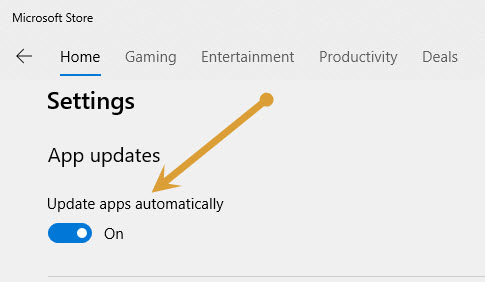
- In the Settings window, under the App updates section, turn off the update apps automatically option.
2. Blocking Skype update using Registry
This is the second method if the automatic update process is not stopped by the above steps.
- Press Windows + X keys together to launch Run command.
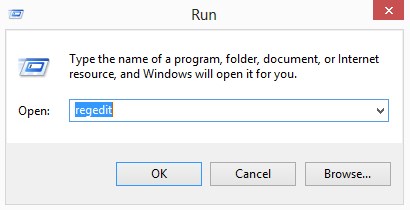
- In the Run command, type regedit and click Ok to open the Registry Editor window.
- In the Registry Editor window, navigate to the below path.
HKEY_LOCAL_MACHINE\SOFTWARE\Policies - Now, right-click on the Policies folder, select New and then Key.
- Now, rename the new key as Skype.
- Right-click on the Skype key, select New and then Key.
- Now, rename the new key as Phone.
- On the tigh side, right-click on an empty area, select New and then select DWORD (32-bit) Value.
- Here, rename this new DWORD Value to DisableVersionCheck and double-click on it.
- In the Edit DWORD (32-bit) Value dialogue box, go to the Value data field and set it to 1.
- Press on Ok and exit.
Now restart your PC to changes take effect.
These are the two best methods to stop Skype automatically updating all of a sudden. Let us know which method is worked for you in the comment section below.
More in How-to

How to Enable or Disable Automatic Updates for iOS Apps
IOS app updates are always useful for keeping IOS apps up to date. You don’t want to pay attention to the app updates until you turn off the automatic updates. Turning on the automatic updates will assign the job to the iPhone itself. This great future may sometimes hit you badly, especially if you are…

How To Stop Automatic Updates On Windows 11
Automatic updates are often troublesome especially when we don’t really want an update but it does so when connected to Wi-Fi. By the end of this article, you will learn perfectly how to stop automatic updates on Windows 11. The Windows 11 that we are using currently is still fairly new and it has not…

This Copy Of Windows Is Not Genuine – Easy Error Fixing
“This Copy Of Windows Is Not Genuine” is a common message we usually saw when the trial period of Microsoft Windows period is over or in a pirated version of the OS. After installing Microsoft Windows Operating System of any version it will run for free, after one or two months the Operating system continuously…
The week in tech, minus the noise.
New reviews, fixes and the stories that matter — once a week, straight to your inbox.
We only use your email to send the newsletter. Unsubscribe any time. See our privacy policy.
Comments