

How to Fix VPN Slowing Down Your Internet Speed: 8 Fixes That Work
Your VPN will always cost you a little speed, but it shouldn’t cripple your connection. Here are eight fixes, from picking a closer server to switching to WireGuard, in the order I’d try them.


Photo by Ales Nesetril on Unsplash
Pages load at a crawl, YouTube drops to low resolution, video calls go choppy. It’s one of the most common VPN complaints, and most of the time there’s a specific cause you can fix.
Some speed loss comes with the territory. Your traffic gets encrypted (scrambled so nobody in the middle can read it), then routed through the VPN server before it reaches the website. That extra processing costs time, and so does the extra distance. So you’re not aiming for zero slowdown. You’re aiming to cut the slowdown you don’t need.
There are eight fixes below, roughly ordered from quickest and most effective to most involved. Most take a minute or two, and I’ve flagged the few that need more care.
Quick answer: First, run a speed test with the VPN off so you know your real baseline. Then connect to a server closer to you and switch your VPN protocol to WireGuard if your app offers it. If one app is the problem, use split tunneling to keep it outside the VPN, turn off any double VPN or multi-hop feature, and don’t run a VPN on your router and your device at the same time. Updating the app clears up most of what’s left, and adjusting MTU is the last resort.
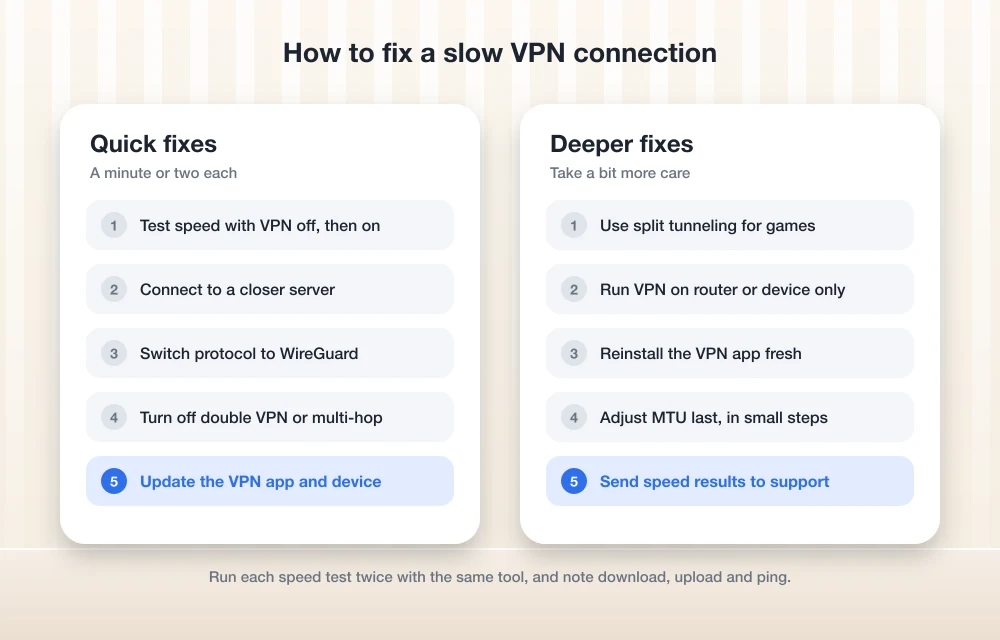
The fix order at a glance
Check your base speed
Run a speed test with the VPN off, then on, to measure the actual drop.
Pick a closer server
Connect to a server near you, not one on another continent.
Switch to WireGuard
Change the protocol in your VPN app’s settings.
Turn on split tunneling
Keep apps that don’t need the VPN outside it.
Turn off double VPN
Disable multi-hop features and stop stacking two VPNs.
Pick router or device, not both
Run the VPN in one place only.
Update the app
Install the latest version of your VPN app and your device’s software.
Check MTU last
Only if specific sites stall or hang while the VPN is on.
1. Check your base speed first
Skip this and you can waste an hour. If your connection is slow without the VPN, no VPN setting is going to make it fast.
Turn the VPN off and run a speed test. Write down three numbers: download, upload and ping. Ping (or latency) is how long data takes to get there and back, in milliseconds. Lower is better, and it’s the number that matters most for gaming and video calls.
Now connect the VPN and run the same test again, on the same device in the same spot. A modest drop is normal. A big one? Then something on the VPN side needs fixing, and that’s what the rest of this guide is for.
But if the numbers are already poor with the VPN off, the problem sits with your plan, your ISP or your Wi-Fi. In that case I’d read my comparison of 5G home internet vs cable vs fiber before blaming the VPN.
2. Pick a closer server
This one helps the most people. And it’s free.
Data doesn’t travel instantly. If you’re in Texas and the VPN puts you on a server in Singapore, every single request makes that round trip before anything loads, so ping climbs and pages feel sluggish even when the raw download number looks fine.
Open your VPN app and pick a server in your own country, ideally your own region. Many apps have a quick connect or fastest server button right on the home screen. If the app shows server load, skip the busy ones, because a crowded server next door can be slower than a quiet one a bit farther away.
Need a specific country, say for a streaming library? Choose the city in that country that’s closest to you. From the US East Coast to Europe, a location on the Atlantic side will usually beat one deep in Eastern Europe.
3. Switch your protocol to WireGuard
The protocol is the set of rules your app uses to build the encrypted tunnel. They don’t all do it the same way, and the one you’re on can make a noticeable difference to speed.
WireGuard is the newer option. Its developers describe it on the official WireGuard site as a fast, modern, secure VPN tunnel using state-of-the-art cryptography, built to run on everything from small embedded devices to supercomputers. According to Proton VPN, WireGuard went into the Linux kernel (version 5.6 and later) in March 2020, and it’s now Proton VPN’s default protocol.
WireGuard vs OpenVPN speed
I’m working from WireGuard’s and Proton’s own documentation here, not benchmark runs, and your real results depend on your server, network and device anyway. WireGuard was designed with speed as a goal. So if your app is on OpenVPN or IKEv2 and performance is poor, switching is one of the easiest tests you can run. Doesn’t help on your network? Switch back. Nothing breaks.
How to change protocol in Proton VPN
Proton VPN offers WireGuard, OpenVPN, Stealth, IKEv2 and Smart Protocol. Smart Protocol picks the best option automatically, and Proton says it’s on by default. If you (or an older config) set a protocol manually, here’s where Proton’s support docs put the setting:
- Windows: Settings → Protocol (it’s under Connections)
- macOS: you’ll need to install a network extension before you can change the protocol
- Android: Settings → Connection → Protocol
- iOS: Settings → Protocol (it’s under Security Options)
Proton’s docs also mention a beta called Proton Protocols, a new VPN architecture. Smart Protocol and Stealth only work when it’s enabled, so if those options are greyed out or missing, that’s the first thing I’d check.
Using a different VPN? Open settings and look for a Protocol or Connection section. Providers label protocols in their own ways, so if WireGuard isn’t listed by name, check your provider’s help page.
4. Use split tunneling
Not everything has to go through the VPN. Split tunneling sends some connections through the tunnel and leaves the rest on your regular connection, which takes load off the tunnel and lets the excluded traffic run at full speed.
Good candidates are apps where speed matters more than the extra privacy: online games, video calls, a streaming app you use in your own country. Banking apps are a common pick too, since some banks reject VPN connections outright.
In Proton VPN, split tunneling runs in exclude mode by default, so you choose what stays outside the VPN. According to Proton’s split tunneling guide, you’ll find it here:
- Windows: tap the Split tunneling shortcut on the Home screen (or go in through Settings), then toggle it on
- macOS: menu bar → Proton VPN → Settings… → Connection tab → Split tunneling. Proton calls this experimental, and it can only exclude apps.
- Android: Settings tab → Split Tunneling, then toggle it on
I couldn’t confirm the iOS steps for this guide. On an iPhone, check the app’s settings or Proton’s support page. Other VPN apps may call it split tunneling, app exclusions or something similar.
5. Turn off double VPN and stop stacking VPNs
Some VPN apps have a double VPN or multi-hop feature that routes your traffic through two servers instead of one. You get an extra layer of privacy. You also get another hop, more distance and more encryption overhead. If it got switched on at some point and forgotten, that alone can explain a big slowdown, so check the server list or settings and go back to a single server for everyday use.
The sneakier case is running two VPNs without noticing. A VPN app on your laptop plus a VPN browser extension, a work VPN on top of a personal one, a router VPN plus the app on your phone. Each layer wraps the traffic again, and speed drops every time. Keep one, disable the rest.
6. Router VPN vs device VPN
A router VPN is tempting because it covers every device in the house, including smart TVs and consoles that can’t run VPN apps.
The catch is CPU load. Encryption takes processing power. On a phone or laptop, the device’s own chip handles it, but on a router the router’s processor does it for every connected device at once, and plenty of home routers just aren’t built for sustained VPN traffic. Speeds only drop when the router VPN is on? Run the VPN app on your main devices instead and compare.
If you still want the router VPN, log in to the router’s admin page and look for a VPN client section. Menu names and supported protocols vary by brand and model, so check the manufacturer’s support pages for exact steps. And if your router’s getting old, my guide on mesh Wi-Fi vs a regular router can help you decide what to replace it with.
7. Update the VPN app (and your device)
Old app versions can carry bugs, outdated protocol code or slower defaults. VPN protocols are still being actively worked on (WireGuard’s official code repositories, for example, show commits as recent as October 2026), and your app only gets that work through updates.
Update the VPN app from your app store or the provider’s website, update your phone or computer’s OS, then restart. Still having problems? Uninstall the app, reinstall it and sign back in. A clean install clears out corrupted settings that a normal update leaves behind.
8. MTU basics (try this last)
MTU is short for maximum transmission unit, the biggest packet your connection will send in one piece. A VPN adds its own header data to every packet, so a packet that fit fine before can go over the limit once it’s wrapped. Then you get fragmentation, or packets dropped and resent, and that shows up as slowdowns or stalls.
What gives it away is inconsistency. The speed test looks fine, but certain websites hang, or downloads start and then freeze. Annoying, but narrow. If everything’s slow everywhere, MTU probably isn’t your problem, so go back to the earlier fixes.
Some VPN apps and routers let you change the MTU value. I couldn’t confirm which popular VPN apps include that option, so look for an MTU or advanced connection setting in your app and on your router’s admin page. Can’t find one? Your VPN provider’s support team can tell you whether it’s adjustable and what value they recommend.
Match your symptom to the fix
| What you notice | Likely cause | Try this |
|---|---|---|
| Slow even with VPN off | Your internet plan or Wi-Fi | Check base speed, move closer to the router |
| High ping, laggy games and calls | Distant server | Pick a closer server, split tunnel the game |
| Slow on every server | Older protocol or outdated app | Switch to WireGuard, update the app |
| Sudden big drop after changing settings | Double VPN or stacked VPNs | Turn off multi-hop, remove extra VPNs |
| Slow only with router VPN on | Router processing limits | Use the VPN app on your devices instead |
| Some sites hang, others load fine | MTU mismatch | Look for an MTU setting, change it carefully |
When all eight fixes fail: support tickets and switching providers
Worked through all eight and it’s still slow? The provider may just not have good servers near you. Contact their support with your before and after speed test numbers, since real figures give them something to work with.
If they can’t sort it out, switching is a reasonable call. A paid VPN should be usable every day, not something you turn off every time you need to get work done. My guide on whether a VPN is worth it for US users covers what to look for in a replacement.
Start with a closer server and WireGuard. For most connections, those two changes alone cut the VPN speed penalty a lot.
Frequently Asked Questions
Is it normal for a VPN to slow down my internet?
Yes, some slowdown is normal. Your traffic gets encrypted and travels to the VPN server before it reaches the website, and both steps take time. A big drop is different. That usually points to a distant server, an older protocol or a setting like double VPN, and you can fix all of those.
Is WireGuard faster than OpenVPN?
WireGuard was designed to be fast and modern, and it’s Proton VPN’s default protocol. But results depend on your server, network and device, so just test it: switch to WireGuard, run a speed test, and switch back if it doesn’t help on your connection.
Does split tunneling make my VPN less secure?
Only for the apps or traffic you exclude. Anything outside the tunnel isn’t protected by the VPN, so keep sensitive browsing inside it and only exclude apps where speed matters more than privacy.
Should I run my VPN on my router or my device?
A router VPN covers every device at home, but the router’s processor has to handle encryption for all of them, and that can slow things down. If speeds drop only when the router VPN is on, try the VPN app on your main devices instead. Don’t run both at once.
Can changing MTU break my internet connection?
It can, if you set the wrong value. Write down the original setting first, change it in small steps and test after each one. Not sure? Ask your VPN provider’s support team what value they recommend.
Featured image: Ales Nesetril on Unsplash.
Disclosure: TheTechHacker has no paid relationship with the companies in this article.
You might also like

How to Fix Slow Netflix
As of March 2022, 190 nations have access to Netflix, with access to over 15,000 titles. It wouldn’t be a surprise to find your favorite show on this globally-expanding OTT platform. It’s popular because it is an affordable, monthly subscription service that gives you access to many TV shows, movies, and documentaries. Netflix does not require a…

How to Fix Software Update Failed on iPhone?
An iOS update can fail for simple reasons like low free storage, slow internet, VPN/firewall interference, or a partially downloaded update file stuck in storage. The fixes are straightforward, clear residual update packages that free up space, and if over‑the‑air keeps failing, update via a computer using Finder, iTunes, or the Apple Devices app. Why…

How to Fix VPN Not Connecting on Windows 11
VPN stuck on connecting or timing out on Windows 11? Here are the fixes I’d try, in order, from a quick clock check to a full network reset.
The week in tech, minus the noise.
New reviews, fixes and the stories that matter — once a week, straight to your inbox.
We only use your email to send the newsletter. Unsubscribe any time. See our privacy policy.
Comments