

How to Set Up a VPN on Your Router: ASUS and GL.iNet Step by Step
Put your VPN on your router so every device at home can use it, smart TVs and consoles included. Here’s how to do it on ASUS and GL.iNet with WireGuard or OpenVPN, then check for leaks.

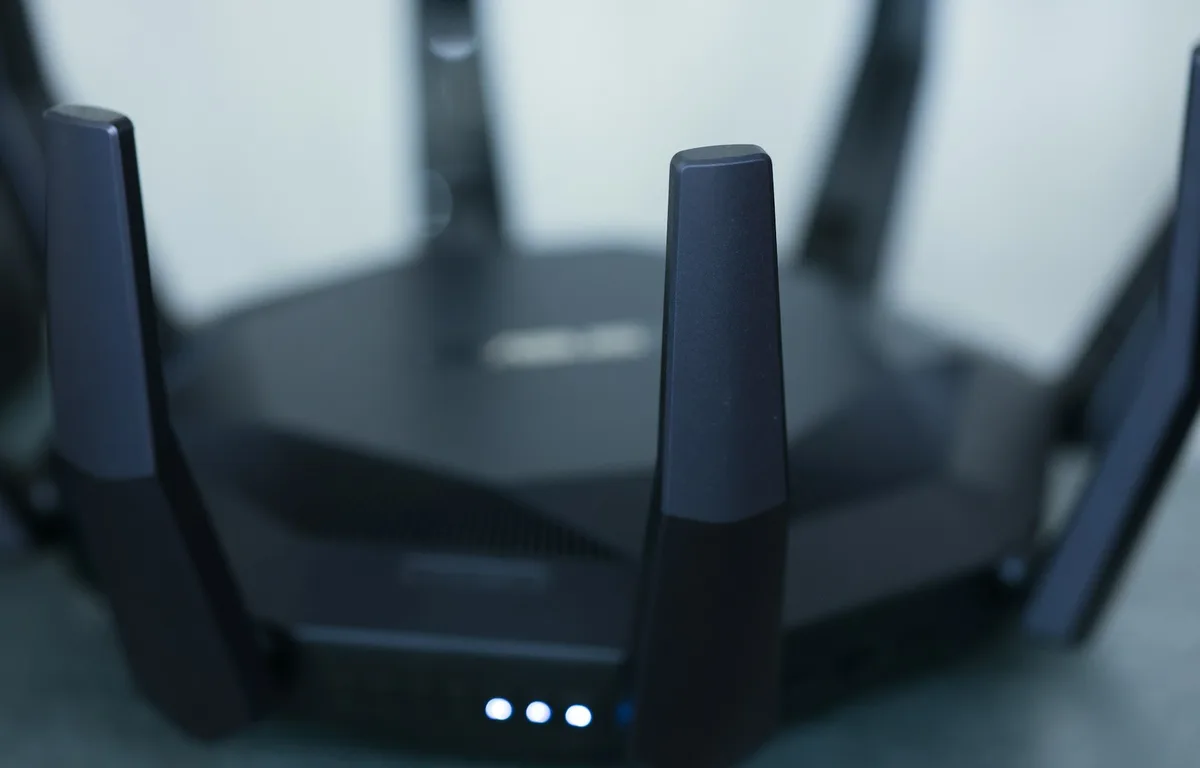
Photo by dlxmedia.hu on Unsplash
Put a VPN client on your router and it encrypts traffic for every device on your network, including the smart TV and game console that can’t run a VPN app at all. You don’t need any network engineering for this. If the router supports it, you upload one config file, tick a few boxes and connect.
You’ll confirm your router actually has a VPN client, grab the right file from your VPN provider, work through the exact menus on ASUS and GL.iNet routers, and then test for leaks. Don’t skip that last part. A VPN that quietly falls back to your normal connection isn’t protecting anything, and you won’t notice unless you check.
Not sure you need a VPN in the first place? Start with my guide on whether a VPN is worth it for US users. This one assumes you’re already paying for a VPN service.
Quick answer: First, make sure your router has a built-in VPN client. ASUS calls it VPN Fusion on newer firmware, and GL.iNet routers on firmware v4.x ship with WireGuard and OpenVPN clients. Download a WireGuard or OpenVPN config file from your VPN provider, upload it in the router’s VPN menu, pick which devices use it and connect. Then turn on a kill switch if your router has one, and compare your public IP and DNS servers with the VPN on and off.
What a VPN on your router actually does
A VPN (virtual private network) builds an encrypted tunnel from your network to your VPN provider’s server. Websites and apps see that server’s IP address instead of yours. And your internet provider? It only sees encrypted traffic heading to the VPN, not the sites you’re visiting.
Usually you’d install a VPN app on each phone and laptop. A router VPN skips that, because the router makes the connection once on behalf of every device behind it. ASUS puts it plainly in its support docs: every device on your home network can use the VPN without installing VPN software on each one.
One mix-up to avoid. Plenty of routers have two VPN features, and they do opposite jobs. A VPN server lets you reach your home network from outside, which isn’t what you want here. You want the VPN client, the piece that connects the router out to a commercial VPN service.
Step 1: Check that your router supports a VPN client
This is where most setups die. So confirm it before you burn an evening on the rest.
ASUS routers
On newer ASUS firmware the feature’s called VPN Fusion, and on older firmware it’s labelled VPN Client. According to ASUS, WireGuard needs firmware later than 3.0.0.4.388.xxxxx. ASUS keeps a list of supported models and suggests checking your model’s spec page for VPN Fusion. Firmware updates come from the ASUS Download Center.
Older models have a catch. ASUS says routers without VPN Fusion push every device through the VPN once it connects, and you can’t pick individual devices. Not ideal if you only wanted the TV on it.
GL.iNet routers
GL.iNet routers on firmware v4.x have WireGuard and OpenVPN clients built in. They also come with built-in WireGuard logins for IPVanish, NordVPN, PIA, PureVPN and Windscribe. Using some other provider? You’ll upload a config by hand.
Other brands
Search your router maker’s support site for “VPN client” plus your model number. If the docs only talk about a VPN server, the router probably can’t connect to a commercial VPN on its own.
If yours can’t and you’re planning an upgrade, my comparison of mesh Wi-Fi vs a regular router covers which kind of hardware to get. Just check VPN client support on the spec sheet before you order, because it’s easy to miss.
WireGuard or OpenVPN: which one should you use?
Both are VPN protocols, the rules your router and the VPN server follow to build the tunnel. Most big VPN providers offer both.
ASUS lists four connection types: OpenVPN, IPsec, PPTP and WireGuard. Whatever you pick on the router has to match what your provider’s server uses, so check with your provider before you start.
Given the choice, I’d go with WireGuard. It’s the newer protocol, and ASUS says WireGuard “somehow performs better” than OpenVPN. That’s ASUS’s wording, not a benchmark, and I haven’t measured it myself. But router CPUs don’t have much processing power to spare, so WireGuard is the sensible place to start. Fall back to OpenVPN if your provider doesn’t offer WireGuard or your firmware’s too old for it.
Step 2: Download the config file from your VPN provider
Your router needs a configuration file that tells it which server to connect to and how. The VPN provider supplies it, usually somewhere in the website dashboard once you sign in. Look for a section called manual setup, router setup or WireGuard/OpenVPN configuration, though the naming is all over the place between providers.
Still can’t find it? GL.iNet’s docs say to check your provider’s own setup guide or ask its support team. Same goes for ASUS.
OpenVPN configs end in .ovpn. Some providers also hand out a separate OpenVPN username and password (not your normal account login, in some cases), so read your provider’s guide to see exactly which credentials go into the router.
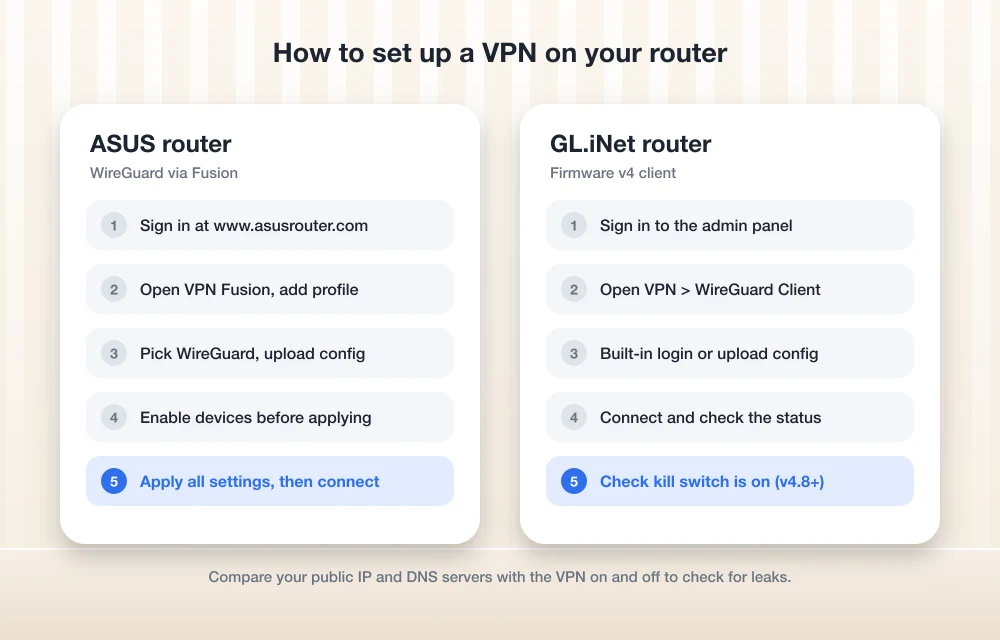
How to set up a VPN on an ASUS router (VPN Fusion)
These steps follow ASUS’s own FAQs. If your screens don’t match, you’re probably on older firmware, so look for VPN Client instead of VPN Fusion. ASUS’s VPN Fusion WireGuard client FAQ has screenshots if you get stuck.
WireGuard on ASUS
Connect to the router
Connect your computer to the router over Wi-Fi or Ethernet. Open your router’s LAN IP or www.asusrouter.com in a browser and sign in.
Open VPN Fusion
Go to VPN > VPN Fusion > Add profile.
Upload your config
Pick WireGuard as the VPN type, click “Upload Config” and choose the file from your provider.
Choose your devices
Click the Device icon and enable the devices that should use this profile. Do it before you apply, or they won’t be included.
Apply and connect
Click “Apply all settings,” then click the profile to connect. To disconnect later, disable or delete the profile.
OpenVPN on ASUS
Same starting point: VPN > VPN Fusion > Add profile, with OpenVPN as the VPN type. Find the option to import your .ovpn file, and enter the username and password if your provider gave you them. I couldn’t confirm the exact field names on every model, so go by the labels on your screen.
Send every device through the VPN
Want the whole network on the VPN? Go to VPN > VPN Fusion > Add profile, turn on “Apply to all devices” and click “Apply all settings.” A “Default Connection” entry shows up. Then enable the profile.
VPN Fusion can also run several tunnels at once, with policies that send different devices down different tunnels. So the TV could use one server location, another device a different one, and everything else stays on your normal connection.
Using the ASUS Router app
Prefer your phone? Open the ASUS Router app, go to Settings > VPN Fusion > Add profile and follow the same flow.
How to set up a VPN on a GL.iNet router (firmware v4)
These steps follow GL.iNet’s official WireGuard client guide and its OpenVPN client guide for firmware v4.
Sign in to the router’s admin panel first. I couldn’t confirm the default admin address in GL.iNet’s own docs, so check the label on the router or the quick start guide in the box.
WireGuard on GL.iNet
Open the WireGuard client
Go to VPN -> WireGuard Client.
Use a built-in login if you can
If your provider is IPVanish, NordVPN, PIA, PureVPN or Windscribe, use its built-in login option. No file to download.
Or upload your config
For any other provider, upload the config file and click Apply. You can also paste the config as text, or fill in each field yourself in “Item Mode.”
Connect
Start the connection for the new profile and check that the status says connected.
OpenVPN on GL.iNet
Go to VPN -> OpenVPN Client, click “Add Manually” and upload your .ovpn file. If your provider uses a separate OpenVPN username and password, enter them when it asks.
Don’t want to use the browser? The GL.iNet mobile app handles both WireGuard and OpenVPN setup.
Step 3: Turn on the kill switch
When the tunnel drops, a kill switch blocks traffic instead of letting it carry on unprotected. GL.iNet’s docs describe it as stopping traffic from falling back to an unencrypted connection when the VPN fails. Without one, a dead tunnel can leave your devices running over your normal connection, and nothing tells you. That’s the part that bites people.
GL.iNet firmware v4.8 and later
GL.iNet says v4.8 and later has a per-tunnel kill switch that’s on by default. To check, go to VPN -> VPN Dashboard and click the gear icon (Tunnel Options).
There’s also an “Enhanced Kill Switch” that forces every device through the VPN. Switch to Policy Mode and scroll to “All Other Traffic” at the bottom. “Allow Non-VPN Traffic” is on by default there, so if you want everything locked to the tunnel, that’s where you’ll find the Enhanced Kill Switch setting.
GL.iNet firmware v4.7 and earlier
Go to VPN -> VPN Dashboard -> VPN Client -> Global Options, turn on “Block Non-VPN Traffic” and click Apply. GL.iNet’s docs say this covers DNS leaks too.
Check which firmware you’re on in the admin panel. The docs mention v4.8, but I couldn’t confirm whether there’s a newer release, so look on GL.iNet’s site for the latest.
ASUS routers
I couldn’t find an official ASUS FAQ that documents a kill switch on stock firmware. On ASUS’s ZenTalk community forum, users report that traffic falls back to the regular connection when the VPN drops. Those are user posts, not official docs. Still, they’re enough reason not to assume an ASUS router will block traffic when the tunnel fails.
If that matters to you, keep the VPN app (with its own kill switch) running on your laptop and phone, and let the router VPN handle the devices that can’t run apps.
Step 4: Test your router VPN for leaks
I couldn’t find an official or government leak-test tool to point you to, so this is a manual check. It’s quick, and it covers what actually needs verifying.
- Turn the router VPN off. On a device with no VPN app running, check your public IP address and which DNS servers you’re using. If your VPN provider has its own checker on its website, use that.
- Turn the router VPN on and check again from the same device. Your public IP should now be the VPN server’s, and the DNS servers shouldn’t belong to your internet provider anymore.
- Test the kill switch. Switch the tunnel off in the router and load a website on a device that’s assigned to the VPN. Page loads over your normal connection? Then the kill switch isn’t working.
- If you’re splitting traffic, check one device on the VPN and one off it, so you know each one routes where you expect.
Pros and cons of a router VPN
Advantages
- Covers smart TVs, game consoles and other gear that can’t run VPN apps
- Set it up once and every device you assign is covered, nothing to install on each one
- You can split traffic, so some devices go through the VPN and others stay on your normal connection
- ASUS VPN Fusion can run several tunnels at the same time
- GL.iNet v4.8 and later has a per-tunnel kill switch that’s on by default
Limitations
- You’ll take a speed hit, since the router’s processor does the encryption for everybody
- Depends on your model and firmware (ASUS WireGuard needs firmware later than 3.0.0.4.388.xxxxx)
- ASUS doesn’t document a kill switch on stock firmware
- Changing server location means digging back into the router settings
- Only covers you at home, so you still need the app on public Wi-Fi
That speed hit is worth a closer look. The router encrypts traffic for every connected device, and router CPUs are far weaker than a laptop’s. I don’t have official numbers, and the impact varies with model, protocol and plan. As a rough rule, the faster your internet plan, the more likely the router turns into the bottleneck. Still picking a plan? Read my breakdown of 5G home internet vs cable vs fiber before you blame the VPN for slow speeds.
ASUS vs GL.iNet router VPN at a glance
Everything in this table comes from ASUS and GL.iNet support documentation.
| Feature | ASUS (VPN Fusion) | GL.iNet (firmware v4) |
|---|---|---|
| Where to set it up | VPN > VPN Fusion > Add profile | VPN -> WireGuard Client or OpenVPN Client |
| WireGuard support | Firmware later than 3.0.0.4.388.xxxxx | Built into firmware v4.x |
| Built-in provider logins | Not documented | IPVanish, NordVPN, PIA, PureVPN, Windscribe |
| Choose which devices use the VPN | Device icon plus per-device policies, several tunnels at once | Policy Mode in VPN Dashboard |
| Kill switch | Not documented by ASUS | Per tunnel, on by default in v4.8+ |
| Mobile app setup | ASUS Router app | GL.iNet app |
Is a router VPN worth setting up on ASUS or GL.iNet?
If you’ve got devices that can’t run a VPN app, or you’d rather have one setup that covers the whole network, yes. Budget about half an hour.
GL.iNet gets the safety side right, since its kill switch is documented and on by default in recent firmware. ASUS gives you strong per-device control through VPN Fusion, but you’ll want to run the leak checks yourself, because ASUS doesn’t document a kill switch.
Whichever router you have, start with WireGuard if your provider offers it, test for leaks once it’s running, and keep the VPN app on your phone for when you’re out. The router only protects what’s connected to it.
Frequently Asked Questions
Does a VPN on my router slow down my internet?
Usually, yes, at least a bit. The router has to encrypt traffic for every device on the VPN, and router processors are much weaker than a computer’s. How much slower depends on your model, the protocol and your internet plan. There aren’t official numbers to quote, so test your own speed with the VPN on and off.
Can I use any VPN provider with my router?
Only if the provider offers a manual config in a connection type your router supports, like WireGuard or OpenVPN. ASUS says the client type on the router has to match the server’s. GL.iNet takes manual uploads from any provider and has built-in WireGuard logins for IPVanish, NordVPN, PIA, PureVPN and Windscribe.
Do I still need VPN apps on my phone and laptop?
At home, devices assigned to the router VPN are covered. Once you leave the house, the router can’t help you, so keep the app installed for public Wi-Fi. And on ASUS, where no kill switch is documented, running the app at home too gives you a safety net.
Does an ASUS router have a VPN kill switch?
I couldn’t find an official ASUS FAQ that documents one on stock firmware. Users on ASUS’s ZenTalk community forum report that traffic falls back to the normal connection when the VPN drops. Test it yourself: switch the tunnel off and see whether websites still load.
Should I use WireGuard or OpenVPN on my router?
WireGuard, if your provider and router support it. ASUS says WireGuard performs better than OpenVPN, though that’s ASUS’s own wording, not a measured number. Stick with OpenVPN if your provider doesn’t offer WireGuard or your firmware’s too old for it.
Featured image: dlxmedia.hu on Unsplash.
Disclosure: TheTechHacker has no paid relationship with the companies in this article.
You might also like

How to setup VPN on PS4
PS4 is a fantastic gaming console and loved by millions of users. To improve the ping rate, access the players in different regions, and to protect the online play from online attacks, many users prefer VPN on PS4. Unfortunately, there is no straightforward process for the VPN setup on PS4. However, every popular VPN service…

How to Fix VPN Slowing Down Your Internet Speed: 8 Fixes That Work
Your VPN will always cost you a little speed, but it shouldn’t cripple your connection. Here are eight fixes, from picking a closer server to switching to WireGuard, in the order I’d try them.
How to Fix Wi-Fi Connected but No Internet on Windows 11
Your Windows 11 PC shows Wi-Fi as connected, but nothing loads. Here’s the order I’d work through the fixes, from a quick router restart to a full network reset.
The week in tech, minus the noise.
New reviews, fixes and the stories that matter — once a week, straight to your inbox.
We only use your email to send the newsletter. Unsubscribe any time. See our privacy policy.
Comments