

How to Check If a Video Is AI-Generated: 7 Ways to Spot a Fake
A year ago, you could usually spot an AI video in a few seconds. The hands were wrong, the faces melted, and the physics felt off. That’s no longer reliable. Tools like Google’s Veo and OpenAI’s Sora now make clips with realistic lighting, natural voices and believable motion, and they’re all over YouTube Shorts, TikTok,…

Photo by Tini Phone on Unsplash
A year ago, you could usually spot an AI video in a few seconds. The hands were wrong, the faces melted, and the physics felt off. That’s no longer reliable. Tools like Google’s Veo and OpenAI’s Sora now make clips with realistic lighting, natural voices and believable motion, and they’re all over YouTube Shorts, TikTok, Instagram Reels and Facebook.
The good news is that you have better ways to check than squinting at fingers. Some AI videos carry hidden watermarks or signed records of how they were made, and free tools from Google and others can read them. I’ll go through the checks in the order I’d use them, from quickest to most thorough, and explain what each result really tells you.
Quick answer: To check whether a video is AI-generated, first look for an AI label on the platform you’re watching it on. Then upload the clip to the Gemini app and ask “Was this generated using Google AI?” to check for Google’s SynthID watermark, and drop the file into the free Content Credentials Verify tool to see if it carries a C2PA record. Finally, take a screenshot and search it with Google Lens to find where the video first appeared, and look closely at hands, text, shadows and lip sync. No single check is proof, so use several.
Why this is harder than it used to be
Detection tools fall into two groups, and it helps to know the difference before you start.
| Method | What it looks for | Limitation |
|---|---|---|
| Invisible watermark (SynthID) | A hidden signal Google embeds in its AI images, video and audio | Only finds content from tools that use SynthID |
| Content Credentials (C2PA) | A signed record of which app or camera made or edited the file | Can be lost when a video is re-uploaded, trimmed or screen-recorded |
| Platform labels | Creator disclosures and the platform’s own detection | Depends on honest creators and on metadata surviving the upload |
| Visual and audio clues | Mistakes the AI model made | The newest models make far fewer mistakes |
A positive result from a watermark or credential check is strong evidence. A negative result only means that check didn’t find anything. Keep that in mind as you go through the steps.
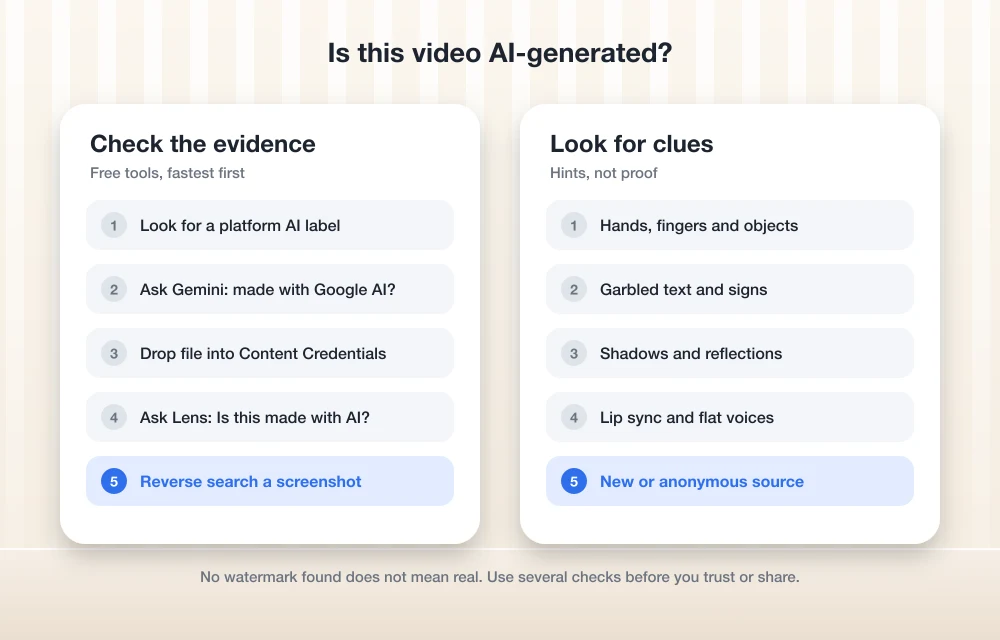
1. Look for an AI label on the platform
Start with what’s already in front of you. Major platforms now label AI content, though where the label appears differs:
- YouTube: Creators have to disclose realistic AI-generated or meaningfully altered content when they upload. For realistic content, YouTube may show a label in the video player itself. For other content, it’s in the expanded description, so tap “more” under the video. YouTube says it may also add the label automatically for videos made with its own AI tools, videos carrying C2PA metadata, or videos its systems detect as AI.
- TikTok: Look for an “AI-generated” label on the video. TikTok adds it to videos made with its AI effects and to uploads that carry Content Credentials.
- Instagram and Facebook: Meta shows an “AI info” label on content its systems identify as made or edited with AI.
A label is a good sign the video is AI-made. No label tells you very little, because many creators don’t disclose and many files lose their metadata on the way.
2. Ask Gemini to check for a SynthID watermark
Google puts an invisible watermark called SynthID in content made with its AI tools, including Veo video. According to Google’s announcement of video verification in Gemini, you can check any clip for it in the Gemini app:
- Save or download the video to your phone or computer.
- Open the Gemini app or gemini.google.com and upload the video.
- Ask: “Was this generated using Google AI?”
Gemini checks both the picture and the sound, and it tells you which parts contain the watermark. Google’s own example result says SynthID was found in the audio between 10 and 20 seconds, but not in the visuals. That level of detail matters, because a real video with an AI voiceover is a different thing from a fully generated clip.
There are limits. Google says the file must be 100 MB or smaller and no longer than 90 seconds, so trim long videos to the part you care about. And this check only finds SynthID. Google has said OpenAI, ElevenLabs and Kakao are adopting SynthID too, which widens its reach, but a video from a tool that doesn’t use it will come back clean even if it’s fully AI.
3. Check for Content Credentials
Content Credentials, built on the C2PA standard, are like a nutrition label for media. They record which app or camera created a file and how it was edited. OpenAI, Adobe, Google and others attach them to AI output, and some phones, including Google’s Pixel 10, now attach them to real camera photos too.
To check a video, open the free Content Credentials Verify tool in your browser and drag the file in. It accepts MP4, MOV and AVI video, along with images and audio. If the file has credentials, you’ll see what made it and what edits were applied. If it says no credentials were found, that’s common: most videos online don’t have them yet, and uploading to social media often strips them.
Google also started rolling out C2PA checks inside the Gemini app in May 2026, so the same upload in step 2 can show credential details when they exist.
4. Use Google Search, Lens or Circle to Search
In May 2026, Google said it was bringing the same AI checks to Search, including Google Lens, AI Mode and Circle to Search, and to Gemini in Chrome. Where it’s available, you don’t need to download anything. On Android, long-press the home button or navigation bar to start Circle to Search, circle the video frame, and ask “Is this made with AI?” In Lens or AI Mode, upload a screenshot and ask the same question.
Google is still rolling these out, so if your app doesn’t give a verification answer yet, fall back to the Gemini app.
5. Find where the video first appeared
This is the check professional fact-checkers lean on most. Pause the video on a clear frame, take a screenshot, and search it with Google Lens. You’re looking for the earliest copy. If it traces back to an account that posts AI clips, an AI tool’s showcase page, or a creator who labeled it as AI, you have your answer. If the same scene shows up in news footage from multiple outlets filmed from different angles, it’s far more likely to be real.
Also check the account sharing it. A new account with no history, a page full of viral “unbelievable” clips, or a video posted with no date, place or source is a reason for caution.
6. Look for visual and audio clues
AI video has improved a lot, but models still slip up, especially in busy scenes. Watch the clip at full screen, slow it down if you can, and pause on frames where things move fast.
| Where to look | What can give it away |
|---|---|
| Hands and fingers | Extra or merging fingers, hands that pass through objects |
| Text and signs | Garbled letters, store signs or license plates that change between frames |
| Background people | Faces that blur or morph, people who appear or vanish |
| Physics | Objects that melt together, liquids or hair that move unnaturally |
| Lighting | Shadows pointing different ways, reflections that don’t match |
| Speech | Lips slightly out of sync, a voice that sounds flat or too clean |
| Length and cuts | Very short clips, or a longer video made of short shots stitched together |
None of these clues proves anything on its own. Real videos have compression glitches, and good AI clips may show none of them. Use them to decide whether a video deserves the deeper checks above.
7. Be extra careful with calls and urgent requests
The riskiest AI video isn’t the viral clip on your feed. It’s the video call or voice message from someone who sounds like a family member, your boss or a bank, asking for money or codes. If a call feels urgent and unusual, hang up and contact the person on a number you already have. Agree on a family code word for emergencies.
Some apps are adding protections. Zoom, for example, has added a verified human badge to fight deepfake scams on video calls. If you’re dealing with fake warnings on your computer instead, see our guide on getting rid of tech support scam pop-ups.
What the results actually mean
- Watermark or credential found: Strong evidence the video, or the part flagged, was made or edited with AI.
- Platform label: Likely AI, based on the creator’s disclosure or the platform’s detection.
- Nothing found: Not proof it’s real. The tool may not use watermarks, or the metadata may have been stripped.
- Several visual clues plus a shady source: Treat it as fake until a trusted outlet confirms it.
AI video tools are getting easier to use every month. Google’s own video tools are now built into everyday apps, as we covered when Google Vids added AI video generation and personal avatars, which is exactly why these checks are worth learning now.
FAQs
Can I check if a video is AI-generated for free?
Yes. The Gemini app checks uploaded videos for Google’s SynthID watermark at no cost, and the Content Credentials Verify website checks files for C2PA records for free. Google Lens reverse searches are free too.
Can Gemini detect videos made with Sora or other AI tools?
Only if they carry SynthID or Content Credentials. Gemini’s watermark check is built for Google’s SynthID. Google has said OpenAI and others are adopting SynthID, but content from tools without a watermark won’t be flagged.
Does no watermark mean a video is real?
No. Many AI tools don’t add watermarks, and re-uploading, trimming or screen recording can remove credentials. Check the source and look for visual clues as well.
What is the length limit for checking a video in Gemini?
Google says uploaded videos can be up to 100 MB and 90 seconds long. Trim longer videos to the section you want to check.
Featured image: Tini Phone on Unsplash.
Disclosure: TheTechHacker has no paid relationship with Google, OpenAI, Adobe or any company mentioned here.
More in How-to
Can You Get Unbanned from Omegle? (Omegle Shut Down — Here’s What to Do)
If you are searching for a way to get unbanned from Omegle, there is something important you should know first: Omegle no longer exists. The site shut down permanently in November 2023, so there is no ban to remove and no account to restore. In this article, we explain what happened to Omegle, why “Omegle…
How to find direct download link on a website?
Downloading games, songs, and movies common from a website. There are plenty of websites that offer such kind of entertainment stuff. But many websites make their download link complicated to find. The reason is, they fill the website with third-party ads and many ads show “Download now” or “Download here” buttons everywhere on the website.…
How to Fix ‘Your Computer Has Been Locked’ Scam Pop-Ups on Windows and Mac
A fake Microsoft or Apple warning took over your screen and wants you to call a number? Here’s how to close it safely on Windows and Mac, clean up your browser, and recover if you already called or paid.
The week in tech, minus the noise.
New reviews, fixes and the stories that matter — once a week, straight to your inbox.
We only use your email to send the newsletter. Unsubscribe any time. See our privacy policy.
Comments