

How to Fix VPN Not Connecting on Windows 11
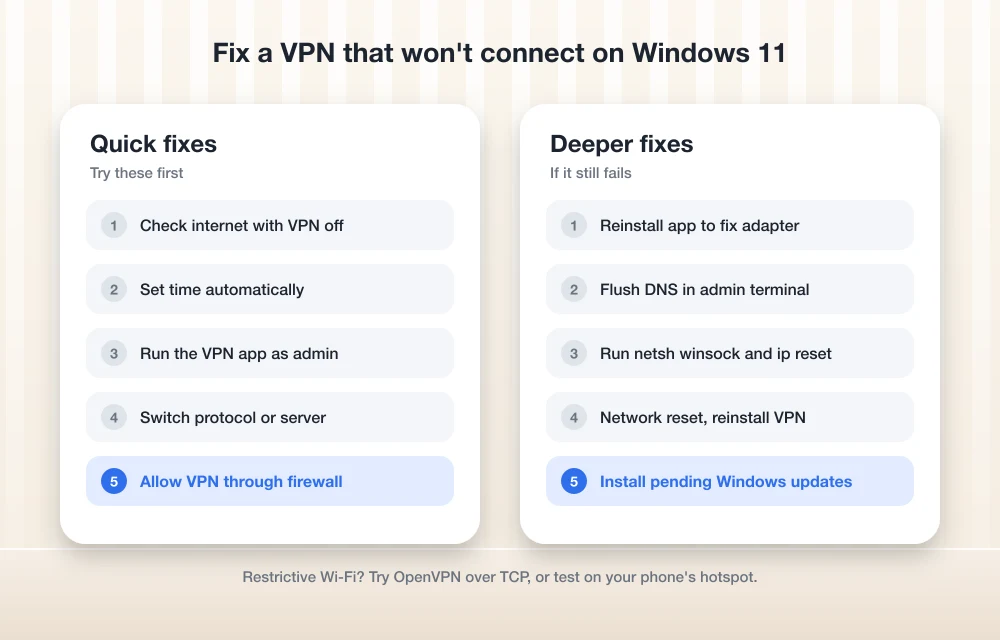
VPN stuck on connecting or timing out on Windows 11? Here are the fixes I’d try, in order, from a quick clock check to a full network reset.


Photo by Joshua Hoehne on Unsplash
A VPN that won’t connect on Windows 11 tends to fail in one of three ways. The Connect button spins forever, the attempt times out, or the app throws some vague error, and meanwhile your regular internet works fine. It looks random. It usually isn’t.
Most of these failures come down to a short list: the system clock is wrong, the network blocks the protocol, a firewall or antivirus gets in the way, the virtual network adapter is broken, or your network settings have gone stale. So start with the quick, harmless fixes at the top and only work down to the bigger resets if you have to.
Everything here applies to third-party VPN apps (the subscription ones) and to the VPN client built into Windows, which a lot of workplaces use.
Quick answer: First confirm your internet works with the VPN off and that Windows sets the time automatically. Then run the VPN app as administrator, switch to a different protocol in its settings, and make sure your firewall or antivirus isn’t blocking it. Still nothing? Reinstall the VPN app to restore its network adapter, flush DNS, and as a last resort run Network reset from Settings > Network & internet > Advanced network settings.
Before you start: two quick checks
About a minute each. And they rule out the most common causes.
Make sure your internet works without the VPN
Disconnect the VPN fully and load a few websites. Nothing loads? Then the VPN isn’t your problem, your connection is. Restart the router and the PC, then test again.
If Wi-Fi drops in certain rooms, the VPN will fail there first, because it needs a stable link to keep its tunnel open. My mesh Wi-Fi vs router comparison covers that if your home network is the weak point.
Check the date and time
This one matters more than you’d think. VPNs rely on security certificates (signed files that prove the server is who it says it is), and each certificate is only valid between specific dates. So if your PC’s clock is off, validation fails and the server refuses the connection.
Open the time settings
Open Settings and find Time & language, then Date & time.
Turn on automatic time
Find an option along the lines of “Set time automatically” and switch it on.
Sync now
If there’s a “Sync now” button, click it, then try the VPN again.
I couldn’t find an official Microsoft page that documents the menu labels here or in the firewall section below, so the wording on your PC might differ slightly. The sections are easy to find anyway.
Fix 1: Run the VPN app as administrator
A VPN app has to create and manage a virtual network connection, and some apps need admin rights for that. Without them, the app can open normally and then just fail to connect. Easy to miss.
Close the app fully
Quit the VPN app completely, including its icon in the system tray near the clock.
Run as administrator
Right-click the app’s shortcut and select “Run as administrator.” Approve the prompt.
Make it stick (optional)
If that works, right-click the shortcut, open Properties, and look for a Compatibility tab with a “Run this program as an administrator” box.
Fix 2: Switch VPN protocols
The protocol is how the VPN builds its encrypted tunnel. You’ll usually see WireGuard, OpenVPN (in UDP and TCP flavors) and IKEv2. Hotel, office and school networks sometimes block specific protocols, and when they do, the VPN simply can’t get through.
Every VPN app hides this setting somewhere different. Open the app’s settings and look for Protocol or Connection type. If it’s on Automatic, pick one manually. Already on a specific one? Try another.
While you’re in there, try a different server or location too. Sometimes an overloaded or offline server is the whole problem.
Fix 3: Check your firewall and antivirus
Security software can see a VPN creating a new network connection and decide it looks suspicious. These conflicts show up a lot right after an antivirus update or a VPN update.
Start with the Windows firewall:
Open Windows Security
Search for Windows Security in the Start menu and open it.
Find the firewall section
Find Firewall & network protection.
Allow the VPN app
Find “Allow an app through firewall,” click Change settings if needed, and make sure your VPN app is ticked for the network types you use.
That’s the usual layout, though your labels may vary.
But a third-party antivirus or security suite might run its own firewall that overrides the Windows one. Open its settings, find the firewall or network protection section, and add the VPN app as an exception. Not sure you need that suite at all? I covered that in Do You Still Need Antivirus on Windows 11 and Mac.
Fix 4: Reinstall the VPN’s network adapter (TAP or WireGuard)
Most VPN apps install a virtual network adapter, basically a software device that acts like a network card so the VPN can push traffic through it. OpenVPN-based apps typically use a TAP-Windows adapter, and WireGuard-based apps use their own (often called Wintun). If a Windows update or something else corrupts or removes that adapter, the app won’t connect no matter what else you change. That’s the annoying part.
To check, open Device Manager (right-click Start) and expand Network adapters. Look for anything with TAP, WireGuard or your provider’s name in it. A yellow warning icon, or no adapter at all, is a strong hint.
I couldn’t confirm an official step-by-step reinstall process for these drivers, so this is the route I’d take:
Uninstall the VPN app
Remove it from Settings > Apps (look for Installed apps), then restart your PC.
Download a fresh copy
Get the latest installer directly from your VPN provider’s official website, not a third-party download site.
Reinstall and allow the driver
Run the installer and accept if Windows asks to install a network driver or adapter. Restart again, then connect.
Reinstalling the app normally brings the adapter back. If your provider offers a separate driver download or a built-in repair option, use that.
Fix 5: Flush DNS and reset TCP/IP
DNS turns website names into numeric IP addresses. Windows keeps a local cache of those lookups, and stale or broken entries can mess with things, including the VPN’s ability to find its own server. Flushing DNS clears that cache out.
You’ll need an elevated terminal. Right-click Start, select Terminal (Admin), and run these one at a time, pressing Enter after each:
- ipconfig /flushdns wipes the DNS cache.
- ipconfig /release drops your current IP address.
- ipconfig /renew asks your router for a new one.
- ipconfig /registerdns refreshes your PC’s DNS registration.
Your connection drops for a moment during release and renew. That’s normal.
No luck? Microsoft also lists two commands that reset the TCP/IP stack, which is the core networking layer in Windows:
- netsh winsock reset
- netsh int ip reset
Fix 6: Reset your network settings in Windows 11
This is the heavy option. A network reset strips out your network adapters and their settings, then reinstalls them with defaults when you restart, which clears out a lot of hidden misconfiguration you’d never track down by hand. So it fixes plenty of stubborn problems. I’d still leave it for last.
Open Advanced network settings
Go to Settings > Network & internet > Advanced network settings.
Choose Network reset
Select Network reset, then Reset now, and confirm with Yes.
Restart and reconnect
Let the PC restart, reconnect to Wi-Fi, then reinstall or repair your VPN app before testing.
Microsoft documents this, plus other network fixes, on its Fix Wi-Fi connection issues in Windows page.
Fixing the built-in Windows VPN
With the VPN built into Windows (common for work or school), the fault is often in the connection details, not the network. One typo in the server name. That’s all it takes.
According to Microsoft, the settings live here:
- To add a connection: go to Settings > Network & internet > VPN > Add VPN. Set VPN provider to “Windows (built-in)” and pick the VPN type.
- To edit details or proxy settings: select the VPN connection, then select Advanced options.
- To connect: Settings > Network & internet > VPN, pick the connection, then Connect. You’ll also find a VPN toggle in Quick Settings.
Open Advanced options and check every field against what your IT team gave you: server name or address, VPN type and sign-in method. Fix anything that doesn’t match, or just delete the connection and add it again. And if there’s a proxy configured that nobody told you about, ask about that too.
One catch: the built-in VPN feature isn’t available in Windows 11 SE, the edition made for schools. Microsoft’s full guide is on its Connect to a VPN in Windows page.
Keep Windows updated
Updates cut both ways. One can break your VPN and a later one can fix it. The current Windows 11 release is version 25H2, and Microsoft ships regular updates for it, so open Windows Update in Settings, install whatever’s pending, and restart.
Did the VPN break right after an update? Then check your VPN provider’s website or support page as well. When a Windows update causes widespread trouble, providers usually post a notice or push out a new app version.
Symptoms, causes and fixes at a glance
| What you’re seeing | Likely cause | What to try |
|---|---|---|
| No internet even with VPN off | Router or Wi-Fi problem | Restart router and PC |
| Certificate or security error | Wrong date or time | Turn on automatic time and sync |
| Works at home, fails on public Wi-Fi | Protocol blocked | Switch protocol, try OpenVPN TCP |
| Stopped after antivirus update | Security software blocking it | Add a firewall or antivirus exception |
| Adapter error or missing adapter | Broken TAP or WireGuard driver | Reinstall the VPN app |
| Connects, but sites won’t load | DNS cache problem | Flush DNS and renew IP |
| Built-in VPN fails instantly | Wrong connection details | Check Advanced options, re-add connection |
Isolating the network vs. the provider
If none of that worked, try a different network, like your phone’s hotspot. Connects there? Your home or office network is blocking it. Fails everywhere? Then it’s probably your account or the provider’s servers, and their support team is your next stop.
If you keep troubleshooting a VPN you barely use, it’s fair to ask whether you need one at all. I looked at that in Is a VPN Worth It for US Users? Most of the time, though, one of the fixes above sorts it out, and it’s usually one of the early, simple ones.
Frequently Asked Questions
Why does my VPN connect on my phone but not on my Windows 11 PC?
That usually means the problem is on the PC itself: a wrong clock, a firewall or antivirus block, or a broken VPN network adapter. Check the date and time, allow the app through your firewall, and reinstall the VPN app to restore its adapter.
Will a network reset delete my VPN?
It removes all network adapters, including the virtual one your VPN app uses, and reinstalls them with default settings after a restart. So you’ll probably need to reinstall or repair the VPN app afterward. Plan for it.
Does flushing DNS help with VPN problems?
It can. Flushing DNS clears old cached lookups that might stop your VPN from finding its server, or from loading sites once it’s connected. Run ipconfig /flushdns in an admin terminal, then try again.
Is it safe to turn off my antivirus to fix a VPN?
Only for a few minutes, as a test. If the VPN connects with protection paused, add an exception for the VPN app and switch protection back on right away. Don’t leave it off.
Which VPN protocol should I pick if mine won’t connect?
Whichever one you’re not using now. On restrictive networks like hotel or office Wi-Fi, OpenVPN over TCP is often worth a shot because it’s harder to block, even if it’s a bit slower.
Featured image: Joshua Hoehne on Unsplash.
Disclosure: TheTechHacker has no paid relationship with the companies in this article.
More in How-to
How to Fix Wi-Fi Connected but No Internet on Windows 11
Your Windows 11 PC shows Wi-Fi as connected, but nothing loads. Here’s the order I’d work through the fixes, from a quick router restart to a full network reset.
How to Fix the ‘No Internet’ Warning When You’re Actually Online
Learn how to fix the misleading ‘No Internet’ warning in Windows even when you’re connected.

How to Fix Remote Desktop Error 0xC000000D: “The Token That Was Passed to the Function Is Invalid”
A standard user opens Remote Desktop, points it at their work PC and gets stopped with error 0xC000000D and the message “The token that was passed to the function is invalid,” while anyone with an admin account can still connect to that same machine without a problem. The firewall rules haven’t changed and the VPN…
The week in tech, minus the noise.
New reviews, fixes and the stories that matter — once a week, straight to your inbox.
We only use your email to send the newsletter. Unsubscribe any time. See our privacy policy.
Comments