

Best NAS for Home and Small Office in 2026: Synology vs QNAP vs UGREEN vs TerraMaster vs WD My Cloud
How to pick a NAS for your home or small office: how many bays you need, how RAID works, how to set up backup and Plex, and which drives to pair, with Synology picks checked against official specs.

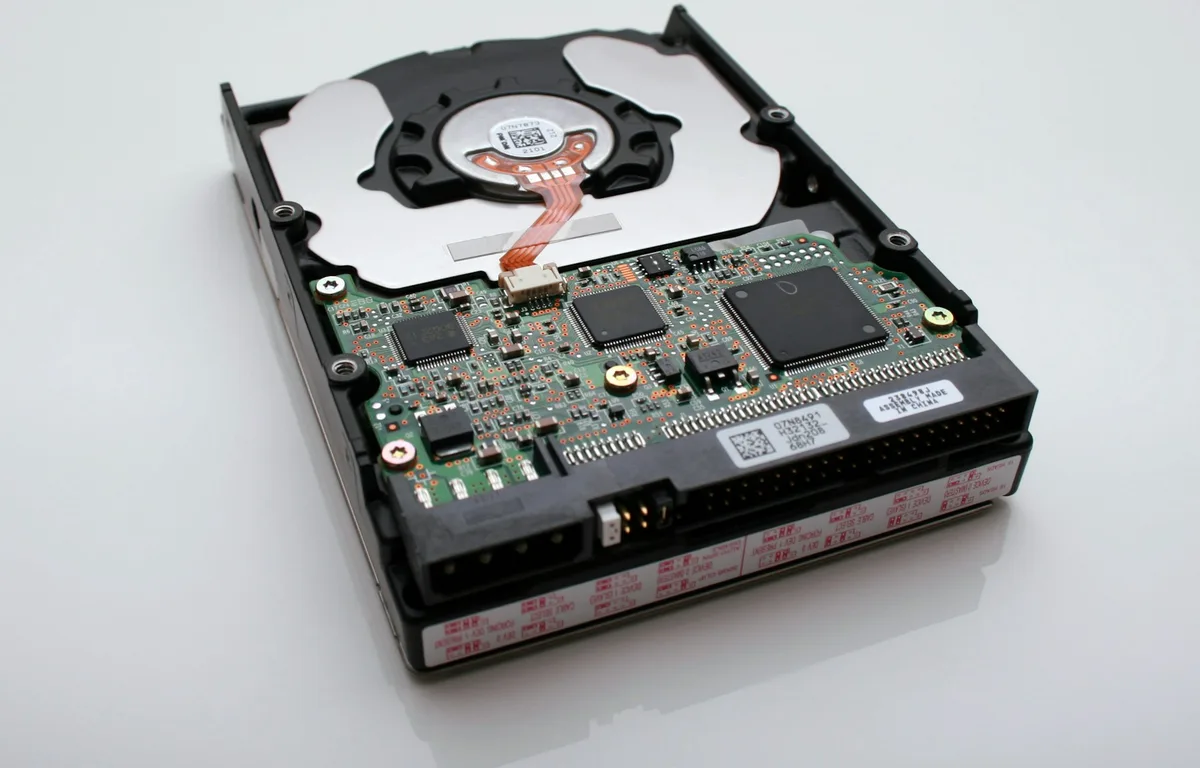
Photo by Vincent Botta on Unsplash
Disclosure: This article contains affiliate links. If you buy through them, TheTechHacker may earn a small commission at no extra cost to you.
A NAS (network attached storage) is a small, always-on computer stuffed with hard drives that sits on your home or office network. Every laptop, phone and smart TV on that network can reach the same files. People usually buy one for one of two reasons: a cloud storage bill that keeps creeping up, or a Plex media server they want running around the clock without tying up their PC.
Picking one is harder than it should be. Synology, QNAP, UGREEN, TerraMaster and WD My Cloud all sell boxes that look nearly identical, and the spec sheets are a wall of acronyms. So I’ll go through bays, RAID, apps, backup, Plex and drives, then tell you which models I’d buy and why.
Quick answer: For most homes and home offices, I’d start with the Synology DS425+, a 4-bay NAS with 2.5GbE networking and room to grow. Small offices that want more power, ECC memory and M.2 SSD storage pools should look at the Synology DS925+. If you only need two drives, the DS225+ is the starter pick. QNAP, UGREEN and TerraMaster may give you more hardware for the money, but check their official spec pages before you buy, since I couldn’t confirm their current models for this guide.
How many bays do you actually need?
A “bay” is just a slot that holds one hard drive. More bays, more total storage, and more ways to protect your data.
Two bays is enough for a home that mostly wants a shared photo library and a backup target for a couple of computers. You’ll usually mirror the two drives, so you get one drive’s worth of capacity and a second copy sitting on the other.
Four bays is where most buyers should land, even at home. You lose less space to protection, and you can add drives later. A small office gets room to grow without buying a second box. Undecided? Take four. Running out of bays is the most common NAS regret by a wide margin, and the only real fix is buying another box.
RAID basics (and why RAID isn’t a backup)
RAID spreads your data across several drives so one dead drive doesn’t take your files with it. These are the levels you’ll run into most:
- RAID 1: two drives, each holding an identical copy. You get one drive’s worth of space. It’s the standard choice for 2-bay units.
- RAID 5: data plus parity (the recovery information) spread over three or more drives. Lose one drive and the array keeps running.
- RAID 6: like RAID 5, but it survives two drives failing at the same time. You’ll need at least four.
- RAID 10: mirrored pairs striped together for speed. Needs four drives, and you only get half the total space.
Synology also has SHR (Synology Hybrid RAID), which is built to make better use of drives that aren’t all the same size. The DS425+, for example, supports SHR, RAID 1, 5, 6 and 10, plus a global hot spare (a standby drive that jumps in automatically when another one fails).
The best NAS picks right now
All three picks are Synology, and that’s simply because Synology’s were the only current specs I could verify for this update. Every spec and speed figure below comes from Synology’s own product pages. None of it is from my own testing.
1. Synology DS425+
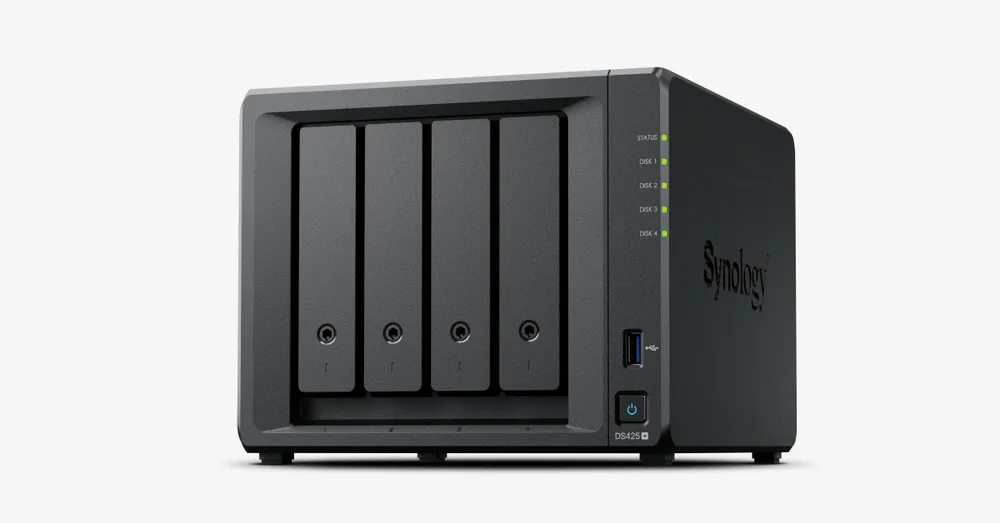
This is the 4-bay NAS I’d point most homes and home offices toward. Synology announced it on June 4, 2025. Inside there’s an Intel Celeron J4125 (4 cores, 2.0/2.7 GHz) and 2 GB of DDR4 non-ECC memory in a single slot. Not a lot of RAM.
For networking you get one 2.5GbE port and one 1GbE port, plus two USB 3.2 Gen 1 ports. The M.2 NVMe slots are cache only on this model, so they speed up the files you open often but don’t add any storage space. Synology quotes 278 MB/s read and 281 MB/s write, and support for up to 40 IP cameras if you want it recording security footage.
Capacity is where it gets messy. The product page says up to 96 TB raw, but the launch press release said 80 TB. I’d go with the current product page, though it’s worth confirming before you buy big drives. Warranty is 3 years, and you can stretch it to 5 with Synology’s Extended Warranty Plus. Each volume can grow to 108 TB.
Strengths
- Four bays, so you’ve got room to grow
- 2.5GbE port for faster transfers if your network matches
- Supports SHR plus RAID 1, 5, 6 and 10
- 3-year warranty, extendable to 5
Limitations
- Only 2 GB of non-ECC memory in one slot
- M.2 slots are cache only, no storage
- Synology’s own pages disagree on capacity
2. Synology DS925+
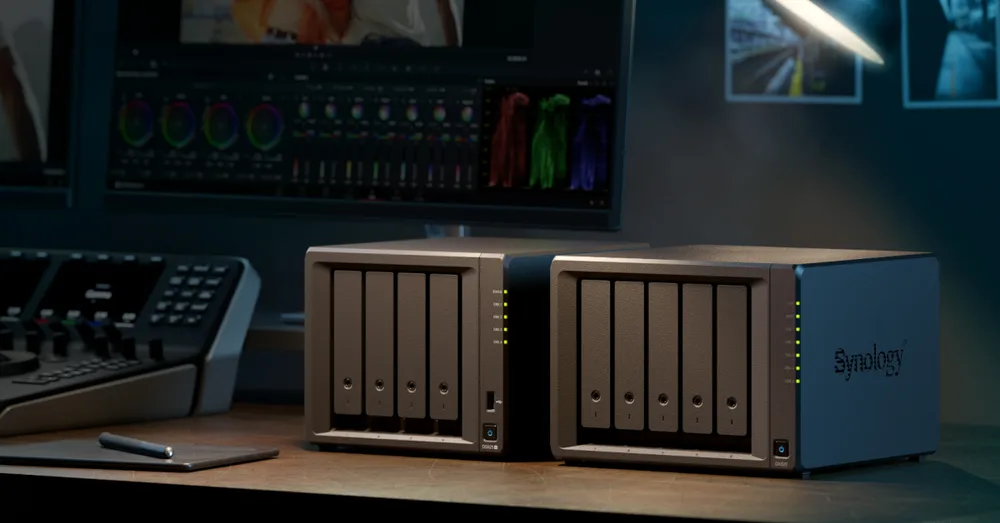
If you’re storing files for a small office, or you just want more headroom, the DS925+ is the step up. It runs an AMD Ryzen V1500B (4 cores, 8 threads, 2.2 GHz) with 4 GB of DDR4 ECC memory. ECC (error-correcting code) memory catches and fixes small memory errors, and that matters on a machine that runs all day holding files you can’t afford to lose. Two memory slots, up to 32 GB.
You get four 3.5″/2.5″ SATA bays, two M.2 2280 NVMe slots, two 2.5GbE ports, two USB 3.2 Gen 1 ports and an expansion port. That expansion port is the feature I’d care about most for a growing business: add an expansion unit and Synology rates it at up to 216 TB raw. The M.2 drives can work as cache or as a full storage pool, so you can keep a fast SSD volume for active projects right next to the hard drives.
Synology quotes 522 MB/s sequential read and 565 MB/s write. That’s roughly double the DS425+. The full spec list is on the official DS925+ product page. One odd note: Synology says it may change the pre-installed memory module specs depending on supply, so the module inside might not be quite what you expected.
Strengths
- ECC memory, expandable to 32 GB
- Two 2.5GbE ports
- M.2 slots work as cache or a storage pool
- Expansion port takes you up to 216 TB raw
Limitations
- More than most homes need
- The Synology pages I checked don’t state whether it supports hardware video transcoding for Plex
3. Synology DS225+
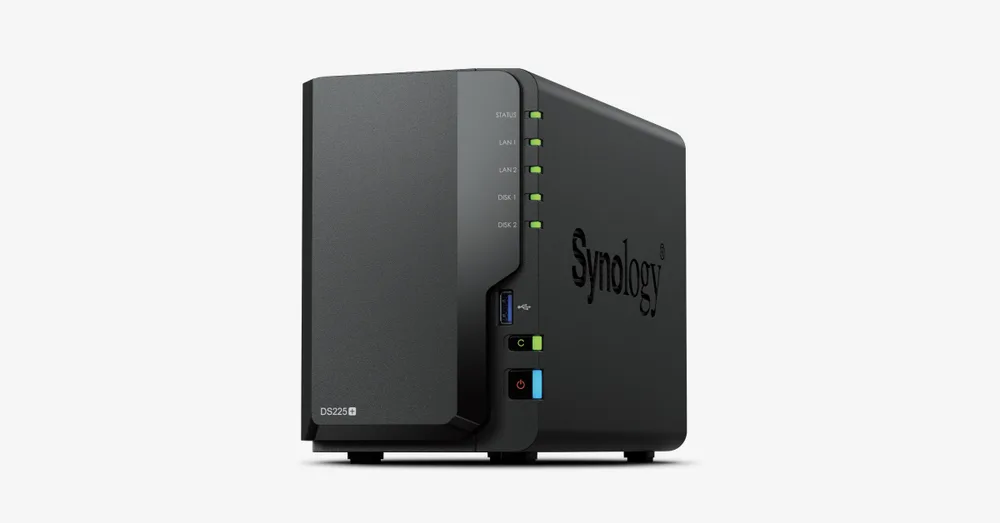
The DS225+ is the 2-bay starter. Synology announced it on June 4, 2025, and pitches it at “home, home office, and edge” use. Same Intel Celeron J4125 as the DS425+, and it ships with 2 GB of DDR4.
Ports are one 2.5GbE, one 1GbE and two USB 3.2 Gen 1. Synology quotes 282 MB/s read and 217 MB/s write, up to 25 IP cameras, and up to 40 TB raw with two 20 TB drives. Mirror them in RAID 1, though, and your usable space drops to half that.
It’s a good fit if all you need is a shared photo library and a backup target. But if there’s any chance you’ll want more space in the next two years, I’d spend the extra on the DS425+.
Synology NAS comparison
| Spec | DS225+ | DS425+ | DS925+ |
|---|---|---|---|
| Drive bays | 2 | 4 | 4 |
| CPU | Intel Celeron J4125 | Intel Celeron J4125 | AMD Ryzen V1500B |
| Memory | 2 GB DDR4 | 2 GB DDR4 non-ECC | 4 GB DDR4 ECC (up to 32 GB) |
| Network | 1 × 2.5GbE, 1 × 1GbE | 1 × 2.5GbE, 1 × 1GbE | 2 × 2.5GbE |
| M.2 NVMe | Not confirmed | Cache only | 2 slots, cache or storage pool |
| Read/write (Synology-quoted) | 282/217 MB/s | 278/281 MB/s | 522/565 MB/s |
| Max raw capacity | 40 TB | 96 TB (product page) | 216 TB with expansion unit |
| Expansion port | Not confirmed | Not confirmed | Yes |
Apps and software: why DSM matters so much
Hardware is only half of it. The operating system and its apps decide how easily you can share folders, back up laptops, sync photos and keep the box secure, and this has long been where Synology is strongest. DSM is polished enough that a non-technical office manager can find their way around without asking for help every other day.
DSM 7.3 came out on October 8, 2025, and it’s the newest version I could confirm. The change that matters for buyers: on 2025 model-year Plus, Value and J Series units (all three picks above), you can now install third-party hard drives and build storage pools on them. Synology also says DSM got more than 50 proactive security updates in the 12 months before 7.3. Details are in Synology’s DSM 7.3 announcement.
Security updates are easy to undervalue. A NAS is always on, and it’s often reachable from outside your network. So a vendor that keeps patching it is worth paying for.
Backup: the 3-2-1 rule
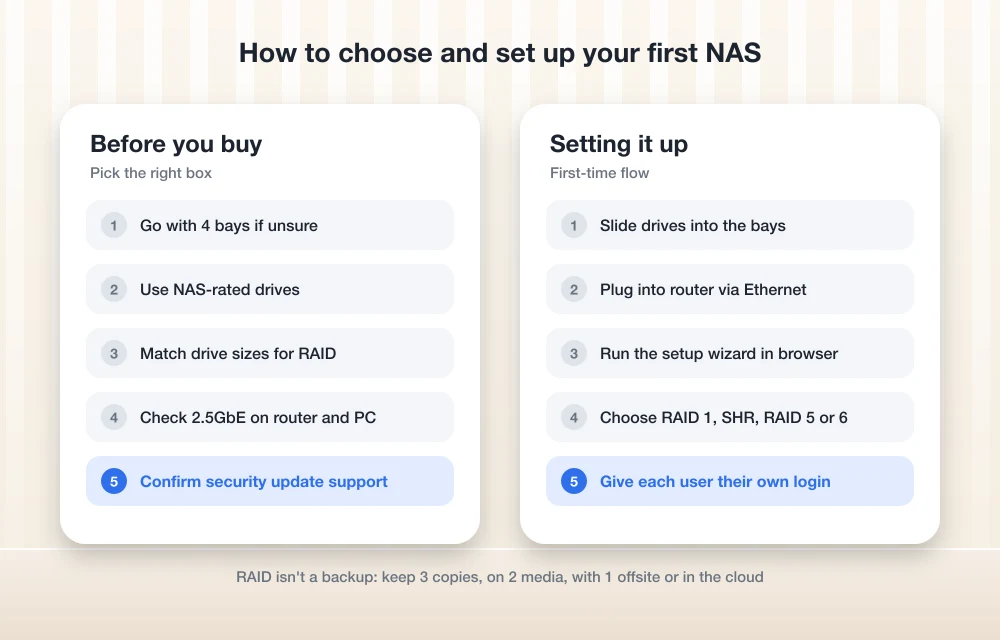
The rule is simple. Keep 3 copies of your data, on 2 different types of storage, with 1 copy offsite or in the cloud. Your NAS can hold one or two of those copies. Never all three.
Synology gives you Hyper Backup, which copies the NAS to another drive, another NAS or a cloud service, and Active Backup for Business, which backs up PCs and servers to the NAS. I couldn’t confirm the exact menu paths in the latest DSM, so there’s no click-by-click walkthrough here (menus may have moved).
For a business, pair the NAS with an offsite cloud copy. My guide on how to back up your business data compares the cloud backup options. Still not sure you need a NAS at all? My roundup of the best cloud storage for business covers the alternative. Plenty of small teams use both.
Using a NAS as a Plex media server
Plex streams your own movies, shows and music from the NAS to TVs, phones and tablets. It runs on all the major NAS brands.
The catch is transcoding. That’s when the server converts video on the fly because the playback device can’t handle the original file, or the connection is too slow for it. It’s heavy on the CPU, and some processors have built-in video hardware that takes that work off it.
The Synology pages I checked don’t say whether the DS925+, DS425+ or DS225+ supports hardware transcoding in Plex. Not ideal. If you’ve got older TVs or plan to stream outside the house a lot, check Plex’s own requirements before you buy (including whether hardware transcoding needs a paid Plex Pass). And if your devices play your files directly, transcoding rarely kicks in, so any of these models should cope.
Which drives to pair with your NAS
Use NAS-rated drives. They’re built to run 24/7 inside an enclosure where the drives next to them add vibration. Western Digital’s Red line, Seagate’s IronWolf line and Synology’s own drives are the usual options. I couldn’t confirm current specs for those models, so check each maker’s official page for capacity, warranty and workload rating.
A few rules to follow:
- With classic RAID, use drives of the same size. Mixed sizes waste space unless you’re on SHR.
- On 2025 Synology Plus, Value and J Series units running DSM 7.3, you’re allowed to use third-party hard drives for storage pools.
- M.2 SSDs for storage pools or cache still have to be on Synology’s compatibility list (HCL).
- Older Synology models may play by different rules, so check the HCL for your exact model.
QNAP, UGREEN, TerraMaster and WD My Cloud: what to check
These brands don’t get the full Synology treatment, because I couldn’t confirm their current models and specs. I’d rather not guess. So here’s what to check on each brand’s official pages instead.
QNAP
QNAP is the other long-established NAS brand, and it tends to pull in buyers who want extra hardware features. Before you buy, check the current CPU, the memory, how many 2.5GbE ports it has, the M.2 slots, and how long the model will keep getting security updates.
UGREEN NASync
UGREEN is newer to NAS. Before the NASync range it was mostly known for accessories. With a newer brand, the software and its update track record matter as much as the hardware does, so look through the backup apps and update history on its official site.
TerraMaster
TerraMaster sells 2-bay and 4-bay units that compete on value. Same approach here: confirm the CPU and the current operating system version on the official product page, and check which backup tools come included.
WD My Cloud
I couldn’t confirm which WD My Cloud models are still sold in the US. Already own one? Check Western Digital’s support site to make sure your model still gets software updates. If it doesn’t, keep it off the internet. A NAS that no longer gets security fixes shouldn’t be reachable from outside.
Setting up your first NAS
Menus differ by brand, but the order of steps doesn’t.
Pick and install your drives
Use NAS-rated drives your model supports and slide them into the bays.
Connect it to your router
Plug the NAS into your router or switch with an Ethernet cable, then power it on.
Install the operating system
Open a browser on the same network and follow the vendor’s setup wizard.
Choose your RAID type
RAID 1 with two drives. With four, use SHR, RAID 5 or RAID 6.
Create shared folders and user accounts
Give each person their own login instead of sharing one admin account across the team.
Set up a backup
Schedule a copy of the NAS to a USB drive, a second NAS or a cloud service.
DS425+, DS925+ or DS225+: which to buy
Most homes and home offices should buy the Synology DS425+. If you’re a small office, or you want ECC memory, faster transfers and M.2 storage pools, step up to the DS925+. I’d only pick the DS225+ if you’re sure two drives will be enough.
QNAP, UGREEN and TerraMaster are worth a look if you like tinkering with hardware, but read their official spec and support pages carefully first. And whichever box you end up with, set up a backup. RAID makes a NAS feel safe, which is exactly why people forget it can still fail.
Synology NAS models on Amazon
Once you’ve settled on a model, check the current price on Amazon and make sure the listing matches the exact model number (diskless vs. bundled drives).
- Synology DS425+ 4-bay NAS (diskless)
- Synology DS925+ 4-bay NAS (diskless)
- Synology DS225+ 2-bay NAS (diskless)
As an Amazon Associate, thetechhacker earns from qualifying purchases.
Frequently Asked Questions
Is RAID the same as a backup?
No. RAID keeps your NAS running if a drive fails, but a deletion, ransomware or a dead NAS hits every drive at once. You still need a separate copy on another device or in the cloud.
Can I use non-Synology hard drives in a Synology NAS?
Yes, on 2025 model-year Plus, Value and J Series units running DSM 7.3 or later. You can install third-party hard drives and build storage pools on them. M.2 SSD storage pools and cache still need drives from Synology’s compatibility list.
Should I get a 2-bay or 4-bay NAS?
For most people, 4 bays. You lose less space to RAID protection, and you can add drives later. A 2-bay NAS is fine if all you need is a shared photo library and a backup target.
Which Synology NAS is best for a small office?
The DS925+. It’s the strongest of the current picks, with a Ryzen V1500B CPU, ECC memory expandable to 32 GB, two 2.5GbE ports, M.2 storage pools and an expansion port that takes it up to 216 TB raw.
Can a NAS run Plex?
Yes. Plex runs on Synology and the other major NAS brands. If you’ll need hardware transcoding for older devices or remote streaming, check Plex’s requirements and make sure your NAS CPU supports it before you buy.
Featured image: Vincent Botta on Unsplash.
You might also like
Best Home Security Cameras for 2026 (No Monthly Fee vs Subscription)
Choosing a home security camera now means choosing a plan too. Here’s how no-monthly-fee cameras compare with subscription ones across storage, smart alerts, privacy, Wi-Fi and smart home support.

Best Domain Registrars in 2026: GoDaddy vs Namecheap vs Cloudflare vs Squarespace vs Porkbun
I compare GoDaddy, Namecheap, Cloudflare Registrar, Squarespace Domains and Porkbun on the things that cost you later: renewal prices, WHOIS privacy, DNS and transfers. I only list prices I could confirm on official pages.

Best Construction Management Software in 2026: Procore, Buildertrend, Autodesk and More
Comparing construction management software for 2026: a custom ERP option, Procore, Buildertrend (now including CoConstruct), Autodesk Construction Cloud and Contractor Foreman, with honest notes on estimating, scheduling, change orders and pricing.
The week in tech, minus the noise.
New reviews, fixes and the stories that matter — once a week, straight to your inbox.
We only use your email to send the newsletter. Unsubscribe any time. See our privacy policy.
Comments