

How to Fix Windows 11 Blue Screen Caused by a Wi-Fi Driver
A bad Wi-Fi driver is one of the most common reasons a Windows 11 PC suddenly blue-screens. Today the driver runs inside the Windows kernel, so when it crashes, the whole PC goes down with it. Microsoft plans to change that in 2027 by moving Wi-Fi drivers out of the kernel, Windows Latest reported on…


Image: Microsoft
A bad Wi-Fi driver is one of the most common reasons a Windows 11 PC suddenly blue-screens. Today the driver runs inside the Windows kernel, so when it crashes, the whole PC goes down with it. Microsoft plans to change that in 2027 by moving Wi-Fi drivers out of the kernel, Windows Latest reported on November 23, citing an Ignite 2026 session. Windows product manager Mehmet Kucukgoz said, “When a user mode driver faults, the kernel and the rest of the device keep running.” Until then, a buggy Wi-Fi driver can still crash your PC. This guide uses Microsoft’s own steps to find the cause, roll back the driver and stop Windows from reinstalling it.
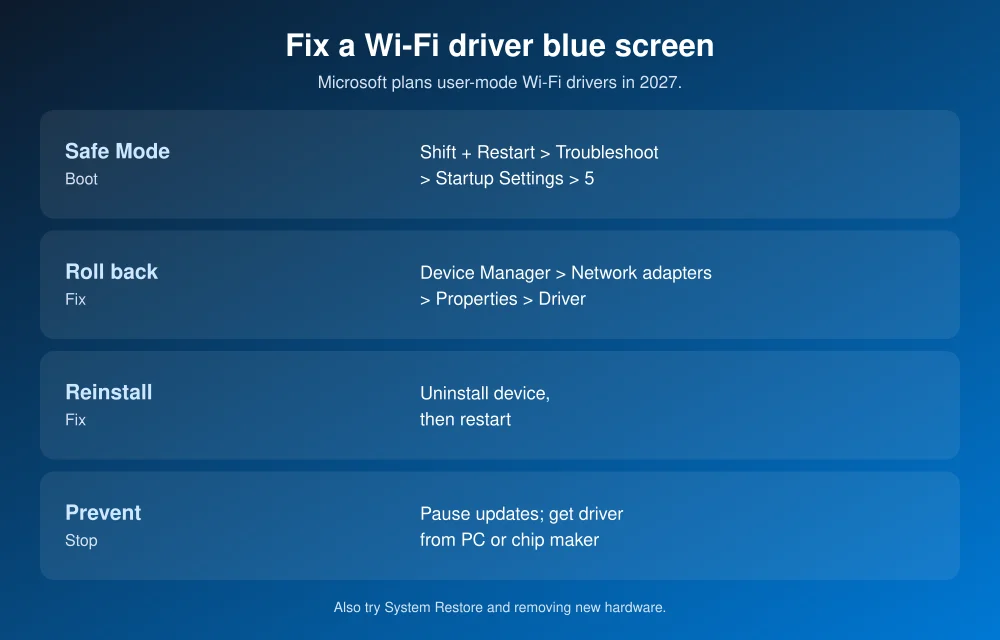
Quick answer: If a blue screen started after a Wi-Fi driver update, restart in Safe Mode with Networking if needed. Open Device Manager > Network adapters, right-click your Wi-Fi adapter, then choose Properties > Driver > Roll Back Driver and restart. If rollback is grayed out, choose Uninstall device and restart so Windows reinstalls a driver. Then go to Settings > Windows Update and pause updates so the bad driver doesn’t come back, and check your PC maker’s site for a fixed driver.
How to tell if your Wi-Fi driver is the cause
- The crashes started right after a Windows update or a driver update.
- The PC crashes when you connect to Wi-Fi, wake it from sleep, or switch networks.
- The blue screen names a file starting with your Wi-Fi vendor’s driver, such as Intel Netwtw, Qualcomm Qcamain, MediaTek mtkwl or Realtek rtwlane.
- Crashes stop when you turn on airplane mode or plug into Ethernet.
To check recent updates, go to Settings > Windows Update > Update history > Driver updates.
How to fix a Wi-Fi driver blue screen
1. Start in Safe Mode with Networking (if Windows keeps crashing)
- On the sign-in screen, hold Shift and select Power > Restart.
- Choose Troubleshoot > Advanced options > Startup Settings > Restart.
- Press 5 or F5 for Safe Mode with Networking.
2. Roll back the Wi-Fi driver
From Microsoft’s Device Manager guide:
- Right-click Start and select Device Manager.
- Expand Network adapters.
- Right-click your Wi-Fi adapter and select Properties.
- On the Driver tab, select Roll Back Driver, pick a reason and select Yes.
- Restart your PC.
You need an administrator account. If the button is grayed out, there’s no earlier driver to roll back to.
3. Uninstall the adapter
In Device Manager, right-click the Wi-Fi adapter, select Uninstall device, confirm, and restart. Windows reinstalls a driver at startup.
4. Pause updates so the bad driver doesn’t return
Go to Settings > Windows Update and pause updates. You can pick a date up to 35 days out, per Microsoft’s pause updates guide. Microsoft community answers also suggest the Show or hide updates troubleshooter to block one specific driver. Microsoft doesn’t document that tool in its main support articles.
5. Install a fixed driver
Get the latest Wi-Fi driver from your laptop or motherboard maker’s support page, or from Intel, Qualcomm, MediaTek or Realtek. You can also check Settings > Windows Update > Advanced options > Optional updates, where driver updates appear if Receive updates for other Microsoft products is on.
6. Other blue screen checks
Microsoft’s blue screen guide also suggests:
- Remove any hardware you added recently.
- Keep 10 to 15% of your drive free.
- Use System Restore to go back to a point before the crashes began.
What Microsoft is changing in 2027
Windows Latest reports Microsoft plans to run Wi-Fi drivers in user mode, outside the Windows kernel, starting in 2027, as part of the Driver Quality Initiative announced at WinHEC in May 2026. If a Wi-Fi driver crashes after the change, you should lose Wi-Fi briefly instead of getting a blue screen. Microsoft hasn’t given an exact release date.
More Windows help: how to pause or delay the Windows 11 26H2 update, external drive not detected, and Chrome’s “server IP address could not be found” error.
FAQs
Can a Wi-Fi driver cause a blue screen?
Yes. Wi-Fi drivers currently run in the Windows kernel, so a crash can take down the whole PC. Microsoft plans to move them to user mode in 2027 to prevent this.
How do I roll back a Wi-Fi driver in Windows 11?
Open Device Manager, expand Network adapters, right-click your Wi-Fi adapter, select Properties, then on the Driver tab select Roll Back Driver and restart.
How do I stop Windows Update from reinstalling a bad driver?
Pause updates in Settings > Windows Update for up to 35 days, then install a fixed driver from your PC or Wi-Fi chip maker.
What if I can’t get into Windows?
Hold Shift and select Restart from the sign-in screen, then go to Troubleshoot > Advanced options > Startup Settings and press 5 for Safe Mode with Networking.
Featured image: Microsoft.
Disclosure: TheTechHacker has no paid relationship with Microsoft or any company mentioned here.
More in How-to
How to Fix Windows 11 26H2 Black Screen After Sign-In
Seeing a black screen after signing in on Windows 11 26H2? Microsoft confirmed the issue, mainly on Azure Virtual Desktop with FSLogix, and fixed it in KB5127648. Here’s how to get your desktop back.
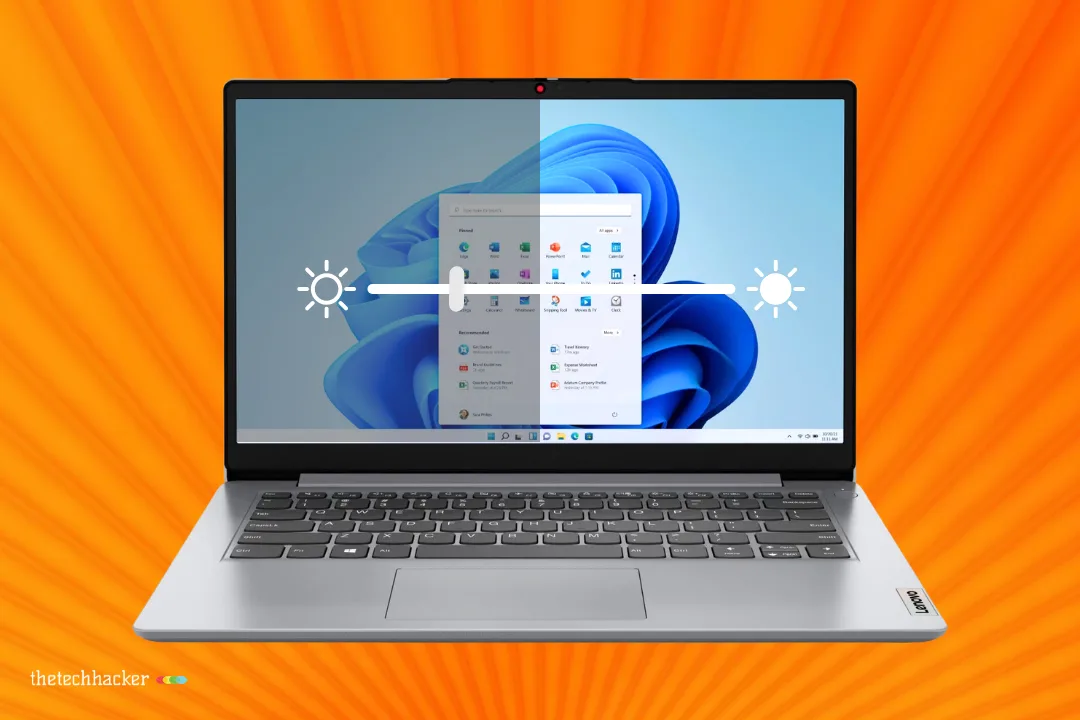
Why Does My Laptop Screen Keep Dimming?
It is a very common problem among the laptop users. If your screen keeps dimming on its own, the problem is usually tied to a power setting, adaptive brightness, display driver behavior, or a device-specific sensor. The good news is that most of these issues are fixable with a few quick checks, and you do…
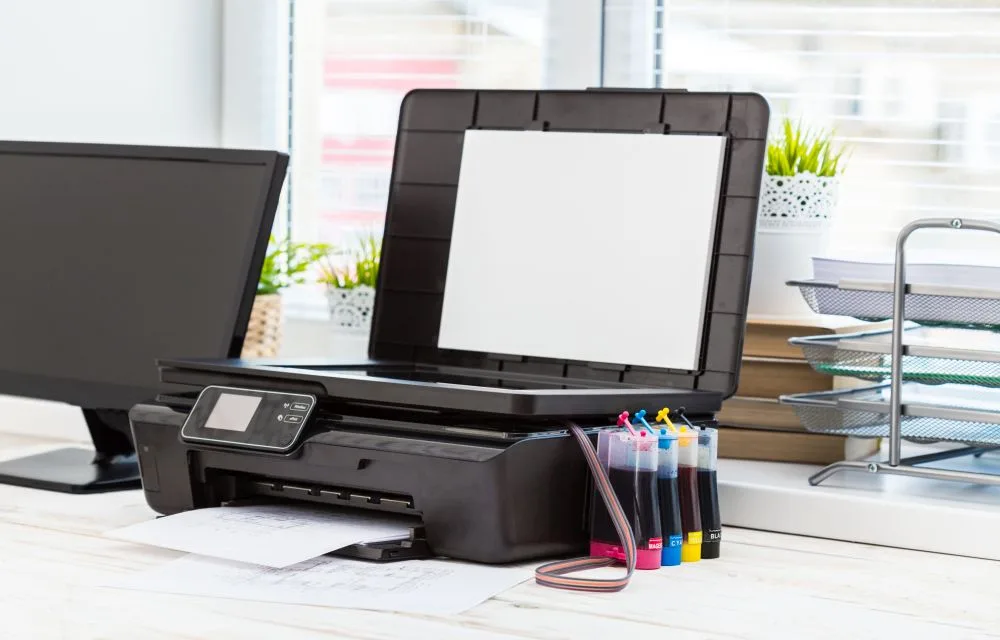
How To Fix Canon B200 Error
Printer errors are most common in Windows OS. It is quite frustrating when you need a print out in important or emergency situations suddenly an error code appears on the screen. Recently, our readers asked how to fix printer offline problem and we have given a quite simple guide to fix the issue. In today’s…
The week in tech, minus the noise.
New reviews, fixes and the stories that matter — once a week, straight to your inbox.
We only use your email to send the newsletter. Unsubscribe any time. See our privacy policy.
Comments