

Best Parental Control Apps for iPhone and Android (2026)
Apple Screen Time and Google Family Link are free and cover the basics. Here’s when Qustodio, Bark, Norton Family or Net Nanny are worth paying for, with confirmed prices.


Photo by Kelly Sikkema on Unsplash
Handing a kid their first phone is a weird moment. You’re basically giving them the whole internet in something that fits in a pocket, and then crossing your fingers that the settings you picked actually hold up. No pressure.
The good news? You might not have to spend a dollar. Apple and Google both bake free parental controls into their phones, and they do more than most parents think. Paid apps still earn their keep in a few cases, though. Mainly if you want warnings about what’s happening inside texts and social apps, or you’ve got a house full of mixed devices to wrangle.
Quick answer: Start with the free tools: Apple Screen Time on an iPhone and Google Family Link on Android. They handle screen time limits, app approvals, content filters and location, and they don’t cost a thing. If you want alerts about bullying, self-harm or predators in texts and social apps, Bark Premium ($99/year plus tax) is the specialist. If you need one dashboard across Windows, Mac, Android, iPhone, Chromebook and Kindle, Qustodio (paid plans from $59.95/year) is the better fit.
What actually matters on a kid’s first phone
For a kid’s phone, four things matter most to me: screen time limits, content filters, location, and what it costs you every year. Every app here got looked at through that lens. Then I asked something simpler. Would a busy parent actually stick with it after week one? Because if they won’t, the feature list doesn’t matter much.
One platform quirk before you shop. Apple generally lets outside apps do less on an iPhone than Google allows on Android, so third-party parental control apps often end up weaker on iOS. Always check the iPhone feature list on the vendor’s site before you pay. Seriously, always.
Screen Time, Family Link, Qustodio, Bark and the rest side by side
I haven’t put these apps through their paces myself, so you won’t find scores here. It’s just what each company’s own pages say, plus my read on who each one suits.
| Feature | Apple Screen Time | Google Family Link | Qustodio | Bark | Norton Family | Net Nanny |
|---|---|---|---|---|---|---|
| Price | Free | Free | Free for 1 device; paid from $59.95/yr | Jr $49/yr; Premium $99/yr (plus tax) | Not confirmed | Not confirmed |
| Child devices | iPhone, iPad | Android, Chromebook | Windows, Mac, Chromebook, Android, iOS, Kindle | Check Bark’s site | Not confirmed | Not confirmed |
| Screen time limits | Yes | Yes | Yes | Yes (schedules) | Not confirmed | Not confirmed |
| Content filters | Yes | Yes (Chrome, Google Play) | Yes; custom rules on Complete | Not confirmed | Not confirmed | Not confirmed |
| Location | Yes (Find My) | Yes | Not confirmed | Not confirmed | Not confirmed | Not confirmed |
| Message and social monitoring | Limited (Communication Safety) | Not a focus | Calls and messages on Complete | Texts, email and many social platforms (Premium) | Not confirmed | Not confirmed |
| Best for | iPhone families | Android families | Mixed-device homes | Warning-sign alerts | Existing Norton users | Check current plans |
Where you see “Not confirmed”, I couldn’t verify it on an official page for this update. That doesn’t mean the feature’s missing. Just that I couldn’t pin it down.
The best parental control apps for iPhone and Android
1. Apple Screen Time
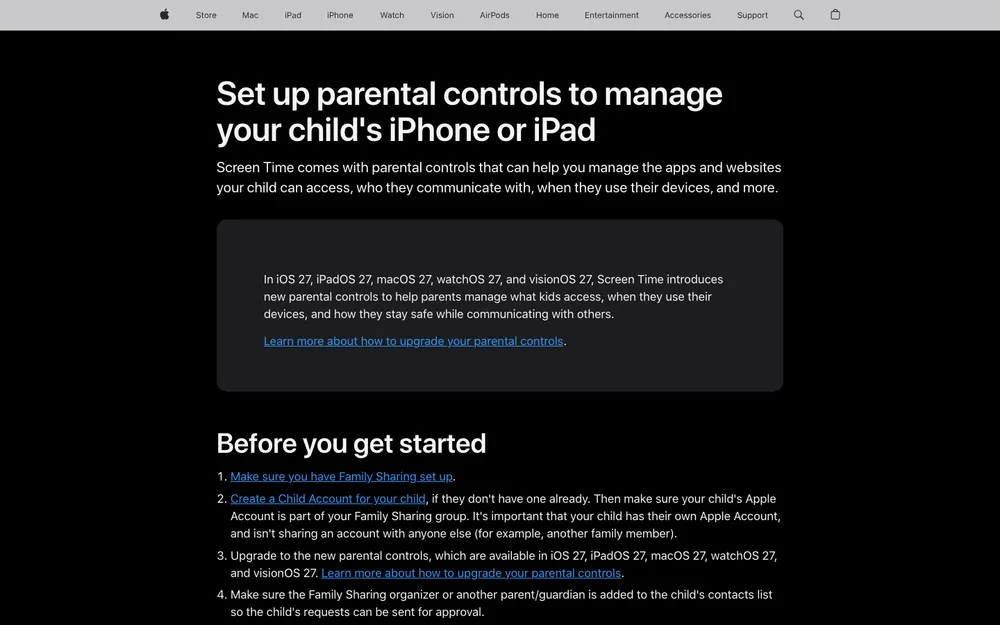
If your kid has an iPhone or iPad, start here. Screen Time’s free and built right into iOS and iPadOS. Nothing to install. No subscription to forget about.
You’ll find it on the child’s device under Settings > Screen Time. But the better route is Family Sharing, because then you can manage your kid’s settings from your own iPhone: go to Settings > [your name] > Family, tap your child, then tap Screen Time. Apple shuffles menus around between iOS versions (of course it does), so if yours looks different, check Apple’s guide to using parental controls on your child’s iPhone or iPad.
The toolkit’s better than people give it credit for. Downtime blocks most apps during hours you pick, like bedtime. App Limits cap time on specific apps or whole categories, and Communication Limits control who your kid can contact. Then there’s Content & Privacy Restrictions, which is where you filter websites and block explicit content.
There’s more. Ask to Buy sends purchase and download requests to you first. Communication Safety is designed to warn kids about sensitive images. And location sharing runs through Find My.
The catch? It only works on Apple devices. So if your kid also has an Android tablet or a Windows laptop, Screen Time can’t touch those. Not ideal for mixed homes.
2. Google Family Link
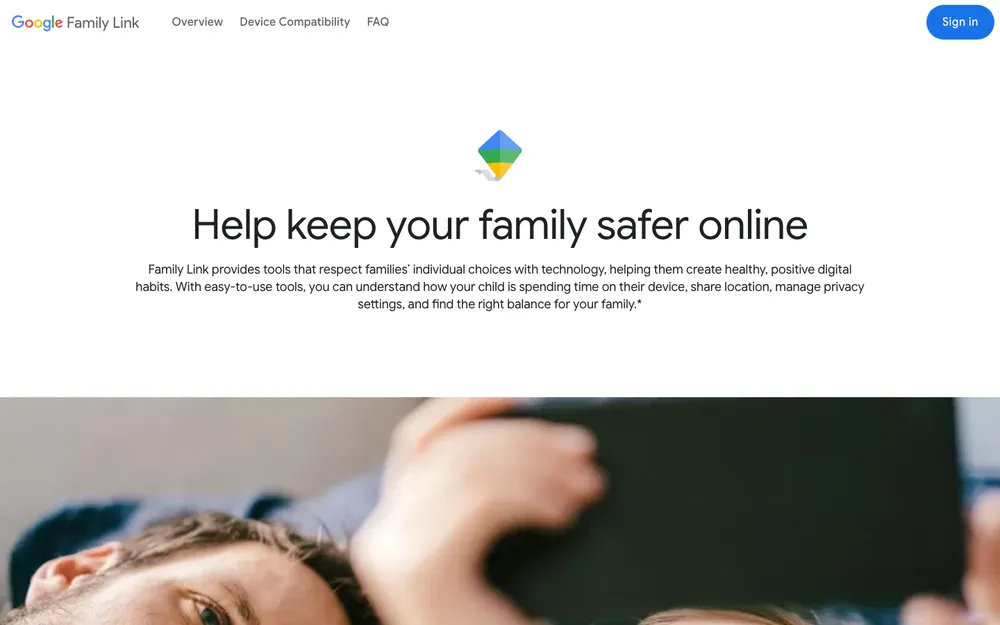
Family Link is basically Google’s free take on Screen Time, and if you’re an Android family it’s the obvious first stop. It supervises Android phones and Chromebooks. The parent app runs on Android or iPhone, so a parent with an iPhone can still manage a kid’s Android phone. Nice touch.
You get daily screen time limits, downtime for bedtime, a school time setting, and per-app limits for whatever’s eating the most hours. App approvals mean your kid has to ask before installing anything new, and you can set content filters for Chrome and Google Play. It shows the device’s location too, which should save you a few “where are you?” texts.
Age rules matter here. Family Link is built for kids under 13 (the exact age depends on your country). You can supervise teens too, but only if they agree to it. Google’s Family Link page has the latest details.
Where it falls down is the iPhone. Family Link’s supervision of a kid’s iPhone is very limited, so if that’s what your kid uses, just go with Screen Time on that device.
3. Qustodio
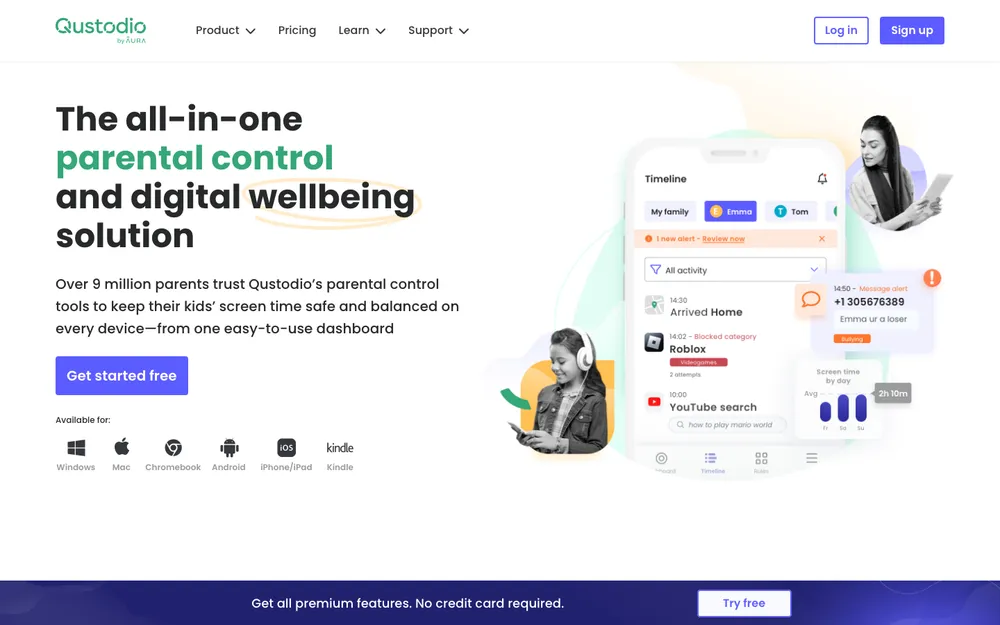
If your house runs on a mix of everything, Qustodio’s the one I’d check first. Paid plans work on Windows, Mac, Chromebook, Android, iOS and Kindle. Kid with an Android phone, a school Chromebook and a Kindle? One dashboard for all of it.
There’s a free version, but it only protects one device and the features are basic. Fine for a test drive. For actual day-to-day use, you’re looking at the two paid tiers on Qustodio’s official pricing page.
Basic is $59.95 a year (Qustodio lists that as the same as $5.00 a month) and gets you core protection features on up to five devices. Care Plus is an add-on for $12.99. Complete is $104.95 a year, covers unlimited devices and throws in Care Plus free. It’s also where the bigger stuff lives: calls and messages monitoring, custom rules for web, apps and games, and YouTube monitoring.
So which tier? If you’ve got one or two kids and mostly want core protection across their devices, Basic’s probably enough. I’d move up to Complete if you want message or YouTube monitoring, or if your device count is creeping past five.
One wrinkle on price. Qustodio’s page also showed a higher yearly price for Basic, which might be the regular or renewal rate. That’s the annoying part. Work out what you’ll pay in year two before you commit.
4. Bark
Bark comes at this from a different angle. It’s less about blocking stuff and more about watching for problems and telling you. Bark says its Premium alerts go past simple keywords to catch real concerns like bullying, self-harm and online predators, across texts, email and many social media platforms.
Bark’s pricing help page puts Premium at $14 a month or $99 a year, plus tax. That’s the full monitoring product. Got younger kids and mostly want some structure? Bark Jr is $5 a month or $49 a year, plus tax, and lets you manage screen time schedules.
Bark sells its own phone, too. You can finance it through Bark at $10 a month for 24 months (or $25 a month for the Pro) at 0% interest. On top of that there’s a $15-a-month plan for talk, text, data and parental controls, and it includes Bark Premium for the whole family. For a first phone, I kind of like the idea of the controls being there from day one.
How many kids and devices does one subscription cover? Check that on Bark’s site before you sign up, because I couldn’t verify it on an official page for this update.
5. Norton Family
Norton Family comes from the company behind the Norton security suites. As far as I know, Norton sells it on its own and has also bundled it into some Norton 360 plans. But I couldn’t confirm current pricing, or which bundles include it, on Norton’s official page for this update. So no price from me.
It’s mainly worth a look if you already pay for Norton, so check your current plan before buying Family separately. And since third-party apps usually get less access on iPhone, read Norton’s iOS feature list carefully if your kids are on Apple devices.
Wondering whether you even need a security suite? I dug into that in Do You Still Need Antivirus on Windows 11 and Mac?
6. Net Nanny
Net Nanny’s been around in parental controls for a long time, and parents still ask about it. That’s why it’s here. The problem? I couldn’t verify its current plans, device tiers, prices or supported platforms on its official site for this update.
If it’s on your shortlist, go straight to Net Nanny’s own pricing page and compare it with the table above. Look at how many devices each tier covers, whether it supports both iPhone and Android, and what the renewal price is once any first-year deal runs out.
What Qustodio and Bark cost per year
These are the only prices I could confirm on official pages. Norton Family and Net Nanny stay off the list until I can check theirs.
Qustodio Basic
Billed yearly; listed as $5.00/mo. Care Plus add-on $12.99.
- Up to 5 devices
- Core protection features
Qustodio Complete
Billed yearly; Care Plus included free
- Unlimited devices
- Calls and messages monitoring
- Custom rules for web, apps and games
- YouTube monitoring
Bark Jr
Plus tax; or $5/mo billed monthly
- Screen time schedules
Bark Premium
Plus tax; or $14/mo billed monthly
- Alerts for bullying, self-harm and online predators
- Coverage across texts, email and many social platforms
Prices checked on Qustodio’s and Bark’s official pricing pages. They change often and sales come and go, so confirm the current price before you buy.
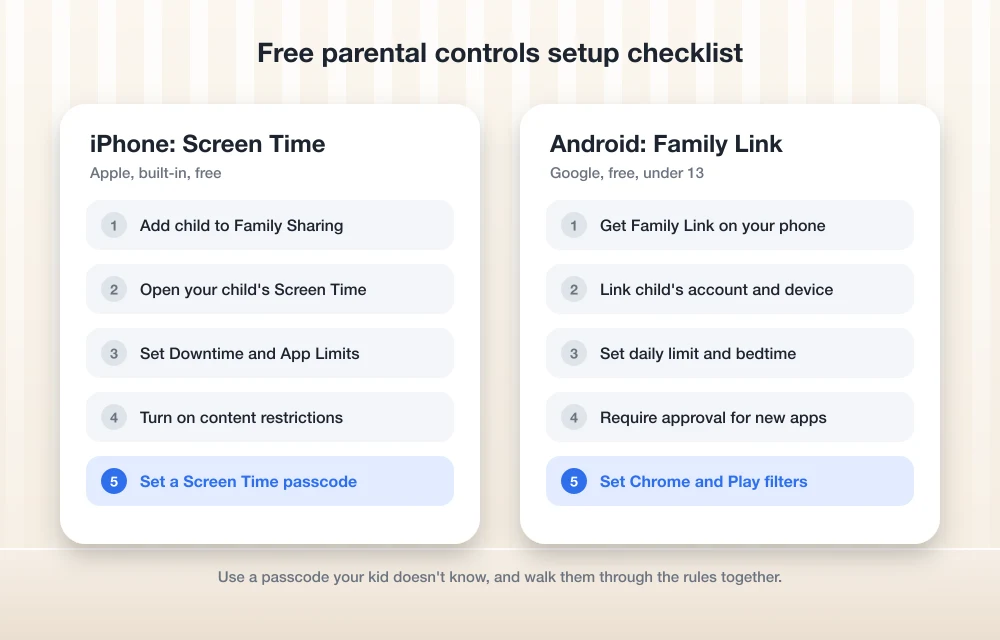
How to set up the free controls first
Before paying for anything, I’d spend an evening poking at the built-in tools. It won’t cost you a thing, and you’ll quickly see whether they cover what you need.
On an iPhone (Apple Screen Time)
Add your child to Family Sharing
On your own iPhone, set up Family Sharing and add your kid’s account.
Open your child’s Screen Time
Go to Settings > [your name] > Family, tap your child, then tap Screen Time.
Set Downtime and App Limits
Pick quiet hours and daily caps for the apps that matter most.
Turn on Content & Privacy Restrictions
Filter websites and block explicit content.
Set a Screen Time passcode
Use a code your kid doesn’t know so the settings actually stick.
On Android (Google Family Link)
Install Family Link on your phone
The parent app works on Android or iPhone.
Link your child’s account and device
Follow the prompts on screen to add your kid’s Google account and connect their phone or Chromebook.
Set limits and downtime
Pick a daily limit, a bedtime, and school time if you want it.
Turn on approvals and filters
Make new apps need your approval and set filters for Chrome and Google Play.
Menu names change between software versions, so treat these as a rough guide. If your screens look different, just follow the prompts.
Where the free tools shine
- Free, no subscription to keep track of
- Already on the phone, so nothing extra to install on the child’s device for Screen Time
- Location sharing included
- Kids have to ask before downloading new apps
Where they come up short
- Each tool really only works well on its own platform
- Family Link’s supervision of an iPhone is very limited
- No warning-sign alerts about message content, which Bark does offer
What parental controls can’t do
No app catches everything. Kids are clever. And some of their friends have phones with zero controls on them.
Phones aren’t the only screens in the house, either. Smart TVs, game consoles and that old laptop in the closet won’t follow your Screen Time or Family Link rules. If you want rules that cover every device on your Wi-Fi, your home router’s the place to set them, and lots of routers and mesh systems include some parental controls (it depends on the model). Shopping for new gear anyway? My guide to mesh Wi-Fi vs a regular router should help you pick.
Start free, then add Bark or Qustodio if you hit a wall
For most families, I’d start with what’s already on the phone: Screen Time for iPhones, Family Link for Android. Live with it for a couple of weeks. Notice where it falls short.
If what’s missing is visibility into texts and social apps, Bark Premium is the specialist. If it’s too many devices across too many platforms, Qustodio makes more sense, and Complete is the step up when you want message or YouTube monitoring. Already paying for Norton? Then Norton Family’s worth checking. Net Nanny deserves a look on its own site, but only once you’ve confirmed what its current plans actually are.
Whatever you pick, try to set it up with your kid. Walking them through the rules beats them bumping into the blocks on their own and wondering why.
Frequently Asked Questions
Are free parental controls enough for most kids?
For a lot of families, yes. Apple Screen Time and Google Family Link both handle screen time limits, app approvals, content filters and location, and they’re free. Paid apps start to make sense if you want alerts about bullying or self-harm in messages, or you’ve got lots of devices across different platforms to manage.
Can I use Google Family Link on my child’s iPhone?
Not really. The Family Link parent app does run on iPhone, so you can manage a kid’s Android phone or Chromebook from it. But supervising an iPhone as the child’s device? Very limited. For a kid’s iPhone, use Apple Screen Time with Family Sharing.
Which parental control app can monitor texts and social media?
That’s what Bark Premium is built for. Bark says its alerts go beyond keywords to catch concerns like bullying, self-harm and online predators across texts, email and many social media platforms. Qustodio’s Complete plan includes calls and messages monitoring too.
How much does Qustodio cost?
There’s a free version for one device with basic features. Qustodio’s official pricing page lists Basic at $59.95 a year for up to five devices, and Complete at $104.95 a year for unlimited devices with Care Plus included. Prices change, so check the page before you buy.
Can kids get around parental controls?
Sometimes, yeah. A passcode your kid doesn’t know helps. So do router-level controls for other devices, and talking openly about the rules. No app catches everything, so think of controls as one layer of protection.
Featured image: Kelly Sikkema on Unsplash.
Disclosure: TheTechHacker has no paid relationship with the companies in this article.
You might also like
Best Password Managers for Families and Small Businesses (2026)
I compared 1Password, Bitwarden, Dashlane and the built-in Apple and Google options using official vendor pages, so you can choose the right password manager for your family or small team.

Best MX Player Alternatives for iPhone
MX Player, a very popular name among the Android users. When the default video player sucks, MX Player first comes in mind. It is a great multimedia player with vast support of codecs and video formats. Unfortunately, the MX Player is not available for iOS users. The default iOS player is good at playback, but…

Best Android camera apps
With the recent release of iPhone 11, 11 Pro and Pro Max, we have seen that cameras have become a priority of smartphone these days. The brewing up Megapixel war between Chinese smartphone makers including Xiaomi, Oppo, and Realme is another aspect that shows how smartphones have become all about cameras these days. Companies are…
The week in tech, minus the noise.
New reviews, fixes and the stories that matter — once a week, straight to your inbox.
We only use your email to send the newsletter. Unsubscribe any time. See our privacy policy.
Comments