

How to Fix the Blank White Dialog Box in Word, Excel and Outlook (Microsoft 365)
Word, Excel or Outlook opens, and a blank white box covers the window. There’s no text and no button, and it won’t close. Microsoft has confirmed this bug in Microsoft 365 apps for Windows and has fixed it in a new version. The catch is that you need to update Office, and the box can…


Microsoft 365 Office Blank Dialog Fix
Word, Excel or Outlook opens, and a blank white box covers the window. There’s no text and no button, and it won’t close. Microsoft has confirmed this bug in Microsoft 365 apps for Windows and has fixed it in a new version. The catch is that you need to update Office, and the box can stop you from reaching the update button.
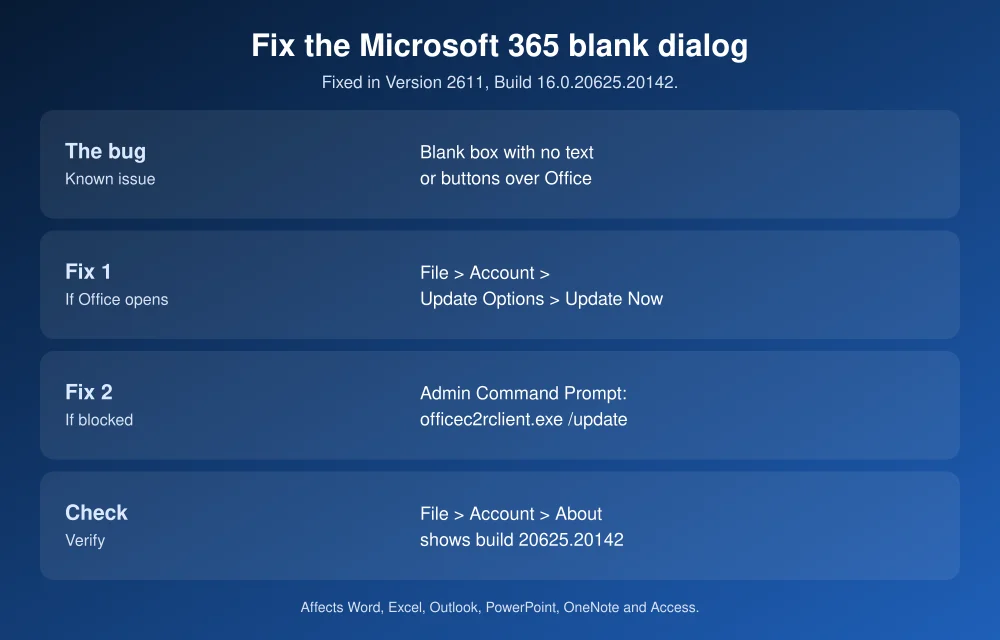
Quick answer: Microsoft fixed the blank dialog in Microsoft 365 Apps Version 2611 (Build 16.0.20625.20142). If Office opens, go to File > Account > Update Options > Update Now. If the blank box blocks you, close all Office apps, open Command Prompt as administrator, and run Microsoft’s update command shown below.
What’s Happening
Microsoft’s support article says that when you open an Office app, a blank dialog window might appear with no text or buttons. If you can’t dismiss it, you can’t keep using the app. It affects Word, Excel, Outlook, PowerPoint, OneNote and Access for Microsoft 365. Users quoted by BleepingComputer said reinstalling Office and starting it in safe mode didn’t help.
Fix 1: Update Office From Inside an App
Try this first if any Office app still opens normally.
- Open Word, Excel or another Office app.
- Go to File > Account. In Outlook, it’s File > Office Account.
- Select Update Options > Update Now.
- Wait for the update to finish, then restart the app.
Microsoft explains these steps in its guide to updating Microsoft 365 for Windows.
Fix 2: Update Office From Command Prompt
Use this when the blank box blocks every Office app. These are Microsoft’s own steps.
- Save your work and close all Office apps.
- Click Start, type cmd, right-click Command Prompt and choose Run as administrator.
- Copy and paste this command, then press Enter:
"%programfiles%\Common Files\Microsoft Shared\ClickToRun\officec2rclient.exe" /update user updatetoversion=16.0.20625.20142- Let the Office update window finish.
- Open the app again. The blank box should be gone.
How to Check That You Have the Fix
- Open any Office app and go to File > Account.
- Look under About for the version and build.
- Version 2611 build 16.0.20625.20142 or later has the fix.
Still Seeing the Blank Box?
- Work or school PC: your IT team may control Office updates. Send them Microsoft’s support article and the build number above.
- The command did nothing: make sure Command Prompt was opened as administrator and all Office apps were closed.
- Need email now: use Outlook on the web at outlook.com, or Word and Excel at office.com, until the desktop apps update.
Separately, Microsoft had a large Microsoft 365 outage this month. If your email stopped working for everyone, see our tech outage checklist. Watch out for fake Microsoft 365 restore emails, and read what changed with Microsoft 365 Copilot billing.
FAQs
Why is there a blank white box when I open Word or Excel?
It’s a known Microsoft 365 bug. Microsoft fixed it in Version 2611 (Build 16.0.20625.20142).
How do I update Office if the blank box blocks it?
Close all Office apps, open Command Prompt as administrator, and run Microsoft’s officec2rclient.exe update command.
Does reinstalling Office fix the blank dialog?
Users quoted by BleepingComputer said reinstalling didn’t help. Updating to the fixed build does.
Does this affect Office on Mac?
Microsoft’s article lists Microsoft 365 apps, and its fix uses the Windows Click-to-Run updater.
Featured image: Microsoft.
Disclosure: TheTechHacker has no paid relationship with Microsoft.
More in How-to

How to Fix Outlook Not Syncing Email in Microsoft 365 (Windows, Mac, iPhone and Android)
Outlook stuck on old mail? Here’s how I’d fix Microsoft 365 sync problems in new and classic Outlook on Windows, Outlook for Mac, and the Outlook app on iPhone and Android.

How to Fix Outlook Not Working After the Microsoft 365 Outage
If Outlook has been spinning, refusing to send, or showing an empty inbox since Thursday, November 12, you’re not alone and it probably isn’t your computer. Microsoft has been dealing with a large Microsoft 365 incident that hit Exchange Online, the service behind work and school Outlook mailboxes, and features in Teams and other apps…
Microsoft Word Not Converting Equations? Here Are The Fixes.
If equations in Microsoft Word aren’t switching to the professional math layout, it’s usually a formatting mismatch or a temporary glitch. Follow these quick, safe steps in order, and stop when the issue is resolved. Before starting Close other Word files. Note whether equations were pasted from outside sources. Mixed formats often block conversion. Step…
The week in tech, minus the noise.
New reviews, fixes and the stories that matter — once a week, straight to your inbox.
We only use your email to send the newsletter. Unsubscribe any time. See our privacy policy.
Comments