

How to Get the Old Screenshot Thumbnail Back on iPhone in iOS 27
Taking a screenshot on iPhone used to be simple. You press the buttons, a small thumbnail appears in the corner, and you swipe it away or tap to edit it. iOS 26 changed this habit by opening every screenshot in a full-screen view. It’s useful for people who crop or mark up their screenshots. If…

Screenshots: TheTechHacker
Taking a screenshot on iPhone used to be simple. You press the buttons, a small thumbnail appears in the corner, and you swipe it away or tap to edit it. iOS 26 changed this habit by opening every screenshot in a full-screen view. It’s useful for people who crop or mark up their screenshots. If you take many screenshots one after another, it slows you down, because you have to deal with each one first.
The good thing is that Apple still lets you go back to the old small thumbnail. Now in this article, I will show how to do it in iOS 27.
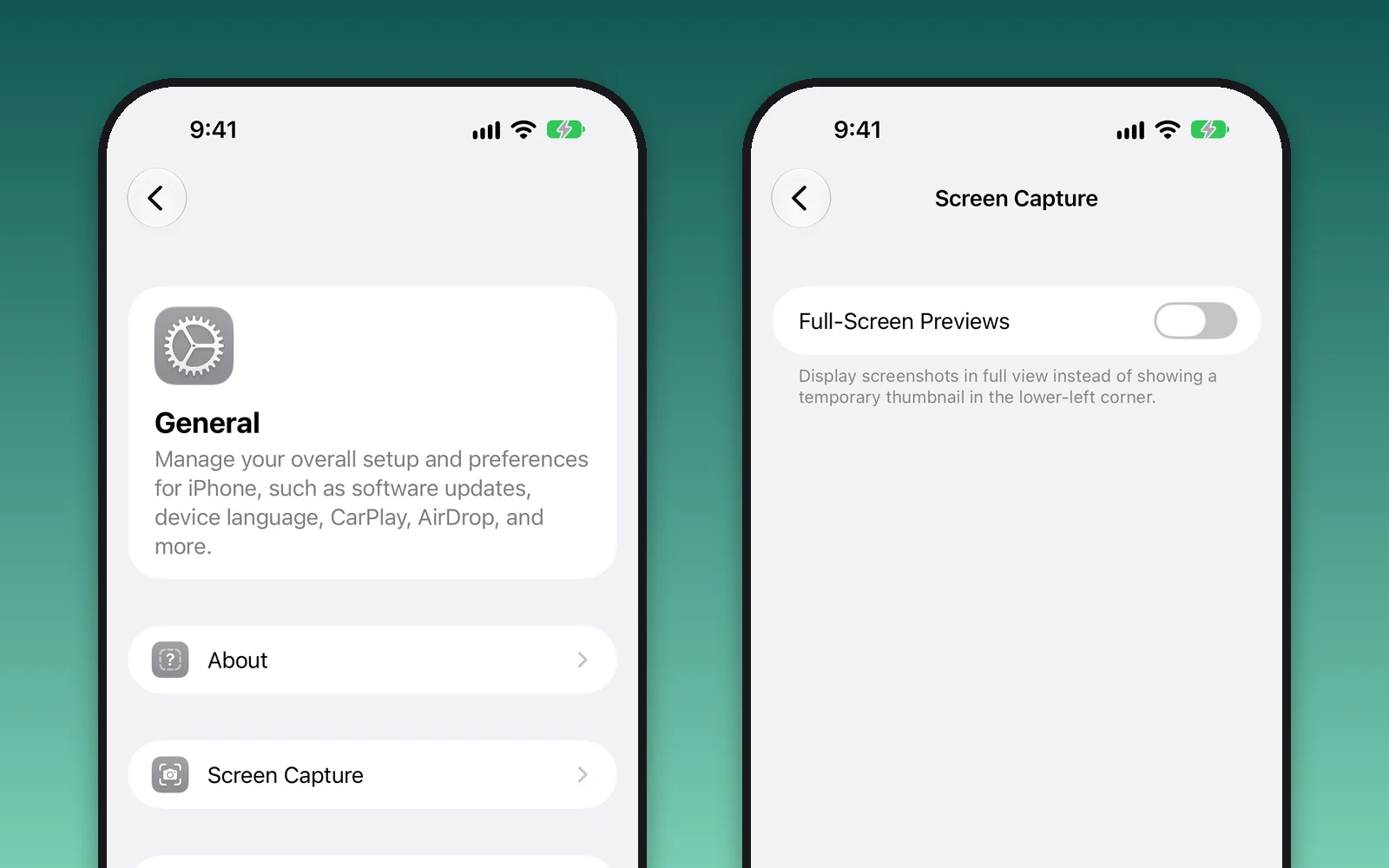
Quick answer: To get the old screenshot thumbnail back, go to Settings > General > Screen Capture and turn off Full-Screen Previews. Your next screenshot shows a small thumbnail in the lower-left corner, as before. Turn it on again any time.
Getting Started
These steps are from iOS 27.2. The option is for how the preview looks. It doesn’t delete any screenshots or change where they are saved.
How to Turn Off Full-Screen Screenshot Previews
- Open Settings on your iPhone.
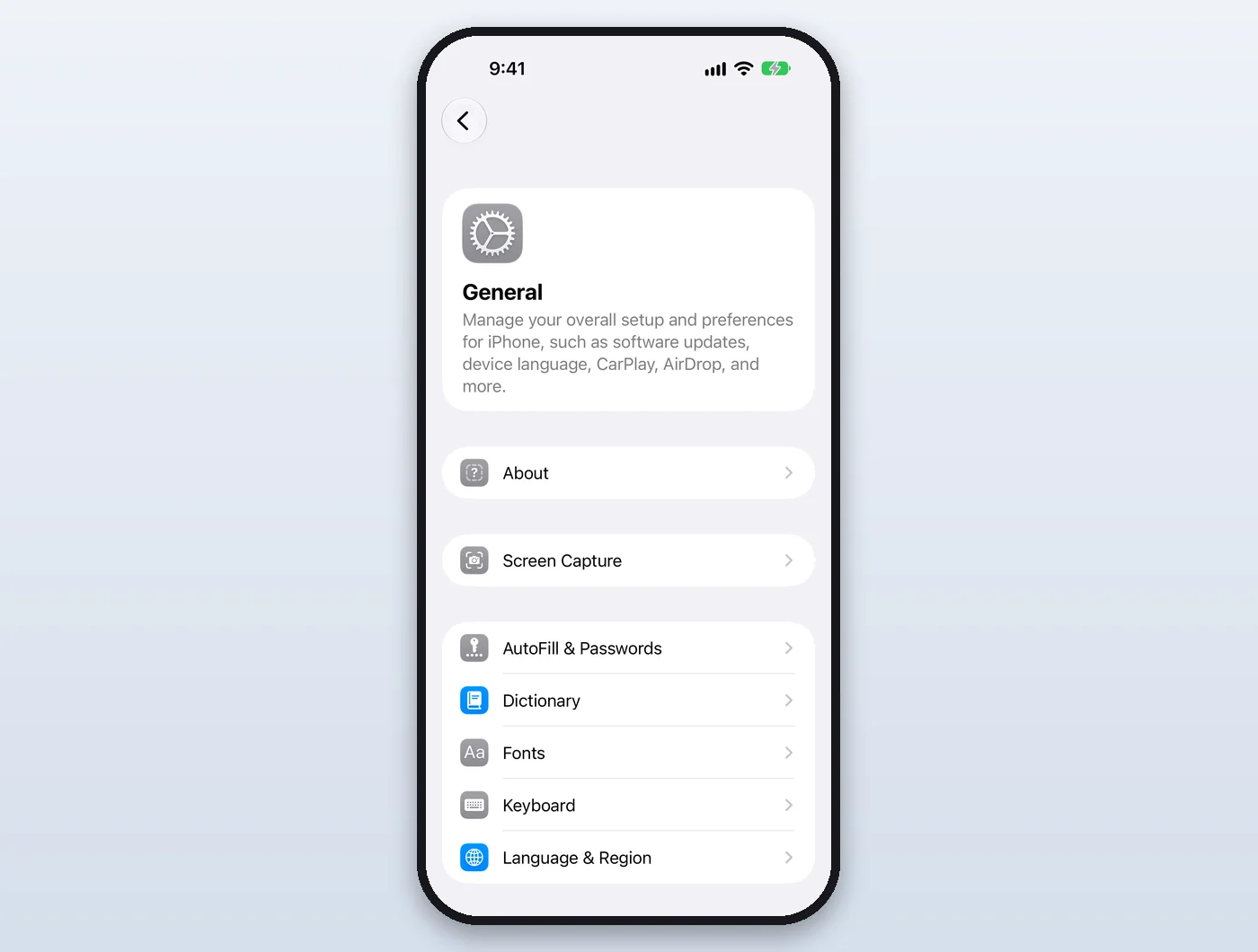
- Tap General.
- Tap Screen Capture. It’s near the top, below About.
- Turn off Full-Screen Previews.
- Take a screenshot to check. You should see a small thumbnail in the lower-left corner.
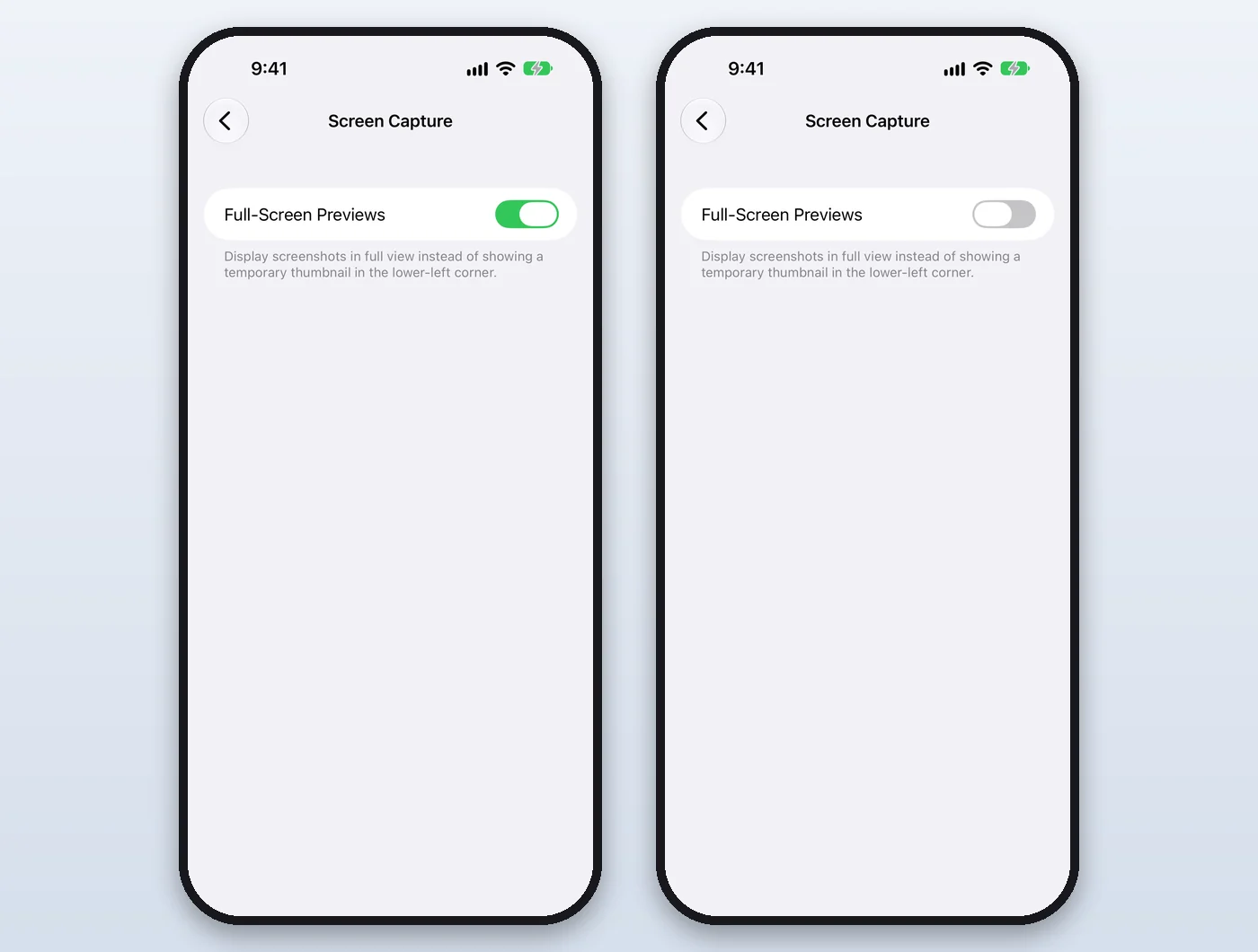
Apple describes the option on this screen as showing screenshots in full view instead of a temporary thumbnail in the lower-left corner.
How to Take a Screenshot
- iPhone with Face ID: press the side button and the volume up button at the same time, then release both.
- iPhone with a Home button: press the Home button and the side or top button together.
For older iPhone and iPad models, see our guide on how to take a screenshot on iPhone and iPad.
Full-Screen or Thumbnail: Which Is Better?
| Full-Screen Previews on | Full-Screen Previews off | |
|---|---|---|
| What you see | The screenshot opens in full view | A small thumbnail in the corner |
| Best for | Cropping and marking up right away | Taking many screenshots quickly |
| To edit | You are already in the editor | Tap the thumbnail |
Not Seeing Screen Capture?
- Update your iPhone in Settings > General > Software Update. Current versions are listed on Apple’s releases page.
- Pull down in Settings and search for Screen Capture.
- If your iPhone belongs to work or school, some options can be managed for you.
Read what else is new on Apple’s iOS 27 page. If your screenshots fill up storage, see what low disk space means on iPhone. More tips: iOS 27.3 features and new FaceTime features in iOS 27.
That’s all for now. Please do share your views and feedback in the comment box below.
FAQs
How do I get the old screenshot preview back on iPhone?
Go to Settings > General > Screen Capture and turn off Full-Screen Previews.
Does turning it off delete my screenshots?
No. It only changes how the preview looks after you take a screenshot.
Can I still edit screenshots from the thumbnail?
Yes. Tap the thumbnail in the lower-left corner before it goes away, or open the screenshot in Photos.
Screenshots: captured by TheTechHacker in the iOS 27.2 simulator (iPhone 18 Pro).
Disclosure: TheTechHacker has no paid relationship with Apple or any company mentioned here.
More in How-to
How to Take a Screenshot on iPhone, iPad, and iPod Touch
Sometimes we just need a screenshot. A screenshot is nothing but capturing of the screen at a present state. Reasons for taking screenshots is many, people just want to take a screenshot for remembering a thing on the screen or saving a sudden moment which is happened on screen. It is just like a print…
How to Fix iPhone Not Showing the iOS 27.2 Update (and Other Update Errors)
iOS 27.2 not showing up, stuck on Preparing or Verifying, or failing with Unable to Install Update? Here are Apple’s own fixes, in the order I’d try them.
How to Change Liquid Glass From Clear to Tinted on iPhone in iOS 27
Liquid Glass changed the look of the iPhone in iOS 26. Buttons, search bars and menus became see-through, and they pick up whatever is behind them. Some people love the new design. Many others find text hard to read when a photo or a busy page sits behind a button. In iOS 26, later updates…
The week in tech, minus the noise.
New reviews, fixes and the stories that matter — once a week, straight to your inbox.
We only use your email to send the newsletter. Unsubscribe any time. See our privacy policy.
Comments