

How to Check Chrome for a Fake Extension Stealing Your Gmail (Remus and SYS010)
Two new malware campaigns are stealing Gmail messages through fake browser extensions. One installs a Chrome extension named “Google Sheets.” The other takes control of your browser settings so you can’t remove its extension. Changing your password doesn’t stop either one, because the extension stays in the browser. Quick answer: Open chrome://extensions and remove anything…

Google Chrome Extensions Gmail Malware
Two new malware campaigns are stealing Gmail messages through fake browser extensions. One installs a Chrome extension named “Google Sheets.” The other takes control of your browser settings so you can’t remove its extension. Changing your password doesn’t stop either one, because the extension stays in the browser.
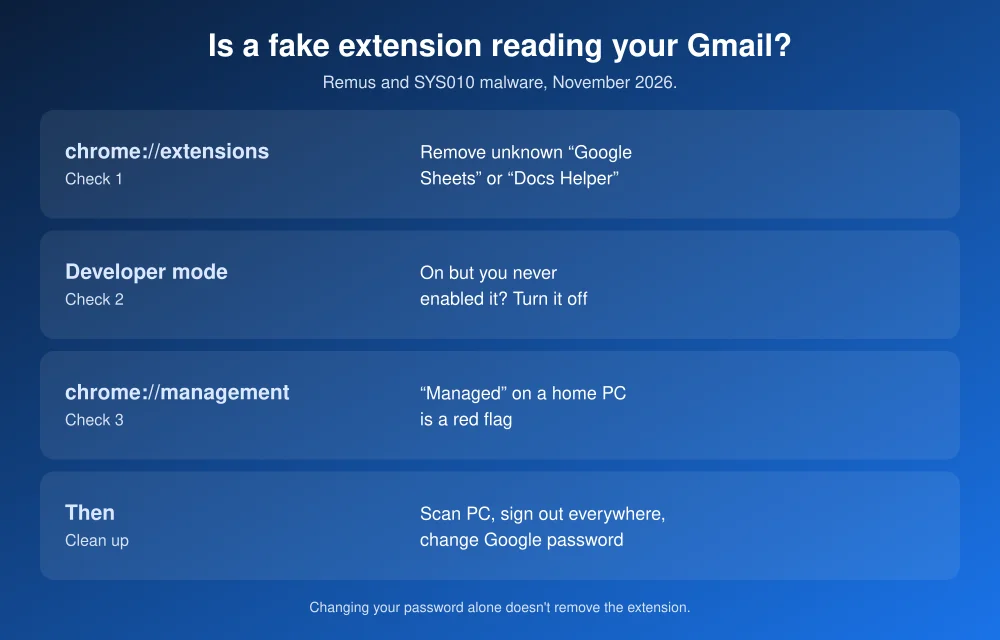
Quick answer: Open chrome://extensions and remove anything you didn’t install, especially an extension called “Google Sheets” or “Docs Helper” that isn’t from the Chrome Web Store. Check whether Developer mode is on when you never turned it on. Then open chrome://management: on a personal computer, “Your browser is managed” is a red flag. Run a malware scan, then sign out of all sessions and change your Google password from a clean device.
What’s Happening
- Remus: researchers at Gen Digital found the Remus infostealer installs a Chrome extension named “Google Sheets” that reads unread Gmail messages every minute and sends them to the attackers. It edits your Chrome profile and turns on Developer mode to load the extension, BleepingComputer reports.
- SYS010: Bitdefender Labs says fake animated wallpaper apps advertised on Facebook enroll Chrome, Edge and Firefox in attacker-controlled management. That force-installs extensions such as “Docs Helper” that can read and delete recent Gmail and Outlook messages and steal session cookies.
Step 1: Check Your Extensions
- Open Chrome and type chrome://extensions in the address bar.
- Look for extensions you don’t remember adding. Be suspicious of “Google Sheets” or “Docs Helper,” since Google’s real Docs Offline extension is the only Google document extension most people have.
- Click Details on anything suspicious. A real store extension shows “View in Chrome Web Store.”
- Click Remove on anything you don’t trust.
- Check the Developer mode switch at the top right. If it’s on and you never turned it on, turn it off.
Step 2: Check Whether Your Browser Is Managed
Google’s managed browser guide explains the steps:
- Click the three-dot menu in Chrome. If the bottom says “Managed by your organization” on a personal computer, investigate.
- Type chrome://management to see managed extensions.
- Type chrome://policy to see which policies are set.
Work and school computers are often managed on purpose. On a home PC, an unknown manager is a warning sign.
Step 3: Clean Up and Secure Your Account
- Run a full scan with Microsoft Defender or another trusted antivirus.
- Uninstall any free wallpaper apps or other software you got from an ad.
- From a clean device, go to your Google Account security page, sign out of all devices and change your password.
- Check Gmail Settings > Forwarding and Filters for rules you didn’t create.
- If the computer was managed by an unknown organization and you can’t remove it, back up your files and reset Chrome or Windows.
How to Avoid It
- Download software only from official sites, not from ads.
- Install extensions only from the Chrome Web Store.
- Don’t approve a Windows permission prompt that keeps popping up after installing a free app.
Related: how to check if your password was exposed, fix Gmail slow or not loading and fix Chrome using RAM after closing.
FAQs
Can a Chrome extension read my Gmail?
Yes. Researchers found extensions in the Remus and SYS010 campaigns that read Gmail messages in your signed-in browser.
Does changing my Google password remove it?
No. The extension stays installed. Remove it first, then change your password.
What does ‘Managed by your organization’ mean on a home PC?
Something set browser policies. If you didn’t, check chrome://management and chrome://policy.
How do I check my Chrome extensions?
Type chrome://extensions in the address bar and remove anything you don’t recognize.
Featured image: Google.
Disclosure: TheTechHacker has no paid relationship with Google, Gen Digital or Bitdefender.
More in How-to
How to Fix Gmail Slow or Not Loading (Web, Android and iPhone)
Gmail stuck on the loading screen, taking ages to open messages, or not getting new mail? On November 17, about 2,800 people reported Gmail problems on Downdetector, mostly with receiving email, according to Gagadget. Google said it wasn’t seeing “evidence of a broad Gmail service disruption,” as reported by TechCrunch. Its Workspace Status Dashboard shows…
How to Track Black Friday Price Drops and Spot Fake Discounts (Google, Chrome, Amazon)
Every Black Friday listing says “deal,” but plenty of them aren’t. A TV marked “$300 off” might have sold at the sale price for months, and a “was” price can come from a list price almost nobody paid. The good news is you don’t need a browser extension or a spreadsheet to see through it.…
How to find direct download link on a website?
Downloading games, songs, and movies common from a website. There are plenty of websites that offer such kind of entertainment stuff. But many websites make their download link complicated to find. The reason is, they fill the website with third-party ads and many ads show “Download now” or “Download here” buttons everywhere on the website.…
The week in tech, minus the noise.
New reviews, fixes and the stories that matter — once a week, straight to your inbox.
We only use your email to send the newsletter. Unsubscribe any time. See our privacy policy.
Comments