

How to find direct download link on a website?
Downloading games, songs, and movies common from a website. There are plenty of websites that offer such kind of entertainment stuff. But many websites make their download link complicated to find. The reason is, they fill the website with third-party ads and many ads show “Download now” or “Download here” buttons everywhere on the website.…

How to find direct download link on a website
Downloading games, songs, and movies common from a website. There are plenty of websites that offer such kind of entertainment stuff. But many websites make their download link complicated to find. The reason is, they fill the website with third-party ads and many ads show “Download now” or “Download here” buttons everywhere on the website.
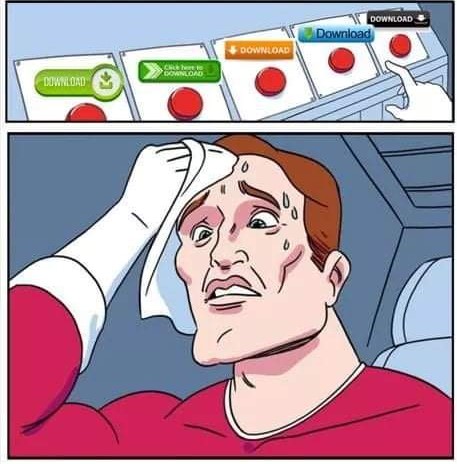
It is really like a puzzle for the user who wants to download the file from the visited website. Funnily, there are plenty of memes are been made to make fun of finding the real download button on a website. Identifying the real download button is a bit tricky task. In this article, we will find out how to identify the direct download link on a website.
We always advise our audience to use the adblocker add-on or extension on their browser. First, these adblockers will block all the unwanted advertisements on a website. There are plenty of the finest adblockers available for both Google Chrome and Firefox. Here are a few you can start with.
1. Adblock Plus – free ad blocker.
Adblock Plus – free ad blocker is the best adblocker extension available for Google Chrome. It is capable of blocking pop-up which contains fake download buttons and annoying video ads ad banners. It also protects your privacy by blocking trackers on your browser.
2. Privacy Badger
Privacy Badger is a very popular extension of the Electronic Frontier Foundation. It will opt out the unwanted data sharing and unwanted ads on your browser.
How to find a real download button on a website?
As I said above, it is a bit tricky to identify the real download button. But the process will be much easier after blocking al the unwanted ads using the above extensions.
You can find the direct download link or button using this simple trick. Place the mouse pointer on the download link or button and check the bottom left corner of the window to check the URL. This URL inspection will tell whether the download link or button is real or fake.
In the URL you must check the words in it. For example, if the URL contains terms like ads, google ad services, or any third-party company name then it is a fake download button.
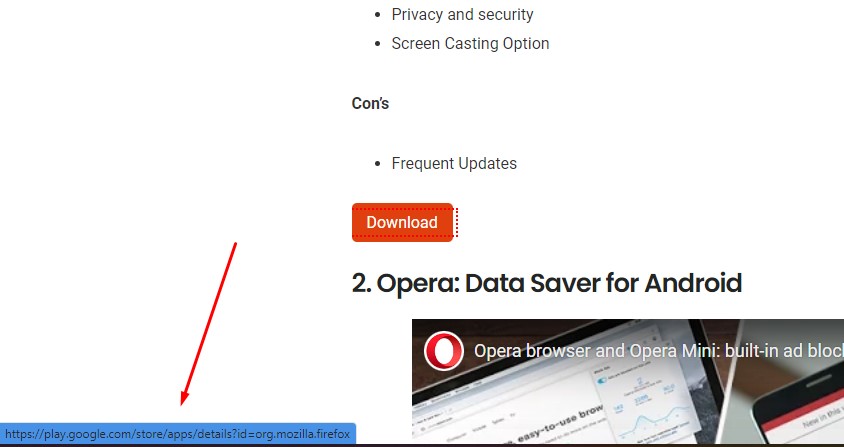
If the link shows the name of the file you want to download or the same domain name, then it will be the real download link.
This trick works on almost all browsers on all OS platforms.
Let me know your thoughts about this article and have you found the real download link after reading the article in the comment section below.
More in How-to

How to Convert Direct Download Link to Torrent
Downloading files with torrent clients are always an easy task than downloading them from the direct URL’s which may be broken or stop responding at the middle of the download process. The normal downloads can’t be resumed from the stopped position if it was stopped accidently and it will tempt to start the process from the beginning.…
How to Download Google PlayStore Apps Directly to PC
Happy to say that the Android is my favorite platform as yours. The acrobatic features of it have a definitive hand in fulfilling the thousands of needs of the users. The Google OS is chosen by the world population to power their devices with its extreme security and versatility. Nevertheless to say that the Android…
How to Launch Chrome Directly in Incognito Mode
Incognito Mode in Google Chrome is very useful in many aspects. It hides all the user browsing data including browsing history, cookies, download history, etc. as well as protecting you from being tracked by websites and services. If you even wanted to turn on the Incognito mode in Chrome, just pressing Control+Shift+N for Windows and Linux, Command+Shift+N…
The week in tech, minus the noise.
New reviews, fixes and the stories that matter — once a week, straight to your inbox.
We only use your email to send the newsletter. Unsubscribe any time. See our privacy policy.
Comments