

How to Turn Off Automatic Subtitles in iOS 27 on iPhone
After updating to iOS 27, many iPhone owners noticed subtitles showing up on videos they never turned on. This is a new Automatic Subtitles feature, and you can switch it off for good in Settings. Now in this article, I will show how to turn off automatic subtitles in iOS 27, and how to keep…

iOS 27 Automatic Subtitles
After updating to iOS 27, many iPhone owners noticed subtitles showing up on videos they never turned on. This is a new Automatic Subtitles feature, and you can switch it off for good in Settings.
Now in this article, I will show how to turn off automatic subtitles in iOS 27, and how to keep only the parts you want.
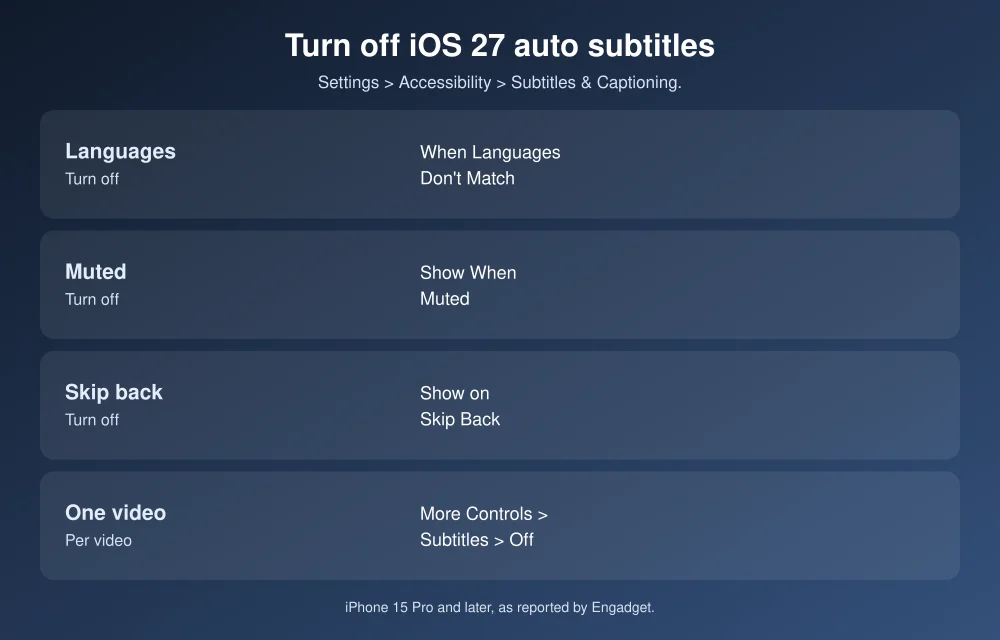
Quick answer: Go to Settings > Accessibility > Subtitles & Captioning > Automatic Subtitles and turn off When Languages Don’t Match, Show When Muted and Show on Skip Back. To hide subtitles on one video, tap the video, open More Controls, tap Subtitles and choose Off. Automatic Subtitles works on the iPhone 15 Pro and later, Engadget reports.
Getting Started
Make sure your iPhone is on the latest iOS 27 update in Settings > General > Software Update. The feature applies to Apple’s video player and apps that use it.
When Do Automatic Subtitles Turn On?
- Your iPhone is muted while a video plays.
- You skip back in a video, so you can catch what you missed.
- The video’s language doesn’t match your iPhone’s preferred language.
This is separate from closed captions that come with a video, which were always optional.
How to Turn Off Automatic Subtitles for Good
- Open Settings.
- Tap Accessibility.
- Tap Subtitles & Captioning.
- Tap Automatic Subtitles.
- Turn off When Languages Don’t Match, Show When Muted and Show on Skip Back.
If you leave any one toggle on, subtitles will still appear in that situation. For example, keep Show When Muted on if you often watch with the sound off in public.
How to Turn Off Subtitles on One Video
- Tap the video to show the playback controls.
- Tap More Controls (the three dots).
- Tap Subtitles, then Off.
This only works for that video. Subtitles can come back on the next one, which is why the Settings fix is better.
Subtitles Still Showing?
- Check the app’s own settings. Apps like YouTube and Netflix have their own caption controls.
- Close and reopen the app after changing the setting.
- Text burned into the video can’t be turned off. It’s part of the picture.
- Check again after updates. Engadget suggests reviewing these toggles after each iOS update.
Apple’s iPhone User Guide covers more subtitle and caption options, and Apple’s iOS page lists what’s new in iOS 27. Also see how to get the old screenshot thumbnail back, how to turn on Dark Mode automatically and how to change Liquid Glass to tinted.
That’s all for now. Please do share your views and feedback in the comment box below.
FAQs
Why are subtitles turning on by themselves in iOS 27?
iOS 27 adds Automatic Subtitles, which turn on when your iPhone is muted, when you skip back or when the video language doesn’t match yours.
Where is the Automatic Subtitles setting?
Settings > Accessibility > Subtitles & Captioning > Automatic Subtitles.
Which iPhones have Automatic Subtitles?
The iPhone 15 Pro and later running iOS 27, Engadget reports.
Does this turn off captions in YouTube or Netflix?
No. Those apps have their own caption settings.
Featured image: Apple.
Disclosure: TheTechHacker has no paid relationship with Apple.
More in How-to
How to Turn On Dark Mode Automatically on iPhone in iOS 27
Dark mode is one of the most used features on the iPhone. It’s easy on the eyes at night, and it looks good too. But many people turn it on by hand every evening and forget to turn it off in the morning. Your iPhone can do this by itself. It can follow the sunset…
How to Enable or Disable Automatic Updates for iOS Apps
IOS app updates are always useful for keeping IOS apps up to date. You don’t want to pay attention to the app updates until you turn off the automatic updates. Turning on the automatic updates will assign the job to the iPhone itself. This great future may sometimes hit you badly, especially if you are…
How to Fix iOS 27 Battery Drain on iPhone (Turn Off Connectivity Assist)
If your iPhone battery has been draining faster since iOS 27, one new setting is worth checking first: Connectivity Assist. It replaced Wi-Fi Assist in iOS 27, and Apple’s Connectivity Assist page says it “uses cellular data alongside Wi-Fi” when your Wi-Fi is slow. If you had Wi-Fi Assist on, it’s turned on automatically. iDrop…
The week in tech, minus the noise.
New reviews, fixes and the stories that matter — once a week, straight to your inbox.
We only use your email to send the newsletter. Unsubscribe any time. See our privacy policy.
Comments