

How To Remove or Disable Login Password From Windows 8
Windows 8 is a current-trending operating system from Microsoft. For security and multi-user purposes, Microsoft set password security for Windows 8. The user needs to enter a password whenever he wants to log into the system; practically, it is good for security. Let’s see the easy enable and disable options of this feature. In the…

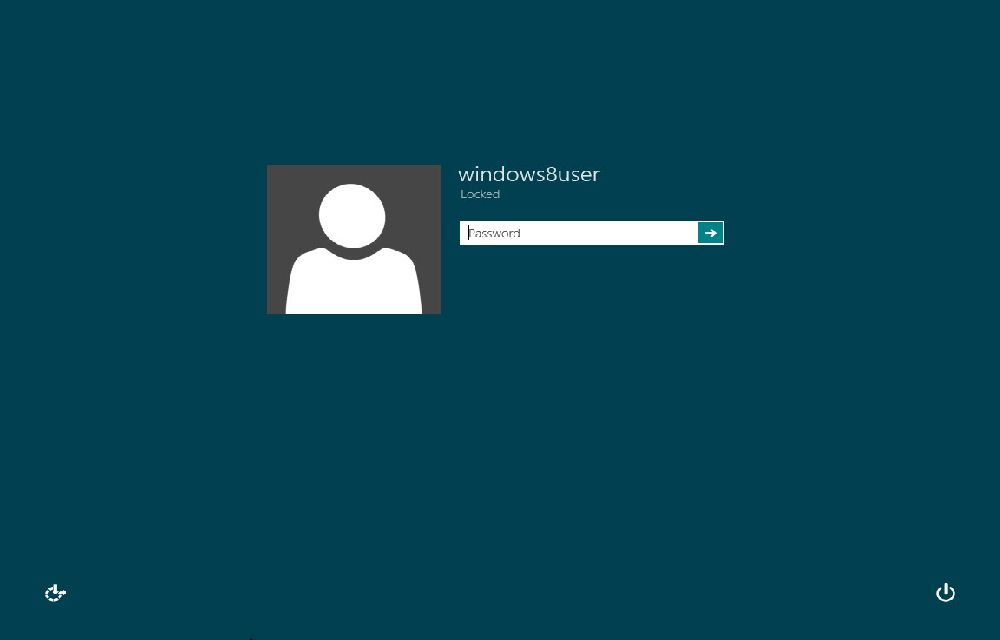
How To Remove or Disable Login Password From Windows 8
Windows 8 is a current-trending operating system from Microsoft. For security and multi-user purposes, Microsoft set password security for Windows 8. The user needs to enter a password whenever he wants to log into the system; practically, it is good for security. Let’s see the easy enable and disable options of this feature. In the installation setup, you’ll be asked to enter your Hotmail or Live Mail user credentials. After Windows installation, you need to enter the ID and password whenever you log into the Windows machine. This step can prevent unauthorized persons checking your PC or laptop.
This means, that during the installation setup, users are required to enter Hotmail or Live Mail user credentials. Post-installation, the system prompts for the ID and password with every log-in, serving as a deterrent against unauthorized access.
While Microsoft aims to fortify security and privacy, this feature can be bothersome for individual users. Having to input a password each time you power up your computer can be tedious. Forgetting the password can escalate into a challenging account recovery process. It’s important to note that removing the password doesn’t eliminate it entirely; instead, it bypasses the step during system startup.
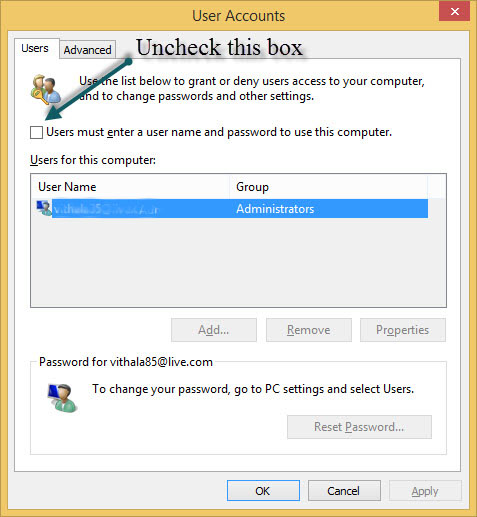
How to Remove or Disable the Login Password in Windows 8: A Simple Method
- Log in to your Windows 8 with administrator privileges.
- Open the command prompt and type “netplwiz”.
- Uncheck the box below and click Apply > OK.
- Confirm the settings by entering the password twice and restart your computer to witness the effect.
Henceforth, you won’t be required to enter a username and password with every Windows 8 login. It’s essential to understand that while removing or disabling the login entry may seem convenient, it poses a potential security risk.
Your thoughts and feedback on this article are valuable. Feel free to share your views and suggestions in the comments section below.
More in How-to
How To Disable Login Screen In Windows 10
Microsoft builds every Windows version bind to Windows Live Account. Starting from Windows 8 to Windows 10, Microsoft made logging with live account must for their users when you do a fresh install. The user needs to log in every time when they reboot or switch between accounts. It is useful to secure your PC…

Locking and Unlocking Mac or PC With USB Drive
When you work with Mac or Windows-based laptop, you need to secure your system against hackers and thieves. Hence, you should lock and unlock the system appropriately. You can perform locking and unlocking using USB Drive with the help of third-party software such as Rohos Key Logon.

How to add, remove, delay startup items on Mac?
Once you start adding new apps to your Mac some of them will enter into the startup items. These apps launch automatically in the background when the Mac boot up. If the number of startup items increases, you feel slow down of your startup time. To get rid of this issue, you need to manually…
The week in tech, minus the noise.
New reviews, fixes and the stories that matter — once a week, straight to your inbox.
We only use your email to send the newsletter. Unsubscribe any time. See our privacy policy.
Comments