

Best Remote Access Software for Small Business IT (2026): Splashtop vs TeamViewer vs AnyDesk vs RealVNC
Every small business eventually hits the same moment: the one person who knows how to fix the accounting PC is at home, the office is closed, and payroll has to go out tonight. Remote access software turns that from a car ride into a two-minute fix. It also lets a part-time IT contractor support ten…


Photo by Vitaly Gariev on Unsplash
Every small business eventually hits the same moment: the one person who knows how to fix the accounting PC is at home, the office is closed, and payroll has to go out tonight. Remote access software turns that from a car ride into a two-minute fix. It also lets a part-time IT contractor support ten people without visiting, and lets staff reach their office desktop from a home laptop without copying files around.
The catch is that remote access tools are also a favorite of scammers and attackers, so the cheapest or most familiar option isn’t automatically the right one. I compared five widely used tools using their official sites and pricing pages in November 2026, with a focus on what a US business with 5 to 100 people actually needs: unattended access to company PCs, quick help desk sessions, and controls that keep strangers out.
Quick answer: For reaching your own computers, Splashtop Remote Access starts at $72 a year for one person (Solo), and RealVNC Connect Essentials is $105 a year for up to three devices. Chrome Remote Desktop is free and fine for a handful of machines without central management. For help desk work across many PCs, look at Splashtop SOS, TeamViewer’s business plans or AnyDesk’s Standard and Advanced tiers, but get current US pricing from TeamViewer and AnyDesk directly because both quote by region.
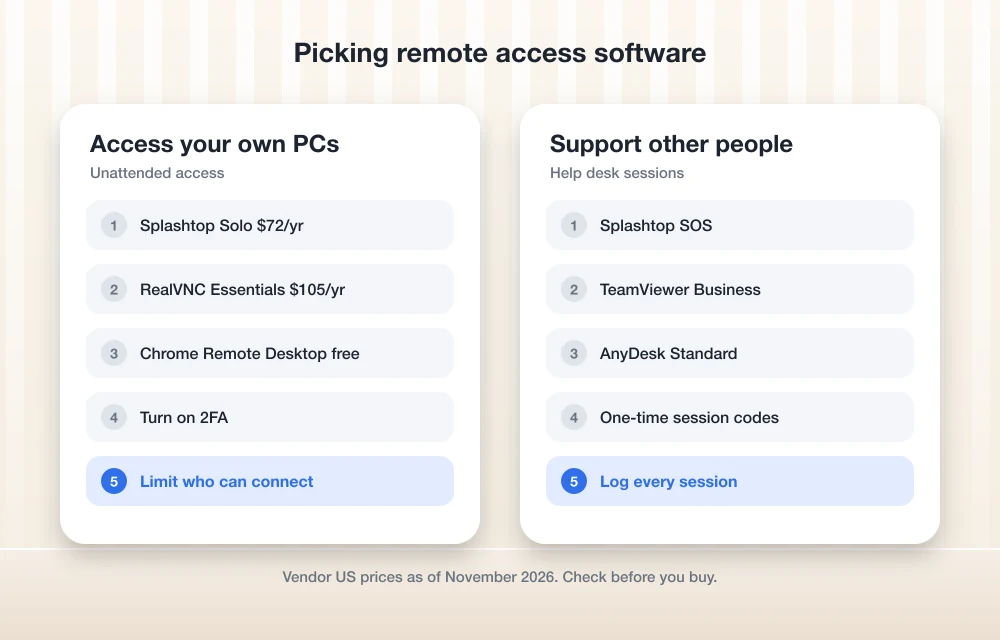
Two Jobs That Look Alike but Aren’t
Before comparing brands, figure out which of these you’re actually buying for. Vendors price them differently.
- Remote access (unattended): you connect to your own computers, such as an office workstation or a server in a closet, with no one sitting at the other end. Pricing is usually per user, with a cap on how many computers you can reach.
- Remote support (attended): a technician connects to someone else’s device to fix a problem, usually after the person reads out a one-time code. Pricing is usually per concurrent technician.
Many small offices need a bit of both. If you’re a two-person shop, a remote access plan alone is often enough. If you run a help desk, even a small one, the support-oriented plans save time with session codes, logging and device grouping.
The 5 Tools on the Shortlist
1. Splashtop: Best Published Pricing for Small Teams
Splashtop lists clear US prices on its official pricing page, which makes budgeting easy. For remote access, Solo is $72 a year for an individual, Pro is $99 per user per year for individuals and small teams, and Performance is $149 per user per year with extra features. An Enterprise tier is priced through sales.
For help desk work, Splashtop SOS starts from $22 per month per concurrent technician license and is built for attended sessions. Splashtop offers free trials on its main plans, so you can check connection quality on your own network before paying.
Good fit: small businesses and solo IT contractors who want a known yearly cost. Watch for: the difference between remote access and SOS plans, which are sold separately.
2. TeamViewer: Best Known, With Broad Business Plans
TeamViewer is the name most people recognize, and its business plans (sold as TeamViewer Remote, with Remote Access, Business, Premium and Corporate tiers) cover both unattended access and support. According to TeamViewer’s pricing page, only the expert starting a session needs a license; the person being helped doesn’t. Plans are annual subscriptions that renew automatically unless you cancel at least 28 days before the term ends, which is worth putting on your calendar.
TeamViewer shows different prices by country and has listed different figures across its own pages, so check its US pricing page or License Assistant for the current number before you budget. The free version is for personal, non-commercial use only, and TeamViewer says it can block IDs it suspects of commercial use.
Good fit: companies that support customers and employees on many platforms. Watch for: auto-renewal terms and the tier limits on managed devices and concurrent sessions.
3. AnyDesk: Best Lightweight Client for Mixed Setups
AnyDesk sells Solo, Standard, Advanced and Ultimate tiers, with the higher tiers adding more managed devices for unattended access and more admin controls. AnyDesk’s support documentation says subscriptions are billed annually, with the full year paid upfront, and its pricing page advertises discounts for multi-year terms.
AnyDesk’s prices vary by region and change with promotions, so confirm the current US price on anydesk.com before you buy. AnyDesk also sells an on-premises version for companies that can’t route sessions through a vendor’s cloud.
Good fit: teams that want a small, fast client and may need on-premises deployment later. Watch for: annual upfront billing and first-year-only discounts.
4. RealVNC Connect: Best for Device-Based Plans
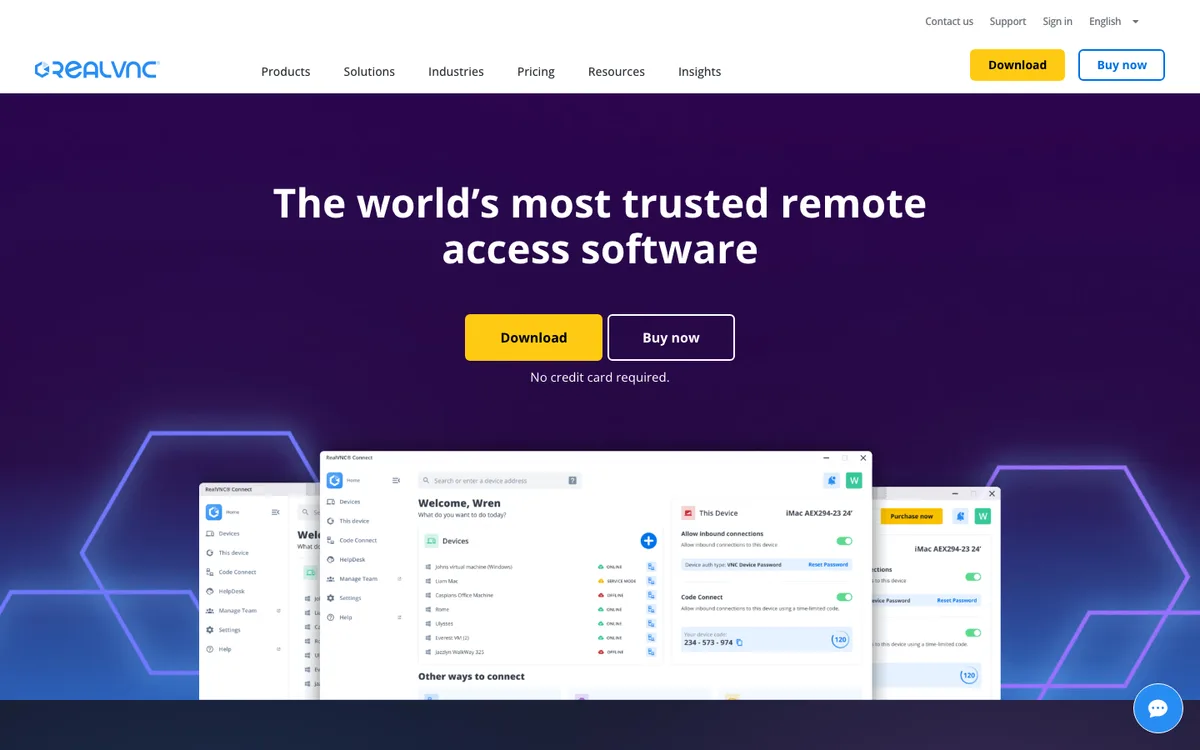
RealVNC prices by device count and active connections, which suits offices with a fixed set of machines. Its pricing page lists:
- Essentials: $8.75 per month billed annually ($105 a year), 3 devices, 1 active connection.
- Plus: $18.25 per month billed annually ($219 a year), 50 devices, up to 3 active connections, plus user roles and session recording.
- Premium: $29.75 per month billed annually ($357 a year), 150 devices, up to 5 active connections, plus custom permissions and audit logs.
- Enterprise: custom pricing with on-premises deployment and single sign-on.
RealVNC also has a free Lite plan, but it’s limited to non-commercial use on up to three personal devices, so it isn’t an option for a business. Paid plans include up to 256-bit AES encryption and access to Windows, macOS, Linux and Raspberry Pi OS machines.
Good fit: offices, labs and shops with a known number of computers, including Linux and Raspberry Pi devices. Watch for: the active connection limit if several technicians work at once.
5. Chrome Remote Desktop: Best Free Option for a Few Machines
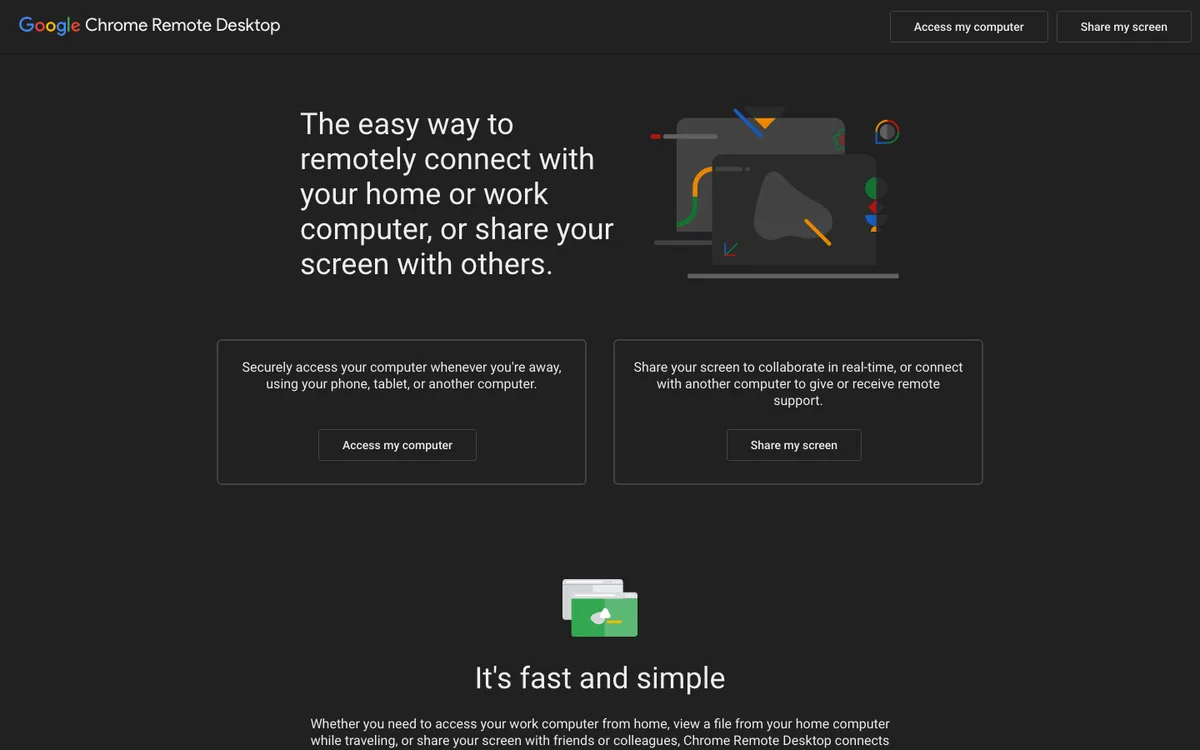
Google’s Chrome Remote Desktop is free and works on Windows, Mac and Linux computers, with apps for phones and tablets. Google’s help page describes two modes: remote access, where you install the host app on your own computer and connect with a PIN, and remote support, where the person needing help generates a one-time code. During a support session, the person sharing is asked every 30 minutes to confirm they want to continue.
What it lacks is central management. There’s no admin console for groups of users, no session logs for audits and no per-technician controls. Google also notes that administrators of managed work accounts can block it. For a three-person office, that’s fine. For anything bigger, a paid tool pays for itself in control.
Good fit: very small teams and occasional access to one or two PCs. Watch for: no audit trail or user management.
How They Compare
| Tool | Starting US price | Best for | Free option |
|---|---|---|---|
| Splashtop | $72/yr (Solo); $99/user/yr (Pro) | Small teams, IT contractors | Free trial |
| TeamViewer | Check TeamViewer’s US pricing page | Multi-platform support | Personal, non-commercial use only |
| AnyDesk | Check AnyDesk’s US pricing page | Lightweight client, on-prem option | Check AnyDesk’s site |
| RealVNC Connect | $105/yr (Essentials, 3 devices) | Fixed device fleets, Linux | Lite, non-commercial only |
| Chrome Remote Desktop | Free | A few machines, no admin console | Yes |
Prices are from each vendor’s official site as checked in November 2026 and may change.
Lock It Down Before You Turn It On
Remote access is a door into your network, so treat setup as a security job rather than an install:
- Require two-factor authentication on every account that can start a session.
- Don’t expose Windows Remote Desktop (port 3389) directly to the internet. If you rely on built-in RDP, put it behind a VPN or gateway, and if it acts up, our guide to fixing Remote Desktop error 0xC000000D covers a common failure.
- Use allow lists so only your company’s accounts or devices can connect to unattended machines.
- Turn on session logging and recording where your plan includes it.
- Tell staff that you will never call them out of the blue asking them to install a remote tool. Fake tech support pop-ups use exactly this trick, as our article on “your computer has been locked” scam pop-ups explains.
Connection quality depends on your upload speed at the office end. If sessions feel laggy, it’s often the line rather than the software, and our comparison of business internet providers in the US looks at fiber options with faster uploads.
FAQs
What is the cheapest remote access software for a small business?
Chrome Remote Desktop is free but has no central management. Among paid tools with published US prices, Splashtop Solo is $72 a year and RealVNC Connect Essentials is $105 a year for up to three devices.
Can I use the free version of TeamViewer for my business?
No. TeamViewer’s free version is for personal, non-commercial use. Business use requires a paid license, and TeamViewer’s plans are annual subscriptions that renew automatically unless canceled at least 28 days before the term ends.
What’s the difference between remote access and remote support?
Remote access means connecting to your own computers, often with nobody at the other end. Remote support means a technician connects to someone else’s device to help them, usually using a one-time code, and is often priced per concurrent technician.
Is remote access software safe?
It can be, if you turn on two-factor authentication, restrict who can connect, keep the software updated and log sessions. Never install a remote tool because an unexpected caller or pop-up told you to.
Disclosure: TheTechHacker has no paid relationship with Splashtop, TeamViewer, AnyDesk, RealVNC, Google or any company mentioned here.
Featured image: Vitaly Gariev on Unsplash.
You might also like

Best Android RDP clients to make remote connections
An RDP client makes a remote connection to access the other devices at any location. It is a worthy service when you are traveling and no need to carry your personal desktop to access the data on your computer. You just need to make a remote connection to access all your files easily. Another great…

10 Best Remote Access Software for PC
Remote access is useful for many things, for example, if you want to help someone who lives miles away, or if you want to take control of your PC when you are far away from it. But what does remote access actually mean? Well, it means that what you are thinking; controlling someone else’s PC…

Best retail POS Softwares for your business
(POS) Software or Point of Sale Software helps you manage accounts, payments, invoices, inventory, and many more things for a small to scaled business. It further helps in automation of information processing and reduces extra labor cost. A small business like food chains, shops, drug-stores, general stores, or any other shopping mall, or an e-commerce…
The week in tech, minus the noise.
New reviews, fixes and the stories that matter — once a week, straight to your inbox.
We only use your email to send the newsletter. Unsubscribe any time. See our privacy policy.
Comments