

Thanksgiving Tech Checklist: Set Up Your Parents’ Phones in One Visit
Thanksgiving is often the one weekend a year you’re sitting next to your parents with their phone in your hand. Use it well. In about 30 minutes you can make their iPhone or Android phone safer, easier to read, easier to recover if it’s lost, and much harder for scammers to exploit. This checklist puts…

Image: Apple
Thanksgiving is often the one weekend a year you’re sitting next to your parents with their phone in your hand. Use it well. In about 30 minutes you can make their iPhone or Android phone safer, easier to read, easier to recover if it’s lost, and much harder for scammers to exploit. This checklist puts the highest-value settings first, with the exact menu paths for iPhone, Pixel and Samsung as they appear on current software.
Quick answer: In one visit, do these eight things on your parent’s phone: 1) install the latest update (iOS 27.2.1 or the newest Android update), 2) add yourself as a Recovery Contact and Legacy Contact on iPhone, 3) fill in Medical ID or Android emergency info and turn on Emergency SOS, 4) turn on Screen Unknown Callers (iPhone), Call Screen (Pixel) or spam blocking (Samsung), 5) set up location sharing with their permission, 6) confirm a recent iCloud or Google backup, 7) make the text bigger, and 8) agree on how to verify an “emergency” call before sending money.
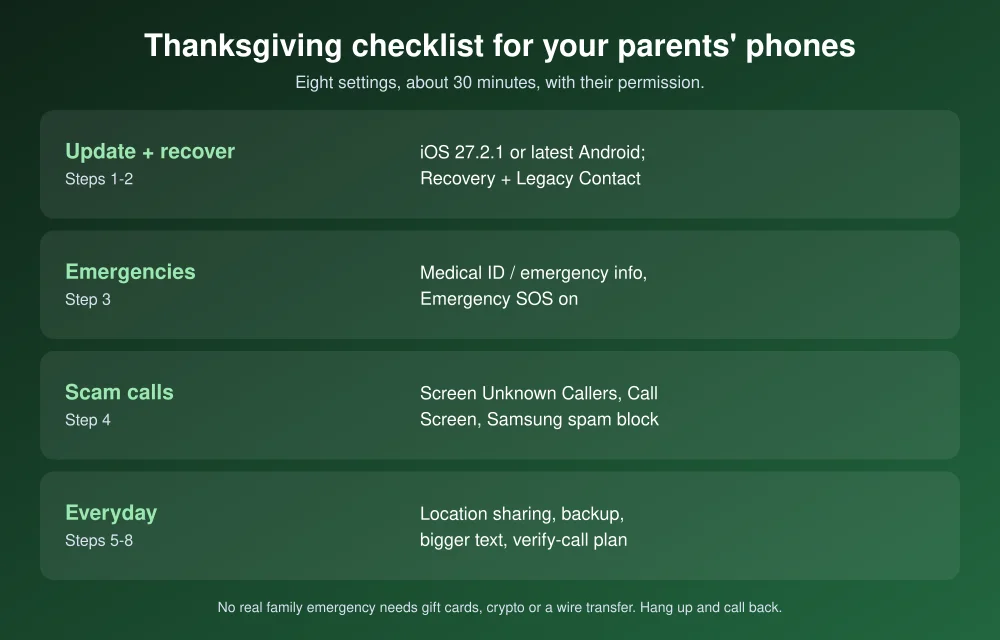
Before you start
- Ask first. It’s their phone. Explain each change, especially location sharing, and only turn on what they agree to.
- Have them unlock it. Several steps need their passcode and Apple Account or Google Account password. Let them type it.
- Plug it in and join Wi-Fi. Updates and backups need both.
1. Install the latest update
Updates fix security holes that scammers actively use. Apple’s security releases page lists iOS 27.2.1 (November 9, 2026) as the latest for iPhone 11 and later. Older iPhones got iOS 26.7.3 or iOS 18.7.12 the same day.
- iPhone: Settings > General > Software Update > Download and Install. If it won’t show up, see how to fix the iOS 27.2 update not showing.
- Android: Settings > System > Software updates. Also check Settings > About phone > Android version for the Google Play system update.
- Samsung: Settings > Software update. Samsung’s menus vary by carrier and model.
2. Add yourself as a Recovery Contact and Legacy Contact (iPhone)
This is the setting families most often wish they’d done. If your parent forgets their Apple Account password, a Recovery Contact can give them a code to get back in. You never see their data. A Legacy Contact can request access to their photos, messages and files if they pass away. Without one, Apple’s process is much harder.
- Recovery Contact: Settings > [their name] > Sign-In & Security > Recovery Contacts > Add Recovery Contact. You both need iOS 15 or later. (Apple)
- Legacy Contact: Settings > [their name] > Sign-In & Security > Legacy Contact > Add Legacy Contact. You don’t need an Apple device. Save the access key Apple gives you somewhere safe. (Apple)
On Android, add a recovery phone number and recovery email in their Google Account settings so they can get back in if they’re locked out.
3. Fill in emergency info and turn on Emergency SOS
iPhone Medical ID: Health app > Summary > profile picture > Medical ID > Edit. Add medications, allergies and conditions, then tap + Add Emergency Contact. Turn on Show When Locked so paramedics can see it, and Share During Emergency Call (US and Canada). (Apple)
iPhone Emergency SOS: Settings > Emergency SOS. Turn on Call with Hold and Release and Call with 5 Presses. Show your parent how it works: hold the side button and a volume button, or press the side button five times. Their emergency contacts get a text with their location.
Pixel: Open the Safety app > Your info to add medical information and emergency contacts, and turn on Show when locked. Then go to Settings > Safety & emergency > Emergency SOS > Start setup. Pressing the power button five or more times triggers it.
Samsung: Settings > Safety and emergency. Fill in Medical info and Emergency contacts, and turn on Emergency SOS (five presses of the side button).
4. Cut off scam and spam calls
- iPhone: Settings > Apps > Phone > Screen Unknown Callers. Ask Reason for Calling is the best fit for most parents: unknown callers have to say who they are before the phone rings. Choose Silence for a stricter filter. Calls from saved contacts ring as normal. (Apple)
- Pixel: Phone app > More > Settings > Spam and Call Screen > Call Screen. Set it to screen spam, possibly faked numbers and first-time callers automatically. (Google)
- Samsung: Phone app > three dots > Settings > Caller ID and spam protection > Block spam and scam calls. Pick Only block high-risk scam calls if blocking everything catches real calls from doctors.
Before you turn on screening, save the numbers that matter to them: doctors, pharmacy, bank, neighbors. Otherwise those calls get filtered too.
5. Set up location sharing (with permission)
- iPhone with Family Sharing: Settings > Family > Location Sharing, then pick who can see it.
- iPhone without Family Sharing: Find My > People > choose you > Share My Location.
- Android: Google Maps > profile picture > Location sharing > New share > Until you turn this off > choose you. Google’s Family Link is built for children, so Maps sharing is the right tool for adults.
Show your parent how to stop sharing at any time, so it stays their choice.
6. Check that the phone is backed up
- iPhone: Settings > [their name] > iCloud > iCloud Backup. Turn on Back Up This iPhone, tap Back Up Now, and check the date under it. If the 5GB free storage is full, a 50GB iCloud+ plan is the usual fix. To protect WhatsApp chats separately, see WhatsApp backup options on iPhone.
- Android: Settings > Google > All services > Backup and restore, then tap Back up now. (Google)
7. Make everything easier to read
- iPhone (iOS 27): Settings > Appearance > Text Size, and turn on Bold Text. For bigger icons and buttons too, use Display Zoom > Larger Text. For an even simpler phone, Settings > Accessibility > Assistive Access gives a big-button home screen with only the apps they choose. Set its recovery Apple Account, or a forgotten Assistive Access passcode means resetting the iPhone.
- Android: Settings, search “Font size” and “Display size”, and move both sliders up.
- Samsung: Settings > Display > Easy mode turns on larger icons and a simpler layout.
8. Agree on how to handle an “emergency” call
Scammers call grandparents pretending to be a grandchild in jail or a hospital, and the FTC warns that AI can now clone a family member’s voice. The FTC’s advice is to slow down, hang up, and call back on a number you know is right, even if the caller begs for secrecy. Asking a personal question only the real person would know helps too.
Make it concrete over dinner:
- Many families set a code word that a real family member would always know. It’s a common tip, simple to remember, and hard for a stranger to guess.
- Tell them plainly: no one in the family will ever ask for gift cards, crypto, wire transfers or a payment app in an emergency. Those are scam signs.
- Show them how to report a scam at reportfraud.ftc.gov.
Pop-ups that claim the computer is infected are another favorite. Our guide to getting rid of tech support scam pop-ups is worth showing them. With Black Friday this week, also go through how to check if an online store is legit together.
FAQs
What should I set up on my parents’ iPhone?
Start with the latest iOS update, a Recovery Contact and Legacy Contact, Medical ID with Emergency SOS, Screen Unknown Callers, location sharing, a recent iCloud backup and larger text.
What is a Recovery Contact on iPhone?
A trusted person who can give you a code to regain access to your Apple Account if you’re locked out. They can’t see your data. Add one in Settings, under your name, then Sign-In & Security.
How do I stop spam calls on my parents’ phone?
On iPhone, turn on Screen Unknown Callers in Settings > Apps > Phone. On Pixel, set Call Screen to screen calls automatically. On Samsung, turn on Caller ID and spam protection in the Phone app’s settings.
How can I see my parent’s location on Android?
With their permission, open Google Maps on their phone, tap their profile picture, choose Location sharing, then New share, and share with you until they turn it off.
Featured image: Apple.
Disclosure: TheTechHacker has no paid relationship with Apple, Google, Samsung or any company mentioned here. Menu paths were checked on official support pages on November 22, 2026, and can vary by model and carrier.
More in Guides
Technical SEO Checklist for Non-Developers
Technical SEO has a reputation problem. The name alone can make bloggers, marketers, and small-business owners think they need a developer, server access, and a working knowledge of HTML before they can even begin. In reality, a large part of technical SEO is much less intimidating. You don’t always need to write code or understand…
Black Friday 2026 Tech Buying Guide: What’s Worth Buying and What to Skip
Black Friday 2026 is November 27, eight days after GTA 6 launches. Here’s my practical guide to which phones, laptops, consoles, storage, earbuds, smart home gear and TVs are worth buying, and how to avoid fake discounts.

Can You Play Fortnite on a School or College Network? What’s Allowed
If you have ever tried to launch Fortnite on a school or college network and found it blocked, you are not alone. Lots of students search for ways to unblock Fortnite at school. But before you try anything, it helps to understand why the game is blocked and what is actually allowed. In this guide,…
The week in tech, minus the noise.
New reviews, fixes and the stories that matter — once a week, straight to your inbox.
We only use your email to send the newsletter. Unsubscribe any time. See our privacy policy.
Comments