

How to Make Text Bigger and Bolder on iPhone in iOS 27
iPhone screens are getting bigger, but the text on them is not. Reading a long message or an email on a small font is tiring, mainly at night or when you don’t have your glasses nearby. Many people pinch and zoom each page without knowing that the iPhone has three different settings for this. You…

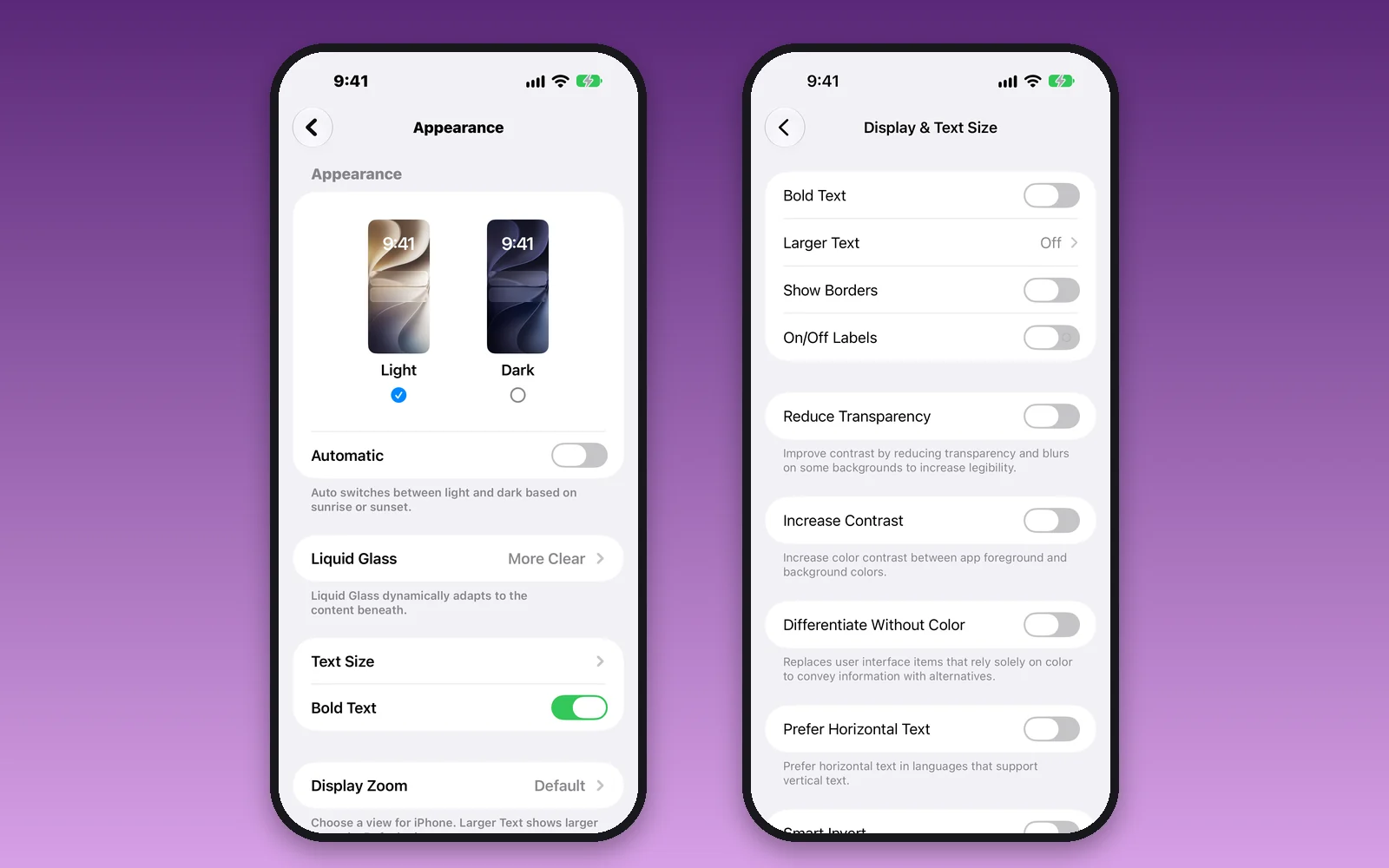
Screenshots: TheTechHacker
iPhone screens are getting bigger, but the text on them is not. Reading a long message or an email on a small font is tiring, mainly at night or when you don’t have your glasses nearby. Many people pinch and zoom each page without knowing that the iPhone has three different settings for this. You can make the text larger, make it bold, or zoom the whole display.
In iOS 27, Apple moved these options to a new place. Now in this article, I will show where they are and how to use each one.
Quick answer: On iOS 27, go to Settings > Appearance. Tap Text Size and drag the slider to the right for bigger text. Turn on Bold Text on the same screen for thicker letters. Tap Display Zoom > Larger Text to make everything bigger. For the biggest sizes, go to Settings > Accessibility > Display & Text Size > Larger Text and turn on Larger Accessibility Sizes.
Getting Started
These steps are from iOS 27.2. Setting up a parent’s phone? You can do all of this in two minutes.
How to Make Text Bigger on iPhone
- Open Settings and tap Appearance.
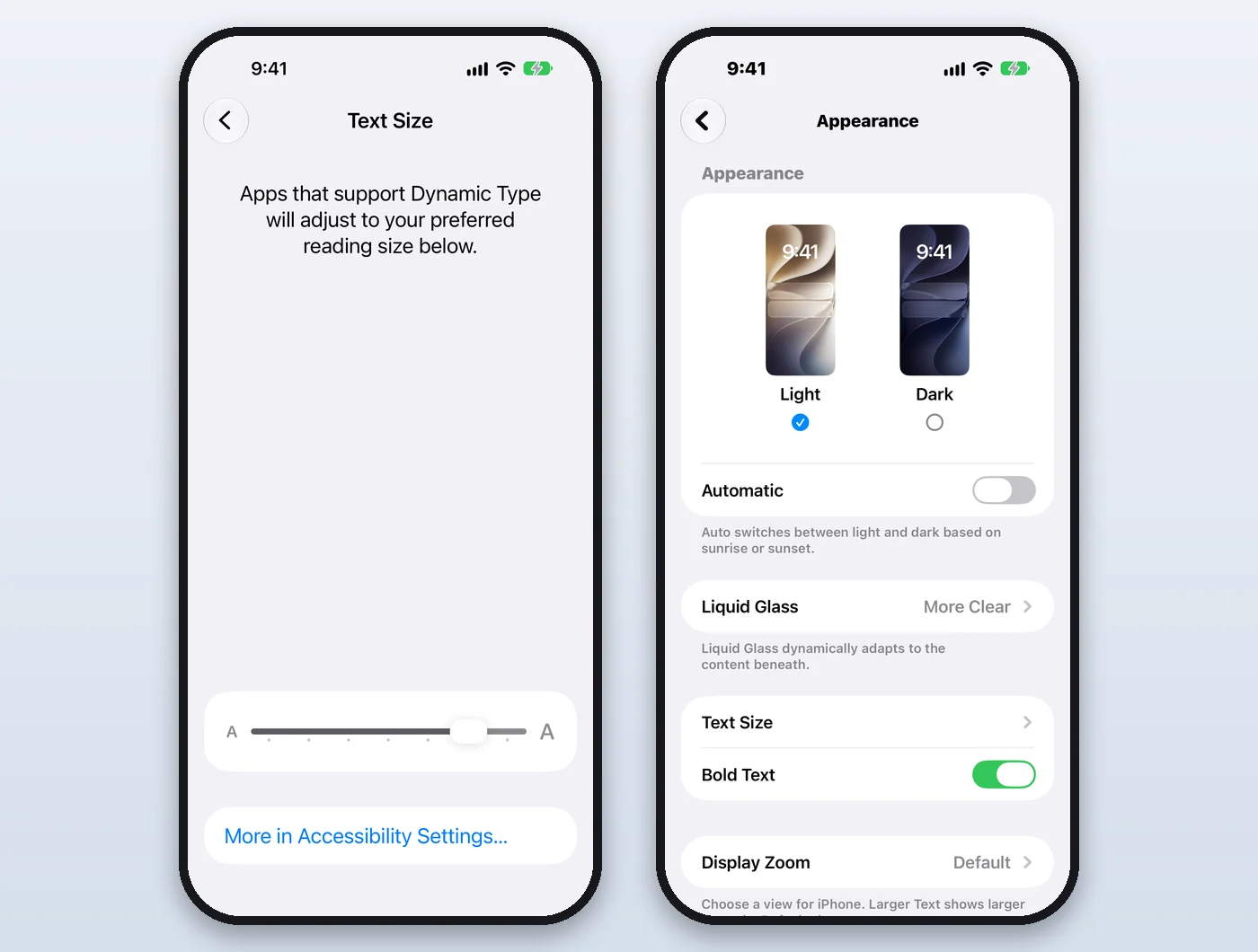
- Tap Text Size.
- Drag the slider to the right to make the text bigger. The sentence on the screen changes as you drag.
It works in apps that support Dynamic Type, which includes Apple’s own apps and many others.
How to Turn On Bold Text
- Go to Settings > Appearance.
- Turn on Bold Text. The letters get thicker right away.
How to Use the Largest Text Sizes
If the normal slider isn’t enough, Accessibility has bigger sizes.
- Go to Settings > Accessibility > Display & Text Size.
- Tap Larger Text.
- Turn on Larger Accessibility Sizes, then drag the slider.
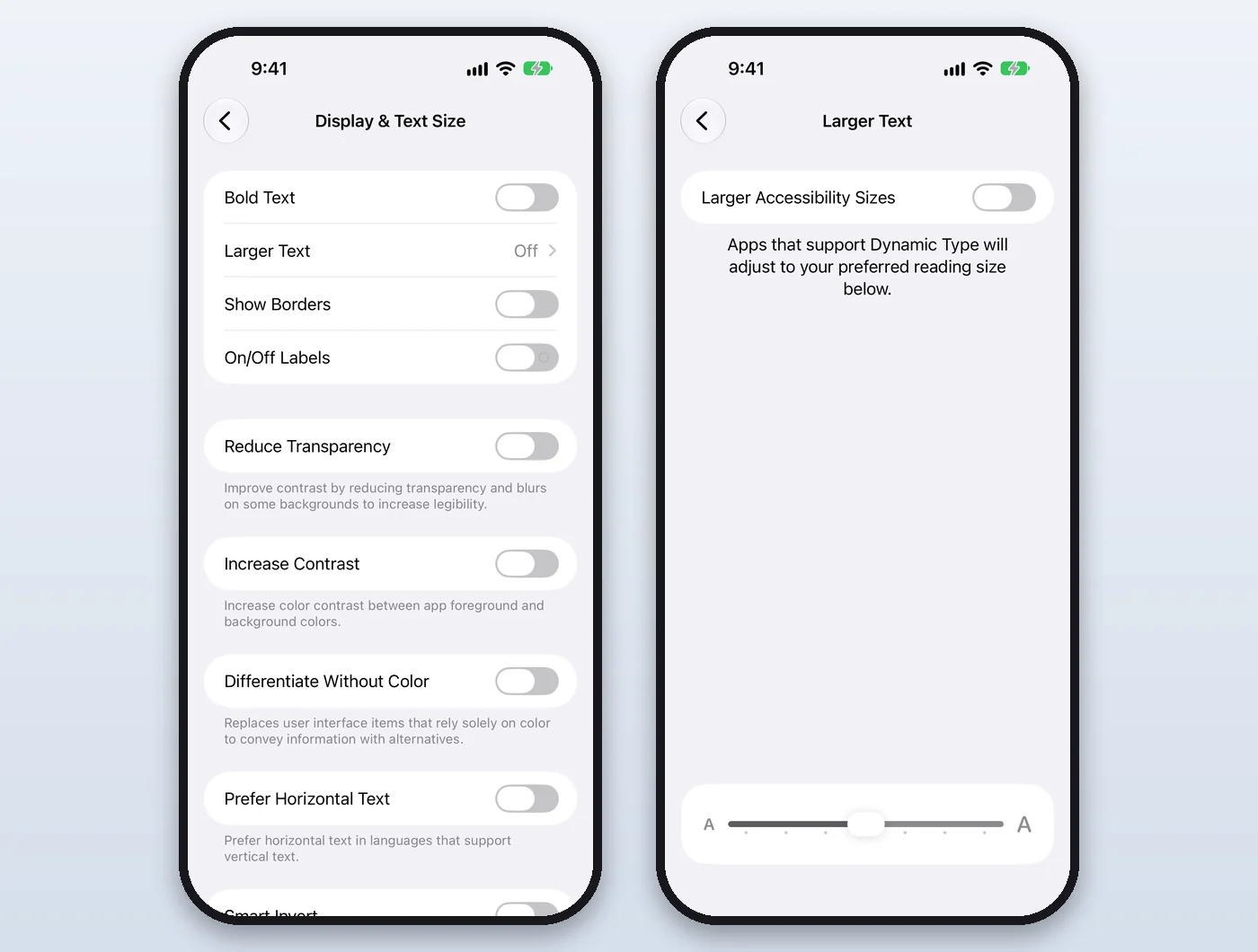
You can also reach it from the Text Size screen by tapping More in Accessibility Settings.
How to Zoom the Whole Display
Display Zoom makes icons, buttons and text bigger together.
- Go to Settings > Appearance > Display Zoom.
- Choose Larger Text.
- Tap the checkmark at the top right to apply it.
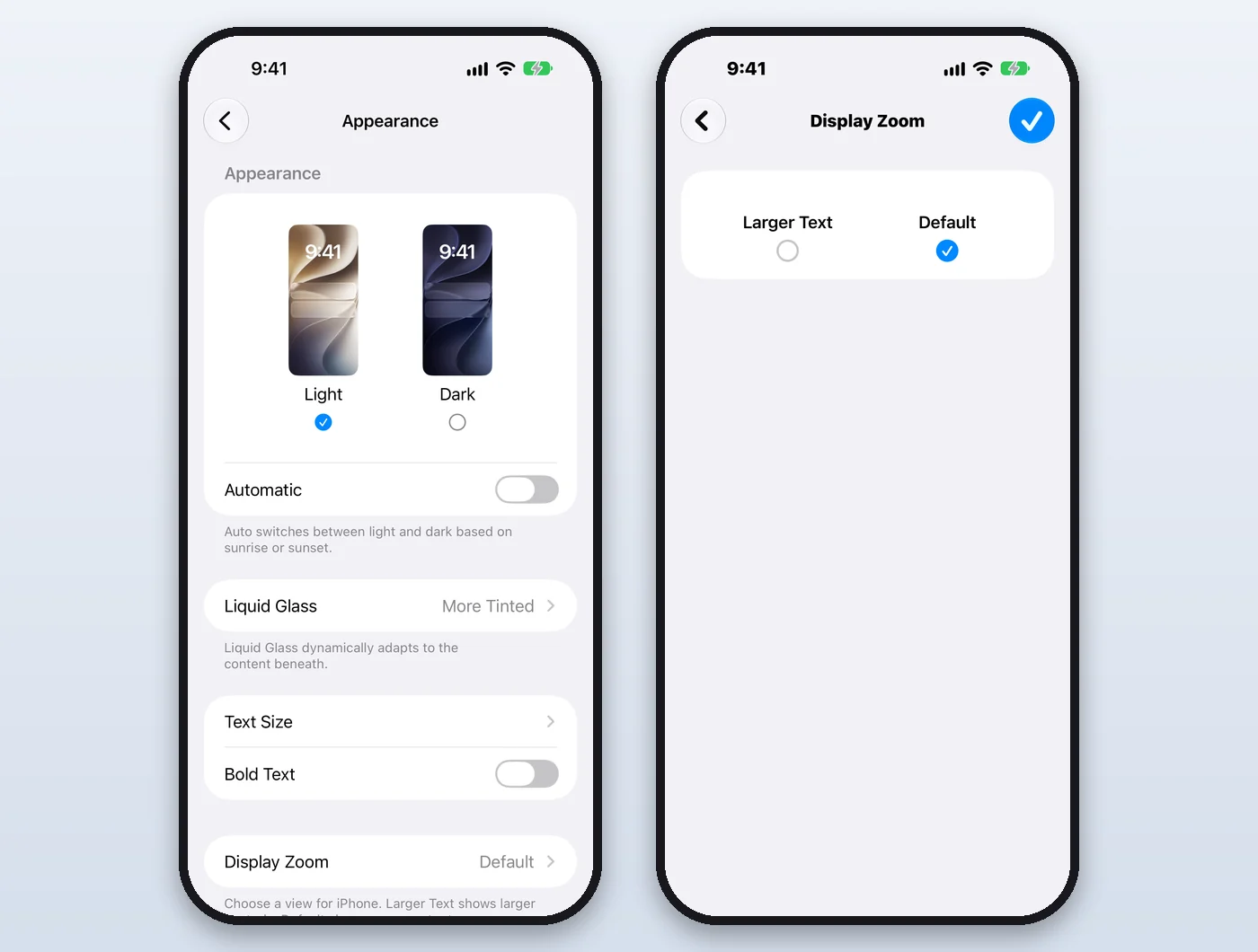
The Default option shows more content, and Larger Text shows larger controls.
Which One Should You Use?
- Text Size: start here. It changes only the text.
- Bold Text: helps when the size is fine but the letters look thin.
- Display Zoom: use it when buttons and icons are also too small.
- Larger Accessibility Sizes: for low vision or reading without glasses.
On iOS 26
On iOS 26, Text Size and Bold Text are reported to be in Settings > Display & Brightness. Use the Accessibility path for the largest sizes. Apple explains how text scaling works in its typography guidelines, and lists what’s new on its iOS 27 page.
Helping family this week? Use our Thanksgiving tech checklist. You may also like how to change the Messages audio button and how to set a louder alarm.
That’s all for now. Please do share your views and feedback in the comment box below.
FAQs
Where is Text Size in iOS 27?
It’s in Settings > Appearance > Text Size.
Why is the text not bigger in some apps?
Only apps that support Dynamic Type follow the Text Size setting. Try Display Zoom for other apps.
How do I make text even larger than the slider allows?
Turn on Larger Accessibility Sizes in Settings > Accessibility > Display & Text Size > Larger Text.
Screenshots: captured by TheTechHacker in the iOS 27.2 simulator (iPhone 18 Pro).
Disclosure: TheTechHacker has no paid relationship with Apple or any company mentioned here.
More in How-to
How to Change Liquid Glass From Clear to Tinted on iPhone in iOS 27
Liquid Glass changed the look of the iPhone in iOS 26. Buttons, search bars and menus became see-through, and they pick up whatever is behind them. Some people love the new design. Many others find text hard to read when a photo or a busy page sits behind a button. In iOS 26, later updates…
How to Let Important Calls Ring in iPhone Focus Mode
To let important calls ring on your iPhone while a Focus is on, open Settings > Focus, pick the Focus, tap People and add those contacts (or set Calls From to Favorites). For people who must always get through, even in Sleep or Silent mode, turn on Emergency Bypass in their contact card. Focus is…

How to Use ChatGPT Live Dictation on iPhone, Android and Desktop
ChatGPT’s dictation now types your words as you speak. OpenAI calls it Live Dictation, and its November 18, 2026 release notes say it’s “rolling out globally to all ChatGPT plans on iOS, Android, web, and the desktop app.” Before, you had to stop talking and wait for the whole recording to transcribe. OpenAI has also…
The week in tech, minus the noise.
New reviews, fixes and the stories that matter — once a week, straight to your inbox.
We only use your email to send the newsletter. Unsubscribe any time. See our privacy policy.
Comments