

How to Fix Pixel Always-On Display and Lock Screen Problems After the November Update
Google’s November update has been rough on some Pixel owners. Camera failures and wireless charging grabbed the headlines, but a third group of complaints is about the screen you look at most: the always-on display and lock screen. Owners report the notification shade staying on screen after locking instead of the always-on display, a notification…
Photo by Daniel Romero on Unsplash
Google’s November update has been rough on some Pixel owners. Camera failures and wireless charging grabbed the headlines, but a third group of complaints is about the screen you look at most: the always-on display and lock screen. Owners report the notification shade staying on screen after locking instead of the always-on display, a notification drawer that takes an extra swipe to close, a lock screen clock that won’t change, and a screen that still reacts to touches for a few seconds after you lock it.
Google hasn’t confirmed these as known bugs or given a fix date. Some of them can be worked around today, and a few turn out to be settings that are easy to miss. I’ll start with the quickest checks.
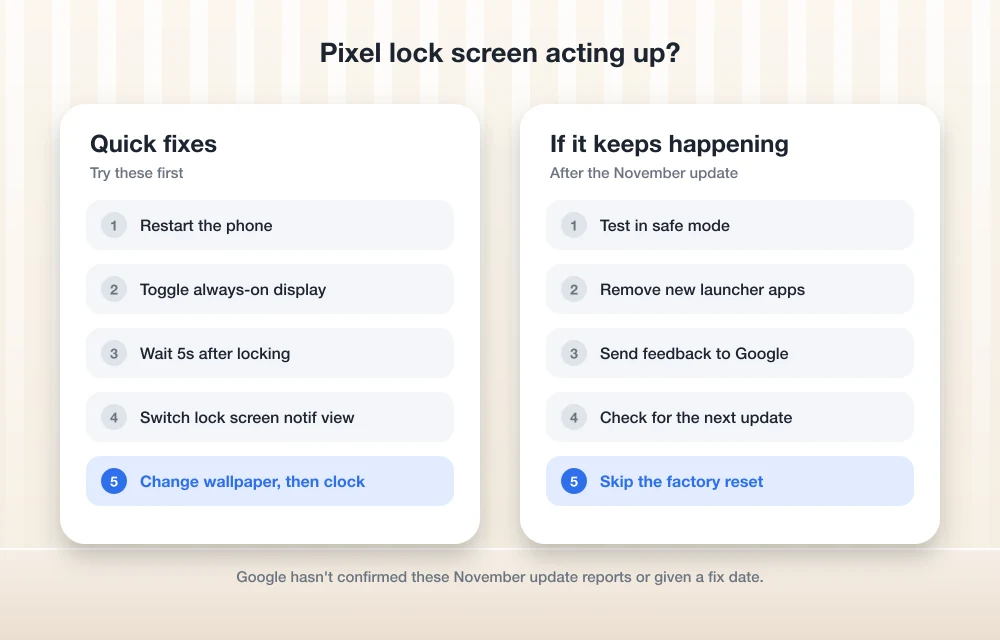
Quick answer: Restart your Pixel first, then check Settings > Display & touch > Always-on display and your lock screen notification settings. Lock the phone with the power button and wait about five seconds before putting it in your pocket, since owners report the screen still responds to touch briefly after locking. If the lock screen clock or notifications still misbehave, test in safe mode and install the next Pixel update as soon as it arrives.
What owners are reporting
| Symptom | What happens | Status |
|---|---|---|
| Notification shade stuck | The pulled-down shade stays visible after locking, in place of the always-on display | Reported, unconfirmed |
| Extra swipe to close | The notification drawer needs one more swipe than before to close | Reported, unconfirmed |
| Clock style locked | The lock screen clock style can’t be changed, even after a reboot | Reported on Pixel 10 Pro XL |
| Touches after locking | The screen responds to touch for a few seconds after locking | Reported, unconfirmed |
| Fold inner screen | The inner screen doesn’t wake on unfold until you press power | Reported on Pixel 9 Pro Fold |
These reports started after the November update that arrived with the November Pixel Drop. If your camera or charging is also acting up, see our guides to fixing the Pixel camera and fixing Pixel wireless charging after the same update.
1. Restart the phone
A lot of display glitches clear after a restart, especially right after a big update. Press and hold Power and Volume up, then tap Restart. If the notification shade gets stuck again later, a restart is the fastest way to get the always-on display back while you wait for a fix.
2. Check your always-on display settings
Updates sometimes change or reset display options. According to Google’s guide to Pixel screen and display settings, you turn the always-on display on or off in Settings > Display & touch. Turn it off, wait a few seconds, and turn it back on. On the Pixel 10 Pro and Pixel 10 Pro XL, the same menu also has an option to show your lock screen wallpaper on the always-on display, so check that it’s set the way you want.
3. Wait a few seconds before pocketing the phone
If your Pixel has been opening apps or calling people from your pocket, the reported cause is that the screen keeps accepting touches for a few seconds after you lock it, even with tap to wake turned off. Until Google fixes it, the workaround owners use is simple: press the power button, wait about five seconds, then put the phone away. A case with a lip over the screen also helps.
4. Review lock screen notification settings
If notifications look different or show up in the wrong place, check how they’re set to appear. Google’s guide to controlling notifications on Pixel covers the options, including whether notifications show on the lock screen, whether they appear as a compact view or a full list, and whether sensitive content is hidden. Open Settings > Notifications > Notifications on lock screen and switch the view to the other option and back. That resets how the lock screen draws notifications.
5. Reset the lock screen clock style
If the clock style won’t change, try picking a different wallpaper first. Long-press the home screen, tap Wallpaper & style, choose a new wallpaper, then go back and change the clock. Switching the wallpaper forces the lock screen to redraw, which sometimes unsticks the clock option. If it still won’t change after a restart, it’s likely the update bug, and you’ll need to wait for Google’s fix.
6. Test in safe mode
Lock screen apps, launchers and widgets from the Play Store can cause similar problems, so it’s worth ruling them out. Turn the phone off, press and hold Power to turn it on, and when the G logo appears, hold Volume down until “Safe mode” shows at the bottom of the screen. If the always-on display and notification shade behave normally there, restart to exit safe mode and remove recently installed apps one at a time.
7. Install the next update and send feedback
Bugs introduced by an update are usually fixed by the next one. Check Settings > System > Software updates regularly over the next few weeks. It also helps to report the problem: open Settings > About phone > Send feedback about this device and describe exactly what you see. I’d hold off on a factory reset, since owners say it hasn’t fixed other bugs from this update.
For a full rundown of what this release changed, see our November Pixel Drop report.
FAQs
Why is my Pixel notification shade staying on the lock screen?
Some Pixel owners have reported this since the November 2026 update. Google hasn’t confirmed the cause. Restarting the phone usually brings the always-on display back until it happens again.
Why does my Pixel respond to touches after locking?
Owners report the screen keeps accepting touches for a few seconds after locking since the November update. Wait about five seconds after pressing power before pocketing the phone.
How do I turn the always-on display back on?
Go to Settings > Display & touch and turn on the always-on display option. If it’s already on but not showing, turn it off and on again and restart the phone.
Has Google fixed the Pixel November update bugs?
Not yet. Google hasn’t announced a fix for the lock screen and always-on display reports. Watch Settings > System > Software updates for the next Pixel update.
Featured image: Daniel Romero on Unsplash.
Disclosure: TheTechHacker has no paid relationship with Google or any company mentioned here.
You might also like
How to Fix Pixel Camera Not Working After the November Update
If your Pixel’s camera opens to a black screen or a “Camera error” message since the November update, it’s not just you. Since November 13, Pixel 10 and Pixel 11 owners have reported the same thing, and for some of them it affects third-party camera apps too, not only Pixel Camera. Google hadn’t issued a…
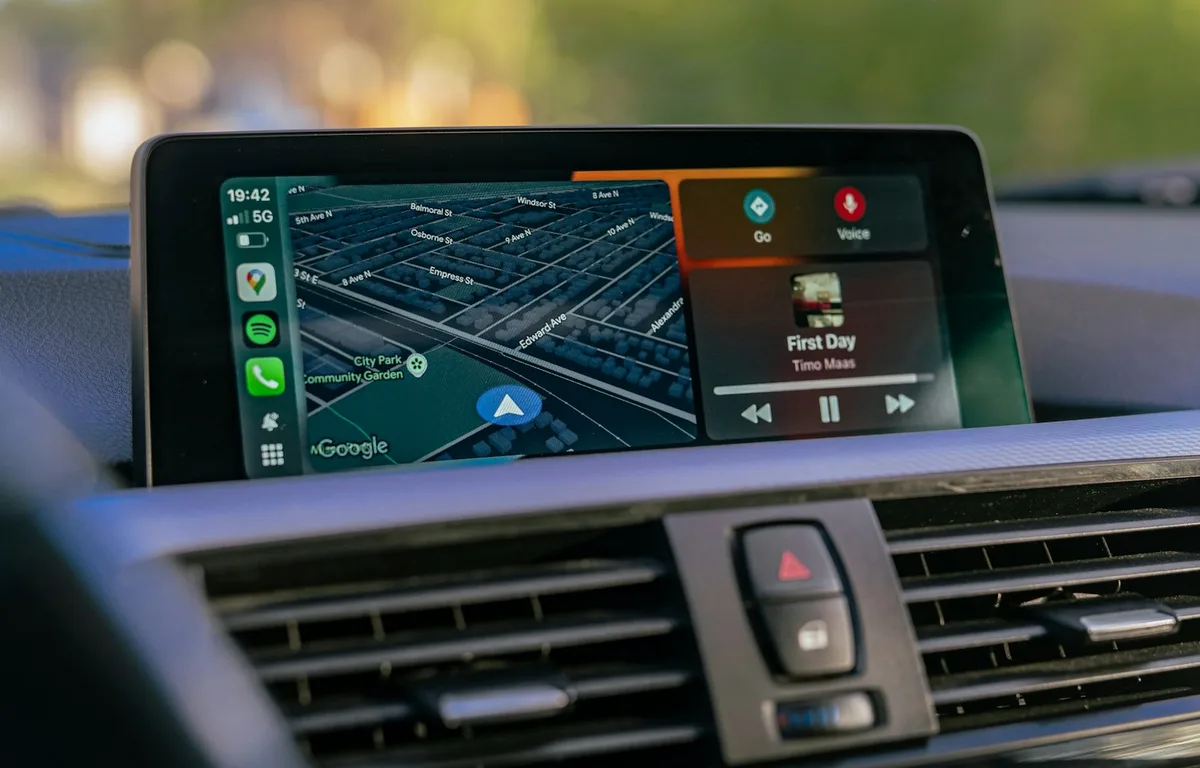
How to Fix Gemini Not Showing on Apple CarPlay: 8 Fixes That Work
Google started rolling out the Gemini app to Apple CarPlay on November 11, and plenty of iPhone owners got into their cars this week expecting a new icon that simply wasn’t there. If that’s you, the fix is usually quick. Google’s setup has a couple of steps that are easy to miss, and CarPlay itself…
How to Fix iPhone Siri Activating Randomly Without Saying “Hey Siri” on iOS 26
Has Siri started activating randomly on your iPhone after the iOS 26 update? You may suddenly see the Siri interface appear even though you did not say “Hey Siri” or intentionally touch the screen. Apart from being frustrating, unexpected Siri activation can interrupt your work, trigger unwanted actions, or create privacy concerns when the phone…
The week in tech, minus the noise.
New reviews, fixes and the stories that matter — once a week, straight to your inbox.
We only use your email to send the newsletter. Unsubscribe any time. See our privacy policy.
Comments