

How to Use Google Wallet on iPhone: What Works and What Doesn’t (No Tap to Pay)
Google Wallet is finally on the iPhone. Google launched the app for iOS users across the US on November 17, 2026, and it climbed into the top 20 of the App Store’s Utilities chart within a day. There is one big catch: you cannot use it to tap and pay at a store register. This…

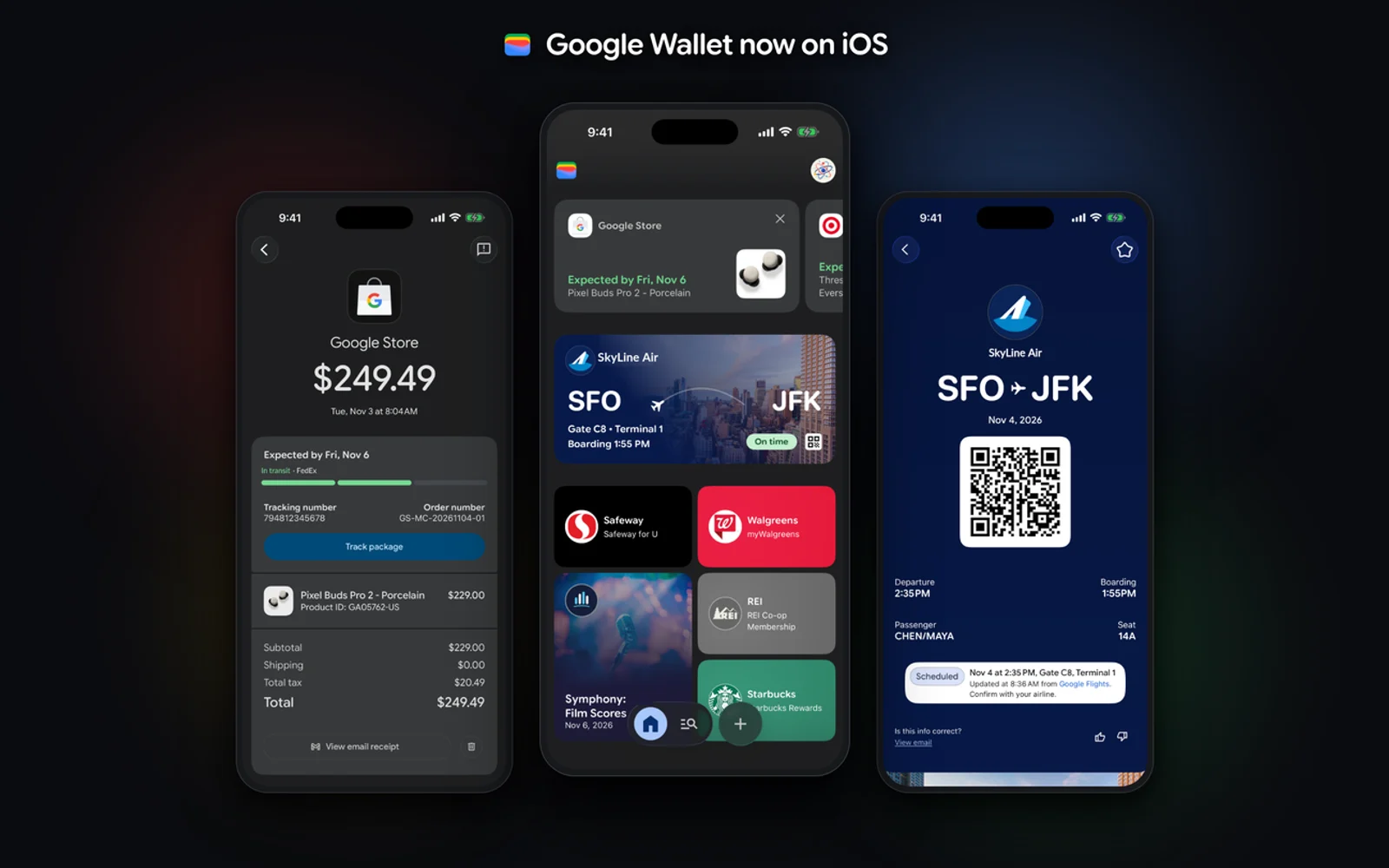
Image: Google
Google Wallet is finally on the iPhone. Google launched the app for iOS users across the US on November 17, 2026, and it climbed into the top 20 of the App Store’s Utilities chart within a day. There is one big catch: you cannot use it to tap and pay at a store register. This guide shows how to set it up and what it can and can’t do on an iPhone.
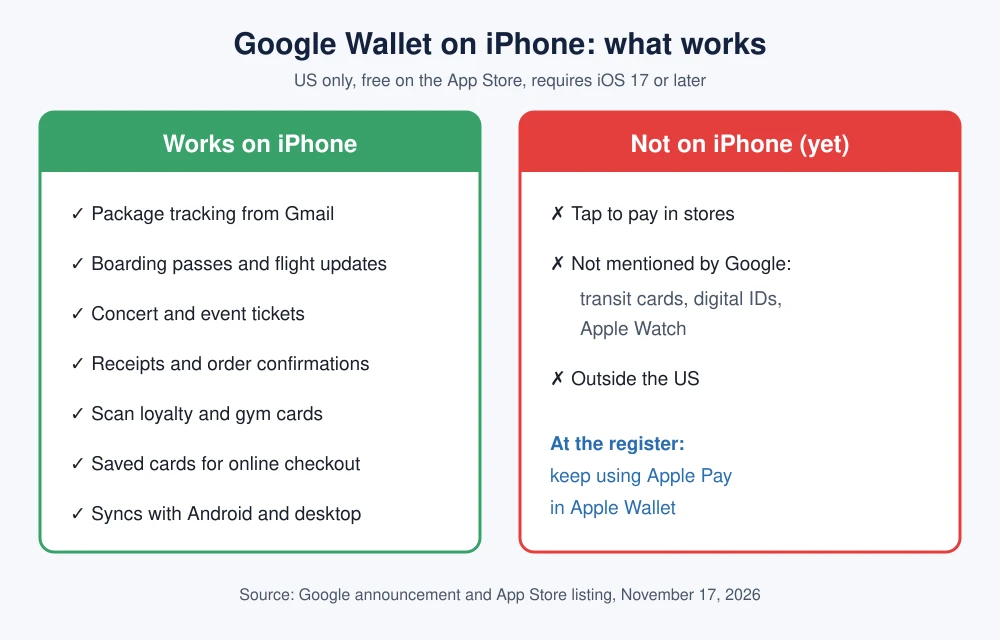
Quick answer: Download Google Wallet free from the App Store (iPhone only, iOS 17 or later, US only), sign in with your Google Account, and choose what it imports from Gmail. It then gathers your package tracking, boarding passes, event tickets and receipts in one place, lets you scan loyalty and gym cards with the camera, and stores payment cards for faster online checkout. Google says tap-to-pay isn’t supported on iOS at this time, so keep using Apple Pay at the register.
What Google Wallet does on iPhone
In its announcement, Google says Wallet on iOS automatically syncs with Gmail and other Google apps to keep these items in one place:
- Package tracking: Delivery updates from shopping emails, so you can check an order without opening the retailer’s app.
- Travel: Digital boarding passes and travel updates.
- Tickets: Concert and event tickets from your inbox.
- Receipts and orders: Order confirmations, receipts and delivery updates, including purchases made by Google’s AI agents.
- Loyalty and membership cards: Scan physical loyalty cards, gym memberships and barcode passes with your iPhone camera.
- Online checkout: Saved payment cards for faster checkout online, across Google and anywhere Google Pay is accepted.
Everything syncs across devices where you’re signed in to your Google Account, so a boarding pass that shows up on your Android tablet or desktop also appears on your iPhone.
How to set up Google Wallet on iPhone
- Check your iPhone. The App Store listing says the app requires iOS 17.0 or later and is designed for iPhone only (not iPad). Go to Settings, General, Software Update if you need to update.
- Download the app. Search for “Google Wallet” in the App Store, or open the Google Wallet listing. The developer should be Google LLC. The app is free and about 171 MB.
- Sign in with your Google Account. Use the account tied to the Gmail inbox that gets your order and travel emails.
- Choose what to import from Gmail. Google says you decide what Wallet imports from Gmail. Allow it to bring in orders, tickets and passes if you want automatic tracking.
- Add loyalty and gym cards. Use the add option and point your camera at the card’s barcode to save it.
- Add a payment card for online checkout. Cards already saved to your Google Account appear for checkout. You can manage them in the app.
If you use Gmail’s Purchases tab, Wallet builds on the same order data. See how Gmail’s Purchases tab tracks orders.
Can you tap to pay with Google Wallet on iPhone?
No. Google’s announcement and the App Store listing both say in-store tap-to-pay is not supported on iOS at this time. On iPhone, contactless payments at a register still go through Apple Pay in Apple Wallet. Google has not said whether tap-to-pay will come to iOS later.
Google’s announcement also doesn’t mention transit cards, digital IDs or Apple Watch support on iOS, so don’t count on those features yet. The app is only available in the US for now.
Google Wallet vs Apple Wallet on iPhone
| Feature | Google Wallet (iPhone) | Apple Wallet |
|---|---|---|
| Tap to pay in stores | No | Yes, with Apple Pay |
| Automatic package tracking from Gmail | Yes | No |
| Boarding passes and tickets | Yes, pulled from Gmail | Yes, added from apps and emails |
| Scan loyalty cards with camera | Yes | Limited, depends on the merchant |
| Syncs with Android devices | Yes | No |
| Online checkout | Google Pay | Apple Pay |
The best setup for most iPhone owners who live in Gmail is to use both: Google Wallet to keep orders, tickets and loyalty cards organized, and Apple Pay for paying in stores. If Apple Pay itself acts up, see our guide to fixing Apple services not working, and if your iPhone 18 Pro restarts at the register, read how to fix iPhone 18 Pro restarting during Apple Pay.
Is Google Wallet safe on iPhone?
Google says your order history, personal data and payment details are protected by Google’s security and privacy controls, and you choose what Wallet imports from Gmail. Download it only from the official App Store listing published by Google LLC, and turn on 2-Step Verification for your Google Account since the app relies on it.
FAQs
Is Google Wallet available on iPhone?
Yes. Google launched Google Wallet for iOS in the US on November 17, 2026. It is free on the App Store and requires iOS 17 or later.
Can I use Google Wallet to pay in stores with my iPhone?
No. Google says tap-to-pay isn’t supported on iOS at this time. Use Apple Pay for in-store contactless payments on iPhone.
What can Google Wallet do on iPhone?
It syncs with Gmail to organize package tracking, boarding passes, event tickets, receipts and orders, scans loyalty and gym cards with the camera, and stores payment cards for faster online checkout.
Is Google Wallet for iPhone available outside the US?
Not yet. Google’s announcement covers iOS users in the US only and does not mention other countries.
Featured image: Google.
Disclosure: TheTechHacker has no paid relationship with Google, Apple or any company mentioned here.
More in How-to
How to Fix Gemini Not Showing on Apple CarPlay: 8 Fixes That Work
Google started rolling out the Gemini app to Apple CarPlay on November 11, and plenty of iPhone owners got into their cars this week expecting a new icon that simply wasn’t there. If that’s you, the fix is usually quick. Google’s setup has a couple of steps that are easy to miss, and CarPlay itself…
How to Use a Google Home as an External Bluetooth Speaker?
Technology is becoming more and more user-friendly. You don’t need to buy on an expensive Bluetooth speaker just to boost your iPhone or iPad audio. If you already own a Google Home or Nest Mini, you’re sitting on a perfectly capable external speaker that can be paired with your device in minutes. Google Home wasn’t…
How to Fix Android Auto Not Connecting After the One UI 9 Update
Android Auto stopped working after your Galaxy phone got One UI 9? Here’s what Google said about its fix, how to make sure you get it, and the wired and wireless workarounds worth trying while you wait.
The week in tech, minus the noise.
New reviews, fixes and the stories that matter — once a week, straight to your inbox.
We only use your email to send the newsletter. Unsubscribe any time. See our privacy policy.
Comments